
SiriusXM SSV7V1
SiriusXM Stratus 7 Satellite Radio User Manual
Your guide to setting up, operating, and maintaining your SiriusXM Stratus 7 Satellite Radio with Vehicle Kit.
Product Overview
The SiriusXM Stratus 7 Satellite Radio is designed for intuitive use and easy installation, bringing a wide variety of satellite radio programming directly to your vehicle. This compact unit features a clear display and straightforward navigation, ensuring an enjoyable listening experience.
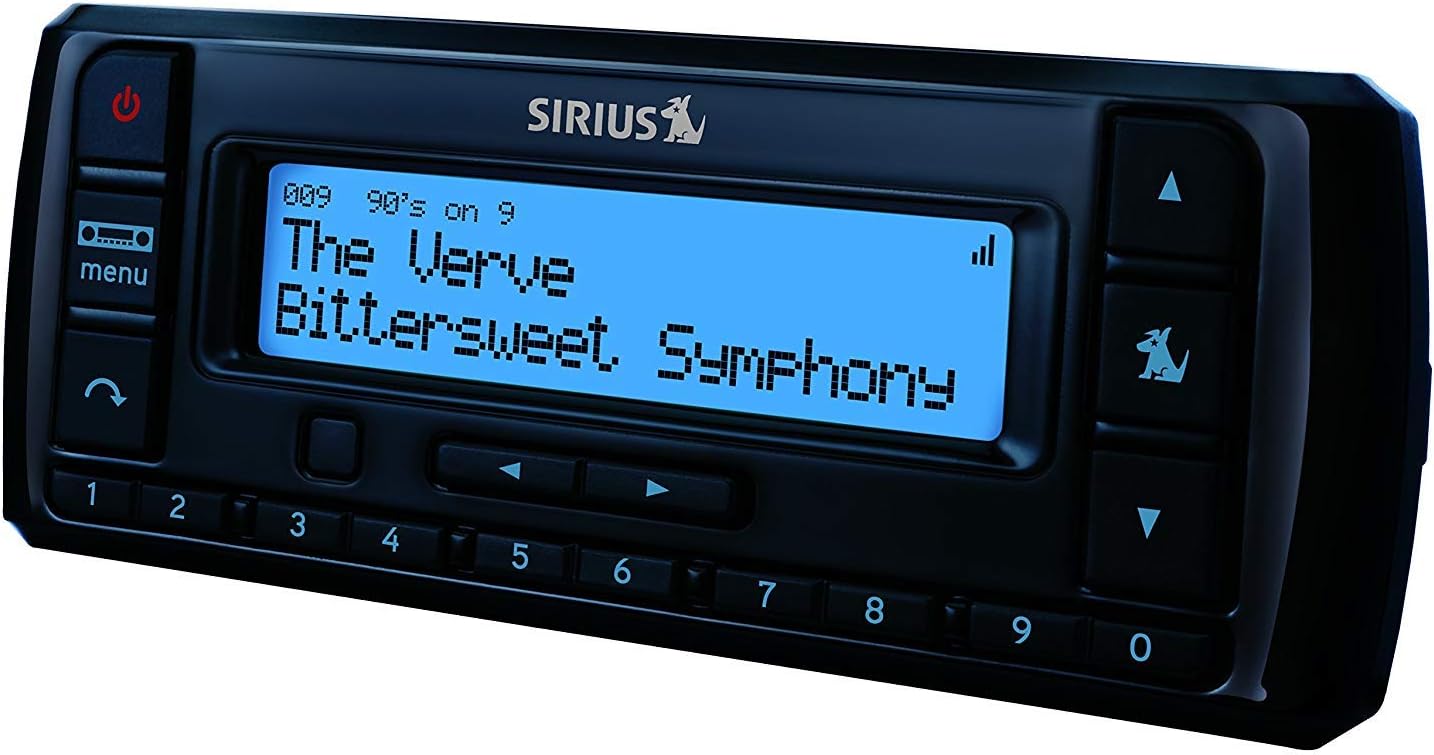
Front view of the SiriusXM Stratus 7 Satellite Radio, showing the display, control buttons, and preset numbers.
What's Included
Your SiriusXM Stratus 7 Satellite Radio with Vehicle Kit package includes:
- SiriusXM Stratus 7 Satellite Radio
- Vehicle Dock
- Magnetic Mount Antenna
- Power Adapter
- Auxiliary Cable
- User Guide (this document)
Setup Guide
Follow these steps for a successful installation of your Stratus 7 Satellite Radio in your vehicle:
- Choose a Mounting Location: Select a location in your vehicle that is easily accessible and does not obstruct your view or interfere with vehicle controls. Common locations include the dashboard or center console.
- Install the Vehicle Dock: Secure the vehicle dock using the provided mounting accessories. Ensure it is firmly attached.
- Connect the Antenna:
- Mount the magnetic antenna on the exterior of your vehicle, typically on the roof or trunk lid, ensuring it has a clear view of the sky.
- Route the antenna cable into the vehicle and connect it to the ANT jack on the vehicle dock.
- Connect Power: Plug the power adapter into your vehicle's accessory port (cigarette lighter) and connect the other end to the POWER jack on the vehicle dock.
- Connect to Vehicle Audio (Auxiliary):
- Connect one end of the auxiliary cable to the AUDIO OUT jack on the vehicle dock.
- Connect the other end to your vehicle's auxiliary input jack. Set your vehicle's audio system to the AUX input.
- Note: If your vehicle does not have an auxiliary input, an FM modulator (sold separately) may be required.
- Insert the Radio: Slide the Stratus 7 Satellite Radio into the vehicle dock until it clicks securely into place.
- Power On: Press the power button on the radio to turn it on.
- Activate Subscription: Tune to Channel 0 to display the Radio ID. You will need this ID to activate your SiriusXM subscription. Visit siriusxm.com/activate or call SiriusXM customer service to complete activation.

Image illustrating the 3 Months All Access Free with Subscription offer. Subscription is required for service.
Operating Instructions
The Stratus 7 is designed for straightforward operation:
- Power On/Off: Press the Power button (red circle with vertical line) on the top left of the unit.
- Navigation: Use the Up/Down arrow buttons on the right side to scroll through channels.
- Direct Tune: Use the numeric keypad (0-9) at the bottom to directly enter a channel number.
- Presets: The radio allows you to save up to 10 favorite channels.
- Tune to the desired channel.
- Press and hold one of the numeric preset buttons (1-0) until you hear a beep, indicating the channel is saved.
- To recall a preset, simply press the corresponding numeric button.
- Display Information: The blue LCD screen displays the artist name, song or program title, and channel information.
- One-Touch Jump: Use the "Jump" button (often labeled with a curved arrow or specific icon) to quickly switch to a pre-selected channel, such as traffic or weather updates. Refer to the on-screen prompts for specific Jump feature setup.
- Menu Button: Press the Menu button to access various settings and options, such as display brightness or audio settings. Use the arrow buttons to navigate and the Select button (center of arrow pad) to confirm.
Maintenance
To ensure the longevity and optimal performance of your SiriusXM Stratus 7 Satellite Radio:
- Cleaning: Use a soft, dry cloth to clean the radio and display. Avoid abrasive cleaners or solvents.
- Temperature: Do not expose the unit to extreme temperatures.
- Moisture: Keep the unit dry. Do not expose it to water or excessive humidity.
- Cable Management: Ensure all cables are securely connected and not pinched or tangled to prevent damage.
Troubleshooting
| Problem | Possible Cause | Solution |
|---|---|---|
| No Power | Power adapter not connected or vehicle accessory port is not active. | Check power connections. Ensure vehicle ignition is on if required for accessory port. Test power adapter in another vehicle or port if possible. |
| No Audio | Auxiliary cable not connected, incorrect audio input selected on vehicle radio, or volume too low. | Verify auxiliary cable connection. Select correct AUX input on vehicle radio. Increase volume on both the Stratus 7 and vehicle radio. |
| "Acquiring Signal" or "No Signal" message | Antenna not properly positioned, obstructed view of sky, or antenna cable issue. | Ensure antenna is mounted with a clear view of the sky (e.g., not under a garage, heavy tree cover, or in a tunnel). Check antenna cable for damage and ensure it's securely connected. |
| Subscription Not Active | Radio not activated or activation signal not received. | Ensure you have completed the subscription activation process. If activated, leave the radio on Channel 1 for up to an hour in an open area to receive the activation signal. Contact SiriusXM customer service if the issue persists. |
Specifications
- Model Number: SSV7V1
- Item Weight: 1.15 pounds
- Product Dimensions: 4.5 x 0.7 x 2.4 inches
- Display Type: LCD
- Connectivity Technology: Auxiliary
- Power Source: Corded Electric
- Radio Bands Supported: FM (for FM direct connection, if applicable)
- Manufacturer: Audiovox - Sirius
Warranty Information
The SiriusXM Stratus 7 Satellite Radio comes with a 90-day warranty from the date of purchase. Please retain your proof of purchase for warranty claims. This warranty covers defects in materials and workmanship under normal use. It does not cover damage resulting from misuse, accident, modification, or unauthorized repair.
Support
For further assistance, technical support, or subscription inquiries, please visit the official SiriusXM website or contact their customer service. You can find detailed support resources and contact information at:
Related documentsSSV7V1


Ask a question about this manual
Ask about setup, troubleshooting, compatibility, parts, safety, or missing instructions. Manuals+ will review the question and use this page’s manual context to help answer it.