
Introduction
This manual provides essential information for setting up, operating, and maintaining your Microsoft Xbox 360 E 250GB Console. Please read this guide thoroughly before using your console to ensure proper function and longevity.
Package Contents
Verify that your package contains the following items:
- Xbox 360 E 250GB Console
- Xbox 360 Wireless Controller (Black)
- Power Supply and Power Cord
- HDMI Cable
- AA Batteries for Wireless Controller
Console Overview
Familiarize yourself with the various ports and buttons on your Xbox 360 E console.

Image: Microsoft Xbox 360 E 250GB Console. This image displays the front and side view of the Xbox 360 E console, showing its compact design and disc drive slot.
Front Panel
- Power Button: Turns the console on or off.
- Disc Drive: Insert game discs or DVDs.
- USB Ports: Connect accessories like USB drives or wired controllers.
- Controller Connect Button: Used to wirelessly sync controllers.
Rear Panel
- Power Port: Connect the power supply.
- HDMI Port: Connect to a TV or monitor for high-definition video and audio.
- AV Port: For older composite or component cables (not included with all models).
- Ethernet Port: Connect to a wired network.
- USB Ports: Additional ports for accessories.
Wireless Controller Overview
The Xbox 360 Wireless Controller allows for intuitive gameplay. Familiarize yourself with its buttons and functions.
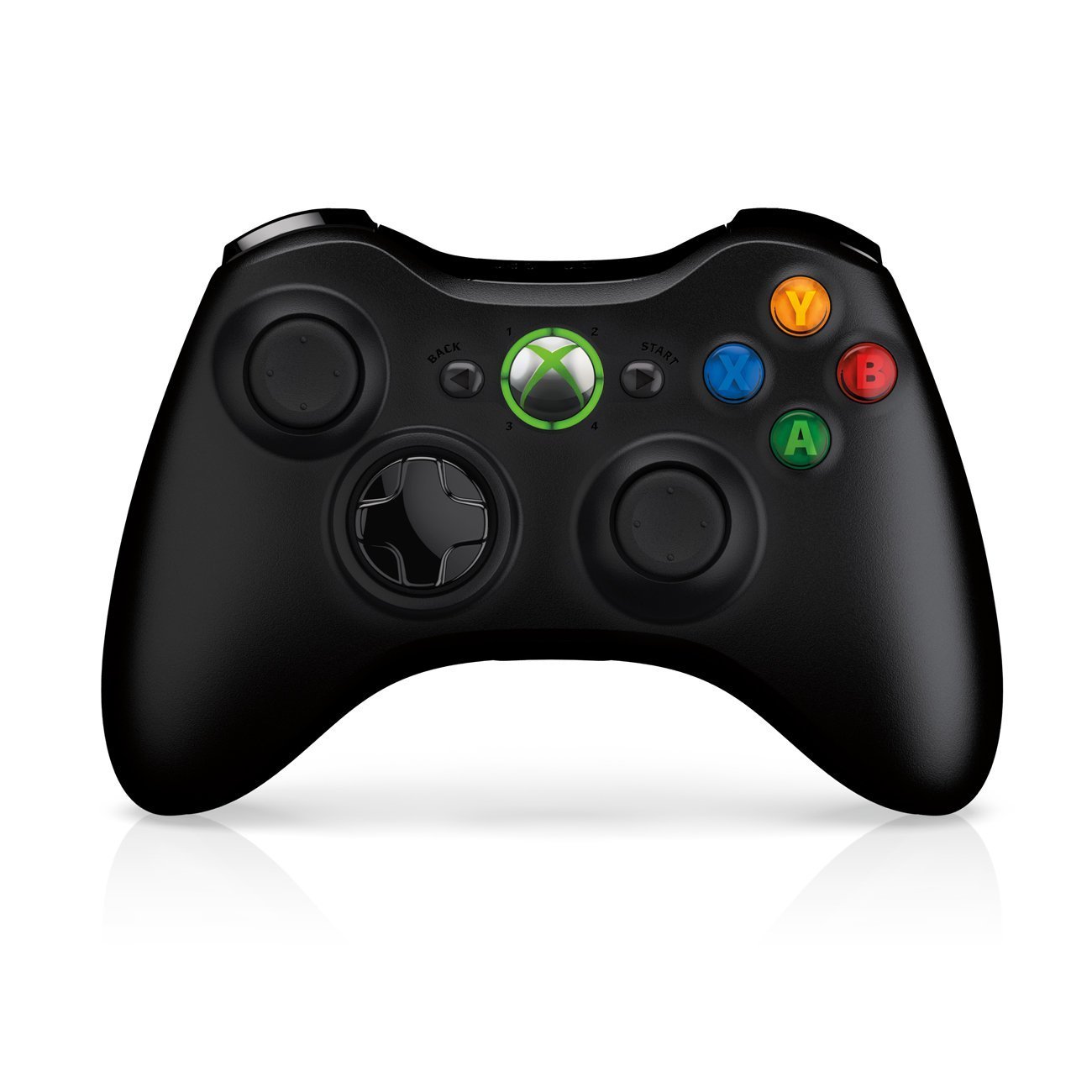
Image: Xbox 360 Wireless Controller. This image displays the front view of the black wireless controller, highlighting the D-pad, analog sticks, face buttons (A, B, X, Y), Guide button, Start button, and Back button.
Controller Buttons and Functions
- Left/Right Analog Sticks: For movement and camera control.
- D-Pad (Directional Pad): For menu navigation and specific game controls.
- A, B, X, Y Buttons: Primary action buttons, color-coded (Green A, Red B, Blue X, Yellow Y).
- Start Button: Pauses games or opens in-game menus.
- Back Button: Returns to previous screens or opens specific game functions.
- Guide Button (Xbox Logo): Powers on the console, accesses the Xbox Guide, or turns off the controller.
- Left/Right Bumpers (LB, RB): Shoulder buttons for various in-game actions.
- Left/Right Triggers (LT, RT): Analog triggers for precise control, often used for acceleration/braking or firing weapons.
Battery Installation
The wireless controller requires two AA batteries. To install:
- Press the tab on the top of the battery pack and pull down to remove it.
- Insert two AA batteries, ensuring correct polarity (+/-).
- Slide the battery pack back into the controller until it clicks into place.
Setup Guide
1. Connecting the Console
- Power Connection: Connect the power cord to the power supply, then connect the power supply to the console's power port. Plug the power cord into a wall outlet.
- Video/Audio Connection: Connect one end of the HDMI cable to the HDMI port on the back of your Xbox 360 E console. Connect the other end to an available HDMI input on your TV or monitor.
- Internet Connection (Optional): For wired internet, connect an Ethernet cable from your router/modem to the Ethernet port on the console. For wireless, the console has built-in Wi-Fi.
2. Connecting the Wireless Controller
- Ensure batteries are installed in the controller.
- Turn on the console by pressing the Power button on the console or the Guide button on the controller.
- Press and release the Connect button on the console (small button near the USB ports on the front).
- Within 20 seconds, press and release the Connect button on the controller (small button on the top edge, between the bumpers).
- The lights around the Guide button on the controller and the console will flash and then glow steadily, indicating a successful connection.
3. Initial Power On and System Settings
After connecting, turn on your console. Follow the on-screen prompts to:
- Select your language and region.
- Adjust display settings (resolution, aspect ratio).
- Set up your internet connection (wired or wireless).
- Create or sign in to an Xbox Live profile.
Operating Your Console
Playing Games and Media
- Turn on your console and TV.
- Open the disc tray by pressing the eject button on the console.
- Place a game disc or DVD/Blu-ray disc into the tray, label side up.
- Close the disc tray. The console should automatically start the game or media. If not, select it from the dashboard.
- Digital games can be launched directly from the Xbox Dashboard.
Connecting to Xbox Live
Xbox Live allows you to play online, download games and content, and access streaming services. Ensure your console is connected to the internet.
- From the Xbox Dashboard, navigate to the "Social" or "Settings" tab.
- Select "Join Xbox Live" or "Network Settings" to configure your connection and create/manage your profile.
- A 1-month Xbox LIVE Gold trial may be included with your console.
System Settings
Access system settings to customize your console experience:
- Display & Sound: Adjust resolution, audio output, and screen format.
- Storage: Manage your 250GB hard drive, view free space, and delete content.
- Network Settings: Configure wired or wireless internet connections.
- Family Settings: Set parental controls for content and online access.
Maintenance
Cleaning Your Console
- Always power off and unplug the console before cleaning.
- Use a soft, dry, lint-free cloth to wipe down the exterior of the console and controller.
- Do not use liquid cleaners, aerosols, or abrasive materials.
- Keep ventilation openings clear of dust and obstructions to ensure proper airflow.
Storage and Placement
- Place the console on a stable, flat surface.
- Ensure adequate ventilation around the console. Do not place it in an enclosed cabinet or on soft surfaces that can block vents.
- Avoid exposing the console to direct sunlight, excessive heat, or extreme cold.
Troubleshooting
If you encounter issues with your Xbox 360 E console, refer to the following common solutions:
No Power / Console Not Turning On
- Ensure the power cord is securely connected to the console, power supply, and wall outlet.
- Check the power supply unit (PSU) indicator light. If it's off or red, try a different outlet or contact support.
- Try a different power outlet.
No Video or Audio Output
- Verify the HDMI cable is securely connected to both the console and your TV/monitor.
- Ensure your TV/monitor is set to the correct HDMI input source.
- Try a different HDMI cable or a different HDMI port on your TV.
- Check your TV's volume and mute settings.
Disc Read Errors
- Ensure the disc is clean and free of scratches or smudges. Wipe gently with a soft cloth from the center outwards.
- Try a different game or movie disc to determine if the issue is with the disc or the console.
- Ensure the console is placed on a stable, flat surface and not being moved during disc operation.
Wireless Controller Not Connecting
- Ensure the controller has fresh batteries.
- Resync the controller by pressing the Connect buttons on both the console and controller as described in the "Setup Guide".
- Ensure there are no strong wireless interferences nearby.
For further assistance, please refer to the official Microsoft Xbox support website.
Specifications
| Feature | Detail |
|---|---|
| Model Number | M9V-00001 |
| Storage | 250 GB Hard Drive |
| Wireless Connectivity | Built-in Wi-Fi |
| Controller | 1 Black Wireless Controller |
| Region Code | NTSC |
| Product Dimensions | 12 x 6 x 24 inches |
| Item Weight | 10.32 pounds |
| Batteries Required | 2 AA batteries for controller |
| Release Date | June 1, 2013 |
Warranty Information
For detailed warranty information regarding your Microsoft Xbox 360 E 250GB Console, please refer to the warranty card included with your product or visit the official Microsoft Xbox support website. Warranty terms and conditions may vary by region and purchase date.
Support
If you require technical assistance, have questions about your console, or need to report an issue, please contact Microsoft Xbox Support:
- Online Support: Visit the official Xbox Support website for FAQs, troubleshooting guides, and contact options.
- Phone Support: Refer to your product packaging or the Xbox Support website for regional phone numbers.