
Introduction
Thank you for purchasing the Karaoke USA DV102 DVD/CDG/MP3G Karaoke Player. This manual provides essential information for setting up, operating, and maintaining your karaoke player. Please read it thoroughly before use to ensure proper function and to maximize your enjoyment of the product.
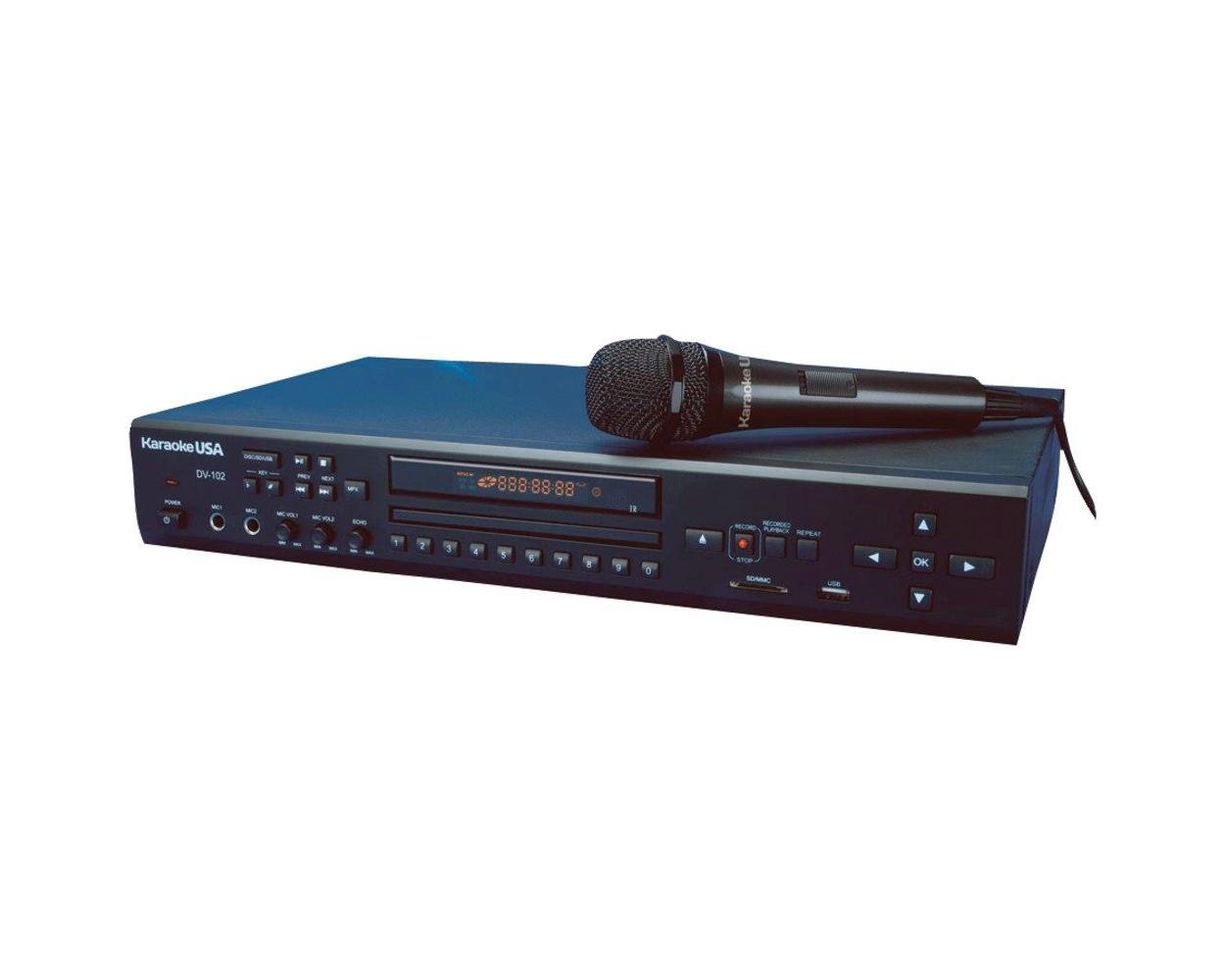
Image: Front view of the Karaoke USA DV102 player, showing disc tray, display, and control buttons.
Safety Information
To reduce the risk of electric shock, fire, or injury, always follow these basic safety precautions:
- Do not expose this appliance to rain or moisture.
- Do not remove the cover. Refer servicing to qualified personnel only.
- Ensure the power cord is not pinched or walked on.
- Unplug the unit during lightning storms or when unused for long periods.
- Do not block ventilation openings.
- Operate only from a 120VAC, 60Hz power source.
Package Contents
Please check that all items listed below are included in your package:
- Karaoke USA DV102 Karaoke Player Unit
- Microphone (1x)
- AC Power Adapter
- Audio/Video RCA Cable
- User Manual
Product Overview
Front Panel Controls

Image: Detailed view of the DV102 front panel, highlighting the disc tray, display, and control buttons such as Play, Pause, Stop, Skip, Menu, and Volume.
The front panel provides access to the disc tray, display screen, and primary control buttons for playback, navigation, and volume adjustments.
- Disc Tray: Insert DVD, CDG, or MP3G discs here.
- Display Screen: Shows track information, menu options, and lyrics (for CDG/MP3G).
- Navigation Buttons: Used to browse menus and select songs.
- Play/Pause/Stop: Standard playback controls.
- Volume Control: Adjusts the master output volume.
- Microphone Volume: Adjusts the volume of connected microphones.
- Echo Control: Adds an echo effect to the microphone audio.
- Key Control: Adjusts the musical key of the song without changing tempo (13 steps).
- USB/SD Slot: For connecting USB drives or SD cards for media playback and recording.
- Aux Input: Connect external audio devices (e.g., MP3 player).
Rear Panel Connections

Image: Detailed view of the DV102 rear panel, showing audio/video output ports and power input.
The rear panel houses the necessary ports for connecting the player to your TV and audio system.
- Audio Output (RCA L/R): Connect to your audio receiver or TV for sound.
- Video Output (RCA): Connect to your TV for video and lyrics display.
- AC Power Input: Connect the provided AC power adapter here.
Setup
1. Connecting to a TV and Audio System
- Ensure your TV and the DV102 player are turned off.
- Connect the yellow RCA video cable from the DV102's "Video Out" port to the "Video In" port on your TV.
- Connect the red and white RCA audio cables from the DV102's "Audio Out (L/R)" ports to the "Audio In (L/R)" ports on your TV or audio receiver.
- If using an external audio system (e.g., home theater receiver), connect the audio cables directly to the receiver's audio input.
2. Connecting the Microphone
- Plug the microphone cable into one of the microphone input jacks on the front panel of the DV102. The unit supports two microphones (one included).
3. Power Connection
- Connect the AC power adapter to the "AC Power Input" on the rear panel of the DV102.
- Plug the other end of the adapter into a standard 120VAC, 60Hz wall outlet.
Operating Instructions
Powering On/Off
- Press the POWER button on the front panel to turn the unit on or off.
Playing Discs (DVD/CDG/MP3G)
- Press the OPEN/CLOSE button to open the disc tray.
- Place a DVD, CDG, or MP3G disc gently into the tray with the label side facing up.
- Press OPEN/CLOSE again to close the tray. The player will automatically begin reading the disc.
- Use the PLAY/PAUSE, STOP, and SKIP buttons for playback control.
- For CDG/MP3G discs, lyrics will display on the connected TV screen.
USB/SD Card Playback
- Insert a USB flash drive or SD card into the corresponding slot on the front panel.
- The player will detect the media and display a menu. Use the navigation buttons to select files (MP3G, MP3, etc.).
- Press PLAY to start playback.
Recording MP3G Music and Voice
The DV102 allows you to record your karaoke performances (music and voice) to a connected USB drive or SD card.
- Ensure a USB drive or SD card is inserted.
- Start playing an MP3G track.
- Press the RECORD button (refer to front panel diagram for location).
- Sing into the microphone. Your voice will be mixed with the music and recorded.
- Press STOP to end the recording. The recorded file will be saved to your USB/SD media.
Digital Echo Control
- Rotate the ECHO knob on the front panel to add or reduce the echo effect on your microphone's sound.
13-Step Key Control
- Use the KEY+ and KEY- buttons to adjust the musical key of the song up or down by half-steps, allowing you to match your vocal range.
On-Screen Song Search
- When a disc or USB/SD media is loaded, use the MENU button and navigation controls to access the on-screen song search function. Follow the prompts to find specific tracks.
Auxiliary Input
- Connect an external audio device (e.g., smartphone, MP3 player) to the AUX IN jack using a 3.5mm audio cable.
- Select the AUX input mode on the player (if applicable, refer to on-screen menu).
- Audio from the external device will play through the DV102's output.
Maintenance
Cleaning the Unit
- Wipe the exterior of the player with a soft, dry cloth.
- Do not use liquid cleaners or aerosol sprays.
Disc Handling
- Always hold discs by their edges.
- Keep discs clean and free from scratches. Use a soft, lint-free cloth to wipe from the center outwards if cleaning is necessary.
Troubleshooting
| Problem | Possible Cause / Solution |
|---|---|
| No power |
|
| No sound output |
|
| No video/lyrics on TV |
|
| Microphone volume is too low |
|
| Humming noise from speakers |
|
Specifications
| Feature | Detail |
|---|---|
| Model Number | DV102 |
| Brand | Karaoke USA |
| Media Type | DVD, CDG, MP3G, SD Card, USB |
| Connectivity Technology | Auxiliary, USB |
| Connector Type | 3.5 mm Jack (Aux), RCA (Audio/Video) |
| Power Source | 120VAC, 60Hz (via AC adapter) |
| Item Weight | 5.3 Pounds (approx.) |
| Manufacturer | Emerson Karaoke |
Warranty and Support
This Karaoke USA DV102 player comes with a 90-day warranty from the date of purchase. Please retain your proof of purchase for warranty claims.
For technical support, service, or warranty inquiries, please contact Karaoke USA customer service. Contact information can typically be found on the manufacturer's website or included documentation.
Manufacturer: Emerson Karaoke


