
1. Introduction
The Topaz SignatureGem LCD 4x3 T-LBK755-BHSB-R is an advanced electronic signature capture pad designed for secure and efficient digital signature collection. It features a backlit transflective LCD that displays electronic ink under the pen tip during signing, providing a natural signing experience. This device supports both Serial and USB connectivity, offering flexibility for various system integrations. Bundled software APIs facilitate interactive text, graphics, and customizable hot spots, enabling users to navigate screens, review agreements, and select options before signing.
2. Package Contents
Verify that all items listed below are included in your package:
- T-LBK755 Model Series SignatureGem LCD 4x3 Electronic Signature Pad
- Stylus Pen
- USB Cable
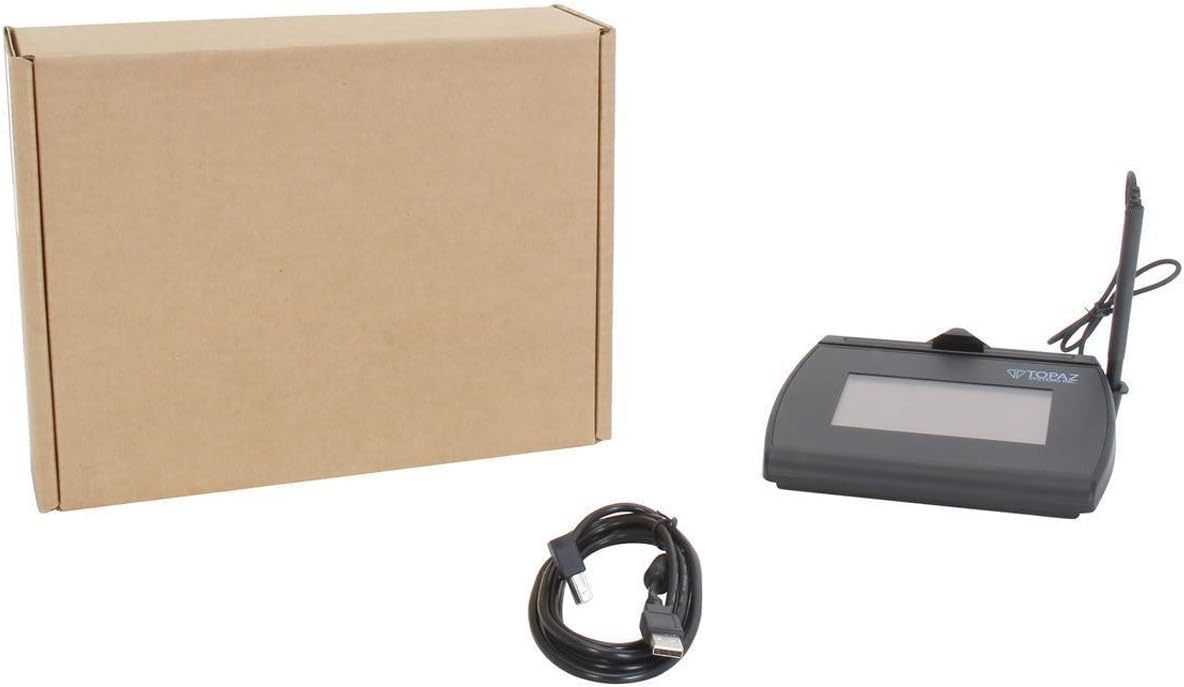
Image: Contents of the Topaz SignatureGem LCD 4x3 package, including the signature pad, stylus, and USB cable.
3. Setup
3.1 Connecting the Signature Pad
- Connect the stylus pen to the signature pad's tether port.
- Identify the appropriate port on your computer: USB or Serial (DB9).
- Connect the signature pad to your computer using the provided USB cable or a compatible serial cable (sold separately for serial connection).

Image: Rear view of the Topaz SignatureGem LCD 4x3, highlighting the USB and Serial (DB9) connection ports.
3.2 Driver and Software Installation
For the signature pad to function correctly, you must install the necessary drivers and software. The Topaz software suite is bundled at no additional cost and provides tools for signing and signature solution customization. Please visit the official Topaz Systems website to download the latest drivers and software compatible with your operating system (Windows is supported).
- Navigate to the Topaz Systems support page.
- Locate and download the drivers for the T-LBK755-BHSB-R model.
- Follow the on-screen instructions to complete the installation.
- Install any additional Topaz software applications required for your specific use case.
4. Operating Instructions
4.1 Basic Signature Capture
Once the drivers and software are installed, the signature pad is ready for use. When prompted by your application, sign directly on the LCD screen using the provided stylus pen. The LCD will display your signature in real-time as 'electronic ink'.

Image: Front view of the Topaz SignatureGem LCD 4x3 Electronic Signature Pad, showing the signing surface.
4.2 Interactive Features
The SignatureGem LCD 4x3 supports interactive features through compatible software. This allows for:
- Text Display: Important information or agreements can be displayed directly on the LCD for review.
- Graphics: Custom graphics or logos can be shown on the screen.
- Pen-Tap Hot Spots and Check Boxes: Users can interact with the displayed content by tapping on specific areas or checking boxes with the stylus to navigate screens or confirm options before signing.
Refer to your specific application's documentation for details on utilizing these interactive capabilities.
5. Maintenance
5.1 Cleaning the Signature Pad
To ensure optimal performance and longevity, keep the signature pad clean:
- Use a soft, lint-free cloth slightly dampened with water or a mild, non-abrasive cleaner.
- Do not use harsh chemicals, solvents, or abrasive materials, as these can damage the LCD surface.
- Avoid spraying cleaning solutions directly onto the pad. Apply to the cloth first.
5.2 Stylus Care
The stylus is a critical component. Handle it with care:
- Ensure the stylus tip is clean and free of debris.
- Avoid dropping the stylus or applying excessive force to the tip.
- Keep the stylus tethered to the pad when not in use to prevent loss.
6. Troubleshooting
This section addresses common issues you might encounter with your SignatureGem LCD 4x3.
- No Signature Appears on Screen:
- Ensure the pad is correctly connected to the computer (USB or Serial).
- Verify that the drivers are installed correctly. Reinstall if necessary.
- Check if the signature capture application is running and configured to use the Topaz pad.
- Test with a different USB port or serial port if available.
- Pen Feels Scratchy on Screen:
- Inspect the stylus tip for wear or damage. Replace if needed.
- Ensure the screen surface is clean and free of dust or debris.
- Pad Not Recognized by Computer:
- Disconnect and reconnect the USB/Serial cable.
- Restart your computer.
- Check Device Manager (Windows) to see if the device is listed without errors.
- Ensure the correct drivers for your operating system are installed.
- LCD Display Not Working:
- Verify power connection (via USB or external power if applicable).
- Ensure the pad is recognized by the computer and software.
- Contact Topaz support if the issue persists after driver reinstallation and connection checks.
For further assistance, refer to the Topaz Systems support website or contact their customer service.
7. Specifications
| Feature | Detail |
|---|---|
| Brand | TOPAZ |
| Model Name | T-LBK755BHSB |
| Item Model Number | T-LBK755-BHSB-R |
| Operating System Compatibility | Windows |
| Hardware Interface | USB, Serial |
| Item Weight | 1 pounds |
| Product Dimensions (LxWxH) | 12.1 x 9.3 x 4 inches |
| Display Type | Backlit Transflective LCD |
| Signature Capture | Biometric and forensic quality |
8. Warranty and Support
Topaz Systems products typically come with a manufacturer's warranty covering defects in materials and workmanship. For specific warranty terms, duration, and conditions applicable to your SignatureGem LCD 4x3 T-LBK755-BHSB-R, please refer to the documentation included with your product or visit the official Topaz Systems website.
For technical support, driver downloads, software updates, or to report an issue, please visit the Topaz Systems support portal or contact their customer service department directly. Contact information can usually be found on their official website.
Online Resources:
- Topaz Systems Official Website: www.topazsystems.com
- Support and Downloads: Refer to the support section on the official website.


