
Product Overview

The VSTARCAM T7838WIP is a 720P HD WiFi IP Camera designed for surveillance. It features a 1/4 inch 720p progressive scan CMOS sensor, H.264 video compression, and supports both wired and wireless connectivity. The camera offers pan and tilt functionality, infrared night vision, and motion detection capabilities.
Key features include:
- 720P HD Resolution: Captures clear video at 1280x720 pixels.
- Pan and Tilt: Horizontal rotation of 350° and vertical tilt of 120° for wide area coverage.
- Infrared Night Vision: Equipped with 12 IR LEDs for clear imaging up to 10 meters in low light conditions.
- Motion Detection: Triggers alarms and can send images or upload video via email/FTP upon detecting movement.
- Two-Way Audio: Built-in microphone and audio output for monitoring and intercom functionality.
- SD Card Storage: Supports up to 32GB Micro SD card for local video recording.
- Multi-User Access: Allows up to 4 users to simultaneously view the camera feed online.
- Plug & Play (P2P): Simplified setup for quick installation and remote access via mobile phones and PC clients.
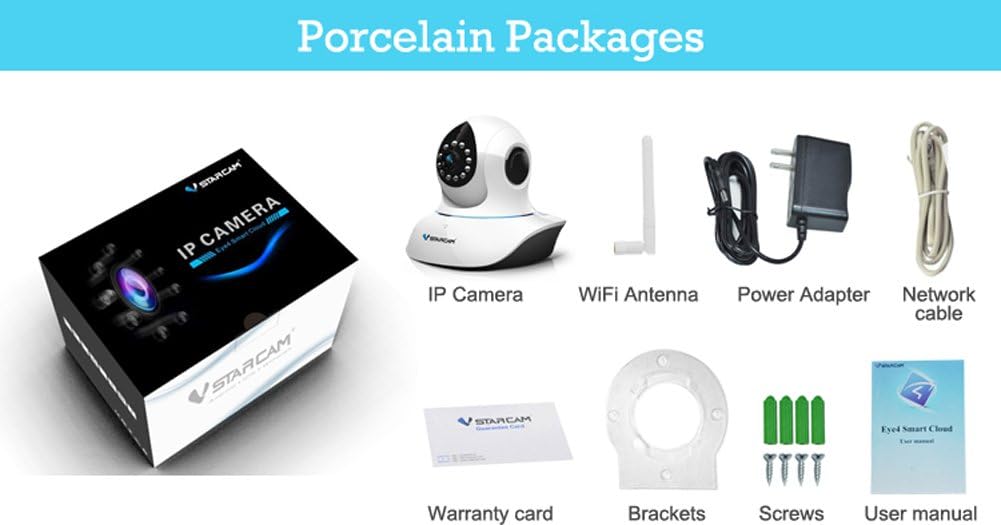
Package Contents
Verify that all items are present in the package before proceeding with installation.
- VSTARCAM T7838WIP IP Camera x1
- Power Adapter x1
- WiFi Antenna x1
- Bracket & Screws x1 set
- User Manual x1
- Internet Cable (RJ45) x1
- CD (Software) x1
- Warranty Card x1
Camera Components
Familiarize yourself with the various parts and connections of the VSTARCAM T7838WIP IP Camera.

- LDR: Light Dependent Resistor for automatic IR-CUT filter switching.
- 4.2mm HD Lens: Main camera lens.
- LED Light: Infrared LEDs for night vision.
- Microphone: For audio input and two-way communication.
- Antenna: For Wi-Fi connectivity.
- Reset Button: Used to restore factory settings.
- Audio In/Out: Ports for external audio devices.
- Power: DC 5V power input.
- TF Card Slot: For Micro SD card storage (up to 32GB).
- LAN: RJ45 Ethernet port for wired network connection.
- WPS: Wi-Fi Protected Setup button for easy wireless connection.
Setup Instructions
1. Initial Connection
- Connect Power: Plug the power adapter into the camera's DC 5V input port and then into a power outlet.
- Attach Antenna: Screw the WiFi antenna securely into the antenna port on the back of the camera.
- Wired Network (Optional): For initial setup or a stable connection, connect an Ethernet cable from your router to the camera's LAN port.
- Insert SD Card (Optional): If local storage is desired, insert a Micro SD card (up to 32GB) into the TF card slot. Ensure the camera is powered off before inserting or removing the card.

2. Software Installation and Camera Addition
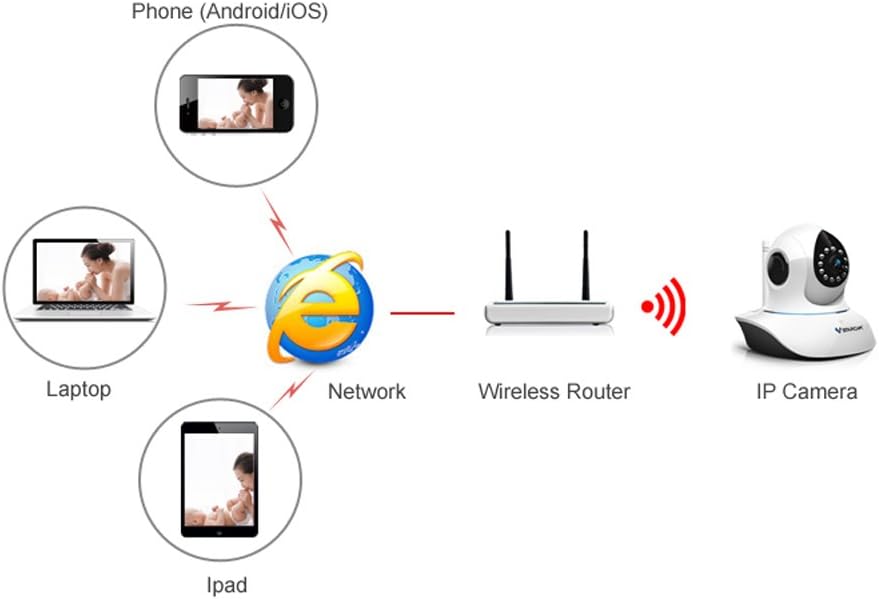
The camera utilizes Plug & Play (P2P) technology for simplified setup.
- Install Software: Insert the provided CD into your computer's CD drive and install the VSTARCAM client software. Alternatively, download the official VSTARCAM app for your smartphone (Android/iOS).
- Add Camera:
- For PC Software: Launch the software. Follow the on-screen instructions to add a new camera. You may need to scan a QR code located on the camera or manually enter the camera's ID.
- For Mobile App: Open the app. Select "Add Camera" and choose the option to scan the QR code on the camera. Ensure your phone is connected to the same Wi-Fi network as the camera (if setting up wirelessly).
- Network Configuration: If using Wi-Fi, the software/app will guide you through connecting the camera to your wireless network. You can also use the WPS button on the camera and your router for a quick connection if supported.
Operating Instructions
1. Live View and Control
Once the camera is added to your software or app, you can access the live video feed.
- Pan and Tilt: Use the directional controls within the software/app to remotely rotate the camera horizontally (350°) and tilt it vertically (120°).
- Preset Positions: Set up to 15 preset positions for quick navigation to specific viewing angles.
- Two-Way Audio: Utilize the microphone and speaker icons in the app/software to listen to the camera's environment or speak through the camera.
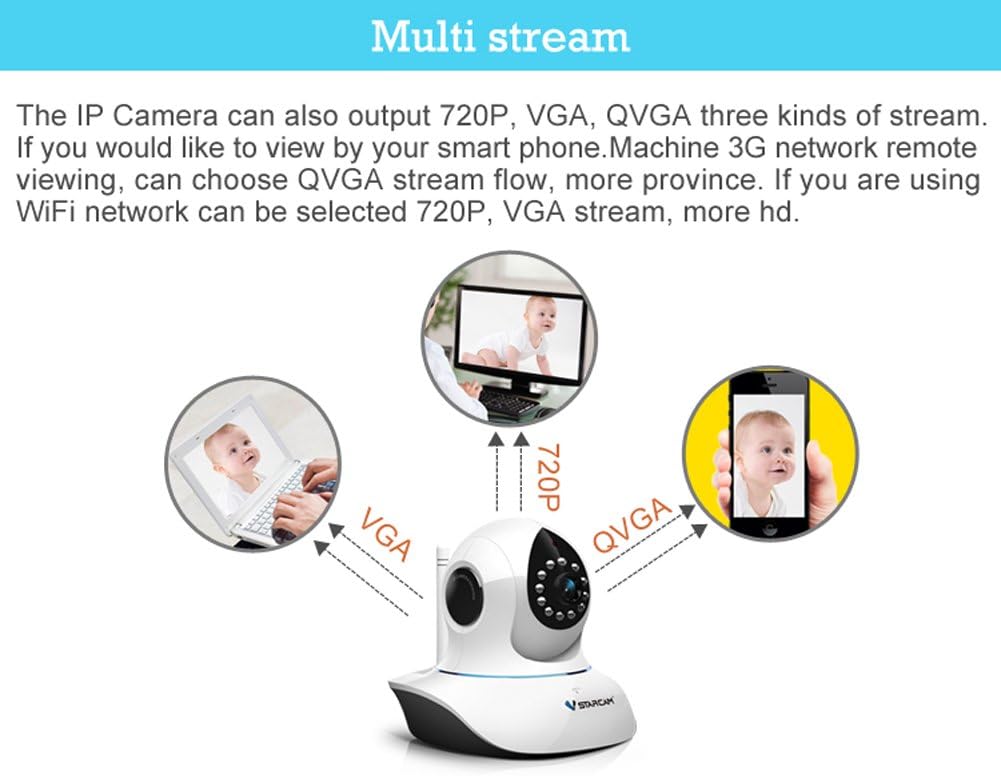
- Resolution Selection: The camera supports multiple video streams: 720P, VGA (640x480), and QVGA (320x240). Select the appropriate resolution based on your network bandwidth and viewing device.
2. Recording and Storage
- Micro SD Card: Videos can be recorded directly to an inserted Micro SD card (up to 32GB). Configure recording settings (e.g., continuous, scheduled, motion-triggered) in the camera software/app.
- PC/NVR Recording: The camera can also record to a connected PC running the VSTARCAM software or to a Network Video Recorder (NVR) if compatible.
3. Motion Detection and Alarms
Configure motion detection settings to receive alerts and trigger actions.
- Enable Motion Detection: Activate motion detection in the camera settings. Adjust sensitivity levels as needed.
- Alarm Actions: Set up actions to occur when motion is detected, such as:
- Sending email notifications with images.
- Uploading video clips to an FTP server.
- Triggering an external alarm output (if connected).
Maintenance
- Cleaning: Gently wipe the camera lens and exterior with a soft, dry cloth. Avoid using harsh chemicals or abrasive materials.
- Firmware Updates: Periodically check the VSTARCAM official website or app for available firmware updates to ensure optimal performance and security. Follow the provided instructions carefully when updating firmware.
- Power Cycle: If the camera experiences issues, try disconnecting the power adapter for a few seconds and then reconnecting it.
- Reset to Factory Settings: If persistent issues occur, use the reset button (refer to "Camera Components" section) to restore the camera to its factory default settings. Note that this will erase all custom configurations.
Troubleshooting
- Camera Not Connecting to Network:
- Ensure the camera is powered on and the network cable (if wired) is securely connected.
- Verify your Wi-Fi password is correct and the camera is within range of your router.
- Try restarting your router and the camera.
- If using Wi-Fi, ensure your router's Wi-Fi channel is not congested.
- No Video Feed:
- Check network connectivity as above.
- Ensure the camera is properly added to your viewing software/app.
- Verify that the camera's power indicator light is on.
- Poor Video Quality:
- Check your internet connection speed.
- Select a lower resolution (VGA or QVGA) in the app/software settings.
- Ensure the camera lens is clean and free from obstructions.
- Motion Detection Not Working:
- Verify that motion detection is enabled in the camera settings.
- Adjust the motion detection sensitivity.
- Ensure the camera's field of view is clear and not obstructed.
- Cannot Access SD Card Recordings:
- Ensure the Micro SD card is correctly inserted and formatted (usually FAT32).
- Check recording schedules and settings in the app/software.
- Verify the SD card is not full.
Specifications
| Feature | Detail |
|---|---|
| Model Number | WIP 7838 |
| Image Sensor | 1/4 inch 720p progressive scan CMOS sensor |
| Resolution | 720p (1280x720), VGA (640x480), QVGA (320x240) |
| Frame Rate | Up to 30 fps |
| Lens | 4.2mm HD lens |
| Pan/Tilt Range | Horizontal 350°, Tilt 120° |
| Night Vision | 12 IR LEDs, IR Distance: 10 m, Built-in IR-CUT dual filter |
| Connectivity | Wi-Fi (802.11b/g/n), Ethernet (RJ45 10Mbps/100Mbps) |
| Network Protocols | TCP/IP, HTTP, TCP, UDP, SMTP, FTP, DHCP, DNS, DDNS, NTP, UPnP, PPPoE, P2P, etc. |
| Storage | Supports up to 32GB Micro SD card |
| Audio | Built-in microphone, Audio In/Out ports |
| Security | Three user rights management |
| Online Users | 4 users simultaneously |
| Power Supply | DC 5V ± 0.3V |
| Power Consumption | 3.5W (IR ON) / Max 7W (PTZ open) |
| Operating Temperature | -10 ~ 50 ℃ |
| Operating Humidity | <90% |
| Dimensions | 8.2 x 6 x 5.4 inches (approximate) |
Warranty and Support
Warranty Information
Please refer to the warranty card included in your product package for detailed warranty terms and conditions. The warranty typically covers manufacturing defects for a specified period from the date of purchase.
Customer Support
For technical assistance, troubleshooting, or warranty claims, please contact VSTARCAM customer support. Refer to the contact information provided on the warranty card or the official VSTARCAM website.
Online Resources:
- Visit the official VSTARCAM website for FAQs, software downloads, and additional support.
- Check for updated user manuals or guides online.


