
1. Introduction
This manual provides detailed instructions for the setup, operation, and maintenance of your Thermaltake URBAN S71 Window Full Tower Computer Case, model VP500M1W2N. The URBAN S71 is designed with a simple and elegant aesthetic, offering ample space and features for a robust computer build.

Figure 1.1: Front view of the Thermaltake URBAN S71 computer case, showcasing its brushed aluminum finish front door panel and top I/O ports.

Figure 1.2: Side view of the Thermaltake URBAN S71 computer case, highlighting the transparent window panel for viewing internal components.
2. Setup
2.1 Unpacking and Inspection
Carefully remove the computer case from its packaging. Inspect the case for any signs of damage that may have occurred during transit. Retain the packaging for future transport or storage.
2.2 Interior Layout and Component Installation
The URBAN S71 offers a spacious interior for easy component installation. The side panel can be removed to access the internal bays and motherboard tray.

Figure 2.1: The Thermaltake URBAN S71 computer case with its side panel open, providing a clear view of the internal structure, drive bays, and fan mounts.
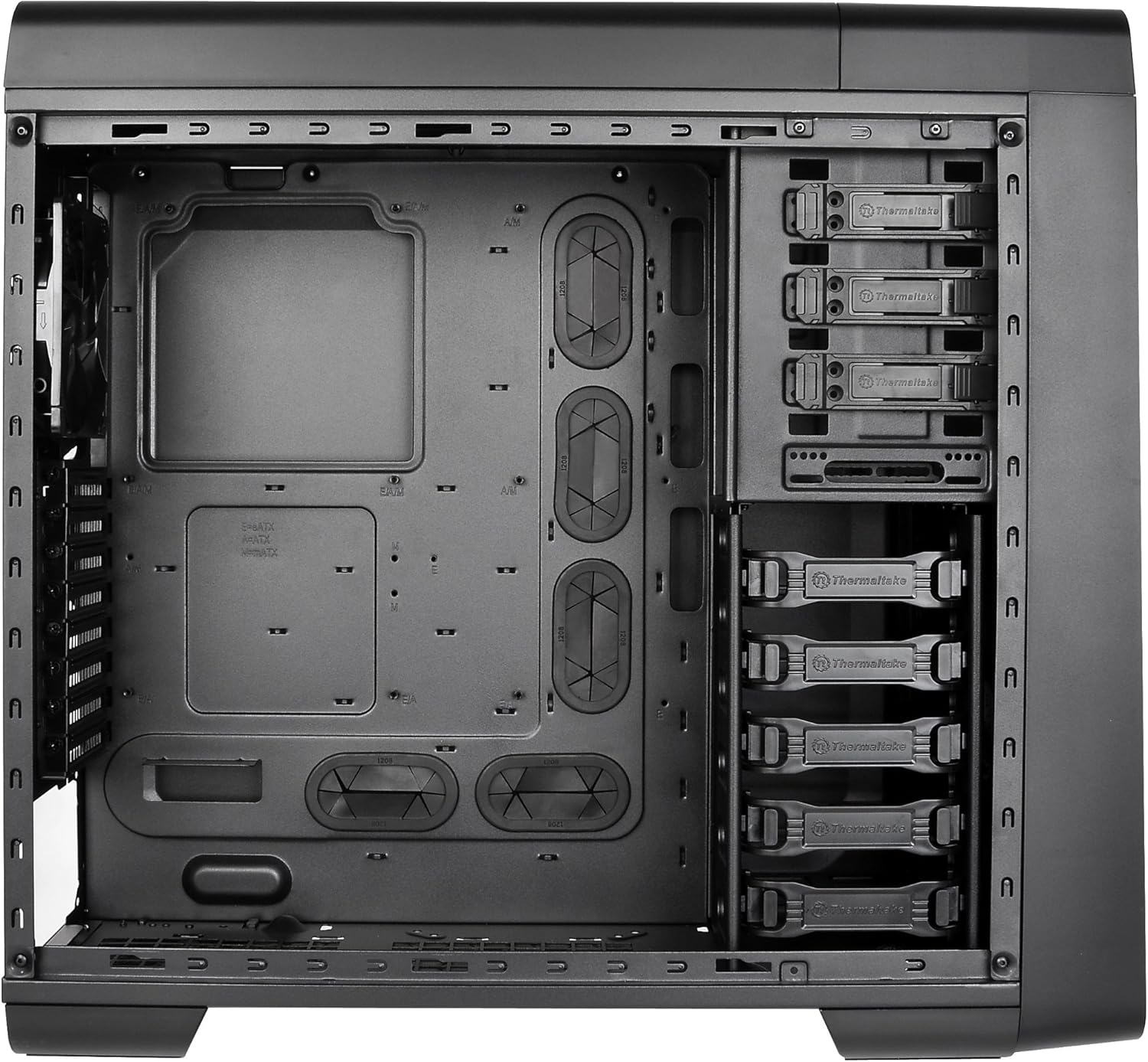
Figure 2.2: A detailed interior view of the Thermaltake URBAN S71, showing the motherboard tray, cable management cutouts, and various drive bays.
2.2.1 Motherboard Installation
- Install the I/O shield into the rear opening of the case.
- Align your Extended ATX, ATX, or Micro ATX motherboard with the standoffs.
- Secure the motherboard with screws.
2.2.2 Drive Installation
The case supports multiple drive configurations:
- External Bays: 4 x 5.25" bays for optical drives or other 5.25" devices.
- Internal Bays: 5 x 3.5" or 2.5" bays for hard drives or SSDs.
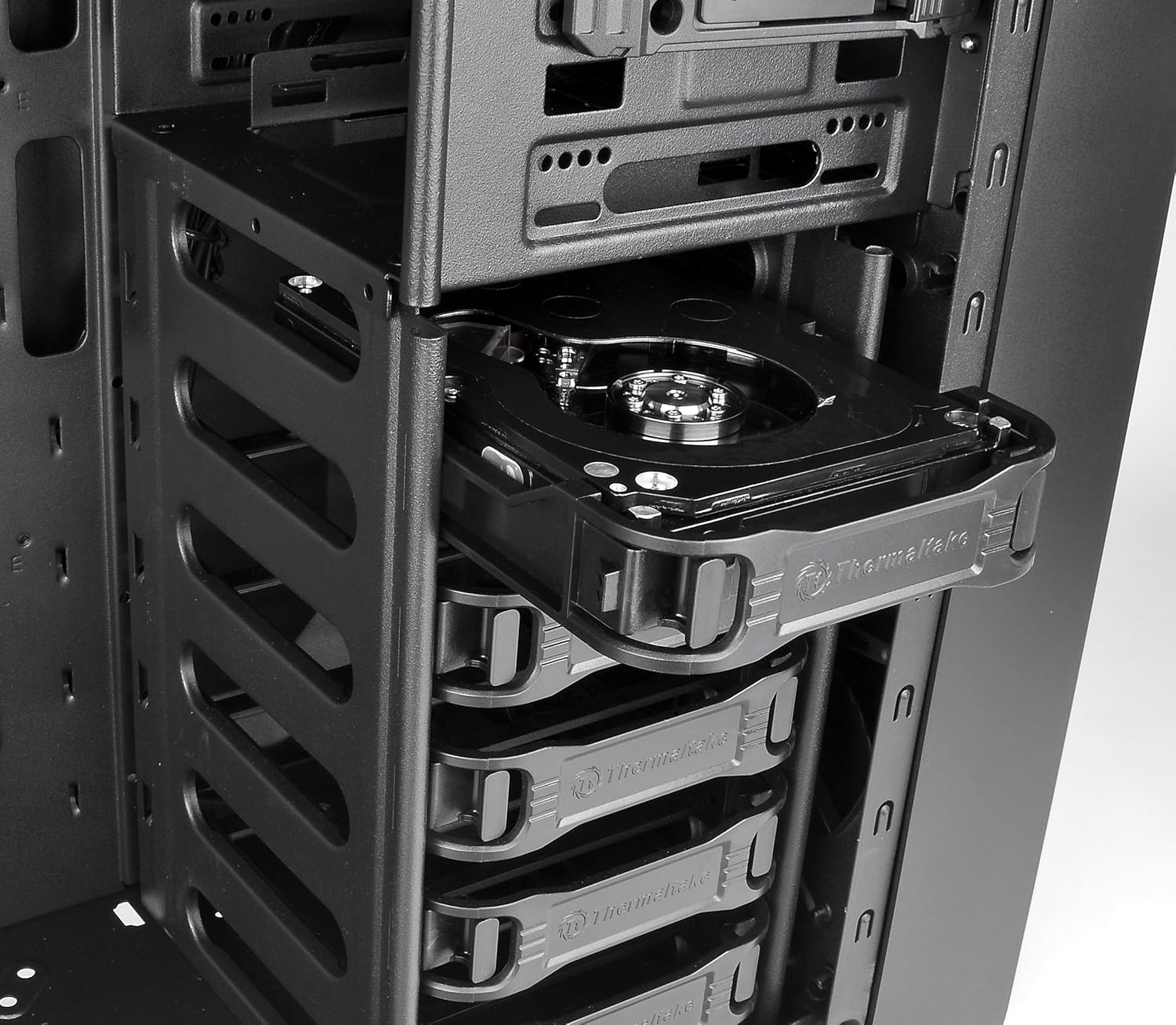
Figure 2.3: An optical drive being installed into one of the 5.25-inch external drive bays, demonstrating the tool-less design.
2.2.3 Power Supply Installation
Install your power supply unit (PSU) at the bottom rear of the case. Ensure proper orientation for airflow.
2.2.4 Expansion Card Installation
The case features 8 expansion slots. Remove the necessary slot covers and install your graphics cards or other expansion cards, securing them with screws.
2.3 Cooling System
The URBAN S71 comes with preinstalled fans for optimized ventilation:
- 2 x 200mm speed control fans (front and top).
- 1 x 120mm turbo fan (rear).

Figure 2.4: View of the large 200mm fan mounted at the front of the case, providing intake airflow.

Figure 2.5: View of the 200mm fan mounted on the top panel, designed for exhaust airflow.
Additional fan mounting areas are available for customization.
2.4 Cable Management
Utilize the cutouts and space behind the motherboard tray for efficient cable routing. This improves airflow and maintains a clean interior appearance.

Figure 2.6: Rear view of the case, illustrating the expansion slots, rear fan mount, and rubber grommets for external liquid cooling tubes, which also aid in cable management.
3. Operating
3.1 Front Panel I/O Ports
The top front panel provides convenient access to:
- 2 x USB 3.0 ports for high-speed data transfer.
- 2 x USB 2.0 ports for standard connectivity.
- HD microphone and headset jacks.
- Power and Reset buttons.
3.2 Top-Mounted HDD Docking Station
The case features a top-mounted 2.5" or 3.5" HDD Docking Station for quick and easy hot-swapping of drives.
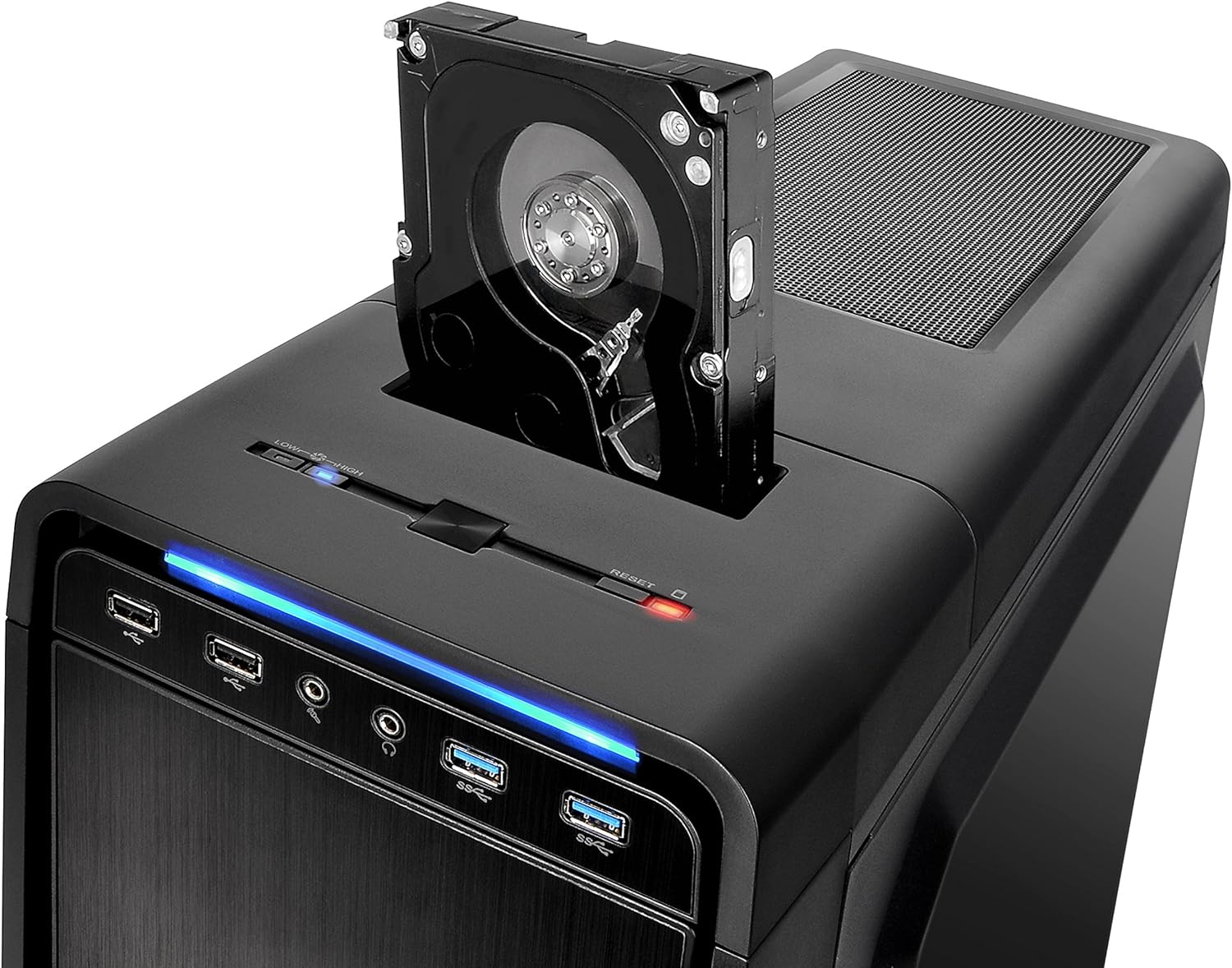
Figure 3.1: Close-up of the top-mounted HDD docking station, showing a hard drive inserted for quick access and data transfer.
- Ensure your system supports hot-swapping for optimal functionality.
- Gently insert a 2.5" or 3.5" SATA drive into the slot until it clicks into place.
- To remove, gently pull the drive upwards.
4. Maintenance
4.1 Dust Filter Cleaning
The URBAN S71 is equipped with removable dust filters to prevent dust buildup inside the case, which can affect component performance and longevity. Regular cleaning is recommended.

Figure 4.1: The removable dust filter located on the top panel, designed to prevent dust from entering the case through the top fan mounts.
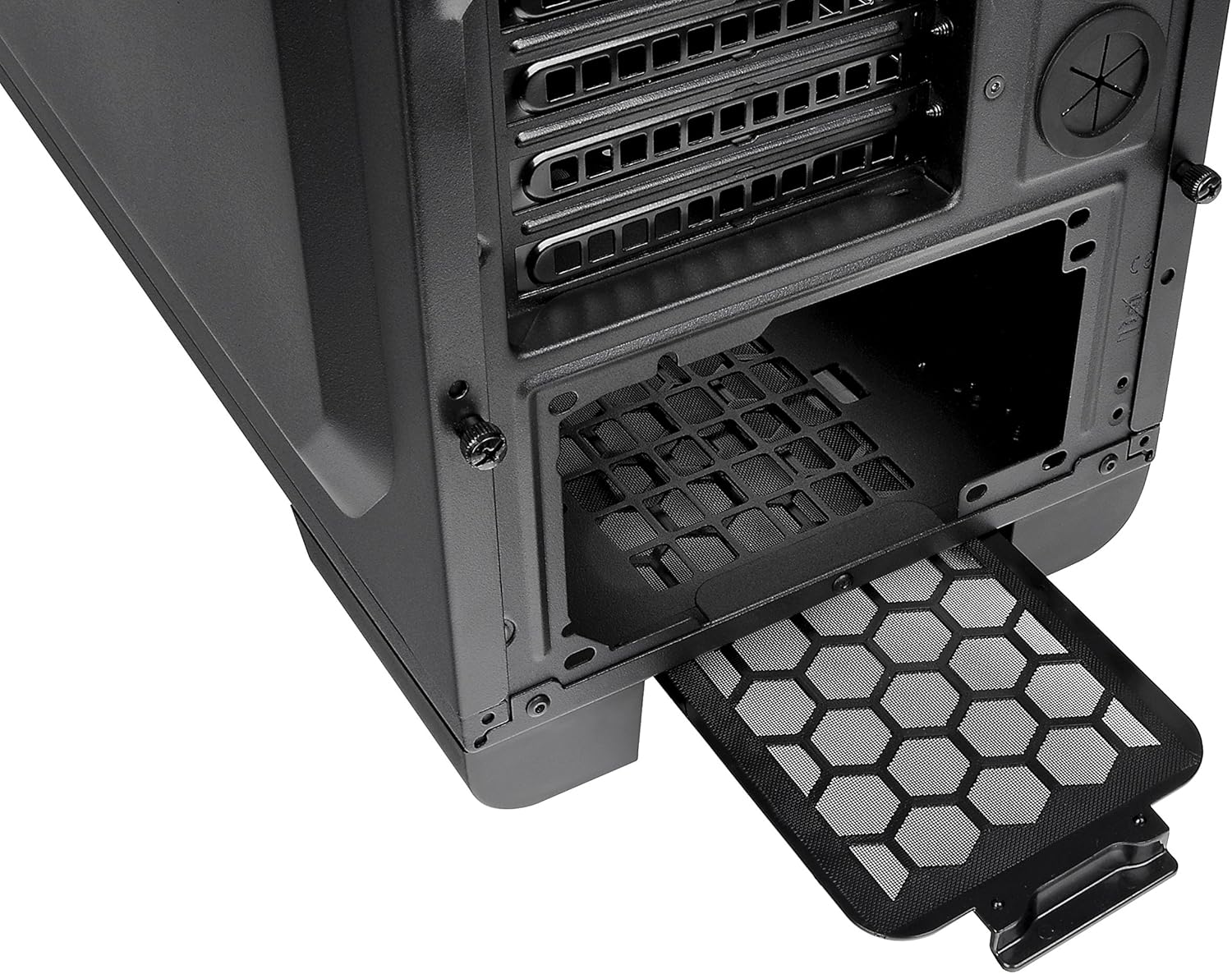
Figure 4.2: The removable dust filter located at the bottom of the case, protecting the power supply and optional bottom fan from dust.
- Gently slide out the dust filters from their respective slots (top and bottom).
- Clean the filters using compressed air or by rinsing them with water. Ensure they are completely dry before reinserting.
- Reinsert the filters into their slots.
4.2 General Cleaning
Wipe the exterior of the case with a soft, damp cloth. Avoid using harsh chemicals or abrasive materials that could damage the finish.
5. Troubleshooting
5.1 Power Issues
- No Power: Ensure the power supply is properly connected to the motherboard and all components. Check that the power button cable from the case is correctly connected to the motherboard's front panel header.
- Fans Not Spinning: Verify that all fan cables are securely connected to the motherboard or fan controller.
5.2 USB Ports Not Functioning
- Check that the USB 3.0 and USB 2.0 cables from the front panel are correctly connected to the corresponding headers on your motherboard.
5.3 HDD Docking Station Not Detected
- Ensure the SATA data and power cables for the docking station are securely connected to your motherboard and power supply.
- Verify that hot-swapping is enabled in your motherboard's BIOS/UEFI settings if you encounter detection issues.
6. Specifications
Below are the technical specifications for the Thermaltake URBAN S71 Window Full Tower Computer Case (VP500M1W2N).
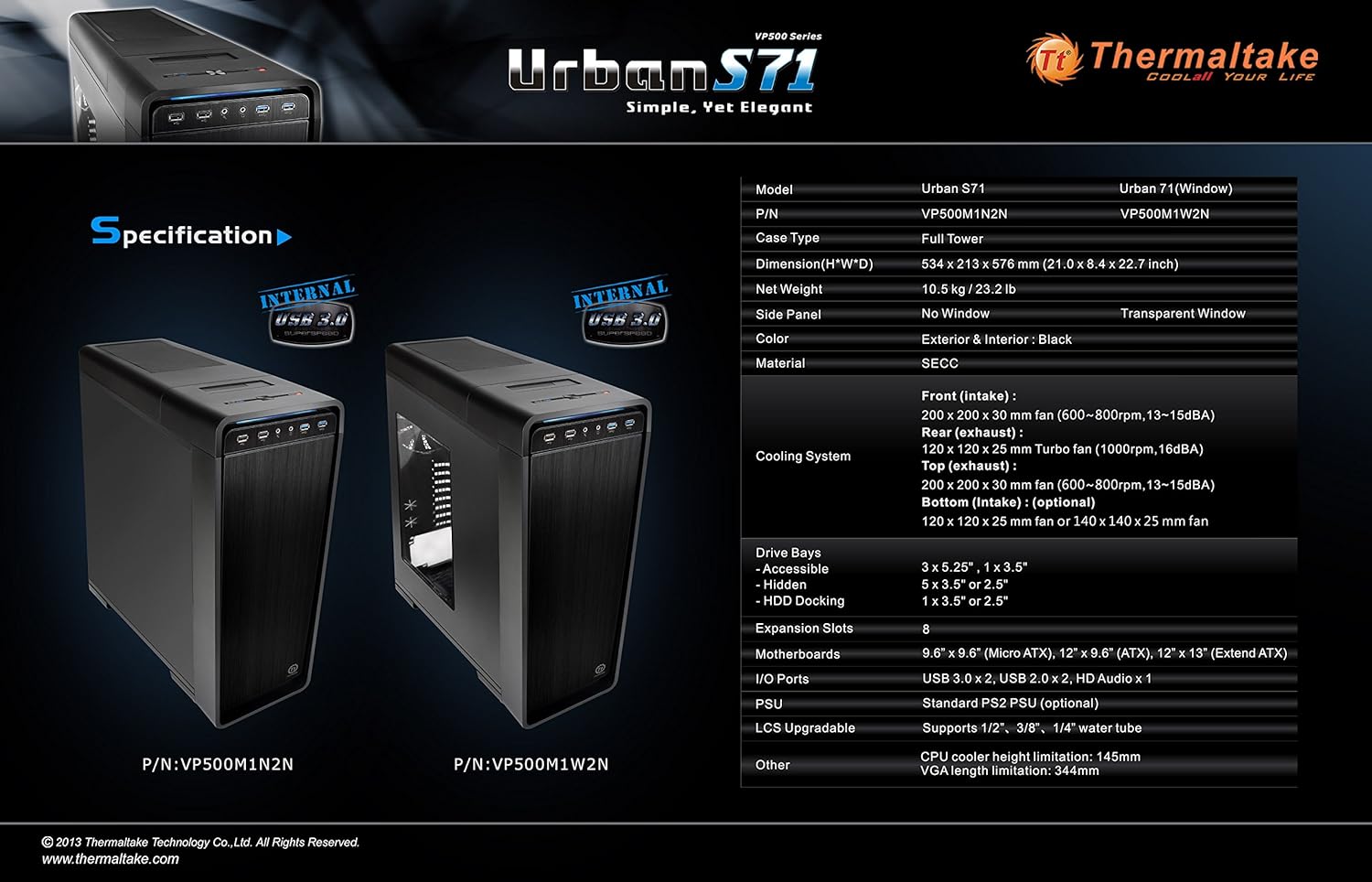
Figure 6.1: Official specification diagram for the Thermaltake URBAN S71, detailing dimensions, drive bays, cooling system, and I/O ports.
| Feature | Specification |
|---|---|
| Brand | Thermaltake |
| Model Number | VP500M1W2N |
| Case Type | Full Tower |
| Dimensions (H x W x D) | 58.39 x 21.31 x 53.39 cm (22.99 x 8.39 x 21.02 inches) |
| Weight | 10.5 kg (23.15 lbs) |
| Material | SECC |
| Color | Black |
| Motherboard Compatibility | Extended ATX, ATX, Micro ATX |
| External Drive Bays | 4 x 5.25" |
| Internal Drive Bays | 5 x 3.5" or 2.5" |
| HDD Docking Station | 1 x 3.5" or 2.5" (Top-mounted) |
| Expansion Slots | 8 |
| Front I/O Ports | 2 x USB 3.0, 2 x USB 2.0, HD Audio (Mic & Headset) |
| Preinstalled Fans | Front: 1 x 200mm (speed control) Top: 1 x 200mm (speed control) Rear: 1 x 120mm (turbo fan) |
| Cooling Method | Air, Water (supports liquid cooling solutions) |
| CPU Cooler Height Limit | 145mm |
| VGA Length Limit | 344mm |
7. Warranty and Support
7.1 Warranty Information
Please refer to the warranty card included with your product or visit the official Thermaltake website for detailed warranty terms and conditions. Keep your proof of purchase for warranty claims.
7.2 Technical Support
For technical assistance, troubleshooting beyond this manual, or inquiries about replacement parts, please contact Thermaltake customer support. You can find contact information on the official Thermaltake website: www.thermaltake.com.


