
1. Introduction
This manual provides detailed instructions for the installation, operation, and maintenance of your Zalman ZM-VE400B External HDD Virtual Drive. The ZM-VE400B is a 2.5-inch USB 3.0 external HDD enclosure with advanced virtual drive capabilities, allowing you to mount ISO files directly from the device. Please read this manual thoroughly before using the product to ensure proper functionality and to prevent damage.
2. Product Overview
2.1. Features
- 2.5-inch USB 3.0 External HDD Enclosure
- SATA Interface for internal drive connection
- Virtual Drive Functionality (ISO emulator)
- Supports HDD, ODD, and Hybrid modes
- Integrated keypad for navigation and selection
- Data encryption capabilities
2.2. Package Contents
The Zalman ZM-VE400B package typically includes:
- Zalman ZM-VE400B External HDD Virtual Drive Enclosure
- USB 3.0 Cable
- Protective Pouch (may vary by region/retailer)
- Screws for HDD/SSD installation (if applicable)
- User Manual (this document)
2.3. Product Diagram
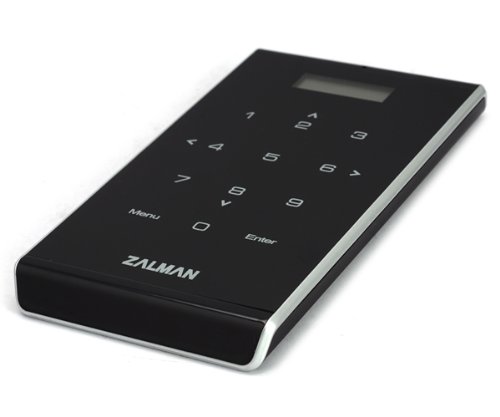
Figure 1: Front view of the Zalman ZM-VE400B External HDD Virtual Drive Enclosure. This image displays the compact design and the integrated keypad for user interaction.
3. Setup
3.1. Hardware Installation (HDD/SSD)
- Carefully open the enclosure by sliding the cover or removing the necessary screws.
- Connect your 2.5-inch SATA HDD or SSD to the SATA connector inside the enclosure. Ensure a firm connection.
- Secure the drive within the enclosure using the provided screws, if applicable.
- Close the enclosure cover, ensuring it is properly seated and secured.
Note: Handle internal components with care to avoid static discharge.
3.2. Initial Configuration
- Connect the Zalman ZM-VE400B to your computer using the supplied USB 3.0 cable.
- The device will power on and display its initial boot screen.
- Your operating system should detect the device as an external storage drive. If it's a new HDD/SSD, you may need to initialize and format it through your operating system's disk management tools.
- To utilize the virtual drive features, create a folder named _ISO in the root directory of your installed HDD/SSD. Place your ISO image files into this folder.
4. Operating Instructions
4.1. Device Modes
The ZM-VE400B supports three primary operating modes:
- HDD Mode: Functions as a standard external hard drive.
- ODD Mode (Optical Disc Drive Mode): Emulates an optical drive, allowing you to mount ISO files as virtual CDs/DVDs.
- Hybrid Mode: Allows simultaneous access to both the physical HDD/SSD and a mounted ISO file.
Switch between modes using the keypad and display on the device. Refer to the on-screen prompts for navigation.
4.2. Mounting ISO Files
- Ensure your ISO files are placed in the _ISO folder on the root of the internal drive.
- Power on the device.
- Using the keypad, navigate to the ODD or Hybrid mode.
- Browse the list of ISO files displayed on the device's screen.
- Select the desired ISO file and confirm to mount it. The ISO will now appear as a virtual optical drive on your computer.
4.3. Data Encryption
The ZM-VE400B supports data encryption to protect your stored information. Access the encryption settings through the device's menu using the keypad. Follow the on-screen instructions to set up and manage your encryption password.
Warning: Forgetting your encryption password will result in permanent loss of access to your encrypted data. Zalman is not responsible for data loss due to forgotten passwords.
5. Maintenance
- Keep the device clean and free from dust. Use a soft, dry cloth for cleaning.
- Avoid exposing the device to extreme temperatures, humidity, or direct sunlight.
- Do not drop or subject the device to strong impacts.
- Always safely eject the device from your computer before disconnecting the USB cable to prevent data corruption.
6. Troubleshooting
| Problem | Possible Cause | Solution |
|---|---|---|
| Device not recognized by computer | Loose USB connection, faulty cable, uninitialized drive. |
|
| ISO files not appearing or mounting | Incorrect folder name, corrupted ISO, incorrect device mode. |
|
| Keypad unresponsive or inaccurate | Firmware issue, physical defect. |
|
| Device fails to boot or freezes | Power issue, internal drive issue, firmware issue. |
|
7. Specifications
| Feature | Detail |
|---|---|
| Model Number | ZM-VE400B |
| Product Dimensions | 5.71 x 3.18 x 0.55 inches |
| Item Weight | 3.2 ounces |
| Manufacturer | Zalman |
| Interface | USB 3.0 (External), SATA (Internal) |
| Drive Compatibility | 2.5-inch SATA HDD/SSD |
| Virtual Drive Support | ISO files |
8. Warranty and Support
For warranty information and technical support, please refer to the official Zalman website or contact their customer service directly. Warranty terms and conditions may vary by region and retailer. Keep your proof of purchase for warranty claims.
Official Zalman Website: www.zalman.com


