Introduction
The WD Elements portable hard drive provides reliable, high-capacity storage for your digital files. Designed for portability, it offers fast data transfer rates through USB 3.0 and is backward compatible with USB 2.0 devices. This drive is ideal for backing up photos, videos, and other important documents on the go. It is compatible with both PC and Mac systems, though reformatting may be required for Mac use.
What's in the Box
- WD Elements Portable Hard Drive (500GB)
- USB 3.0 Cable
- Quick Start Guide
Setup
Follow these steps to set up your WD Elements portable hard drive:
- Connect the Drive: Plug the small end of the included USB 3.0 cable into the USB port on the WD Elements drive.
- Connect to Computer: Plug the larger end of the USB 3.0 cable into an available USB port on your computer. For optimal performance, use a USB 3.0 port (often blue). The drive is also compatible with USB 2.0 ports.
- Initial Recognition: Your computer should automatically detect the drive. For Windows operating systems (Windows 8, 7, Vista, XP), the drive is pre-formatted and ready for use.
- Mac Compatibility: If you are using a Mac, the drive will need to be reformatted for full compatibility. Refer to your Mac's operating system documentation for instructions on how to reformat an external drive using Disk Utility. Note: Reformatting will erase all data on the drive.
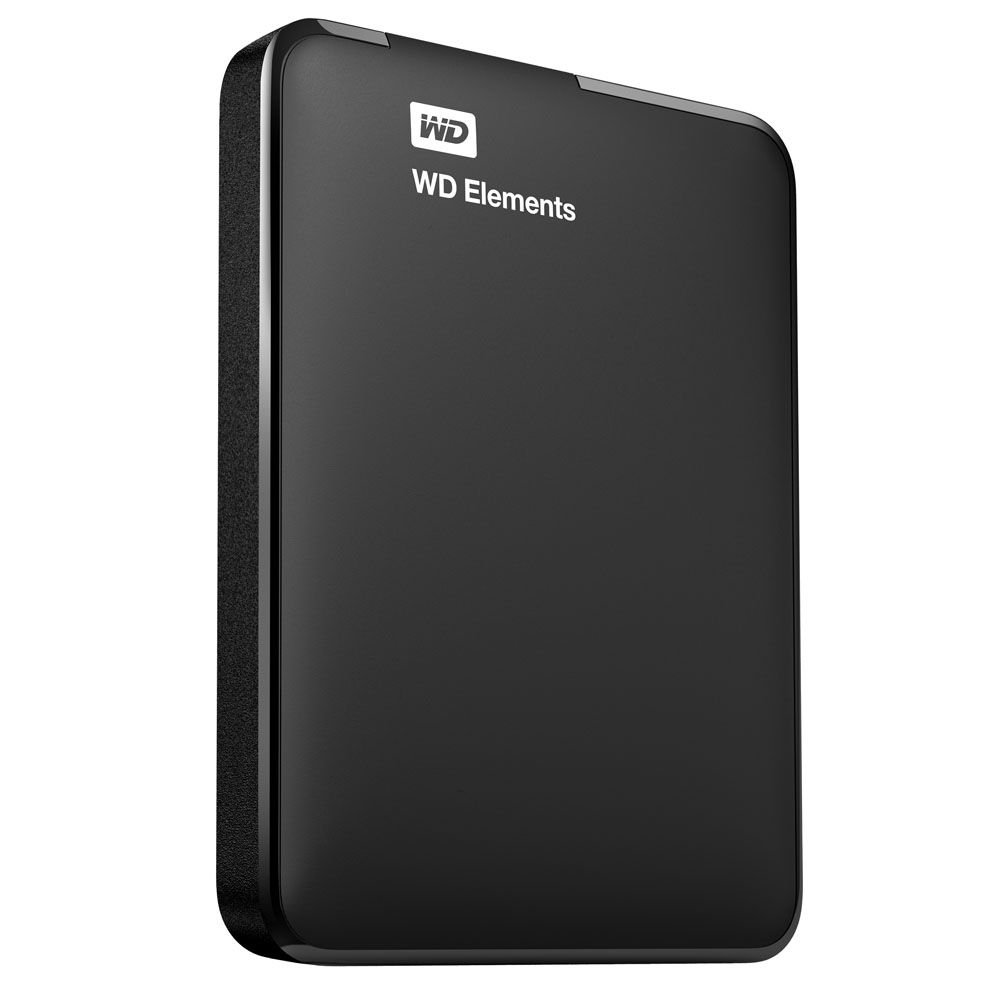
Image: The WD Elements portable hard drive with its USB 3.0 cable, ready for connection to a computer. This illustrates the compact size and simple connection method.
Operating Instructions
Once connected and recognized by your computer, the WD Elements drive functions like any other storage device.
- Transferring Files: You can drag and drop files and folders directly to and from the WD Elements drive using your computer's file explorer (Windows) or Finder (Mac).
- Backup: Use your operating system's built-in backup features or third-party backup software to regularly back up your important data to the drive.
- Safe Removal: Always safely eject or unmount the drive before disconnecting it from your computer to prevent data corruption.
- Windows: Click the "Safely Remove Hardware and Eject Media" icon in the system tray, then select the WD Elements drive.
- Mac: Drag the drive icon from the desktop to the Trash, or right-click (Control-click) the drive icon and select "Eject".
Maintenance
Proper care ensures the longevity and reliability of your hard drive:
- Physical Protection: Avoid dropping or subjecting the drive to physical shocks, as this can damage internal components.
- Environmental Conditions: Keep the drive away from extreme temperatures, direct sunlight, and high humidity.
- Cleaning: Use a soft, dry cloth to clean the exterior of the drive. Do not use liquid cleaners.
- Regular Backups: While the drive is designed for reliability, it is good practice to maintain backups of critical data on multiple storage devices.
Troubleshooting
If you encounter issues with your WD Elements drive, consider the following:
- Drive Not Detected:
- Ensure the USB cable is securely connected to both the drive and the computer.
- Try connecting the drive to a different USB port on your computer.
- Test the drive with a different USB cable if available.
- For Mac users, ensure the drive has been correctly reformatted for macOS.
- Slow Transfer Speeds:
- Verify that you are connected to a USB 3.0 port on your computer for maximum speed. USB 2.0 ports will result in slower transfer rates.
- Ensure your computer's drivers are up to date.
- Drive Goes to Sleep / Delays:
- The drive may enter a low-power sleep mode after a period of inactivity. This is normal behavior to conserve energy.
- There might be a slight delay when accessing the drive after it has entered sleep mode as it wakes up.
- Data Corruption:
- Always use the "Safely Remove Hardware" (Windows) or "Eject" (Mac) function before disconnecting the drive.
- If data corruption occurs, you may need to reformat the drive, which will erase all data.
Specifications
| Model Number | WDBUZG5000ABK-NESN |
| Storage Capacity | 500 GB |
| Interface | USB 3.0 (backward compatible with USB 2.0) |
| Form Factor | 2.5 Inches (Portable) |
| Dimensions (LxWxH) | 4.4 x 3.2 x 0.6 inches (11.18 x 8.13 x 1.52 cm) |
| Weight | 4.8 ounces (136 grams) |
| Operating System Compatibility | Formatted for Windows (8, 7, Vista, XP). Reformatting required for Mac. |
| Color | Black |
| Manufacturer | Western Digital |
Warranty Information
Western Digital products are manufactured to the highest standards of quality and reliability. This product is covered by a limited warranty. For detailed information regarding the warranty period, terms, and conditions applicable to your region, please refer to the warranty statement included with your product or visit the official Western Digital website.
Support
For technical support, product registration, or additional resources, please visit the official Western Digital support website. You can find FAQs, troubleshooting guides, software downloads, and contact information for customer service.
Western Digital Support Website: support.wdc.com


