
1. Introduction
Thank you for choosing the Cooler Master V700 700W Power Supply. This fully modular power supply is designed to provide stable and efficient power to your computer components. Featuring 80 PLUS Gold certification and a silent 135mm FDB fan, the V700 ensures reliable performance with reduced noise and heat output. This manual provides essential information for the proper installation, operation, and maintenance of your power supply.

Figure 1: Cooler Master V700 700W Power Supply, showcasing its fully modular design.
2. Safety Information
Please read and understand the following safety precautions before installing or operating the power supply:
- Always disconnect the AC power cord from the wall outlet before handling or installing the power supply.
- The power supply contains high voltage components. Do not open the power supply casing. There are no user-serviceable parts inside.
- Ensure the power supply is installed in a well-ventilated area to prevent overheating.
- Use only the modular cables provided with this power supply. Using incompatible cables may damage the power supply and connected components.
- This product is intended for use in computer systems only. Do not use it for any other purpose.
- If you are unsure about any installation steps, consult a qualified technician.
3. Package Contents
Verify that your package contains the following items:
- Cooler Master V700 700W Power Supply
- Modular Cable Set (24-pin ATX, 8-pin EPS, 6+2-pin PCIe, SATA, Molex)
- AC Power Cord
- Mounting Screws
- User Manual (this document)
4. Setup and Installation
Follow these steps to install your Cooler Master V700 Power Supply:
- Prepare Your System: Ensure your computer is completely powered off and unplugged from the wall outlet. Open your computer case.
- Mount the Power Supply: Carefully place the V700 power supply into the designated PSU bay in your computer case. Secure it with the provided mounting screws.
- Connect Modular Cables:
- Connect the 24-pin ATX cable to the motherboard.
- Connect the 8-pin EPS (CPU) cable to the motherboard.
- For graphics cards, use the 6+2-pin PCIe connectors. The V700 provides four such connectors to support high-end graphics cards.
- Connect SATA power cables to your storage drives (HDDs, SSDs) and optical drives.
- Connect Molex cables for any other peripherals requiring them.
- Connect AC Power: Plug the AC power cord into the power supply's AC inlet.
- Power On: Close your computer case. Plug the AC power cord into a wall outlet. Flip the power switch on the back of the power supply to the 'I' (On) position.
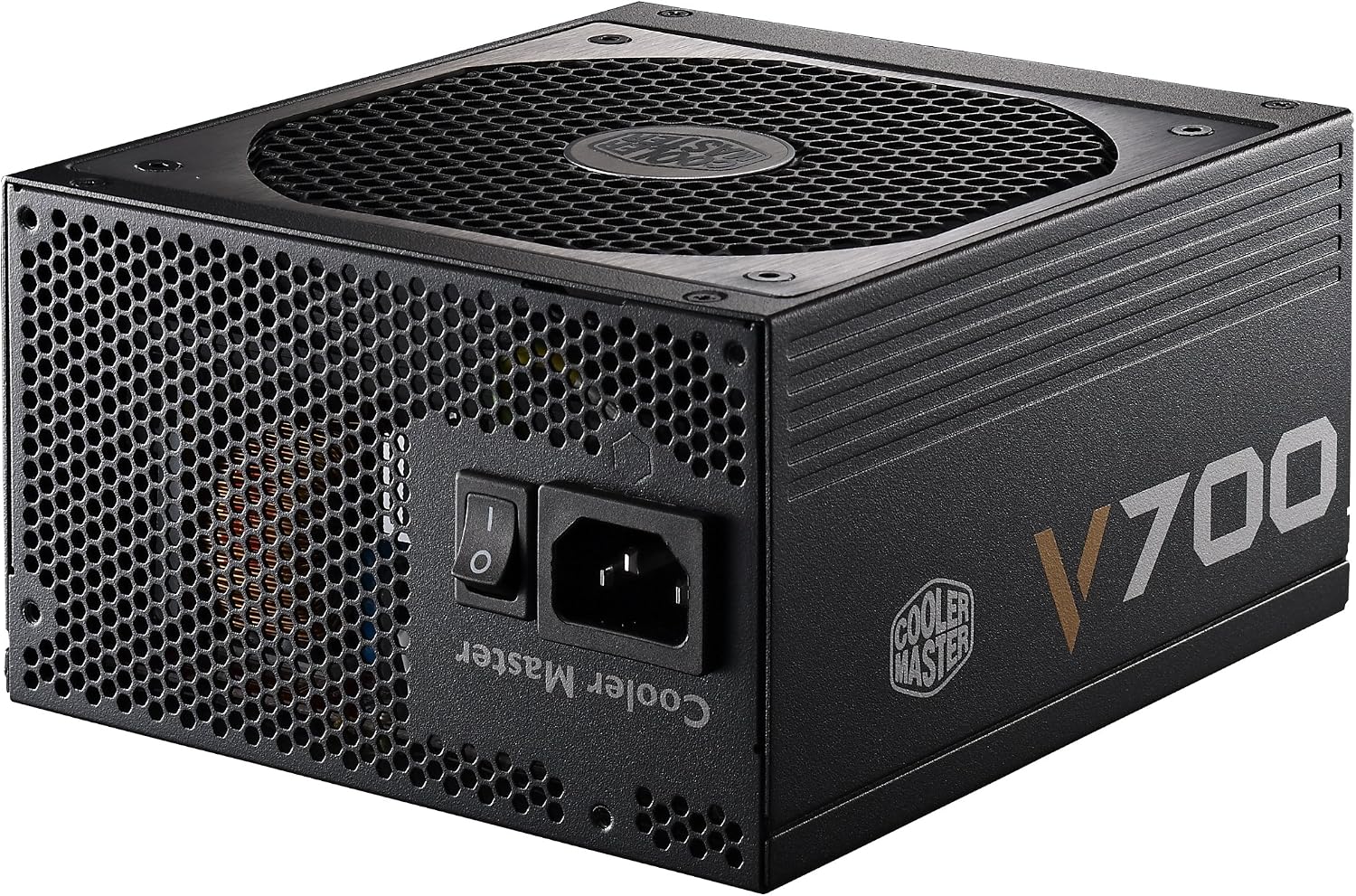
Figure 2: Rear view of the V700, indicating the power switch and AC power input.
5. Operating Instructions
Once installed, operating the Cooler Master V700 is straightforward:
- Power On/Off: Use the main power switch on the back of the power supply to turn the unit on ('I') or off ('O'). For normal operation, leave it in the 'I' position.
- Efficient Operation: The V700 is 80 PLUS Gold certified, meaning it operates with up to 93% efficiency at 50% load, reducing energy waste and heat generation.
- Quiet Cooling: The integrated 135mm Fluid Dynamic Bearing (FDB) fan provides effective cooling while maintaining a low noise profile, contributing to a quieter system environment.
6. Maintenance
To ensure optimal performance and longevity of your power supply, consider the following maintenance tips:
- Dust Removal: Periodically inspect the power supply's fan and ventilation grilles for dust accumulation. Use compressed air to gently clear any dust, ensuring proper airflow.
- Cable Management: Ensure cables inside your PC case are neatly managed to avoid obstructing airflow to the power supply and other components.
- Environmental Conditions: Operate the power supply in a clean, dry environment with adequate ventilation.

Figure 3: Top view of the V700 fan, which should be kept clear of dust.
7. Troubleshooting
If you encounter issues with your Cooler Master V700 Power Supply, refer to the following common troubleshooting steps:
- No Power:
- Check if the AC power cord is securely plugged into both the power supply and the wall outlet.
- Ensure the power switch on the back of the PSU is in the 'I' (On) position.
- Verify that the wall outlet is functional by testing it with another device.
- Confirm all modular cables are correctly and firmly connected to the power supply and your components.
- System Instability/Crashes:
- Ensure your system's power requirements do not exceed the 700W capacity of the PSU.
- Re-check all power connections to components, especially the motherboard, CPU, and graphics card.
- Unusual Noise:
- If you hear unusual fan noise, power down the system and check the PSU fan for any obstructions (e.g., loose cables, dust buildup).
- If the noise persists and is not due to obstruction, contact support.
8. Specifications
Detailed specifications for the Cooler Master V700 700W Power Supply:
| Feature | Specification |
|---|---|
| Brand | Cooler Master |
| Model Number | RS700-AFBAG1-US |
| Output Wattage | 700 Watts |
| Current Rating | 58 Amps (+12V) |
| Efficiency Certification | 80 PLUS Gold |
| Power Supply Design | Full Modular |
| Cooling Method | Air |
| Fan Size | 135 Millimetres (FDB) |
| Item Dimensions (L x W x H) | 17 x 15 x 8.6 centimetres |
| Item Weight | 3.18 kg |
| UPC | 884102020773 |
9. Warranty Information
The Cooler Master V700 Power Supply comes with a reliable 5-year warranty. For detailed warranty terms and conditions, please refer to the official Cooler Master website or contact their customer support.
10. Support
For further assistance, technical support, or to view additional product information, please visit the official Cooler Master website:
You can also find FAQs and contact information on their support pages.