1. Product Overview
The Dell Ultrasharp 1909Wf is a 19-inch widescreen LCD monitor designed for various computing needs. It features a highly adjustable stand, offering swivel, tilt, and height adjustments, including the ability to rotate to a vertical orientation. The monitor also provides multiple connectivity options and integrated USB ports and an SD card reader for enhanced convenience.

Figure 1: Front view of the Dell Ultrasharp 1909Wf monitor, showcasing its widescreen display and Dell branding.
2. Setup Instructions
2.1 Unpacking and Assembly
- Carefully remove the monitor and its components from the packaging.
- Place the monitor base on a stable surface.
- Attach the monitor panel to the stand, ensuring it is securely fastened.
2.2 Connecting the Monitor
The Dell 1909Wf monitor offers various ports for connecting to your computer and other devices.
- Power Connection: Connect the standard power cable to the monitor's power input and then to a power outlet.
- Video Input: Use either a VGA or DVI-D cable to connect the monitor to your computer's video output port.
- USB Ports: The monitor includes USB ports for connecting peripherals.
- SD Card Reader: An integrated SD card reader is available for convenient data transfer.
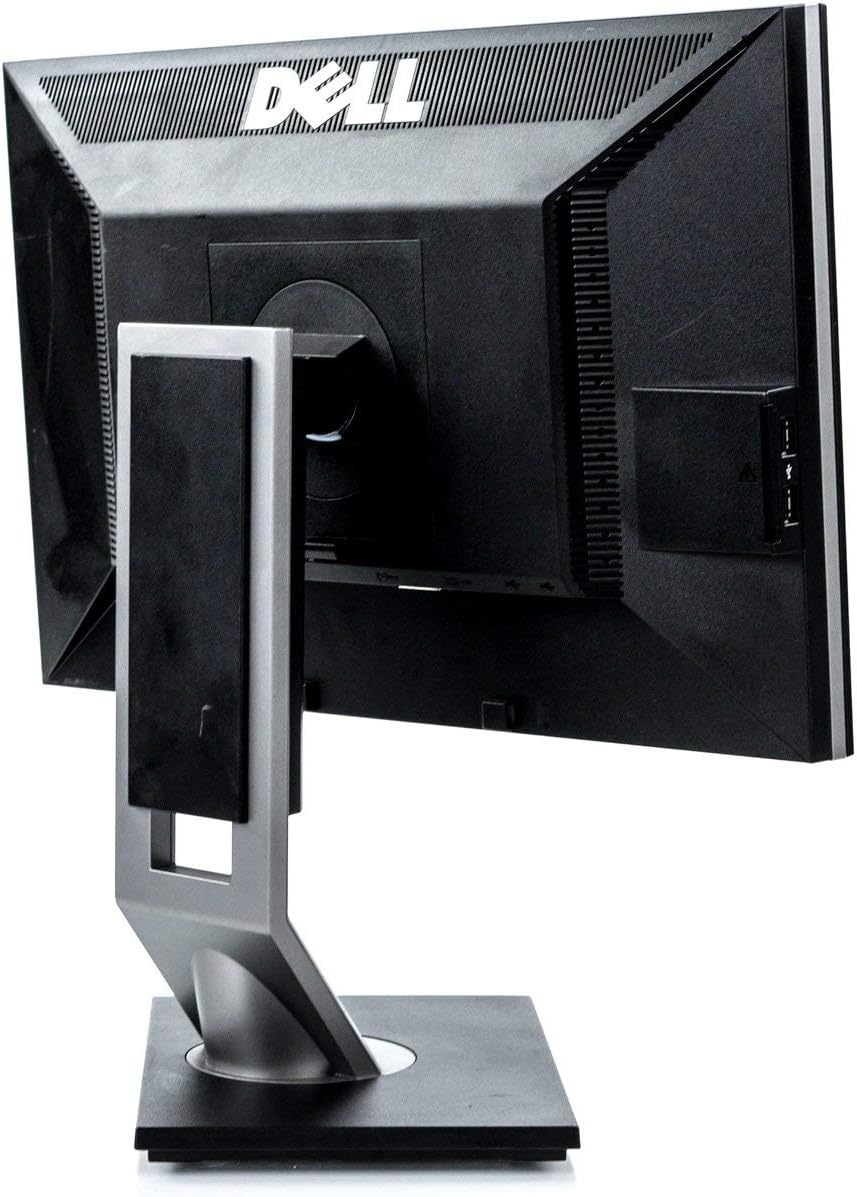
Figure 2: Rear view of the monitor, highlighting the various input and output ports for connectivity.

Figure 3: Side view of the monitor, showing the conveniently located USB ports and SD card reader.
3. Operating the Monitor
3.1 Powering On/Off
Press the power button located on the front bezel of the monitor to turn it on or off. The power indicator light will illuminate when the monitor is active.
3.2 Adjusting the Display
The Dell 1909Wf monitor features a versatile stand for optimal viewing comfort:
- Height Adjustment: Gently push or pull the monitor panel up or down to adjust its height.
- Tilt Adjustment: Tilt the monitor screen forwards or backwards to find your preferred viewing angle.
- Swivel Adjustment: Rotate the monitor left or right on its base.
- Pivot (Vertical Orientation): The monitor can be rotated 90 degrees to a vertical (portrait) orientation. This is useful for viewing long documents or web pages.

Figure 4: Front view of the monitor with the screen off, showing the Dell logo and control buttons.
3.3 On-Screen Display (OSD) Menu
Use the buttons on the front bezel to navigate the On-Screen Display (OSD) menu. This menu allows you to adjust various display settings such as brightness, contrast, color temperature, and input source selection.
4. Maintenance
4.1 Cleaning the Monitor
- Always power off and unplug the monitor before cleaning.
- Use a soft, lint-free cloth lightly dampened with water or a non-abrasive screen cleaner to wipe the screen and exterior surfaces.
- Avoid using harsh chemicals, solvents, or abrasive materials, as these can damage the monitor's finish.
4.2 General Care
- Keep the monitor away from direct sunlight, heat sources, and excessive moisture.
- Ensure proper ventilation around the monitor to prevent overheating.
- Avoid placing heavy objects on the monitor or its cables.
5. Troubleshooting
This section addresses common issues you might encounter with your Dell Ultrasharp 1909Wf monitor.
5.1 No Image on Screen
- Check if the monitor is powered on and the power indicator light is active.
- Verify that the video cable (VGA or DVI-D) is securely connected to both the monitor and the computer.
- Ensure the correct input source is selected via the OSD menu.
- Test the monitor with another computer or a different video cable if possible.
5.2 Image Quality Issues
- Adjust brightness and contrast settings through the OSD menu.
- Ensure the display resolution on your computer is set to the monitor's native resolution (e.g., 2048 x 1536 or FHD 1080p, depending on specific configuration).
- Check for any physical damage to the screen or video cable.
5.3 Stand Adjustment Issues
- Ensure no cables are obstructing the movement of the stand.
- Apply gentle, even pressure when adjusting height, tilt, or swivel.
6. Specifications
| Feature | Detail |
|---|---|
| Brand | Dell |
| Model Number | 1909Wf |
| Screen Size | 19 Inches |
| Aspect Ratio | 16:9 |
| Resolution | 2048 x 1536, FHD 1080p |
| Image Brightness | 300 cd/m² |
| Contrast Ratio | 1000:1 |
| Response Time | 5ms |
| Color Gamut | 83% |
| Screen Surface Description | Glossy |
| Connectivity | VGA, DVI-D, USB Ports, SD Card Reader |
| Power Consumption | Average 25 watts (2 Cold Cathode Fluorescent Lamps) |
| Item Weight | 12.25 pounds |
| Package Dimensions | 18.23 x 18.07 x 7.01 inches |
| Manufacturer | Dell Computers |
7. Warranty and Support
For warranty information and technical support, please refer to the documentation provided with your purchase or visit the official Dell support website. You can also find additional resources and contact information on the Dell Store on Amazon.


