
1. Introduction
The ORICO 6619US3 External Hard Drive Docking Station provides a convenient solution for connecting 2.5-inch and 3.5-inch SATA I/II/III HDDs and SSDs to your computer via USB 3.0. This device supports UASP protocol for enhanced data transfer speeds and offers a maximum capacity of up to 12TB. It is designed for easy, tool-free installation and is compatible with various operating systems.

Image 1.1: The ORICO 6619US3 External Hard Drive Docking Station, a compact black unit designed for external hard drive access.
2. Package Contents
Please verify that all items are present in the package:
- 1 x ORICO 6619US3 Hard Drive Docking Station
- 1 x 1M USB 3.0 Cable
- 1 x 12V Power Adapter
- 1 x User Manual
3. Product Features
- High Capacity Support: Supports single hard drives up to 12TB.
- Wide Compatibility: Compatible with 2.5-inch and 3.5-inch SATA I/II/III HDDs and SSDs.
- SuperSpeed USB 3.0: Data transfer rates up to 5Gbps, significantly faster than USB 2.0.
- UASP Protocol Support: Enhances transfer performance, making it up to 20% faster than traditional USB 3.0.
- Integrated Safeguards: Built-in protection against overvoltage, leak currents, short circuits, and peak voltage to ensure data safety.
- Plug and Play: No drivers required for most operating systems.
- Operating System Compatibility: Works with Windows XP/Vista/7/8/8.1/10, Linux, and Mac OS 9.1/10.2 or higher.
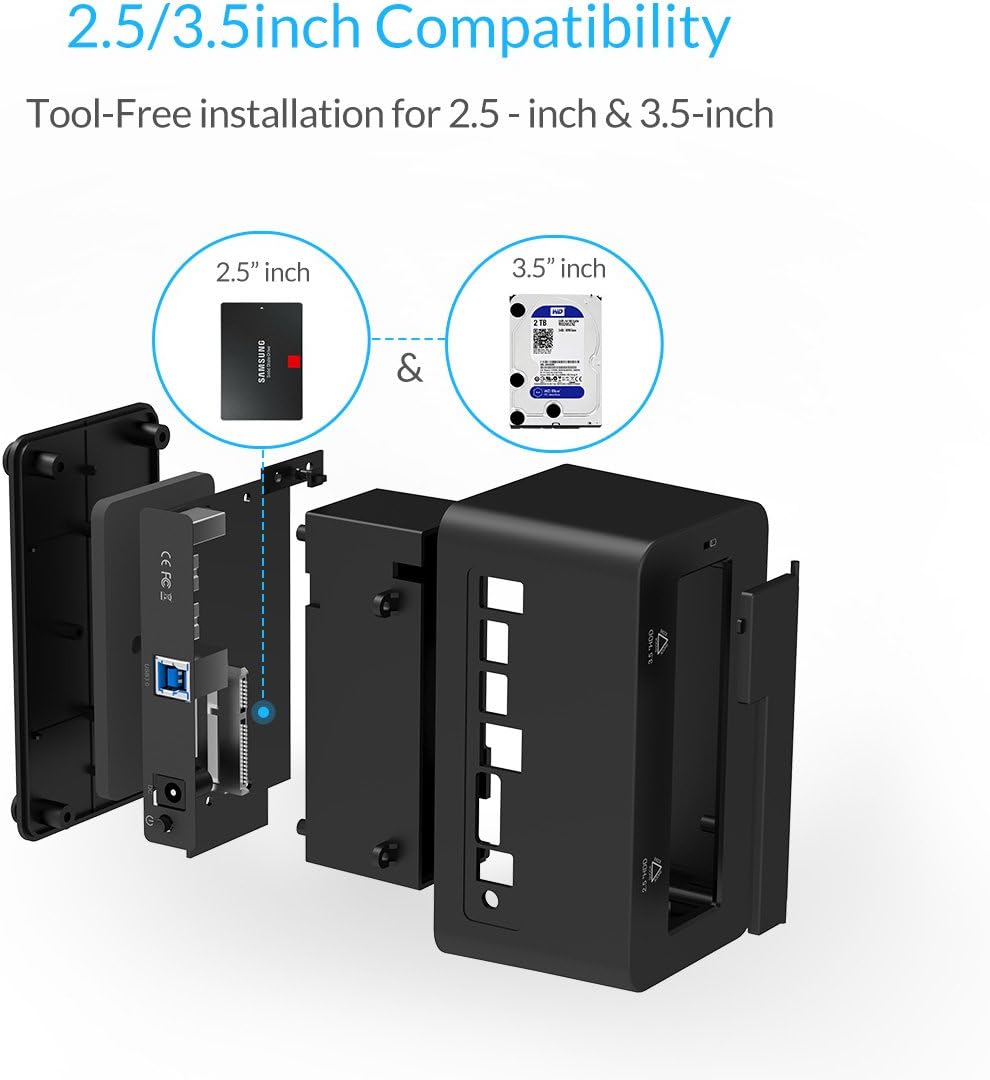
Image 3.1: Diagram illustrating the tool-free installation and compatibility of the docking station with both 2.5-inch SSDs and 3.5-inch HDDs.

Image 3.2: Visual representation of the SuperSpeed USB 3.0 interface and UASP protocol support, highlighting faster read and write speeds compared to traditional USB 3.0.
4. Setup Instructions
- Connect Power: Connect the provided 12V power adapter to the docking station's DC input port and then to a power outlet.
- Insert Hard Drive: Gently insert your 2.5-inch or 3.5-inch SATA HDD/SSD into the appropriate slot on the docking station. Ensure it is seated firmly.
- Connect to Computer: Use the supplied USB 3.0 cable to connect the docking station's USB 3.0 port to an available USB 3.0 port on your computer.
- Power On: Press the power button on the docking station. The LED indicator will illuminate, signaling that the device is powered on.
- Driver Installation (if necessary): For most modern operating systems, the device will be recognized automatically. If prompted, follow the on-screen instructions to install any necessary drivers.
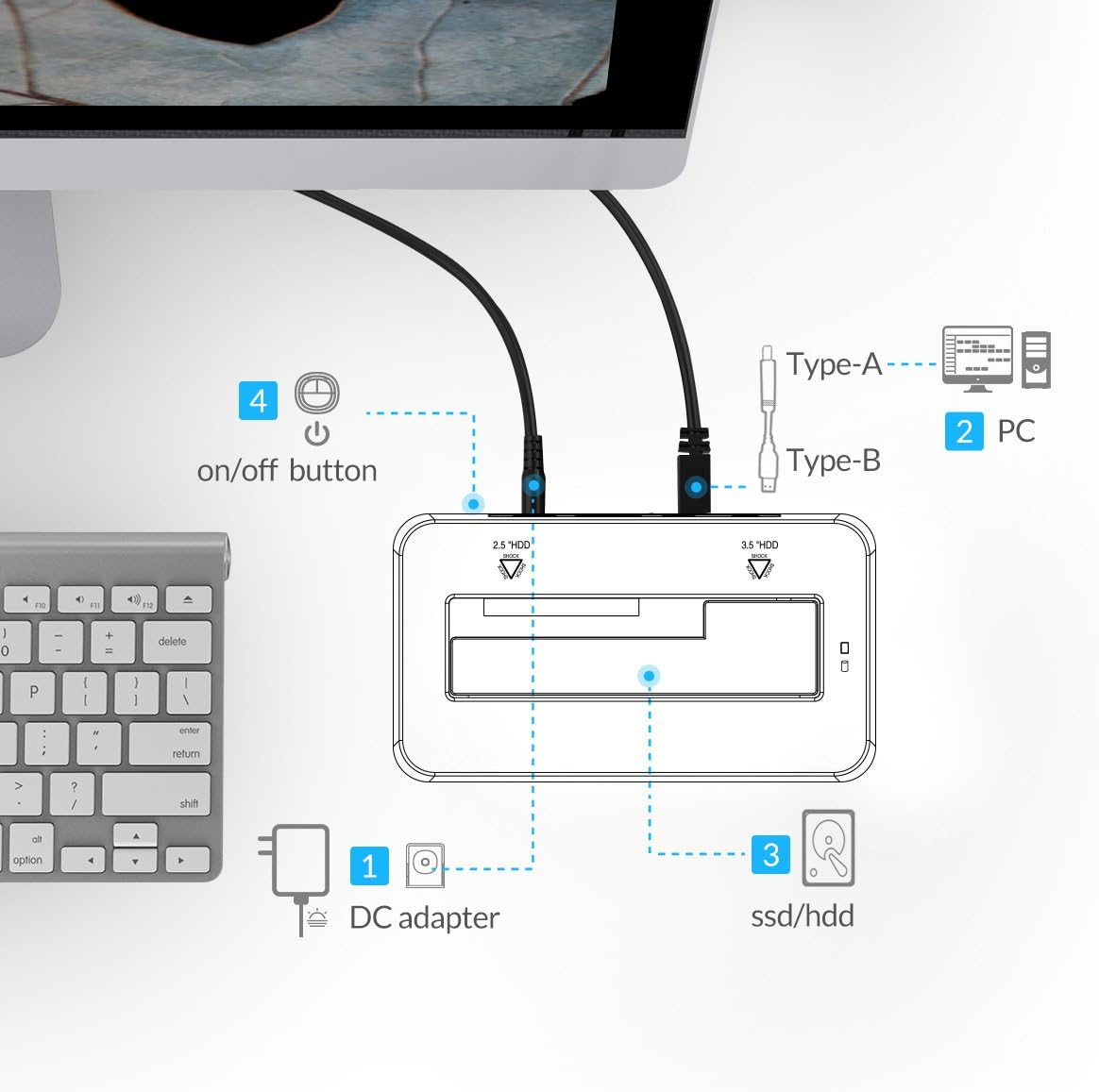
Image 4.1: A diagram illustrating the connection points: DC adapter (1), PC connection (2), SSD/HDD slot (3), and the on/off button (4).

Image 4.2: The ORICO 6619US3 docking station with a hard drive inserted, connected to a computer, demonstrating typical usage.
5. Operating Instructions
- Accessing Drives: Once connected and powered on, your operating system should detect the inserted hard drive. You can then access it like any other external storage device.
- LED Indicators: The docking station features LED lights to indicate power and activity. A blue light typically signifies power, while flashing blue and red lights indicate data reading or writing operations.
- Sleep Mode: The device is designed to enter sleep mode automatically after 15 to 30 minutes of inactivity (no reading or writing operations) to conserve energy and extend drive lifespan.
- Safe Removal: Always safely eject the hard drive from your operating system before powering off the docking station or physically removing the drive to prevent data corruption.
Video 5.1: An instructional video demonstrating the basic usage and operation of the ORICO 66 series docking station.
6. Hard Drive Formatting
New hard drives or drives that need to be re-purposed may require formatting before they can be used. The formatting process prepares the drive for data storage and assigns a file system compatible with your operating system.
Video 6.1: A detailed guide on how to format a hard drive partition in Windows, macOS, and Linux operating systems.
7. Specifications
| Specification | Detail |
|---|---|
| Model Number | OR-6619US3-BK |
| Compatible Drives | 2.5" / 3.5" SATA I/II/III HDD/SSD |
| Max Capacity | Up to 12TB (single drive) |
| Interface | USB 3.0 Type A, USB 3.0 Type B |
| Data Transfer Rate | Up to 5 Gbps (USB 3.0) |
| UASP Support | Yes |
| Power Supply | 12V, 2A Power Adapter |
| Compatible OS | Windows XP/Vista/7/8/8.1/10, Linux, Mac OS 9.1/10.2 or higher |
| Item Dimensions (LxWxH) | 5.39 x 2.83 x 2.56 inches |
| Item Weight | 5.6 ounces (0.16 Kilograms) |
| Material | Composite |
8. Troubleshooting
- Drive Not Detected:
- Ensure the power adapter is securely connected and the docking station is powered on.
- Verify the USB cable is properly connected to both the docking station and a functional USB port on your computer.
- Try a different USB port on your computer.
- Check if the hard drive is correctly seated in the docking station slot.
- For new drives, ensure they are initialized and formatted in Disk Management (Windows) or Disk Utility (macOS/Linux). Refer to Section 6 for formatting guidance.
- Slow Transfer Speeds:
- Ensure the docking station is connected to a USB 3.0 port on your computer. USB 2.0 ports will result in slower speeds.
- Verify your operating system and drivers support UASP.
- The actual speed may vary depending on the hard drive's performance and your computer's system configuration.
- Intermittent Connection:
- Ensure all cables are securely connected.
- Avoid placing the docking station near strong electromagnetic interference sources.
- Test with a different USB cable or power adapter if available.
9. Safety Information
- Do not expose the device to water or excessive moisture.
- Avoid dropping or subjecting the device to strong impacts.
- Use only the provided power adapter to prevent damage.
- Keep out of reach of children.
- Do not attempt to disassemble or repair the device yourself. Contact customer support for assistance.
10. Warranty and Support
ORICO products typically come with a standard manufacturer's warranty. For specific warranty details, technical support, or service inquiries, please refer to the warranty card included with your product or visit the official ORICO website. You can also contact ORICO customer service directly for assistance.


