
Introduction
This manual provides detailed instructions for setting up, operating, and maintaining your Bose Companion 2 Series III Multimedia Speaker System. Please read this manual thoroughly before using the product to ensure proper function and longevity.
What's in the Box
- Speaker
- Audio input cable
- Speaker cable
- AC power pack
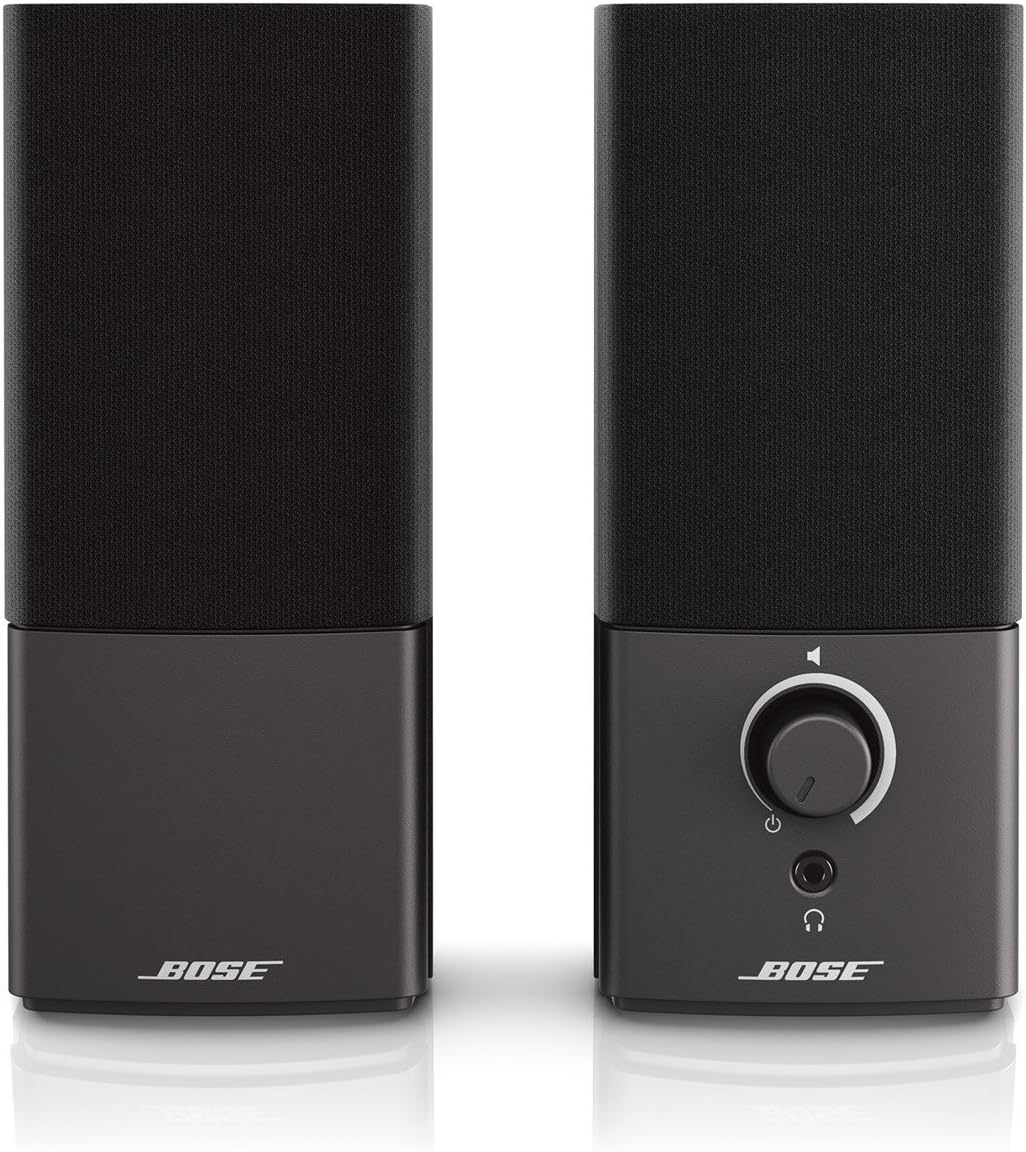
Image: Front view of the Bose Companion 2 Series III Multimedia Speakers, showing both the left and right speakers. The right speaker features a volume knob and headphone jack.
Setup
Connecting the Speakers
- Connect the Speaker Cable: Connect the speaker cable from the left speaker to the right speaker. Ensure a secure connection.
- Connect the Audio Input Cable: Plug one end of the audio input cable into the "Audio In" port on the back of the right speaker. Connect the other end to the headphone jack or audio output port of your computer, smartphone, tablet, or other audio source.
- Connect the AC Power Pack: Plug the AC power pack into the power input on the back of the right speaker. Then, plug the power pack into a wall outlet.

Image: Rear view of the Bose Companion 2 Series III Multimedia Speakers, illustrating the connection ports for the speaker cable, audio input, and AC power pack.
Operating Instructions
Powering On/Off and Volume Control
- Power On/Off: The speakers power on automatically when connected to power and an audio source. To turn them off, disconnect the power pack from the wall outlet.
- Volume Control: Use the large knob on the front of the right speaker to adjust the volume. Turn clockwise to increase volume and counter-clockwise to decrease.
- Headphone Jack: A 3.5mm headphone jack is located on the front of the right speaker for private listening. Plugging in headphones will mute the speakers.
Connecting Additional Devices
The Bose Companion 2 Series III speakers feature an auxiliary input, allowing you to connect a second audio source simultaneously, such as an iPhone or iPad, without disconnecting your primary device. Simply connect the second device to the auxiliary input port on the back of the right speaker using a 3.5mm audio cable.

Image: Bose Companion 2 Series III Multimedia Speakers set up on a desk next to a laptop, demonstrating a typical usage scenario.
Maintenance
- Cleaning: Use a soft, dry cloth to clean the speaker surfaces. Do not use any liquids or abrasive cleaners.
- Storage: When not in use for extended periods, store the speakers in a cool, dry place.
- Handling: Avoid dropping the speakers or exposing them to extreme temperatures or humidity.
Troubleshooting
| Problem | Possible Cause | Solution |
|---|---|---|
| No sound |
|
|
| Distorted sound |
|
|
Specifications
- Model Name: Companion 2 Series III
- Model Number: 354495-1100
- Speaker Type: Monitor
- Connectivity Technology: Wired (3.5mm AUX)
- Audio Output Mode: Stereo
- Power Source: AC
- Product Dimensions: 15"D x 8"W x 19"H
- Item Weight: 3.97 pounds (1800 Grams)
- Color: Black
- Material: Plastic
- Manufacturer: Bose Corporation
- First Available: June 11, 2013
Warranty and Support
Bose products come with a limited warranty. For specific warranty details and support, please refer to the official Bose website or contact Bose customer service. User guides are also available in PDF format for download.
- Official User Guide (PDF): Download User Guide
- Official User Manual (PDF): Download User Manual
- Visit the Bose Store: Bose Store on Amazon


