
1. Introduction
This manual provides comprehensive instructions for the setup, operation, and maintenance of your Logitech USB Headset Stereo H650e. Designed for enterprise-quality audio, this headset features a human-centric design, an in-call LED light, and inline call controls for efficient communication.
Please read this manual thoroughly before using the headset to ensure optimal performance and a clear understanding of its functionalities.
2. Package Contents
The Logitech USB Headset Stereo H650e package typically includes:
- Logitech USB Headset Stereo H650e
- Carrying Pouch (if included with specific packaging)
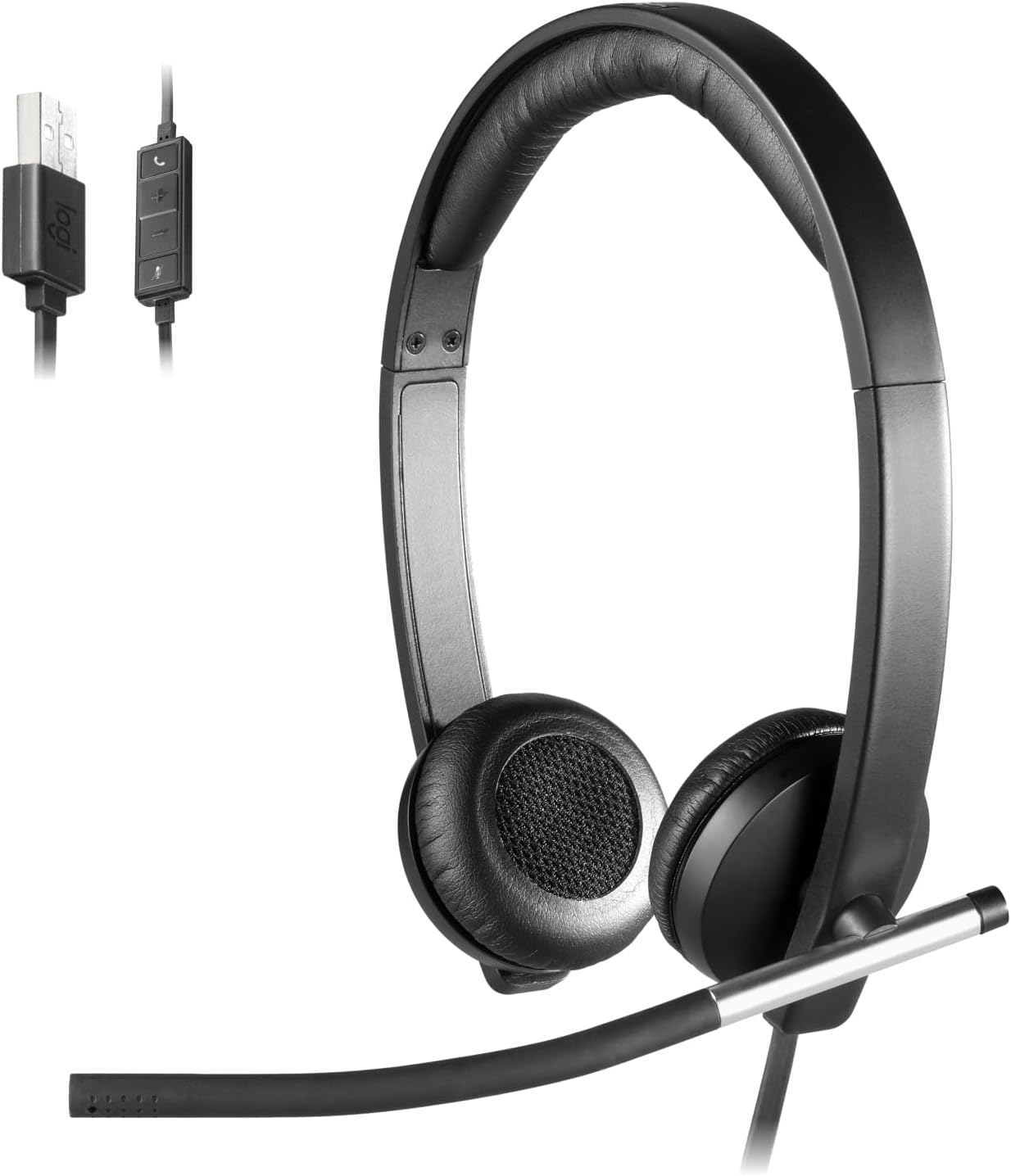
Image 1: The Logitech USB Headset Stereo H650e, showing the over-ear design, adjustable microphone boom, USB connector, and the inline control unit for managing calls and volume.
3. Setup
- Connect the Headset: Locate an available USB port on your computer (PC). Insert the USB connector of the Logitech H650e headset into the USB port.
- Driver Installation: The headset is designed for plug-and-play functionality. Your operating system (e.g., Windows, macOS) should automatically detect the device and install the necessary drivers. This process may take a few moments.
- Verify Connection: Once installed, the headset should appear as an audio input and output device in your computer's sound settings. You may need to select it as the default communication device for your applications (e.g., video conferencing software, softphones).
4. Operating Instructions
4.1. Wearing the Headset
- Adjust the headband to fit comfortably over your head.
- Position the earcups over your ears. The ear cushions are designed for comfort during extended use.
- Adjust the flexible microphone boom so that the microphone is positioned approximately two fingers' width from your mouth for optimal voice pickup.
4.2. Inline Controls
The inline control unit provides convenient access to essential call management functions:
- Volume Up (+): Press to increase the listening volume.
- Volume Down (-): Press to decrease the listening volume.
- Mute Microphone: Press to mute or unmute the microphone. A visual indicator (if supported by your UC platform) may show the mute status.
- Call Answer/End: Press to answer an incoming call or end an active call. This feature requires compatibility with your specific Unified Communications (UC) platform.
4.3. In-Call LED Indicator
The headset features an LED indicator light on the microphone boom. This light provides a visual alert when you are on a call, helping to minimize interruptions from others. This functionality is typically supported when used with compatible Unified Communications (UC) platforms such as Microsoft Lync or Cisco.
5. Features Overview
- Enterprise-Grade Audio: Delivers clear sound quality for professional communication.
- Wideband Audio: Provides a broader frequency range for more natural-sounding conversations.
- Digital Signal Processing (DSP): Enhances audio quality by digitally optimizing voice and music.
- Noise-Cancelling Boom Mic: Reduces background noise for clearer voice transmission, ensuring your voice is heard distinctly.
- Broad UC Compatibility: Optimized for Microsoft Lync and Cisco compatible, ensuring integration with most leading Unified Communications platforms.
- Flat Cable Design: The flat, tangle-free cable helps prevent knots and improves durability.
6. Specifications
| Model Name | H650e (981-000518) |
| Connectivity Technology | USB |
| Headphones Jack | USB |
| Noise Control | Active Noise Cancellation |
| Sensitivity | 90 dB |
| Frequency Range | 50Hz-10KHz |
| Impedance | 32 Ohm |
| Style | Stereo, Over Ear |
| Control Type | Call Control (Inline Remote) |
| Cable Feature | Retractable (Flat Cable) |
| Compatible Devices | PC |
| Item Weight | Approximately 4.2 ounces (119 grams) |
| Product Dimensions (LxWxH) | 2 x 6.75 x 6.5 inches (5.08 x 17.15 x 16.51 cm) |
7. Maintenance
- Cleaning: Use a soft, dry cloth to clean the headset. Do not use liquid cleaners or aerosols.
- Storage: When not in use, store the headset in a cool, dry place, preferably in its protective pouch, to prevent dust accumulation and physical damage.
- Cable Care: Avoid sharp bends or excessive pulling on the USB cable to prevent internal damage. The flat cable design is intended to reduce tangling.
- Earcup Care: Periodically check the ear cushions for wear and tear.
8. Troubleshooting
- No Sound from Headset / Microphone Not Working:
- Ensure the USB connector is fully inserted into the computer's USB port.
- Check your computer's sound settings to confirm the Logitech H650e is selected as the default playback and recording device.
- Verify that the microphone is not muted using the inline control.
- Test the headset with a different USB port on your computer.
- Restart your computer.
- In-Call LED Indicator Not Functioning:
- The in-call LED indicator feature is primarily designed to work with specific Unified Communications (UC) platforms such as Microsoft Lync or Cisco. Ensure your software is compatible and properly configured.
- Check for any software updates for your UC application or Logitech drivers.
- Poor Audio Quality:
- Ensure the microphone is positioned correctly, about two fingers' width from your mouth.
- Check for any loose connections.
- Adjust volume levels on both the inline controller and your computer's sound settings.
- Ensure no other audio devices are interfering.
9. Warranty and Support
For detailed warranty information and technical support, please refer to the official Logitech website or contact Logitech customer service. Keep your purchase receipt for warranty claims.
Logitech Support: www.logitech.com/support