
1. Introduction
This manual provides essential instructions for the proper setup, operation, and maintenance of your Elo Touch E568461 22C3 C-Series All-in-One Touch Computer. Please read this manual thoroughly before using the device to ensure optimal performance and safety. Keep this manual for future reference.
2. Safety Information
- Always use the power adapter supplied with the unit.
- Do not expose the device to water or excessive moisture.
- Avoid placing the device in direct sunlight or near heat sources.
- Ensure proper ventilation around the unit to prevent overheating.
- Do not attempt to open or service the device yourself. Refer all servicing to qualified personnel.
- Disconnect power before cleaning the device.
3. Package Contents
Verify that all items are present in the package:
- Elo Touch E568461 All-in-One Touch Computer
- Power Adapter and Power Cord
- Quick Start Guide (if included)
- Documentation CD/USB (if included)
4. Setup
Follow these steps to set up your All-in-One Touch Computer:
- Unpacking: Carefully remove the computer from its packaging.
- Placement: Place the computer on a stable, flat surface with adequate ventilation.
- Connect Power: Connect the power adapter to the DC input port on the computer, then plug the power cord into a grounded electrical outlet.
- Connect Peripherals (Optional): Connect any desired peripherals such as a keyboard, mouse, or external storage devices to the available USB ports.
- Power On: Press the power button, usually located on the side or back of the unit, to turn on the computer.
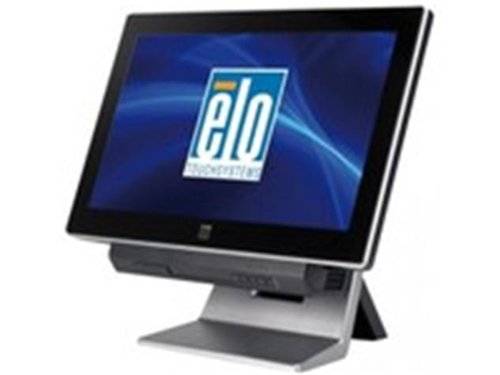
Image 1: The Elo Touch E568461 All-in-One Touch Computer. This image displays the front view of the black touch computer with the Elo logo visible on its screen, mounted on its stand.
5. Operating Instructions
5.1 Basic Touch Screen Operation
- Tap: Lightly touch the screen with your finger to select an item or activate a function, similar to a mouse click.
- Drag: Touch and hold an item, then move your finger across the screen to reposition it.
- Scroll: Swipe your finger up or down, or left or right, to navigate through content.
5.2 System Features
The E568461 model is equipped with an Intel i3-3220 processor running at 3.0GHz, 2GB of RAM, and a 320GB HDD. It features Intel HD Graphics 2500 and an Intel H61 Express chipset, providing a robust platform for various applications.
6. Maintenance
6.1 Cleaning the Display
- Turn off the computer and disconnect the power cord.
- Use a soft, lint-free cloth lightly dampened with a non-abrasive, ammonia-free glass cleaner.
- Do not spray cleaner directly onto the screen.
6.2 General Care
- Keep the ventilation openings clear of dust and debris.
- Avoid extreme temperatures and humidity.
7. Troubleshooting
If you encounter issues, refer to the following common problems and solutions:
- No Power: Ensure the power cord is securely connected to both the computer and the electrical outlet. Verify the outlet is functional.
- No Display: Check if the computer is powered on. If the screen remains black, try restarting the unit.
- Touch Screen Unresponsive: Restart the computer. If the issue persists, ensure the screen is clean and free of obstructions.
- System Slow: Close unnecessary applications. Ensure the operating system and drivers are up to date.
8. Specifications
| Feature | Description |
|---|---|
| Model Number | E568461 |
| Brand | Elo Touch |
| Display Size | 22 inches |
| Touch Technology | iTouch Plus Saw LED |
| Processor | Intel Core i3-3220 (3.0GHz) |
| RAM | 2GB |
| Storage | 320GB HDD |
| Graphics | Intel HD Graphics 2500 |
| Chipset | Intel H61 Express |
| Color | Black (Dark Grey Enclosure) |
| Product Dimensions | 20.79 x 11.65 x 16.06 inches |
| Weight | 28.06 Pounds |
9. Warranty and Support
For warranty information and technical support, please refer to the documentation provided with your product or visit the official Elo Touch website. Contact customer service for assistance with any issues not covered in this manual.


