Introduction
This manual provides essential information for the Avaya 9620L One-X Deskphone Edition IP Telephone. It covers setup, basic operation, advanced features, maintenance, and troubleshooting to ensure optimal performance and user experience. Please read these instructions carefully before using your new telephone.
Setup
Follow these steps to correctly set up your Avaya 9620L IP Telephone:
- Connect the Handset: Plug one end of the coiled handset cord into the handset jack on the left side of the telephone base and the other end into the handset.
- Connect the Network Cable: Connect one end of an Ethernet cable to the LAN port on the back of the telephone and the other end to your network wall jack or network switch.
- Connect the Power Adapter (if not using Power over Ethernet - PoE): If your network does not provide PoE, connect the power adapter (sold separately) to the power jack on the back of the telephone and then to an electrical outlet.
- Initial Boot-up: The telephone will power on automatically and begin its boot-up sequence. This may take a few moments as it connects to your network and downloads necessary configurations.
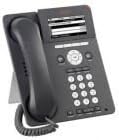
An image showing the Avaya 9620L IP Telephone, featuring its display screen, keypad, navigation buttons, and handset. This illustrates the device's physical appearance for setup and operation.
Operating
Basic Call Functions
- Making a Call: Lift the handset or press the Speaker button. Dial the desired number using the keypad. Press the Call softkey or wait for the call to connect.
- Answering a Call: When the phone rings, lift the handset or press the Speaker button. Alternatively, press the Answer softkey.
- Ending a Call: Replace the handset or press the Speaker button again. If using a headset, press the End Call softkey.
Advanced Features
- Hold: During an active call, press the Hold button. The caller will hear hold music. To retrieve the call, press the Hold button again or the corresponding line appearance button.
- Transfer: During an active call, press the Transfer button. Dial the number to which you want to transfer the call. You can either announce the call (wait for the party to answer) or perform a blind transfer (press Transfer again before the party answers).
- Conference: During an active call, press the Conference button. Dial the number of the third party. Once they answer, press the Conference button again to join all parties.
- Voicemail: Press the Message button to access your voicemail. Follow the audio prompts to listen to, save, or delete messages.
- Directory: Press the Directory button to access your personal or corporate directory. Use the navigation buttons to scroll and select contacts.
Display and Navigation
The Avaya 9620L features a backlit display and navigation buttons for easy access to features and information. Use the four-way navigation cluster and the 'OK' button to move through menus and select options. Softkeys, located directly below the display, change functionality based on the current context of the phone.
Maintenance
To ensure the longevity and proper functioning of your Avaya 9620L IP Telephone, follow these simple maintenance guidelines:
- Cleaning: Use a soft, dry, lint-free cloth to clean the phone's exterior. For stubborn marks, slightly dampen the cloth with water. Avoid using harsh chemicals, abrasive cleaners, or solvents, as these can damage the phone's finish and components.
- Environment: Keep the telephone in a clean, dry environment, away from direct sunlight, excessive heat, and moisture.
- Cable Management: Ensure all cables are securely connected and not under strain, which could lead to damage over time.
Troubleshooting
If you encounter issues with your Avaya 9620L IP Telephone, try the following troubleshooting steps:
- No Dial Tone:
- Check if the handset cord is securely plugged into both the handset and the phone base.
- Verify the network cable is properly connected to the phone and the network jack.
- If using a power adapter, ensure it is plugged in and receiving power.
- Restart the phone by unplugging and replugging the network cable or power adapter.
- Cannot Connect to Network:
- Ensure the Ethernet cable is functional and correctly connected.
- Check your network connection for other devices to confirm network availability.
- Contact your IT administrator to verify network settings and IP phone registration.
- Display is Blank or Frozen:
- Perform a power cycle by disconnecting and reconnecting the power source.
- If the issue persists, contact technical support.
- Poor Audio Quality:
- Check the handset and network cable connections.
- Ensure there is no interference from other electronic devices.
- Test with a different handset or headset if available.
If these steps do not resolve the issue, please contact your system administrator or Avaya support for further assistance.
Specifications
Key technical specifications for the Avaya 9620L IP Telephone:
| Feature | Detail |
|---|---|
| Brand | Avaya |
| Model | 9620L |
| Telephone Type | Corded IP Phone |
| Power Source | Corded Electric (PoE capable) |
| Dialer Type | Single Keypad |
| Answering System Type | Digital (Voicemail integration) |
| ASIN | B00C7WPFL8 |
| Date First Available | April 5, 2013 |
Warranty and Support
The Avaya 9620L IP Telephone comes with a full manufacturer warranty. For specific warranty terms, duration, and claim procedures, please refer to the documentation provided with your purchase or visit the official Avaya website. For technical support, contact your authorized Avaya dealer or IT department.


