
1. Introduction
This manual provides essential information for the installation, operation, and maintenance of your A-Tech 1GB DDR PC2700 Desktop Memory Module. This module is designed to enhance the performance of compatible desktop computers by providing additional system memory. Please read these instructions carefully before proceeding with installation.
2. Safety Information
- Always power off your computer and disconnect it from the power source before opening the case or handling internal components.
- Discharge any static electricity from your body by touching a grounded metal object (e.g., the computer chassis) before handling the memory module. Static electricity can damage electronic components.
- Handle the memory module by its edges, avoiding contact with the gold connectors or the chips on the module.
- Ensure proper ventilation when working inside the computer case.
3. Package Contents
Your package should contain the following item:
- 1 x A-Tech 1GB DDR PC2700 Desktop Memory Module

Figure 3.1: A-Tech 1GB DDR PC2700 Desktop Memory Module
4. Setup and Installation
Follow these steps to install your new memory module:
- Prepare Your Computer: Power off your computer completely and unplug the power cord from the wall outlet. Disconnect all peripheral devices.
- Open the Computer Case: Remove the side panel of your computer case to access the motherboard. Refer to your computer's manual for specific instructions on opening the case.
- Locate Memory Slots: Identify the DIMM memory slots on your motherboard. These are typically long slots with clips on either end.
- Prepare the Slot: If you are installing into an empty slot, push the clips at both ends of the DIMM slot outwards. If you are replacing an existing module, gently push the clips outwards to release the old module and carefully remove it.
- Install the Memory Module: Hold the A-Tech memory module by its edges. Align the notch on the bottom edge of the module with the key in the DIMM slot. This ensures correct orientation.
- Secure the Module: With the module properly aligned, press down firmly and evenly on both ends of the module until the clips snap into place, securing the module. Do not force the module if it does not seat easily; recheck the alignment.
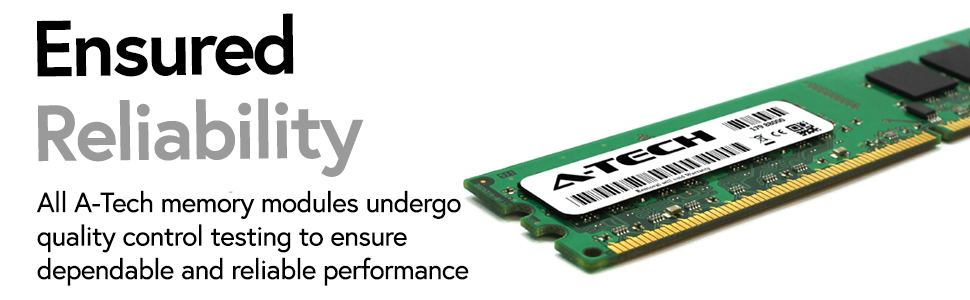
Figure 4.1: Proper alignment of a DIMM module into a slot (illustration)
- Close the Case: Once the memory module is securely installed, replace the computer's side panel and reconnect all cables.
- Power On: Plug in the power cord and power on your computer. The system should automatically detect the new memory. You can verify the installed memory in your operating system's system information or BIOS settings.
5. Operating the Memory Module
Once installed, the A-Tech 1GB DDR PC2700 Desktop Memory Module operates automatically as part of your computer's system memory. No user interaction is required for its function. The operating system and applications will utilize the available memory as needed to improve performance and multitasking capabilities.
6. Maintenance
Memory modules generally require minimal maintenance. To ensure optimal performance and longevity:
- Avoid exposing the module to extreme temperatures or humidity.
- Keep the interior of your computer case clean and free of dust to prevent overheating and ensure proper contact in the memory slots.
- Do not attempt to clean the gold contacts with abrasive materials. If cleaning is necessary, use a soft, lint-free cloth and isopropyl alcohol.
7. Troubleshooting
If you encounter issues after installing the memory module, consider the following:
- Computer Does Not Boot or Beeps: This often indicates a memory issue. Ensure the module is fully seated in its slot and the clips are locked. Try reseating the module.
- Memory Not Recognized: Check your computer's BIOS/UEFI settings to confirm the memory is detected. If not, try installing the module in a different slot or testing it individually if you have multiple modules.
- System Instability or Crashes: This could be due to incompatible memory or a faulty module. Verify your computer's motherboard specifications for compatible memory types and speeds.
- Dust in Slot: As noted by some users, dust in the memory slot can prevent proper contact. Carefully clean the slot with compressed air if suspected.
If problems persist, contact A-Tech Technical Support for assistance.
8. Specifications
| Brand | A-Tech |
| Model Number | CT12864Z335 |
| Memory Size | 1 GB |
| RAM Memory Technology | DDR |
| Memory Speed | 333 MHz (PC2700) |
| Form Factor | DIMM (184-pin) |
| Compatible Devices | Desktop Computers |
| Item Weight | 1.1 Ounces |
9. Warranty and Support
A-Tech memory modules come with a Limited Lifetime Warranty covering defects in materials and workmanship. For warranty claims or technical assistance, please contact A-Tech Technical Support.
Toll-Free Technical Support: Refer to the A-Tech website or product packaging for current contact information.
For more information, visit the official A-Tech website: atechmemory.com


