
Introduction
This manual provides comprehensive instructions for the installation, operation, maintenance, and troubleshooting of your XFX TK-DM59-NCD4 Radeon HD 6450 Graphics Card. This card is designed to enhance your computing experience by providing dedicated graphics processing and multi-monitor capabilities.
The XFX TK-DM59-NCD4 graphics card features the AMD Radeon HD 6450 GPU, offering 1GB of 64-bit DDR3 memory and PCI Express connectivity. It supports AMD APP Acceleration technology, DirectX 11, and AMD Eyefinity technology for versatile display configurations.
Product Overview
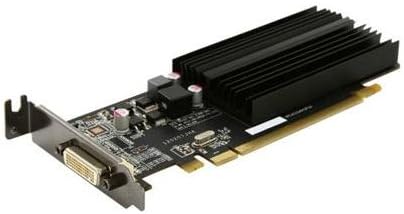
Figure 1: XFX TK-DM59-NCD4 Radeon HD 6450 Graphics Card. This image displays the low-profile graphics card with its passive heatsink and DVI output port, designed for efficient heat dissipation and multi-monitor support.
The XFX TK-DM59-NCD4 is a low-profile ready graphics card, making it suitable for various system form factors. Its design focuses on providing reliable graphics performance and enabling easy multi-monitor setups.
Setup
1. Physical Installation
- Power Off: Ensure your computer is completely powered off and unplugged from the wall outlet.
- Open Case: Remove the side panel of your computer case to access the motherboard.
- Locate PCIe Slot: Identify an available PCI Express x16 slot on your motherboard.
- Remove Slot Cover: Carefully remove the metal slot cover from the back of your computer case corresponding to the chosen PCIe slot.
- Insert Graphics Card: Align the graphics card with the PCIe slot and press down firmly until it is securely seated. Ensure the retention clip (if present) locks into place.
- Secure Card: Use a screw or the case's retention mechanism to secure the graphics card bracket to the computer case.
- Close Case: Replace the side panel of your computer case.
- Connect Display: Connect your monitor(s) to the appropriate output port(s) on the graphics card (e.g., DVI, HDMI, VGA).
2. Driver Installation
After physical installation, you must install the graphics drivers for optimal performance and functionality.
- Power On: Plug in your computer and power it on. Your operating system may automatically install a basic display driver.
- Download Drivers: Visit the official AMD website (www.amd.com/support) or the XFX support page to download the latest drivers for the Radeon HD 6450. Select your operating system (e.g., Windows 10, Windows 7).
- Run Installer: Locate the downloaded driver package and run the installer.
- Follow Prompts: Follow the on-screen instructions to complete the driver installation. This may include accepting license agreements and choosing installation options.
- Restart Computer: Restart your computer when prompted to finalize the driver installation.
Operating
Basic Functionality
Once drivers are installed, your XFX TK-DM59-NCD4 graphics card will handle all graphical output for your system. You can adjust display settings, resolution, and refresh rates through your operating system's display settings or the AMD Radeon Software (formerly Catalyst Control Center).
Multi-Monitor Setup (AMD Eyefinity)
The AMD Eyefinity technology allows you to connect multiple displays to your graphics card for an expanded desktop experience. The TK-DM59-NCD4 supports multi-monitor configurations.
- Connect Displays: Connect your additional monitors to the available display outputs on the graphics card.
- Access Display Settings: Right-click on your desktop and select "Display settings" (Windows) or "AMD Radeon Software."
- Configure Displays: Within the display settings, you can detect, arrange, and extend your desktop across multiple monitors. For advanced configurations, including creating a single large surface, use the AMD Radeon Software.
Maintenance
Cleaning
Regular cleaning helps maintain optimal performance and extends the lifespan of your graphics card.
- Power Off: Always power off and unplug your computer before cleaning.
- Dust Removal: Use compressed air to gently blow dust from the heatsink fins and other components of the graphics card. Hold the can upright to prevent propellant discharge.
- Avoid Contact: Do not touch the circuit board or components directly with your hands.
Driver Updates
Periodically check for updated drivers on the official AMD or XFX website. Driver updates often include performance improvements, bug fixes, and compatibility enhancements.
Troubleshooting
| Problem | Possible Cause | Solution |
|---|---|---|
| No display on monitor. | Graphics card not seated correctly, monitor cable loose, incorrect input selected on monitor, faulty monitor/cable. | Ensure card is fully seated in PCIe slot. Check monitor cable connections. Select correct input on monitor. Test with a different monitor or cable if possible. |
| Low performance or graphical glitches. | Outdated or incorrect drivers, overheating, insufficient system resources. | Install the latest drivers from AMD/XFX. Ensure proper case ventilation. Close unnecessary background applications. |
| Computer fails to boot after installation. | Graphics card not fully seated, power supply issues, BIOS/UEFI settings. | Re-seat the graphics card. Ensure your power supply meets system requirements. Reset BIOS/UEFI to default settings if necessary. |
If you encounter issues not listed here, refer to the XFX support website or contact their customer service.
Specifications
- GPU Model: AMD Radeon HD 6450
- GPU Line: AMD Radeon HD 6400
- Bus Type: PCIe x16 Gen 2.0
- System Type: Desktop
- Memory Amount: 1024MB (1GB)
- Memory Type: DDR3 SDRAM
- Graphics Processor Manufacturer: AMD
- Package Dimensions: 10.25 x 6.75 x 2.25 inches
- Item Weight: 4 pounds
Warranty
The XFX TK-DM59-NCD4 graphics card comes with a 1-Year Limited Warranty. This warranty covers defects in materials and workmanship under normal use. Please retain your proof of purchase for warranty claims.
For detailed warranty terms and conditions, please refer to the official XFX website or contact their customer support.
Support
For further assistance, technical support, or driver downloads, please visit the official XFX support resources:
- XFX Official Website: www.xfxforce.com
- AMD Support: www.amd.com/support (for general AMD driver and software support)
When contacting support, please have your product model (TK-DM59-NCD4) and serial number ready.


