
Introduction
This manual provides comprehensive instructions for setting up, operating, and maintaining your GOgroove BlueSYNC TYM Bluetooth Wireless Stereo Speaker & Wooden Alarm Clock. This versatile device combines a high-fidelity Bluetooth speaker with a digital alarm clock, featuring an LED time and temperature display, and a USB charging port for your mobile devices.
What's in the Box
Verify that all items are present in the package:
- GOgroove BlueSYNC TYM Speaker
- AC Adapter
- Auxiliary Cable (3.5mm audio plug)
- USB Cable
- User Manual (this document)

Figure 1: Included components of the BlueSYNC TYM package.
Product Overview
Familiarize yourself with the various parts and controls of your BlueSYNC TYM speaker.

Figure 2: Front and top panel features of the BlueSYNC TYM.
Front Panel:
- LED Display: Shows time, temperature, and other indicators.
- LED AM/PM Indicator: Indicates AM or PM for the time display.
- LED Alarm Indicator: Lights up when an alarm is set.
- Microphone: For hands-free calling.
Top Panel Controls:
- Multifunction Button: Used for various operations like power on/off, play/pause, answer/end calls.
- Volume Down Button: Decreases audio volume.
- Volume Up Button: Increases audio volume.
- Snooze Button: Activates snooze for alarms and can dim the display.
Rear Panel Ports & Controls:
- USB Charging Port: For charging external devices (5V DC, 2.1A).
- AUX Input: 3.5mm audio jack for wired connection to non-Bluetooth devices.
- Alarm Buttons: For setting and managing alarms.
- Time Buttons: For adjusting time and date settings.
- 12/24 Hour Switch: Toggles between 12-hour and 24-hour time formats.
- DC IN Port: For connecting the included AC adapter.
Setup
1. Power Connection:
Connect the included AC adapter to the DC IN port on the rear of the BlueSYNC TYM and plug the adapter into a standard wall outlet. The device will power on and the LED display will illuminate.

Figure 3: Connecting the AC adapter to the BlueSYNC TYM.
2. Setting Time and Date:
Use the 'TIME' buttons on the rear panel to adjust the current time and date. Refer to the detailed instructions in the full user manual for specific steps on setting the time, date, and temperature unit (Fahrenheit or Celsius).
Operating Instructions
1. Bluetooth Pairing:
- Ensure the BlueSYNC TYM is powered on.
- Activate Bluetooth on your mobile device (smartphone, tablet, laptop).
- Search for "BlueSYNC TYM" in your device's Bluetooth settings and select it to pair.
- Once paired, the device will confirm the connection, and you can begin streaming audio wirelessly up to 30 feet.
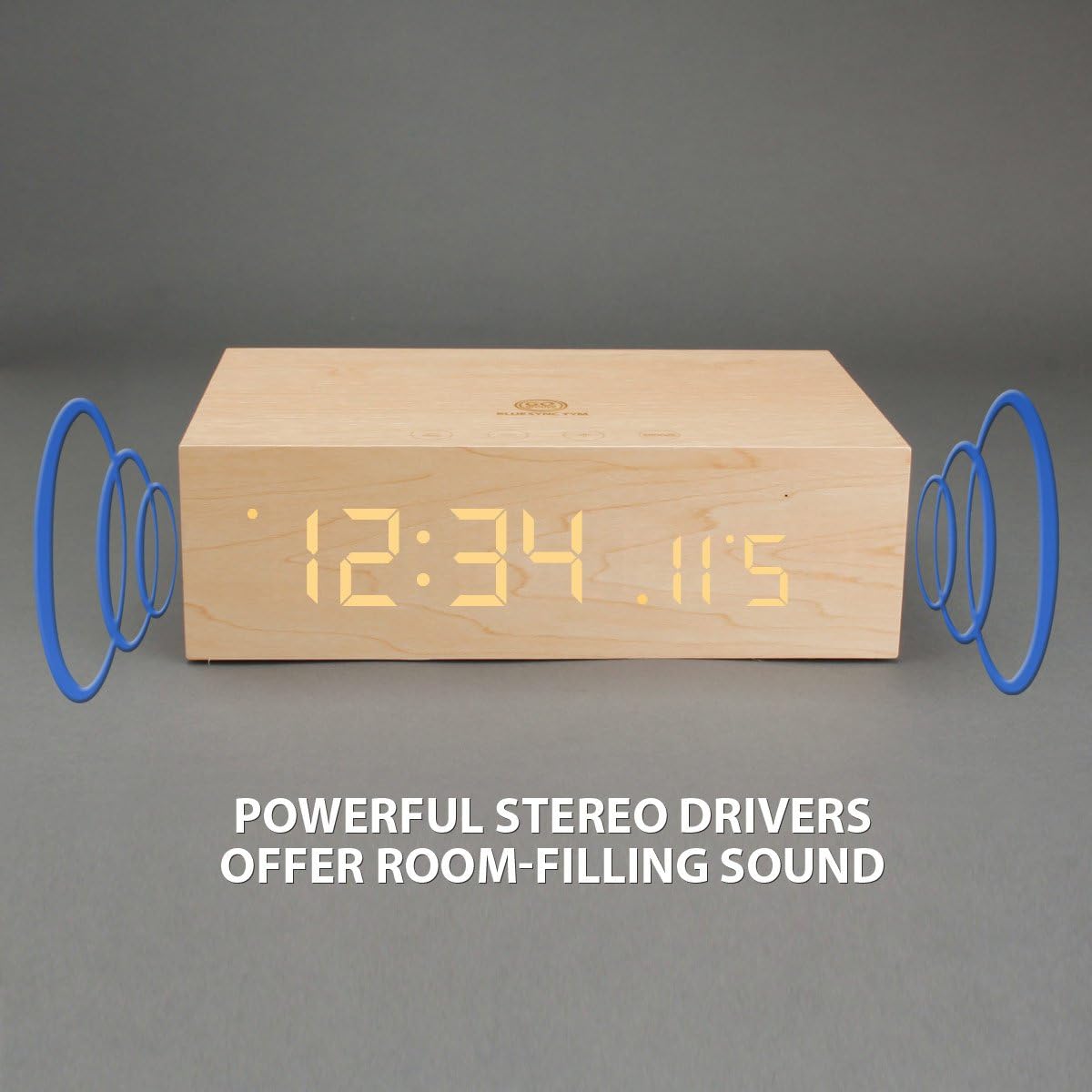
Figure 4: Wireless Bluetooth connectivity and wired AUX connection options.
2. Wired Audio Playback (AUX):
For devices without Bluetooth, use the included 3.5mm auxiliary cable. Connect one end to the AUX input on the rear of the BlueSYNC TYM and the other end to your audio device's headphone jack. The speaker will automatically switch to AUX mode.
3. Alarm Clock Functions:
Use the 'ALARM' buttons on the rear panel to set up to three different alarms. The snooze function can be activated by pressing the 'SNOOZE' button on the top panel when the alarm sounds. Pressing the snooze button also dims the LED display.
4. Hands-Free Calling:
When connected via Bluetooth, the built-in microphone allows you to answer and end phone calls directly from the speaker using the multifunction button.
5. USB Charging:
The USB port on the rear panel provides 5V DC, 2.1A output, allowing you to charge your smartphone or other USB-powered devices while the speaker is connected to power.
Maintenance
To ensure the longevity of your GOgroove BlueSYNC TYM, follow these simple maintenance guidelines:
- Clean the exterior with a soft, dry cloth. Avoid abrasive cleaners or solvents.
- Keep the device away from water, moisture, and extreme temperatures.
- Do not block the speaker grilles or ventilation openings.
Troubleshooting
| Problem | Possible Cause | Solution |
|---|---|---|
| Device does not power on. | AC adapter not properly connected or power outlet is faulty. | Ensure AC adapter is securely plugged into the device and a working power outlet. |
| No sound from speaker. | Volume too low; device not paired (Bluetooth); AUX cable not connected. | Increase volume on both the speaker and connected device. Re-pair Bluetooth or ensure AUX cable is fully inserted. |
| Bluetooth pairing fails. | Device out of range; Bluetooth not enabled on source device; interference. | Ensure devices are within 30 ft. Enable Bluetooth on your device. Try restarting both devices. |
| Alarm does not sound. | Alarm not set or volume too low. | Verify alarm settings and ensure alarm volume is audible. |
| Display is too bright/dim. | Brightness setting. | Press the 'SNOOZE' button to adjust display brightness. |
Specifications
- Product Dimensions: 10 x 8.5 x 3.75 inches
- Item Weight: 2.28 pounds
- Manufacturer: GOgroove
- Item Model Number: GG-BLUESYNC-TYM
- Brand: GOgroove
- Color: Wooden/Neutral
- Special Feature: Built-in microphone, Alarm clock, Radio
- Connectivity Technology: Bluetooth, Auxiliary, USB
- Style: Modern
- Power Source: Corded Electric
- Included Components: AC adapter, Auxiliary cable, USB cable, 3.5mm audio cable, User Manual
- Water Resistance Level: Not Water Resistant
- Display Technology: LED
- Recommended Uses For Product: Music
- Speakers: (3w x 2) 6W RMS; 12W Peak
- Drivers: Stereo 40mm full-range
- Impedance: 4 Ohms
- Frequency Response: 90Hz – 20KHz
- S/N Ratio: >65db
- Bluetooth Version: 2.1+EDR ; A2DP ; AVRCP
- Operating Distance: 30 feet
Warranty and Support
The GOgroove BlueSYNC TYM is backed by a 3 Year Manufacturer's Warranty. For any questions, technical support, or warranty claims, please contact GOgroove customer service. Refer to the contact information provided on the product packaging or the official GOgroove website.
