
1. Introduction
This manual provides detailed instructions for setting up and operating your Pabobo Kid Sleep Moon 3-in-1 Educational Alarm Clock and Night Light. This device is designed to help children understand sleep and wake cycles through visual indicators, offering a gentle way to manage their morning and nap routines. It combines an alarm clock, a night light, and a sleep trainer into one unit.

Figure 1: The Pabobo Kid Sleep Moon 3-in-1 Educational Alarm Clock and Night Light, featuring a sleeping rabbit under a moon and an awake rabbit under a sun, indicating sleep and wake times.
Key Features:
- 4 lullabies and 4 alarm sounds with a silent mode option.
- 4 adjustable screen light intensities.
- Night light function for younger children.
- "Sunset" bedtime routine and "Moonrise" wake-up process for older children.
- 3 different time settings: night, nap, and weekend, displayed on two LCD screens.
- User-friendly menu for easy setup.
- Operates with 4 AA batteries or via mains power.

Figure 2: Overview of key features including optional alarm, educational sleep coach night light, and parental lock with easy programming.
2. Safety Warnings
No specific safety warnings are applicable beyond general electronic device precautions. Ensure the device is used in a dry environment and kept away from water. Do not attempt to open or repair the device yourself. Use only the specified power adapter or batteries.
3. Setup
Powering the Device:
The Kid Sleep Moon can be powered by 4 AA batteries or by connecting it to a mains power outlet using the provided AC adapter. Ensure batteries are inserted correctly according to polarity markings if using battery power.
Initial Settings:
Upon initial setup, the only functions requiring adjustment are the clock and the three different wake-up times: morning, nap, and weekend wake-up times. All other functions are pre-set.
4. Operating Instructions
4.1. General Setting Principle:
- To access the menu, press and hold the SET button located on the back of the screen for 2-3 seconds. The menu will appear.
- Navigate through the menu using the UP or DOWN buttons on the back of the screen.
- Select the function to adjust by pressing SET.
- Adjust the selected function using the UP or DOWN buttons.
- Confirm the chosen setting by pressing SET.
- To return to the previous menu, select the appropriate option and confirm with SET.
4.2. Setting the Clock Time:
- Press and hold the SET button on the back of the LCD screen for 2-3 seconds to display the menu.
- Select the "SET TIME" option using UP or DOWN, then confirm with SET. The sub-menu for setting different times will appear.
- Select "CLOCK" using UP or DOWN, then confirm with SET.
- Select "AM/PM 24H" using UP or DOWN, then confirm with SET. Choose either AM/PM or 24H mode using UP or DOWN, then confirm with SET.
- Select the hour digit using UP or DOWN, then confirm with SET. Adjust the hour using UP or DOWN, then confirm with SET.
- Select the minute digit using UP or DOWN, then confirm with SET. Adjust the minutes using UP or DOWN, then confirm with SET.
- Select the option to return to the time setting sub-menu using UP or DOWN, then confirm with SET.
- The same procedure applies to setting the wake-up times described below.
4.3. Setting Wake-up Times:
Access these settings via the "SET TIME" menu, similar to setting the clock.
- Wake Up Time 1 (Weekday Morning): Menu path: SET TIME / WAKE UP 1 W / ...
- Wake Up Time 2 (Nap): Menu path: SET TIME / WAKE UP 2 NAP / ...
- Wake Up Time 3 (Weekend Morning): Menu path: SET TIME / WAKE UP 3 WE / ...
4.4. Principle of the Wake-up Indicator:
When it's time to sleep (evening or nap), turn on your Kid Sleep by setting the main switch to "I". The main screen will show the illuminated figure in a sleeping position, and the LCD screen will display the moon. This is what your child will see during their night or nap.

Figure 3: The Kid Sleep Moon displaying the sleeping rabbit and moon, indicating "stay in bed."
Approximately 10 minutes before the set wake-up time, the moon begins to set. This "WAKE UP PROCESS" alerts your child that it will soon be time to get up.
At the set wake-up time, the sun rises on the LCD screen, and the figure changes to an awake position. Your child then knows it's time to get up!

Figure 4: The Kid Sleep Moon displaying the awake rabbit and sun, indicating "time to get up."
To return the screens to the sleeping/moon position, turn off the Kid Sleep by setting the main switch to "O". Set the switch back to "I" for the next use.
4.5. Button Functions:
- Main Switch (I/O):
- Set to "I" (On): Activates the sleep/wake indicator. The transition from sleeping to awake figure can occur either silently or with an alarm, depending on the alarm settings configured in the menu.
- Set to "O" (Off): Turns off the device. This position is typically used during the day or when the device is not needed.
- Lullaby Button:
- Press and hold for 2-3 seconds to activate the chosen lullaby. It will play for 3 minutes and then automatically turn off.
- To turn it off mid-play, press and hold the button for 2-3 seconds again.
- "Go to Sleep" Routine (GS Button):
To prepare your child for bed, use the "Go to Sleep" (GS) function. Press and hold the GS button for 2-3 seconds. The figure will change to an awake position, and the moon will transform into a sun. The sun will gradually set. After 10 minutes, when the sun has set, the moon will rise, and the figure will return to a sleeping position. This indicates it's bedtime!
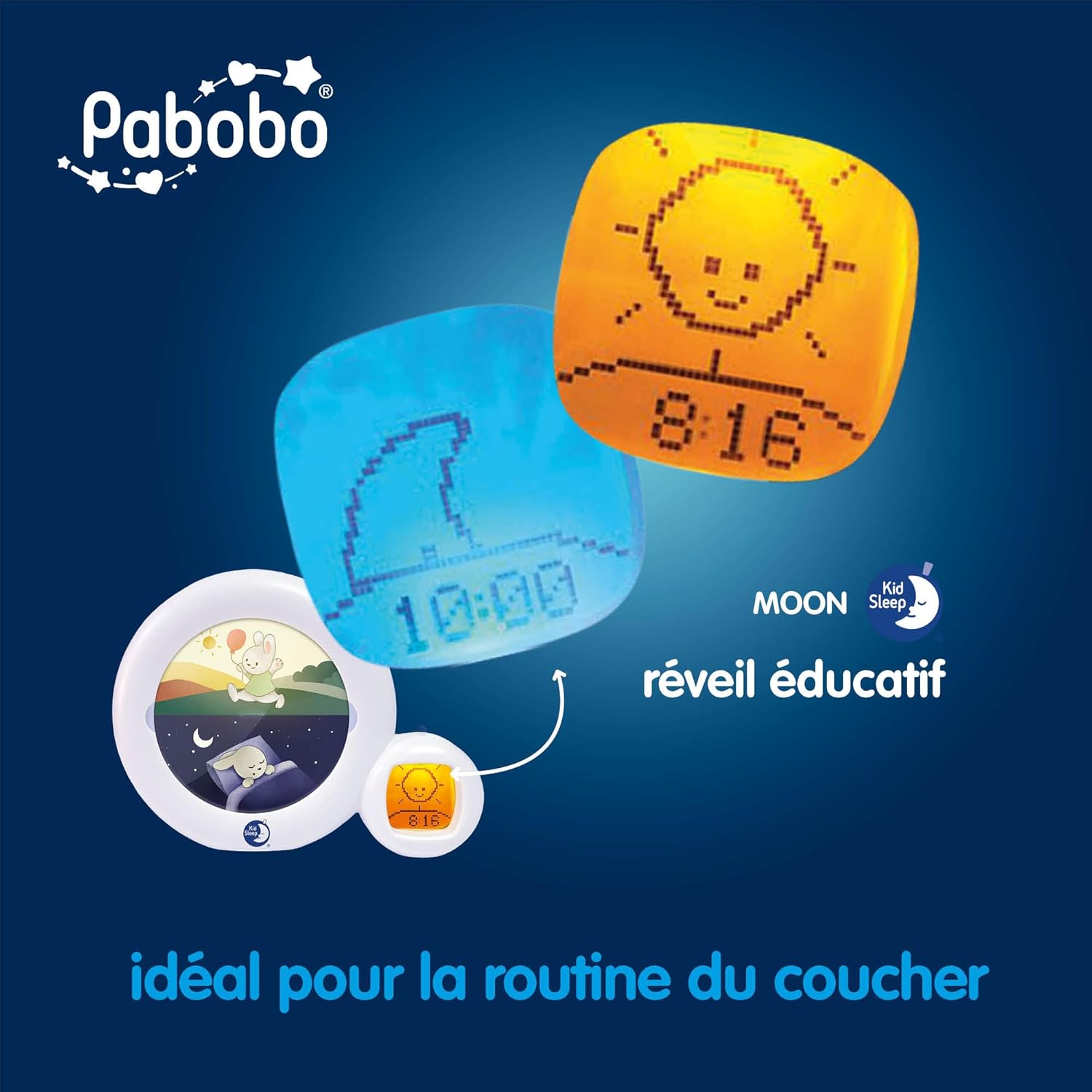
Figure 5: The Kid Sleep Moon during the "Go to Sleep" routine, with the sun gradually setting.
You can choose to replace the setting sun with an emptying hourglass and modify the duration of the "Go to Sleep" process.
- Weekday / Weekend Wake-up Mode (W/WE Button):
- Set the small W/WE button to "W" for Weekday mode. Wake-up times 1 and 2 will be active.
- Set the small W/WE button to "WE" for Weekend mode. Wake-up times 2 and 3 will be active.
- Screen Brightness Adjustment:
Use the dedicated button (or menu option, not explicitly named in the source) to adjust the light intensity of the screens.
- SET Button:
Press and hold for 2-3 seconds to enter the menu. Also used to select a function within the menu or to validate a setting.
- UP / DOWN Buttons:
Used to navigate up or down within the menu and to adjust values.
4.6. Night Light Mode:
The device can function as a night light, providing a soft glow. A decorative plate is included for this mode.

Figure 6: The Kid Sleep Moon operating in night light mode with the decorative plate.
5. Maintenance
To clean the device, gently wipe it with a soft, dry cloth. Do not use abrasive cleaners or immerse the device in water. Ensure the device is unplugged and batteries are removed before cleaning. Store in a cool, dry place when not in use for extended periods.
6. Troubleshooting
- Settings are lost after unplugging: The device may not retain settings when power is completely removed (e.g., unplugged from mains and batteries removed or depleted). It is recommended to keep the device powered or replace batteries regularly to maintain settings.
- Display is blank or not responding:
- Check if the device is properly connected to power or if the batteries are correctly inserted and not depleted.
- Ensure the main switch is in the "I" (On) position.
- Try resetting the device by temporarily removing power (unplugging and removing batteries) and then reconnecting.
- Alarm or lullaby not playing:
- Verify that the alarm/lullaby volume is not set to zero.
- Ensure the alarm is enabled for the desired wake-up time.
- Check if the main switch is set to the appropriate position for alarm activation (if applicable, as per section 4.5).
- Figure not changing from sleeping to awake:
- Confirm that the wake-up time is correctly set and the device is powered on.
- Ensure the current time is correctly set.
7. Specifications
| Brand | Pabobo |
| Manufacturer | Claessen's Kid |
| Model Number | 14 |
| Product Dimensions (L x W x H) | 23.3 x 6.1 x 17.6 cm (9.17 x 2.4 x 6.93 inches) |
| Item Weight | 539 grams (1.19 lbs) |
| Batteries Required | 3 AA batteries (not included) |
| Power Source | Battery powered or AC adapter |
| Material | Plastic |
| Color | Multicolor (White base) |
| Special Features | Alarm, Silent Clock, Night Light, Sleep Trainer |

Figure 7: Physical dimensions of the Kid Sleep Moon, approximately 18 cm (7.2 inches) in height.
8. Warranty and Support
Specific warranty information is not provided in this manual. Please refer to the product packaging or the manufacturer's official website for details regarding warranty coverage and customer support. For technical assistance or inquiries, contact Pabobo customer service.


