
Introduction
This manual provides essential information for the proper setup, operation, and maintenance of your SEIKI SE32HY10 32-Inch 720p 60Hz LED TV. Please read these instructions thoroughly before using your television to ensure optimal performance and safety. Keep this manual for future reference.

Image: Front view of the SEIKI SE32HY10 32-Inch LED TV, showcasing its sleek black design and screen.
What's in the Box
Carefully unpack the box and ensure all the following items are present:
- SEIKI SE32HY10 32-Inch 720p 60Hz LED TV
- Remote Control
- 2 x AAA Batteries (for remote control)
- TV Stand components (base and screws)
- Power Cord
- User Manual (this document)
Setup
1. Attaching the TV Stand
- Place the TV screen-down on a soft, flat surface to prevent scratches.
- Align the stand base with the mounting holes on the bottom of the TV.
- Secure the stand using the provided screws. Ensure the stand is firmly attached.

Image: A visual representation of the TV's dimensions and its relative size compared to a person, aiding in placement decisions.
2. Connecting External Devices
Your SEIKI SE32HY10 TV offers multiple input options for connecting various devices.
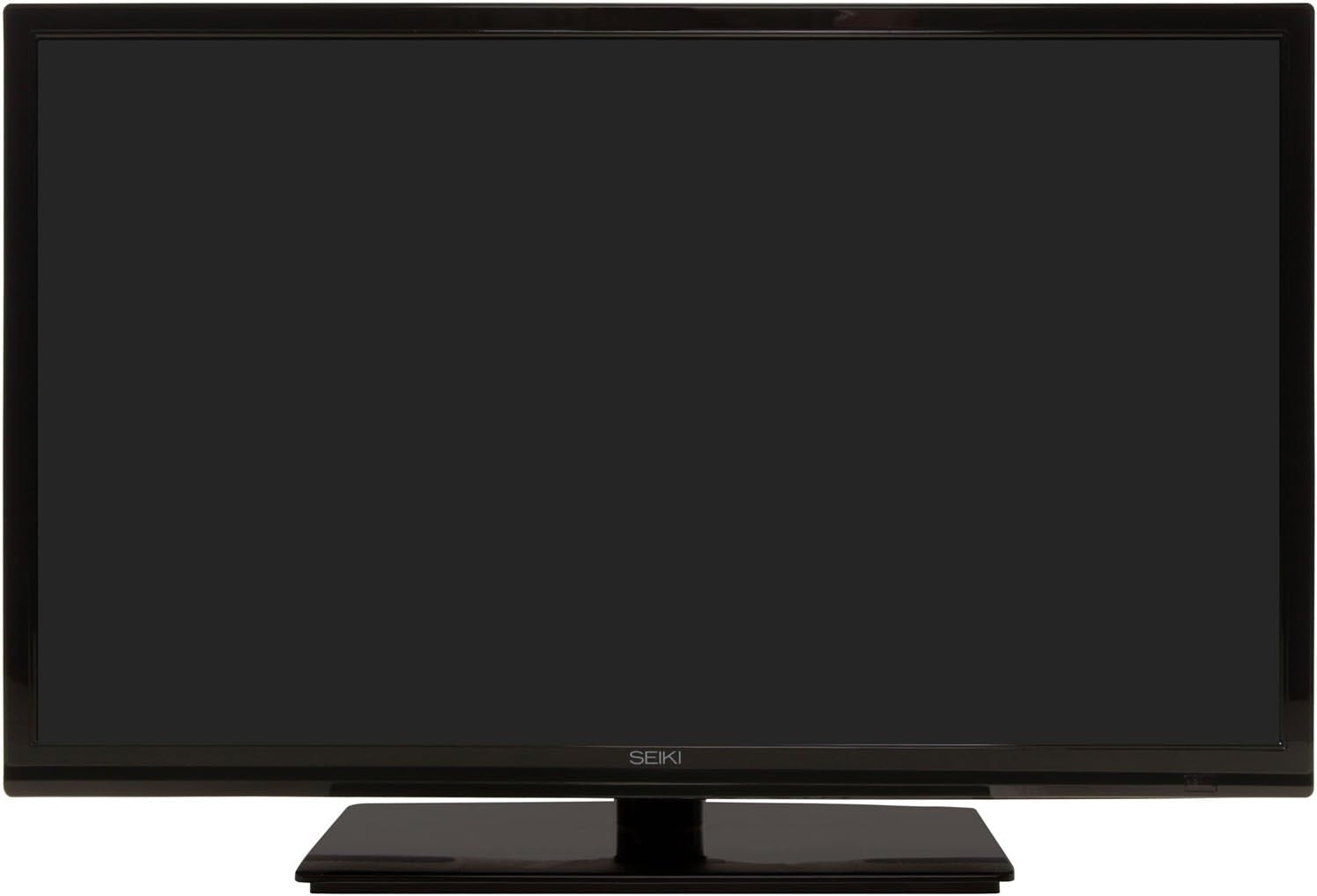
Image: Rear view of the SEIKI SE32HY10 TV, highlighting the various input ports including HDMI, USB, and VGA for connecting external devices.
- HDMI (x3): Connect Blu-ray players, game consoles, cable/satellite boxes, or other HDMI-enabled devices.
- USB (x1): For media playback from USB storage devices.
- VGA (x1): Connect a computer.
- Antenna/Cable (RF): Connect an antenna for over-the-air broadcasts or a cable connection.
- Composite Video: For older devices using RCA connectors (yellow for video, red/white for audio).
3. Power Connection
Plug the power cord into the TV's power input, then plug the other end into a standard electrical outlet.
4. Initial Setup
Upon first power-on, the TV will guide you through an initial setup process, including language selection and channel scanning. Follow the on-screen prompts.
Operating the TV
Remote Control
Insert the two AAA batteries into the remote control, observing the correct polarity (+/-). The remote allows you to control all TV functions.
- Power Button: Turns the TV on or off.
- Input/Source: Selects the input source (HDMI, USB, VGA, TV).
- Volume Up/Down: Adjusts the sound level.
- Channel Up/Down: Changes TV channels.
- Menu: Accesses the TV's main menu for settings adjustments.
- Navigation Buttons (Arrows/OK): Navigate through menus and confirm selections.
Basic Functions
- Changing Channels: Use the CH+/- buttons or enter channel numbers directly.
- Adjusting Volume: Use the VOL+/- buttons.
- Selecting Input Source: Press the "Input" or "Source" button and select the desired input (e.g., HDMI 1, USB).
- Picture Settings: Access the menu to adjust brightness, contrast, color, and picture modes.
- Sound Settings: Access the menu to adjust bass, treble, balance, and sound modes.
Maintenance
- Cleaning the Screen: Gently wipe the screen with a soft, dry, lint-free cloth. For stubborn marks, lightly dampen the cloth with water or a specialized screen cleaner. Do not spray liquid directly onto the screen.
- Cleaning the Cabinet: Use a soft, dry cloth to wipe the TV cabinet. Avoid using abrasive cleaners or solvents.
- Ventilation: Ensure the TV's ventilation openings are not blocked to prevent overheating.
- Power Cord: Regularly check the power cord for any damage. If damaged, discontinue use and contact customer support.
Troubleshooting
Before contacting customer support, please refer to the following common issues and solutions:
| Problem | Solution |
|---|---|
| No Power | Ensure the power cord is securely plugged into both the TV and a working electrical outlet. Check if the outlet has power. |
| No Picture, but Sound is Present | Check the input source selection. Ensure the connected device is powered on and functioning correctly. |
| No Sound, but Picture is Present | Check the volume level and ensure the TV is not muted. Verify audio cables are correctly connected for external devices. |
| Remote Control Not Working | Replace the batteries in the remote control. Ensure there are no obstructions between the remote and the TV's IR sensor. |
| Poor Picture Quality | Adjust picture settings (brightness, contrast, sharpness). For antenna connections, try repositioning the antenna or rescanning channels. Ensure high-quality cables are used for external devices. |
Specifications
Detailed technical specifications for the SEIKI SE32HY10 LED TV:

Image: A comprehensive specification sheet detailing the technical features, display specs, connections, and power requirements of the SEIKI SE32HY10 TV.
| Feature | Detail |
|---|---|
| Model Number | SE32HY10 |
| Screen Size | 32 Inches (31.5" Diagonal Panel Size) |
| Display Technology | LED (Full Array Backlight) |
| Resolution | 720p (1366 x 768) |
| Refresh Rate | 60Hz |
| Dynamic Contrast Ratio | 3,000:1 |
| Connectivity | 3 x HDMI, 1 x USB, 1 x VGA, Composite Video, RF (Antenna/Cable) |
| Product Dimensions (W x H x D) | TV without stand: 29.21'' x 17.64'' x 3.42'' TV with stand: 29.21'' x 19.37'' x 8.07'' |
| Item Weight | 11.9 Pounds |
| Color | Black |
| Power Source | AC 100-240V 50/60Hz |
| Energy Consumption | On Consumption: <65W, Standby Consumption: <0.5W |
| Special Features | Flat Panel, Built-in 3D PAL/NTSC Comb Filter, Built-in 3D Video Noise Reduction |
| Included Components | TV, Remote Control, 2x AAA Batteries |
Energy Guide Information:
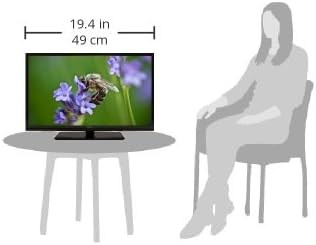
Image: The Energy Guide label for the SEIKI SE32HY10 TV, indicating an estimated yearly energy cost of $9.30 based on 11 cents per kWh and 5 hours per day use.
- Estimated Yearly Energy Cost: $9.30
- Estimated Yearly Electricity Use: 84.7 kWh
- Cost Range of Similar Models (30"-34"): $11 - $25
- Based on 11 cents per kWh and 5 hours per day use. Your cost depends on your utility rates and use.
Warranty and Support
Your SEIKI SE32HY10 LED TV comes with a 1-Year Replacement Warranty. This warranty covers manufacturing defects and ensures your product functions as intended under normal use.
For technical assistance, warranty claims, or further inquiries, please contact SEIKI customer support. Refer to the official SEIKI website or your purchase documentation for the most current contact information.
Online Manual/Firmware Access may also be available through the official SEIKI support channels.


