
1. Introduction
This manual provides comprehensive instructions for the installation, operation, and maintenance of your Totolink N150USM 150Mbps Wireless-N Nano USB Adapter. Please read this manual thoroughly before using the product to ensure proper functionality and optimal performance.
The N150USM is a compact Wireless-N USB adapter designed to provide high-speed wireless connectivity for your desktop or laptop computer. It complies with IEEE 802.11n standards, offering data rates up to 150Mbps, and is backward compatible with 802.11b/g networks. Its nano size makes it ideal for portable use.
2. Package Contents
Verify that your package contains the following items:
- Totolink N150USM Wireless-N Nano USB Adapter
- Quick Installation Guide
- Resource CD (for drivers and utility software)
Note: If any items are missing or damaged, please contact your retailer or Totolink support.
3. Product Overview
The Totolink N150USM is a miniature USB wireless adapter. Its design allows it to remain plugged into a USB port without obstructing adjacent ports or protruding significantly.

Figure 3.1: Front view of the Totolink N150USM Nano USB Adapter. This image shows the compact white adapter with its black USB connector.
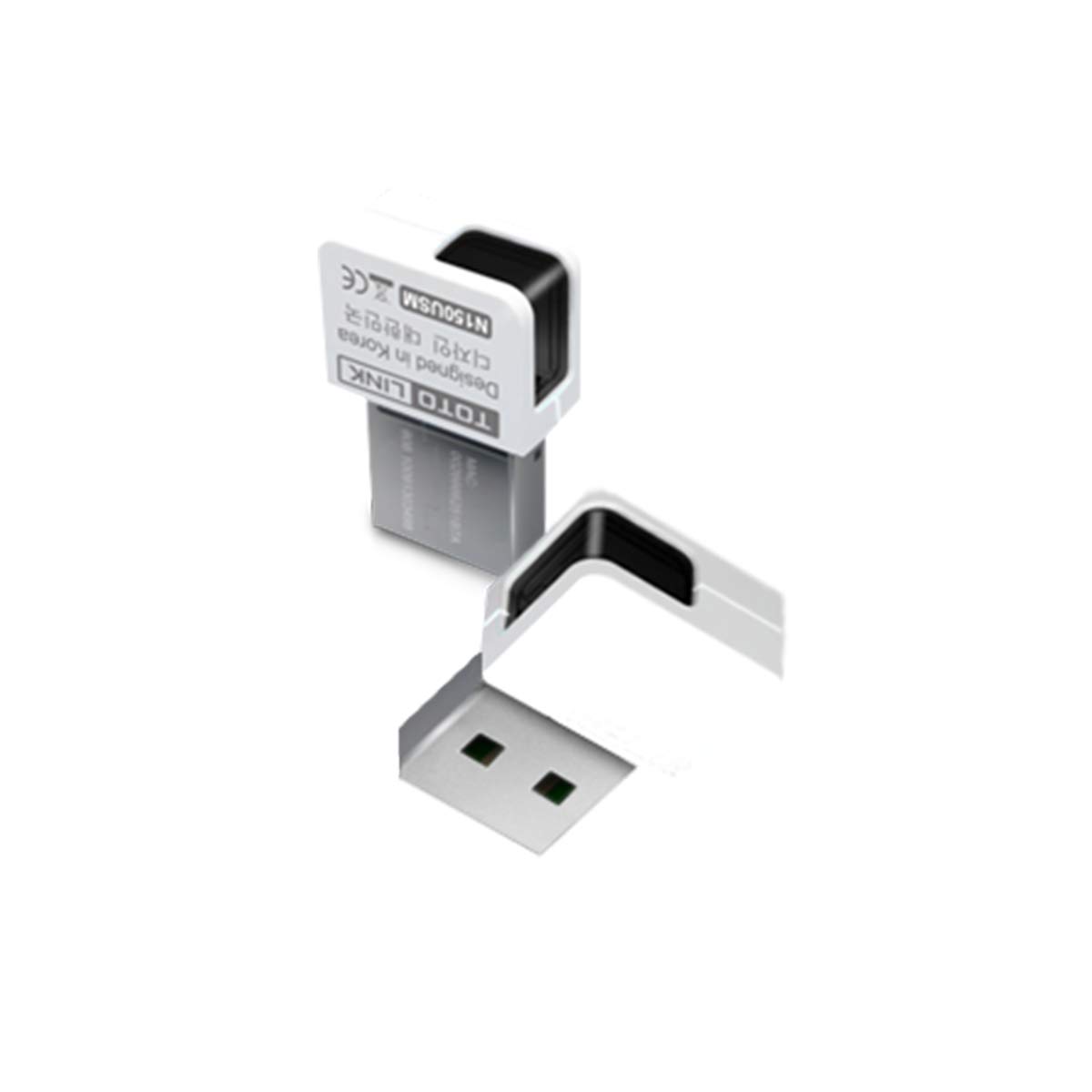
Figure 3.2: Rear view of the Totolink N150USM Nano USB Adapter, displaying the TOTO LINK branding and model number N150USM.
3.1 Hardware Features
- Interface: USB 2.0
- LED Indicator: 1 * Status LED (typically indicates activity)
- Antenna: 1 * Internal antenna
4. Setup and Installation
4.1 Driver Installation
Before inserting the N150USM adapter, it is recommended to install the drivers from the provided Resource CD or download the latest drivers from the Totolink official website.
- Insert the Resource CD into your computer's CD/DVD drive.
- Follow the on-screen instructions to run the setup wizard.
- If prompted, restart your computer after the driver installation is complete.
- Alternatively, for systems without a CD drive or for the latest drivers, visit the Totolink support website, locate the N150USM model, and download the appropriate drivers for your operating system (Windows, Mac, Linux).
4.2 Hardware Installation
Once the drivers are installed (or if your operating system supports plug-and-play for this device), proceed with hardware installation:
- Locate an available USB port on your desktop or laptop computer.
- Carefully insert the Totolink N150USM Nano USB Adapter into the USB port.
- The operating system should detect the new hardware and complete the installation. The LED indicator on the adapter may light up or blink, indicating activity.
4.3 Connecting to a Wireless Network
After successful driver and hardware installation, you can connect to a wireless network:
- For Windows: Click on the wireless network icon in the system tray (usually in the bottom-right corner of the screen).
- A list of available wireless networks (SSIDs) will appear. Select your desired network.
- Click "Connect". If the network is secured, you will be prompted to enter the network security key (WPA/WPA2 password).
- Once connected, the network icon will change to indicate a successful connection.
- For Mac/Linux: Refer to your operating system's specific instructions for connecting to a Wi-Fi network. The general process involves selecting the network from the available list and entering the password if required.
5. Operation
The Totolink N150USM adapter operates as a client device, allowing your computer to access wireless networks. Once connected, your computer will function as if it were connected via an Ethernet cable, but with the flexibility of wireless connectivity.
- Network Status: The LED indicator on the adapter provides visual feedback on its operational status. A solid light typically indicates a connection, while blinking may indicate data transmission.
- Disconnecting: To disconnect from a network, click the wireless network icon in your system tray (Windows) or menu bar (Mac/Linux) and select "Disconnect" from the currently connected network.
- Switching Networks: You can switch between available wireless networks by selecting a different network from the list and entering its security key if necessary.
6. Maintenance
To ensure the longevity and optimal performance of your Totolink N150USM adapter, consider the following maintenance tips:
- Keep it Clean: Periodically clean the adapter with a soft, dry cloth. Avoid using liquid cleaners or solvents.
- Avoid Physical Damage: Handle the adapter carefully. Do not bend or apply excessive force to it while it is plugged into a USB port.
- Optimal Placement: While the adapter is small, ensure it is not obstructed by other devices or furniture that could block the wireless signal.
- Driver Updates: Regularly check the Totolink website for updated drivers. Keeping drivers current can improve performance and resolve compatibility issues.
- Storage: When not in use, store the adapter in a cool, dry place, away from direct sunlight and extreme temperatures.
7. Troubleshooting
| Problem | Possible Solution |
|---|---|
| Adapter not detected by computer. |
|
| Cannot connect to a wireless network. |
|
| Slow wireless speed or frequent disconnections. |
|
8. Specifications
The following table details the technical specifications of the Totolink N150USM Wireless-N Nano USB Adapter:
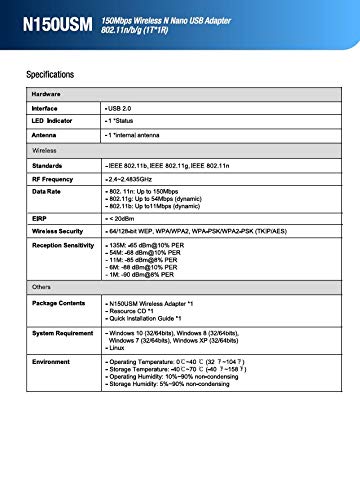
Figure 8.1: Official specifications sheet for the Totolink N150USM adapter.
| Feature | Detail |
|---|---|
| Hardware Interface | USB 2.0 |
| Wireless Standards | IEEE 802.11b, IEEE 802.11g, IEEE 802.11n |
| Data Transfer Rate | Up to 150Mbps (802.11n), 54Mbps (802.11g), 11Mbps (802.11b) |
| Frequency Band | 2.4 GHz |
| Wireless Security | 64/128-bit WEP, WPA/WPA2, WPA-PSK/WPA2-PSK (TKIP/AES) |
| Antenna Type | Internal Antenna |
| Operating System Support | Windows (XP/Vista/7/8/10), Mac OS, Linux |
| Dimensions (LxWxH) | 9.4 x 2.5 x 14.6 cm (Packaging dimensions) |
| Item Weight | 9 g (Packaging weight) |
9. Warranty and Support
9.1 Warranty Information
The Totolink N150USM Wireless-N Nano USB Adapter comes with a 3-Year Warranty from the date of purchase. This warranty covers manufacturing defects and ensures the product functions as described under normal use. Please retain your proof of purchase for warranty claims.
Note: The warranty does not cover damage caused by misuse, accidents, unauthorized modifications, or natural disasters.
9.2 Technical Support
For technical assistance, driver downloads, or further information, please visit the official Totolink website or contact their customer support. Contact details can typically be found on the Totolink website or in the Quick Installation Guide included with your product.