
Axis 0515-001
Axis M3007-PV Fixed Mini Dome Network Camera User Manual
Model: 0515-001 (M3007-PV)
1. Introduction
This manual provides essential information for the installation, operation, and maintenance of your Axis M3007-PV Fixed Mini Dome Network Camera. Please read these instructions carefully before using the product to ensure proper functionality and safety.
The Axis M3007-PV is a 5-megapixel fixed indoor mini dome network camera designed for detailed 360 or 180 panoramic surveillance. It offers vandal- and dust-resistant protection, supports dewarped views, and allows digital pan, tilt, and zoom within areas of interest. This camera is suitable for activity detection, people flow tracking, and area management, with support for intelligent video applications.
2. Product Overview
The Axis M3007-PV is a high-performance indoor surveillance camera with advanced features:
- 5-megapixel resolution for detailed video capture.
- Fixed mini dome design for discreet indoor installation.
- Provides 360-degree or 180-degree panoramic views.
- Digital Pan, Tilt, and Zoom (PTZ) functionality within dewarped views.
- Vandal- and dust-resistant construction (IP54 rated).
- Supports AXIS Camera Application Platform for intelligent video applications like people counting.
- ONVIF compliant for integration with various network video systems.
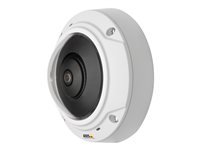
Figure 1: Axis M3007-PV Fixed Mini Dome Network Camera. This image shows the compact, dome-shaped camera unit, typically mounted on a ceiling or wall for wide-area surveillance.
3. Setup
3.1 Unboxing and Inspection
- Carefully open the packaging and remove the camera and all accessories.
- Verify that all components listed in the packing slip are present.
- Inspect the camera for any signs of physical damage. Do not install if damaged.
3.2 Mounting the Camera
The M3007-PV is designed for indoor use and can be mounted on ceilings or walls.
- Choose a mounting location that provides the desired field of view and is within reach of network and power cables.
- Use the provided mounting template (if applicable) to mark drill holes.
- Drill pilot holes and secure the mounting bracket to the surface using appropriate screws.
- Attach the camera body to the mounting bracket, ensuring it is securely fastened.
3.3 Connecting Power and Network
The camera supports Power over Ethernet (PoE) for simplified installation.
- Connect an Ethernet cable from your PoE-enabled network switch or PoE injector to the camera's Ethernet port.
- If not using PoE, connect a standard Ethernet cable to the camera and connect the power cord to the camera's power input, then plug it into a power outlet.
- Ensure all connections are secure. The camera will power on automatically.
3.4 Initial Configuration
- Use the Axis IP Utility or Axis Camera Management software to discover the camera on your network.
- Access the camera's web interface using a web browser (e.g., Chrome, Firefox) by entering its IP address.
- Follow the on-screen prompts to set a strong password for the administrator account.
- Configure basic network settings (IP address, subnet mask, gateway) if necessary.
- Adjust video settings such as resolution, frame rate, and image quality.
4. Operating
4.1 Accessing the Live View
After initial configuration, you can access the camera's live view through its web interface or a compatible Video Management System (VMS).
- Open your web browser and enter the camera's IP address.
- Log in with your administrator credentials.
- Navigate to the 'Live View' section to see the real-time video feed.
4.2 Using Dewarped Views and Digital PTZ
The M3007-PV offers various dewarped views from its 360-degree image:
- Panorama View: Provides a wide, straightened view of the entire area.
- Double Panorama View: Splits the panoramic view into two sections.
- Quad View: Displays four individually cropped and dewarped areas simultaneously.
- Within these dewarped views, you can digitally pan, tilt, and zoom to focus on specific areas of interest without physically moving the camera. Use the controls in the live view interface to adjust.
4.3 Recording and Event Management
Configure recording settings and event triggers via the camera's web interface or your VMS.
- Set up continuous recording, scheduled recording, or event-triggered recording (e.g., motion detection).
- Define motion detection zones and sensitivity levels.
- Configure event actions, such as sending email notifications, uploading video to FTP, or activating external devices.
5. Maintenance
5.1 Cleaning the Camera
Regular cleaning helps maintain optimal image quality.
- Gently wipe the camera's dome cover with a soft, damp, lint-free cloth.
- Do not use harsh chemicals, abrasive cleaners, or solvents, as these can damage the lens or housing.
- For stubborn dirt, use a mild soap solution and then wipe dry.
5.2 Firmware Updates
Keep your camera's firmware updated to ensure the latest features, security patches, and performance improvements.
- Visit the official Axis website for the latest firmware versions for the M3007-PV.
- Download the firmware file and follow the instructions provided by Axis for the update process, typically found in the camera's web interface under 'System' or 'Maintenance'.
- Ensure a stable power supply during the update process to prevent interruption.
5.3 System Checks
- Periodically check the camera's live view to ensure it is operating correctly.
- Verify that recordings are being stored as expected.
- Review system logs for any error messages or warnings.
6. Troubleshooting
| Problem | Possible Cause | Solution |
|---|---|---|
| Camera not powering on | No power supply; Faulty cable; PoE issue | Check power cord/PoE connection. Ensure power source is active. Try a different cable. |
| Cannot access camera via network | Incorrect IP address; Network connectivity issue; Firewall blocking | Verify IP address. Check network cable. Ensure camera and computer are on the same network segment. Temporarily disable firewall. |
| Poor image quality | Dirty lens; Incorrect settings; Insufficient lighting | Clean the camera dome. Adjust resolution, brightness, and contrast settings. Ensure adequate lighting in the surveillance area. |
| Recordings not saving | Storage full; Incorrect recording settings; Network storage inaccessible | Check available storage space. Review recording schedules and event triggers. Verify network storage (NAS/NVR) connectivity. |
| Digital PTZ not responding | Browser compatibility; Firmware issue | Try a different web browser. Update camera firmware to the latest version. |
If you encounter issues not listed here or if the suggested solutions do not resolve the problem, please contact Axis technical support for further assistance.
7. Specifications
| Feature | Detail |
|---|---|
| Brand | AXIS |
| Model Number | 0515-001 |
| Recommended Use | Indoor Security |
| Connectivity Technology | Wired |
| Power Source | Power Corded |
| Connection Protocol | ONVIF |
| Controller Type | Iris |
| Video Capture Resolution | 5 MP |
| Form Factor | Dome |
| Still Image Effective Resolution | 5 MP |
| Water Resistance | IP54 |
| Photo Sensor Resolution | 5 MP |
| Management Method | App |
| Communication/Connection Interface | Wired |
| Number of Batteries Required | No |
| Video Capture Format | MJPEG |
| Manufacturer Name | AXIS COMMUNICATION INC. |
| Manufacturer Model Number | 0515-001 55 |
| ASIN | B00BL1KRNW |
| Average Customer Rating | 5.0 out of 5 stars (1 rating) |
| Video Pixels | 5 MP |
| Number of Units | 1.0 Unit |
8. Warranty and Support
8.1 Product Warranty
Axis Communications products typically come with a limited hardware warranty. The exact terms and duration of the warranty may vary by region and product. Please refer to the official Axis website or your purchase documentation for detailed warranty information.
Keep your proof of purchase (receipt or invoice) as it will be required for any warranty claims.
8.2 Technical Support
For technical assistance, troubleshooting, or further inquiries regarding your Axis M3007-PV camera, please contact Axis Communications support:
- Online Support: Visit the official Axis Communications support portal for FAQs, knowledge base articles, and software downloads. www.axis.com/support
- Contact Information: Find regional contact details for phone or email support on the Axis website.
When contacting support, please have your camera's model number (M3007-PV), serial number, and a detailed description of the issue ready.
Related documents0515-001


Ask a question about this manual
Ask about setup, troubleshooting, compatibility, parts, safety, or missing instructions. Manuals+ will review the question and use this page’s manual context to help answer it.