
Introduction
Thank you for choosing the iHip IP-IV-NPR Fiber Cord Headphones. This manual provides essential information for the proper setup, operation, and maintenance of your new headphones. Please read these instructions carefully before use to ensure optimal performance and longevity of your product.
Product Overview
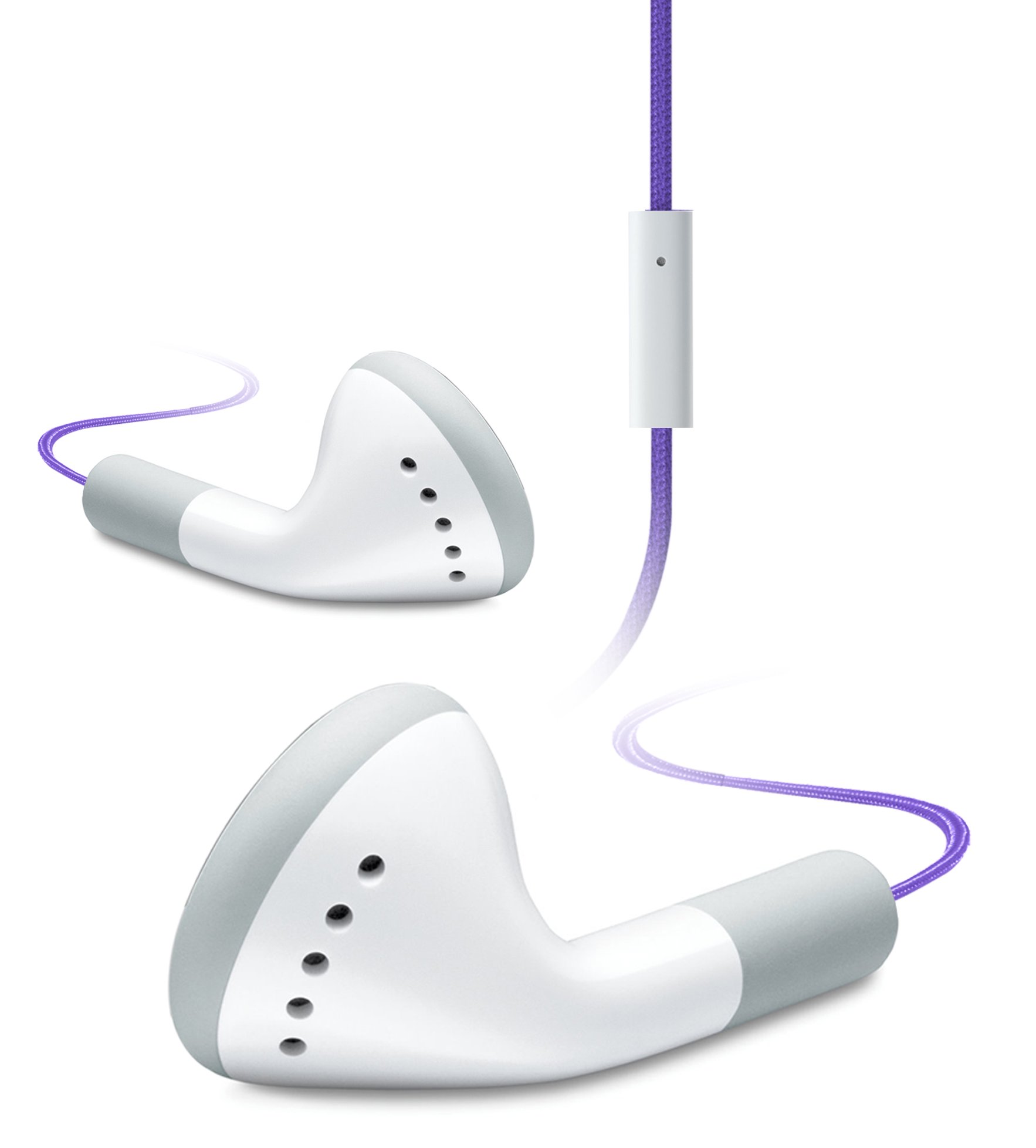
Image of the iHip IP-IV-NPR Fiber Cord Headphones, showcasing the purple color and in-line microphone.
The iHip IP-IV-NPR headphones are designed for a clear audio experience with the convenience of an in-line microphone. They feature a durable fiber cord and are compatible with a wide range of smartphones and portable devices.
Key Features:
- Fiber Cord Technology: Enhances durability and reduces tangling.
- High-efficiency Driver: Delivers clear and balanced audio output.
- Extended Bass Response: Provides richer low-frequency sounds.
- In-Line Microphone: Allows for hands-free communication.
- 3 Custom Fitted Ear Tips: Ensures a comfortable and secure fit for various ear sizes.
- Wide Compatibility: Designed to work with most smartphones, including iPhone, iPad, and iPod touch models.
Setup
1. Choosing the Right Ear Tips:
The headphones come with three sizes of silicone ear tips (small, medium, large). Selecting the correct size is crucial for comfort, sound quality, and noise isolation.
- Gently remove the pre-installed ear tips.
- Try each size to determine which provides the most comfortable and secure fit in your ear canal. A good seal will improve bass response and block out external noise.
- Once selected, firmly attach the new ear tips to the headphone nozzles.
2. Connecting to Your Device:
The iHip IP-IV-NPR headphones use a standard 3.5mm audio jack for connection.
- Locate the 3.5mm headphone jack on your smartphone, tablet, or audio player.
- Insert the headphone's 3.5mm plug firmly into the device's audio jack until it clicks into place.
- Ensure the connection is secure to prevent audio interruptions.
Operating Instructions
Audio Playback:
Once connected, you can control audio playback directly from your device. The in-line microphone unit may also feature a single button for basic controls.
- Play/Pause: Press the button on the in-line microphone once to play or pause audio.
- Next Track: Press the button twice quickly to skip to the next track.
- Previous Track: Press the button three times quickly to go back to the previous track.
Using the In-Line Microphone:
The integrated microphone allows for hands-free calling when connected to a compatible smartphone.
- Answer/End Call: Press the button on the in-line microphone once to answer an incoming call or end an active call.
- Reject Call: Press and hold the button for approximately two seconds to reject an incoming call.
- Activate Voice Assistant: Press and hold the button for approximately two seconds (when not on a call) to activate your device's voice assistant (e.g., Siri, Google Assistant).
Note: Volume control is typically managed directly from your connected device.
Maintenance
Cleaning:
- Regularly clean the ear tips with a soft, damp cloth. You may remove the ear tips for a more thorough cleaning with mild soap and water, ensuring they are completely dry before reattaching.
- Wipe the headphone body and cord with a dry, soft cloth. Avoid using harsh chemicals or abrasive materials.
- Ensure no moisture enters the headphone drivers or the 3.5mm jack.
Storage:
- Store your headphones in a clean, dry place away from extreme temperatures.
- Avoid tightly wrapping the cord to prevent damage to the internal wiring.
- Keep headphones away from sharp objects that could cut or fray the fiber cord.
Troubleshooting
| Problem | Possible Cause | Solution |
|---|---|---|
| No sound or low volume | Headphone plug not fully inserted; device volume too low; incorrect audio output selected on device. | Ensure the 3.5mm plug is fully inserted. Increase device volume. Check device audio settings to confirm output is set to headphones. |
| Sound is distorted or intermittent | Loose connection; damaged cable; dirty audio jack on device. | Re-insert the plug firmly. Try headphones with another device to rule out device issue. Clean device's audio jack if necessary. |
| Microphone not working | Headphone plug not fully inserted; device microphone settings; app permissions. | Ensure the 3.5mm plug is fully inserted. Check your device's microphone settings and app permissions for the app you are using. |
| Poor fit or falling out of ears | Incorrect ear tip size. | Experiment with the different ear tip sizes provided to find the most secure and comfortable fit. |
Specifications
- Brand: iHip
- Model Number: IP-IV-NPR
- Form Factor: In Ear
- Connectivity Technology: Wired (3.5mm jack)
- Cable Features: Fiber Cord, Retractable (referring to material durability, not physical retraction)
- Additional Features: In-Line Microphone, Noise Isolation (passive)
- Color: Purple
- UPC: 817851020640
Warranty and Support
For warranty information or technical support, please refer to the documentation included with your purchase or visit the official iHip website. Keep your proof of purchase for any warranty claims.
If you experience issues not covered in this manual, please contact iHip customer service for further assistance.