1. Introduction
Thank you for choosing the Esperanza TK102 PS/2 Keyboard. This manual provides essential information for the proper setup, operation, maintenance, and troubleshooting of your new keyboard. Please read this manual thoroughly before using the product to ensure optimal performance and longevity.
2. Safety Information
- Keep the keyboard away from liquids and excessive moisture to prevent electrical shock or damage.
- Avoid exposing the keyboard to extreme temperatures or direct sunlight.
- Do not attempt to disassemble or modify the keyboard. This may void your warranty and cause damage.
- Use only a soft, dry cloth for cleaning. Avoid abrasive cleaners or solvents.
3. Package Contents
Please check the package contents upon opening. The box should contain:
- 1 x Esperanza TK102 PS/2 Keyboard
4. Product Overview
The Esperanza TK102 is a reliable PS/2 wired keyboard designed for general computer use. It features a standard layout and includes a backlight for improved visibility in various lighting conditions. Its durable construction ensures a comfortable typing experience.
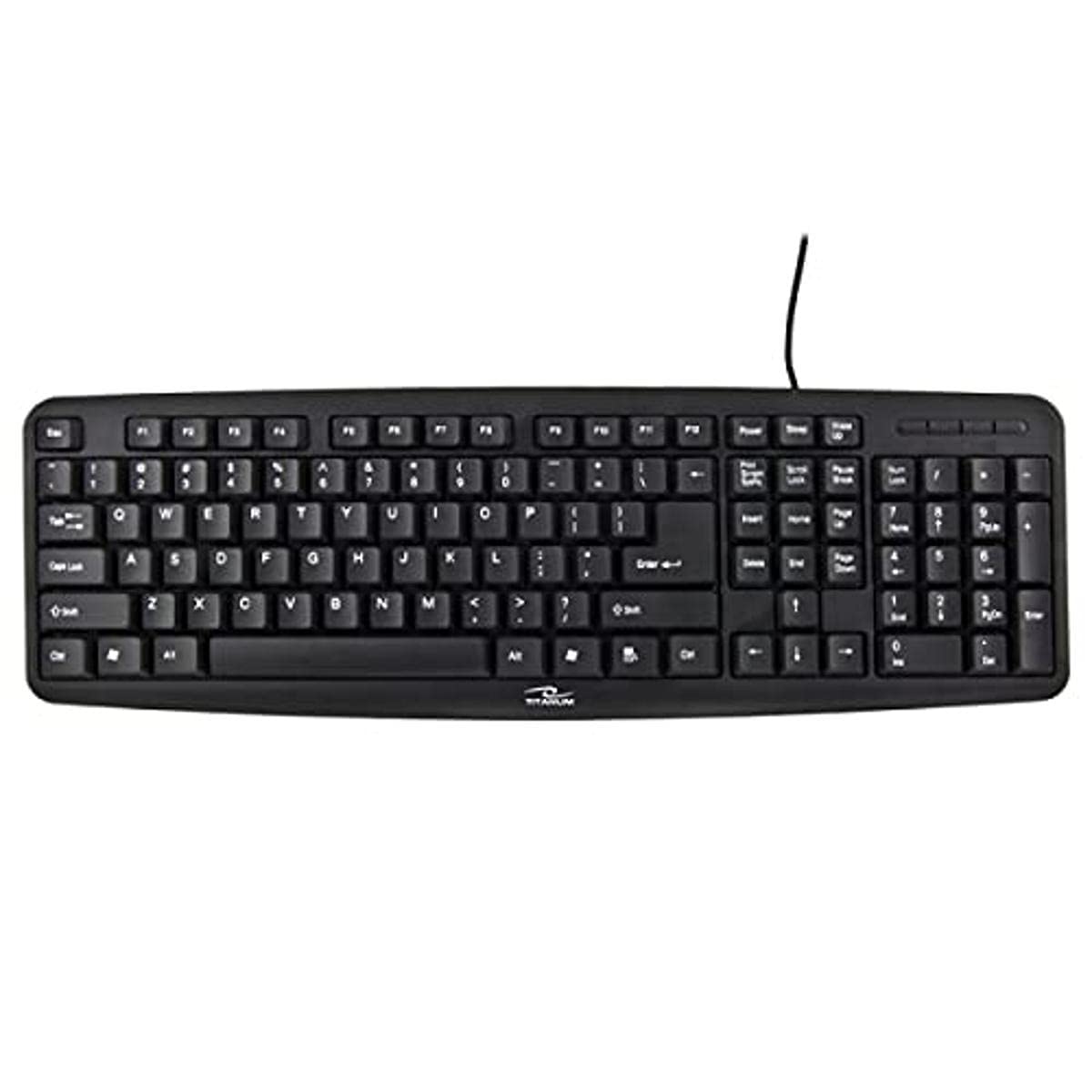
Figure 1: Esperanza TK102 PS/2 Keyboard. This image displays the standard black wired keyboard with its PS/2 connector.
5. Setup Instructions
Follow these steps to connect your Esperanza TK102 PS/2 Keyboard to your computer:
- Power Off: Ensure your computer is completely powered off before connecting the keyboard.
- Locate PS/2 Port: Identify the PS/2 keyboard port on the back of your computer. This port is typically round and often colored purple.
- Connect Keyboard: Carefully align the PS/2 connector of the keyboard with the port on your computer and push it in firmly until it is secure.
- Power On: Once the keyboard is securely connected, power on your computer. The operating system should automatically detect and install the necessary drivers.
Note: PS/2 connections are not hot-swappable. Always power off your computer before connecting or disconnecting a PS/2 device.
6. Operating Instructions
The Esperanza TK102 keyboard operates like any standard computer keyboard. Simply begin typing after successful setup.
6.1. Backlight Function
The keyboard features a backlight for enhanced visibility. The backlight typically activates automatically upon connection or can be toggled using a specific key combination, often involving the Fn key and a function key (e.g., Fn + Scroll Lock or a dedicated backlight key). Refer to the keyboard's key legends for specific backlight control keys if available.
7. Maintenance
Proper maintenance helps extend the life of your keyboard:
- Cleaning: Disconnect the keyboard from your computer before cleaning. Use a soft, slightly damp, lint-free cloth to wipe the surface. Do not spray cleaners directly onto the keyboard.
- Dust Removal: Use compressed air to remove dust and debris from between the keys.
- Storage: When not in use for extended periods, store the keyboard in a clean, dry environment.
8. Troubleshooting
If you encounter issues with your Esperanza TK102 keyboard, try the following solutions:
- Keyboard Not Responding:
- Ensure the PS/2 connector is securely plugged into the correct port on your computer.
- Restart your computer.
- Try connecting the keyboard to a different PS/2 port or another computer to rule out a port or system issue.
- Specific Keys Not Working:
- Check for any debris or foreign objects lodged under the affected keys.
- Test the keyboard on another computer to determine if the issue is with the keyboard or the computer's software/drivers.
- Backlight Not Working:
- Ensure the backlight function is enabled (refer to Section 6.1).
- Check if the keyboard is receiving sufficient power.
9. Specifications
| Brand | Esperanza |
| Model Name | TK102 |
| Connection Type | PS/2 (Wired) |
| Compatible Devices | PC / Mac |
| Special Features | Backlight |
| Keyboard Description | Wired, PS/2 Keyboard |
| Material | Titan |
| Approximate Weight | 480 g |
10. Warranty and Support
Esperanza products are designed for reliability and performance. For warranty information or technical support, please refer to the documentation provided with your purchase or contact your retailer. Keep your proof of purchase for warranty claims.


