
Introduction
This manual provides detailed instructions for the setup, operation, and maintenance of your Genius GX-Gaming 5.1 Surround Sound Speaker System, model G5.1 3500. Please read this manual thoroughly before using the product to ensure proper functionality and to maximize your audio experience.
Package Contents
Please check the contents of your package. If any items are missing or damaged, contact your retailer.
- 1 x Subwoofer unit with integrated control panel
- 5 x Satellite speakers
- 1 x Remote control
- Audio cables (e.g., 3.5mm to RCA, 3.5mm to 3.5mm)
- Power cord
- User manual (this document)
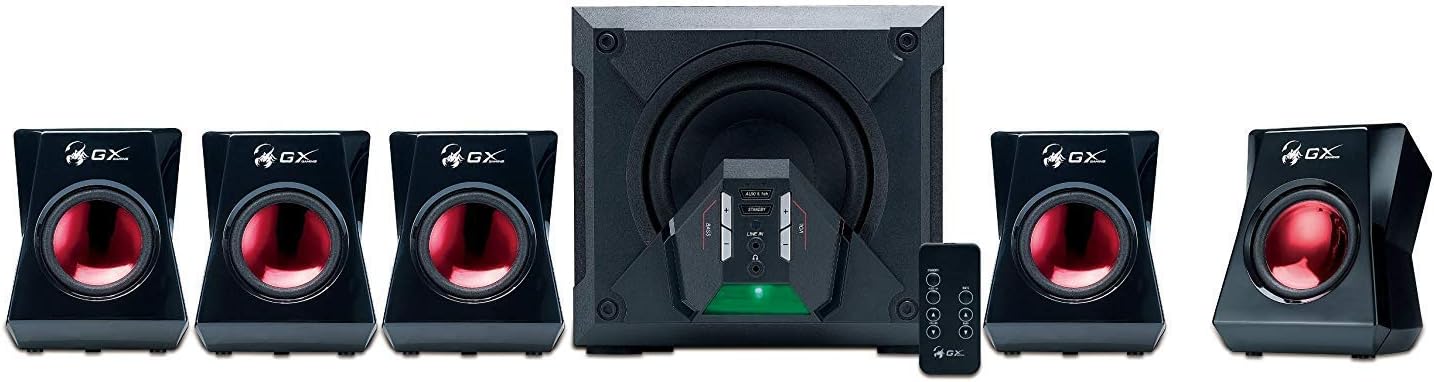
Image: The Genius GX-Gaming G5.1 3500 speaker system components, including the subwoofer, five satellite speakers, and remote control, displayed alongside its retail packaging.
Product Overview
The Genius GX-Gaming G5.1 3500 system consists of a powerful subwoofer, five satellite speakers, and a remote control for convenient operation.
Main Components
- Subwoofer: Houses the main amplifier, power supply, and control circuitry. Features a 6.5-inch driver for deep bass.
- Satellite Speakers: Five compact speakers for front left, front right, center, surround left, and surround right channels.
- Control Unit: Integrated into the subwoofer, providing manual controls for volume, bass, input selection, and a headphone jack.
- Remote Control: Allows wireless adjustment of volume, bass, input mode, and standby.

Image: A complete view of the Genius GX-Gaming G5.1 3500 speaker system, showing the central subwoofer, five satellite speakers arranged around it, and the remote control.
Setup
Follow these steps to correctly set up your speaker system.
1. Speaker Placement
- Subwoofer: Place the subwoofer on the floor, preferably in a corner or near a wall for optimal bass response.
- Front Speakers (Left, Right, Center): Position the front left and right speakers equidistant from your listening position, facing you. Place the center speaker directly in front of you, typically above or below your monitor/TV.
- Surround Speakers (Left, Right): Place the surround left and right speakers to the sides or slightly behind your listening position, at ear level or slightly higher. These speakers feature a hook design for wall mounting.
2. Connecting Speakers to Subwoofer
Connect each satellite speaker to the corresponding output on the rear of the subwoofer using the provided speaker cables. Ensure correct polarity (positive to positive, negative to negative) if applicable, though typically these systems use color-coded or keyed connectors.
3. Connecting Audio Sources
The G5.1 3500 supports both 5.1 channel and 2 channel (AUX) audio inputs.
- For 5.1 Channel Audio (e.g., PC 5.1 sound card): Connect the three 3.5mm audio cables from your 5.1 sound card's outputs (Front, Rear, Center/Subwoofer) to the corresponding 5.1 input jacks on the subwoofer.
- For 2 Channel Audio (e.g., PC, MP3/CD player, TV): Connect a 3.5mm audio cable from your device's audio output to the 'LINE IN' jack on the subwoofer's control unit. Alternatively, use the AUX input on the rear of the subwoofer.
4. Power Connection
Connect the power cord to the subwoofer and then plug it into a standard AC power outlet.
Operating Instructions
Learn how to use your speaker system effectively.
1. Powering On/Off
Press the 'STANDBY' button on the subwoofer's control unit or the remote control to turn the system on or off. The LED indicator on the subwoofer will illuminate when the system is active.
2. Adjusting Volume and Bass
- Volume: Use the 'VOL +' and 'VOL -' buttons on the control unit or the 'VOLUME' up/down buttons on the remote control to adjust the overall system volume.
- Bass: Use the 'BASS +' and 'BASS -' buttons on the control unit or the 'BASS' up/down buttons on the remote control to adjust the subwoofer's bass level.

Image: A detailed view of the subwoofer's control unit, highlighting the buttons for bass adjustment, volume control, input selection (AUX/5.1ch), standby, line-in port, and headphone jack.
3. Switching Input Modes
Press the 'AUX/5.1ch' button on the control unit or the remote control to switch between 2-channel (AUX/LINE IN) and 5.1 channel input modes. The LED indicator may change color or pattern to indicate the active input.
4. Using the Remote Control
The remote control provides convenient access to all primary functions from a distance.
- STANDBY: Power on/off the system.
- AUX/5.1ch: Switch between audio input modes.
- MUTE: Mute or unmute the audio output.
- VOLUME +/-: Increase or decrease the master volume.
- BASS +/-: Increase or decrease the subwoofer bass level.
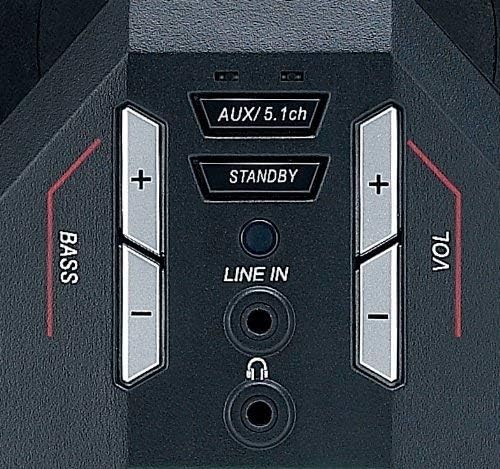
Image: The remote control for the Genius GX-Gaming G5.1 3500 speaker system, showing its layout with dedicated buttons for standby, input selection, mute, volume control, and bass adjustment.
5. Headphone Use
Plug your headphones into the headphone jack on the subwoofer's control unit for private listening. This will automatically mute the speakers.
Maintenance
Proper care will ensure the longevity and performance of your speaker system.
- Cleaning: Use a soft, dry cloth to clean the surfaces of the speakers and subwoofer. Do not use liquid cleaners or abrasive materials.
- Ventilation: Ensure the subwoofer's ventilation ports are not blocked to prevent overheating.
- Environment: Avoid exposing the system to extreme temperatures, humidity, or direct sunlight.
Troubleshooting
If you encounter issues, refer to the following common problems and solutions.
- No Sound:
- Ensure the system is powered on and not in standby mode.
- Check all audio cable connections between the source and the subwoofer.
- Verify the correct input mode (AUX/5.1ch) is selected.
- Increase the volume on both the speaker system and the audio source.
- Ensure the system is not muted.
- Distorted Sound:
- Reduce the volume on both the speaker system and the audio source.
- Check for loose cable connections.
- Ensure the audio source is not outputting a distorted signal.
- No Bass:
- Increase the bass level using the control unit or remote.
- Ensure the subwoofer is properly connected.
- Check the audio source for bass settings.
- Remote Control Not Working:
- Ensure there are no obstructions between the remote and the subwoofer.
- Check and replace the remote control batteries if necessary.
Specifications
| Total Output Power | 80 Watts (RMS) |
| Subwoofer Driver Size | 6.5 Inches |
| Surround Sound Channel Configuration | 5.1 |
| Connectivity Technology | Wired |
| Control Method | Remote, Integrated Control Panel |
| Compatible Devices | Gaming Console, Laptop, Tablet, Television |
| Power Source | Corded Electric |
| Material | Plastic |
| Item Weight | 6.35 kg |
| Product Dimensions | 37.01 x 43.99 x 27.43 cm |
Warranty and Support
Genius products are manufactured to high quality standards. For warranty information and technical support, please refer to the warranty card included with your product or visit the official Genius website. Keep your purchase receipt as proof of purchase.


