
V-MODA C-100
V-MODA BoomPro Microphone Instruction Manual
Model: C-100
Introduction
The V-MODA BoomPro Microphone is a versatile and detachable boom microphone designed to transform your favorite headphones into a professional-grade headset for communication and gaming. It enhances voice clarity and reduces background noise, making it ideal for various applications from conference calls to intense gaming sessions. This manual provides detailed instructions for setup, operation, maintenance, and troubleshooting to ensure you get the most out of your BoomPro Microphone.
Product Overview
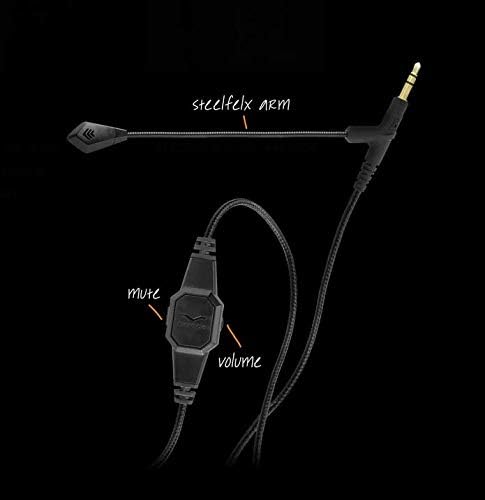
The BoomPro Microphone features a flexible boom arm, an in-line control clip, and a durable cable. It is engineered for clear voice transmission and ease of use.


Setup
Connecting the BoomPro Microphone
To set up your BoomPro Microphone, simply plug the 3.5mm jack of the microphone into the corresponding audio input on your headphones. Ensure a secure connection for optimal performance.

Compatibility
Headphone Compatibility
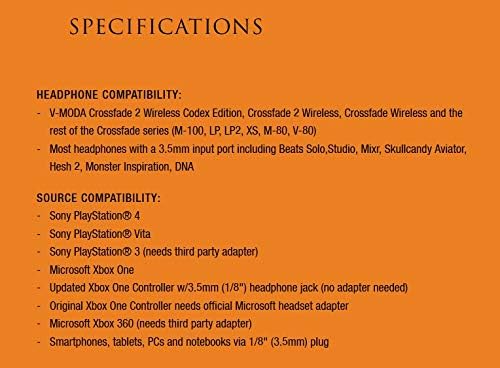
The BoomPro Microphone is compatible with V-MODA Crossfade series headphones (M-100, LP, LP2, XS, M-80, V-80) and most headphones with a 3.5mm input port. Ensure the straight plug on the BoomPro can be fully inserted and make full contact. Headphones requiring a 2.5mm jack will need a third-party adapter.
Source Compatibility
The BoomPro Microphone is compatible with a wide range of devices:
- Sony PlayStation 4 (no adapter needed)
- Sony PlayStation Vita (no adapter needed)
- Sony PlayStation 3 (needs third-party adapter)
- Microsoft Xbox One (Updated Controller w/3.5mm jack: no adapter needed; Original Controller: needs official Microsoft headset adapter)
- Microsoft Xbox 360 (needs third-party adapter)
- Smartphones, tablets, PCs, and notebooks via 1/8" (3.5mm) plug

Operating the BoomPro Microphone
In-line Controls
The BoomPro Microphone features a convenient in-line control clip that allows for easy management of your audio. This clip includes both a mute switch and a rotary volume control.
- Mute Switch: Slide the switch to instantly mute or unmute your microphone.
- Rotary Volume Control: Adjust the volume of your audio output directly from the cable.


Microphone Positioning
The flexible boom arm allows you to position the microphone optimally for clear voice pickup. Adjust it closer to your mouth for direct voice capture and to minimize ambient noise.


Product Use Cases
The V-MODA BoomPro Microphone is designed for various communication and gaming scenarios:
Video 1: BoomPro Mic - Your WFH Companion. This video demonstrates the V-MODA BoomPro Microphone's utility for work-from-home setups, highlighting its clear audio for virtual meetings and calls.
Video 2: BoomPro Mic transforms your Headphones into a Gaming Headset. This video showcases how the V-MODA BoomPro Microphone can convert standard headphones into a high-performance gaming headset, emphasizing its audio quality for in-game communication.
Maintenance
To ensure the longevity and optimal performance of your V-MODA BoomPro Microphone, follow these simple maintenance guidelines:
- Cleaning: Gently wipe the microphone and cable with a soft, dry cloth. Avoid using harsh chemicals or abrasive materials.
- Storage: When not in use, store the microphone in a cool, dry place, away from direct sunlight and extreme temperatures. Avoid tightly coiling the cable to prevent damage.
- Handling: While the boom arm is flexible, avoid excessive bending or twisting that could strain the internal wiring. Always handle the connectors by the plug, not the cable.
Troubleshooting
If you encounter any issues with your BoomPro Microphone, refer to the following common problems and solutions:
- No Sound/Microphone Not Working:
- Ensure the 3.5mm jack is fully inserted into both your headphones and the audio source.
- Check the mute switch on the in-line control to ensure the microphone is not muted.
- Verify the volume control on the in-line clip is turned up.
- Confirm your device's audio settings recognize the BoomPro as an input/output device.
- If using a Y-adapter, ensure it is correctly connected to the microphone and headphone ports on your computer.
- Poor Audio Quality/Static:
- Check for loose connections at both ends of the cable.
- Ensure the microphone is positioned correctly and not too far or too close to your mouth.
- Test the microphone with another device or pair of headphones to rule out compatibility or device-specific issues.
- Reduce background noise in your environment.
- Intermittent Connection:
- Inspect the cable for any visible damage or kinks.
- Ensure the headphone's 3.5mm port is clean and free of debris.
If these steps do not resolve the issue, please contact V-MODA customer support for further assistance.
Specifications
| Feature | Detail |
|---|---|
| Brand | V-MODA |
| Model Name | V-MODA BoomPro Microphone |
| Item Model Number | C-100 |
| Connectivity Technology | Auxiliary |
| Connector Type | 3.5 mm Jack |
| Microphone Form Factor | Boom |
| Polar Pattern | Unidirectional |
| Audio Sensitivity | 58 dB |
| Signal-to-Noise Ratio | 58 dB |
| Noise Level | 58 dB |
| Item Weight | 2.72 ounces (0.17 Pounds) |
| Product Dimensions (L x W x H) | 8.1 x 4.35 x 1.65 inches |
| Material | Metal |
| Color | Black |
| Included Components | BoomPro Microphone |
| Recommended Uses | Gaming |
| Power Source | Corded Electric |
| Hardware Platform | Gaming Console |
| Country of Origin | China |
| UPC | 877653005849 |
Warranty Information
Specific warranty details for the V-MODA BoomPro Microphone are not provided within this manual. For information regarding product warranty, registration, or claims, please refer to the warranty card included with your purchase or visit the official V-MODA website.
Customer Support
For any questions, technical assistance, or support inquiries not covered in this manual, please contact V-MODA customer support through their official website or the contact information provided with your product packaging. Please have your product model number (C-100) and purchase details ready when contacting support.
Related documentsC-100

Ask a question about this manual
Ask about setup, troubleshooting, compatibility, parts, safety, or missing instructions. Manuals+ will review the question and use this page’s manual context to help answer it.