
Logitech K120
Logitech K120 Ergonomic Keyboard
User Manual
Product Overview
The Logitech K120 Ergonomic Keyboard is designed for comfortable and efficient typing. It features a sleek, low-profile design with full-size F-keys and a dedicated number pad, providing a quiet typing experience. Its spill-resistant design helps protect against accidental liquid spills, and the bold, bright characters on the keys are designed for durability and readability. Adjustable tilt legs allow users to customize the keyboard angle for personal ergonomic comfort.
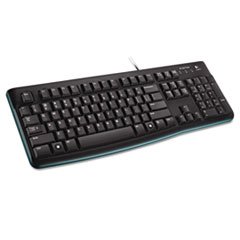
Image: The Logitech K120 Ergonomic Keyboard, showcasing its full layout with function keys and number pad.
What's in the Box
- Logitech K120 USB Keyboard
Setup
- Connect the Keyboard: Locate an available USB port on your computer. Insert the USB connector of the Logitech K120 keyboard firmly into the USB port.
- Plug and Play: The keyboard is plug-and-play compatible. Your operating system should automatically detect and install the necessary drivers. No additional software installation is typically required.
- Verify Functionality: Once connected, test the keyboard by typing in a text editor or web browser to ensure all keys are functioning correctly.
Operating the Keyboard
The Logitech K120 keyboard operates like a standard full-size keyboard, providing all essential keys for daily computing tasks.
- Typing: Use the alphanumeric keys for text input.
- Function Keys (F1-F12): These keys perform various functions depending on the application or operating system. Some may have secondary functions accessible via the 'Fn' key (if present, though not typical for this model).
- Number Pad: The dedicated number pad on the right side allows for quick data entry and calculations. Ensure 'Num Lock' is active for numerical input.
- Adjustable Tilt Legs: On the underside of the keyboard, you will find two foldable tilt legs. Flip these out to adjust the keyboard's angle for a more comfortable typing position.
Maintenance
- Cleaning: To clean the keyboard, disconnect it from your computer. Use a soft, lint-free cloth lightly dampened with water or a mild cleaning solution. Avoid excessive moisture. For dust and debris between keys, use compressed air.
- Spill-Resistant Design: The K120 keyboard features a spill-resistant design, meaning it can withstand minor liquid spills. In case of a spill, immediately disconnect the keyboard from your computer, turn it upside down to drain the liquid, and allow it to dry completely before reconnecting. Do not immerse the keyboard in liquid.
- Storage: Store the keyboard in a cool, dry place away from direct sunlight and extreme temperatures when not in use for extended periods.
Troubleshooting
- Keyboard Not Responding:
- Ensure the USB cable is securely plugged into a working USB port on your computer.
- Try plugging the keyboard into a different USB port.
- Restart your computer.
- If using a USB hub, try connecting the keyboard directly to the computer.
- Keys Not Working or Sticky:
- Check for any debris or foreign objects lodged under the keys. Use compressed air to dislodge them.
- If a spill occurred, ensure the keyboard is completely dry before use.
- Incorrect Characters Appearing:
- Verify your operating system's keyboard language settings are correct.
- Ensure 'Num Lock' or 'Caps Lock' are not inadvertently activated if they are causing unexpected input.
Specifications
| Feature | Detail |
|---|---|
| Brand | Logitech |
| Model | K120 |
| Connectivity Technology | USB-A, Wired |
| Keyboard Description | Ergonomic |
| Color | Black |
| Number of Keys | 104 |
| Compatible Devices | Laptop, PC |
| Item Weight | 1.54 pounds (0.7 kg) |
| Package Dimensions | 18.5 x 7.09 x 1.18 inches (46.99 x 18.01 x 3.00 cm) |
Warranty Information
For detailed warranty information regarding your Logitech K120 Ergonomic Keyboard, please refer to the warranty card included with your product or visit the official Logitech website. Warranty terms and conditions may vary by region.
Customer Support
If you require further assistance or have questions not covered in this manual, please visit the official Logitech support website for FAQs, drivers, and contact information.
Logitech Support Website: https://support.logi.com/
Related documentsK120


Ask a question about this manual
Ask about setup, troubleshooting, compatibility, parts, safety, or missing instructions. Manuals+ will review the question and use this page’s manual context to help answer it.