
Introduction
This manual provides detailed instructions for the Samsung DV150F Smart WiFi Digital Camera. It covers setup, operation, maintenance, and troubleshooting to help you maximize your camera's performance and features. Please read this manual thoroughly before using your camera.

Figure 1: Front view of the Samsung DV150F Smart WiFi Digital Camera.
Setup
1. Unpacking and Contents
Verify that all items are present in the package:
- Samsung DV150F Digital Camera
- Rechargeable Battery
- Wrist Strap
- Warranty Card
2. Battery Installation and Charging
- Open the battery compartment cover located on the bottom of the camera.
- Insert the battery, ensuring the contacts align correctly. Close the cover securely.
- Connect the camera to a power source using the provided USB cable and AC adapter to charge the battery. The charging indicator light will show the charging status.
3. Memory Card Installation
The Samsung DV150F uses microSD/microSDHC/microSDXC memory cards (not included). A memory card is required to store photos and videos.
- Open the memory card slot cover, usually located near the battery compartment.
- Insert the microSD card with the gold contacts facing down until it clicks into place.
- Close the memory card slot cover.
4. Initial Power On and Basic Settings
- Press the power button on the top of the camera.
- Follow the on-screen prompts to set the language, date, and time.
Operating the Camera
1. Camera Layout and Controls

Figure 2: Front view highlighting the lens, flash, and front LCD screen.

Figure 3: Rear view displaying the main LCD screen and navigation buttons.

Figure 4: Top view illustrating the power button, shutter release, and zoom control.
Familiarize yourself with the camera's buttons and screens:
- Shutter Button: Press halfway to focus, fully to take a picture.
- Zoom Lever: Controls the 5x optical zoom and 4x digital zoom.
- Mode Dial/Button: Selects shooting modes (Smart Auto, Program, Scene, Magic, Video).
- Front LCD (1.5-inch): Activates for self-portraits or to entertain children.
- Rear LCD (3-inch): Main display for framing shots, reviewing images, and navigating menus.
- Navigation Buttons: Used to move through menus and settings.
2. Taking Photos
The DV150F offers various shooting modes:
- Smart Auto: The camera automatically analyzes the scene and selects the optimal settings.
- Program Mode: Allows manual control over ISO, white balance, and metering, while the camera sets aperture and shutter speed.
- Scene Modes: Pre-set modes for specific situations (e.g., Landscape, Portrait, Night, Macro).
- Magic Mode: Apply various effects and filters to your photos.
To take a picture:
- Turn on the camera.
- Select your desired shooting mode.
- Frame your shot using the rear LCD. For self-portraits, activate the front LCD.
- Press the shutter button halfway to focus, then fully to capture the image.
3. Using the Dual LCD Screens
The DV150F features a 1.5-inch front LCD and a 3-inch rear LCD.
- Front LCD: Ideal for self-portraits and group shots, allowing subjects to see themselves before the photo is taken. It can also display animations to capture children's attention.
- Rear LCD: The primary display for all camera operations, including framing, menu navigation, and image review.

Figure 5: Utilizing the front LCD for group self-portraits.
4. Video Recording
The camera supports HD 720p video recording.
- Switch to Video mode.
- Press the shutter button to start recording.
- Press the shutter button again to stop recording.
5. Wi-Fi Connectivity (SMART Features)
The DV150F's built-in Wi-Fi allows for easy sharing and remote control.
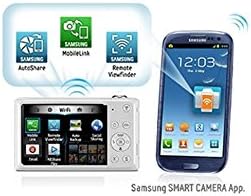
Figure 6: The Samsung SMART CAMERA App interface on a smartphone.
- MobileLink: Transfer photos and videos directly to your smartphone or tablet.
- Remote Viewfinder: Control your camera remotely from your smartphone, including zoom and shutter release.
- Social Media Upload: Directly upload photos to social media platforms like Facebook.
- E-mail: Send photos via email directly from the camera.
- PC Auto-backup: Automatically back up photos to your computer when connected to the same Wi-Fi network.
- Cloud Service: Upload images to cloud storage services.

Figure 7: Wireless transfer of images to a smartphone.

Figure 8: Seamless sharing of content across various devices.

Figure 9: Automatic PC backup via Wi-Fi.
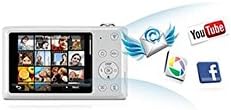
Figure 10: Direct sharing to social media and email from the camera.

Figure 11: Cloud service integration for image storage.
Maintenance
1. Cleaning the Camera
- Lens: Use a soft, lint-free cloth specifically designed for camera lenses. Avoid touching the lens with your fingers.
- LCD Screens: Gently wipe with a soft, dry cloth. Do not use abrasive cleaners.
- Camera Body: Wipe with a soft, dry cloth. For stubborn dirt, slightly dampen the cloth with water.
2. Battery Care
- Store batteries in a cool, dry place when not in use.
- Avoid fully discharging the battery frequently to prolong its lifespan.
- Do not expose the battery to extreme temperatures.
3. Storage
When storing the camera for extended periods, remove the battery and memory card. Store the camera in a dry, dust-free environment, preferably in a camera bag or case.
Troubleshooting
If you encounter issues with your Samsung DV150F, refer to the following common problems and solutions:
| Problem | Possible Cause / Solution |
|---|---|
| Camera does not power on. | Ensure the battery is charged and correctly inserted. Try charging the battery for at least 30 minutes. |
| Pictures are blurry. | Check if the lens is clean. Ensure sufficient lighting. Hold the camera steady or use a tripod. Select an appropriate scene mode. |
| Cannot save photos/videos. | Verify that a memory card is inserted and has sufficient free space. The memory card might be locked (write-protected). |
| Wi-Fi connection issues. | Ensure the camera and connected device are within range of the Wi-Fi network. Restart both devices. Check Wi-Fi settings on the camera. |
| Lens does not open/retract. | Check for obstructions around the lens. Avoid using the camera in dusty or sandy environments. If the issue persists, contact support. |
For more detailed troubleshooting, please refer to the official Samsung support website.
Specifications
| Feature | Detail |
|---|---|
| Model Name | Samsung DV150F |
| Photo Sensor Resolution | 16.2 Megapixels |
| Sensor Type | CCD (1/2.3-inch) |
| Optical Zoom | 5x |
| Digital Zoom | 4x |
| Lens Focal Length | 25-125mm (35mm equivalent) |
| Maximum Aperture | f/2.5 - f/6.3 |
| Front Display | 1.5-inch LCD |
| Rear Display | 3.0-inch LCD |
| Video Resolution | HD 720p (MPEG-4, H.264) |
| Connectivity | Wi-Fi, USB 2.0 |
| Storage Media | microSD/microSDHC/microSDXC |
| ISO Sensitivity | 80 - 3200 |
| Shutter Speed | 1 - 1/2000 seconds |
| Item Weight | 4.16 ounces |
Warranty Information
The Samsung DV150F Digital Camera comes with a 1-year warranty covering parts and labor. Please retain your proof of purchase for warranty claims. For full terms and conditions, refer to the warranty card included in your product packaging or visit the official Samsung support website.
Support
For further assistance, detailed user guides, software updates, and customer service, please visit the official Samsung support website. You can typically find the most up-to-date information and resources online.
Online Resources:
- Official Samsung Support Website: www.samsung.com/us/support/ (or your regional Samsung support site)