
1. Introduction
The Belkin WeMo Switch Smart Plug is a Wi-Fi enabled device designed to bring convenience and automation to your home. It allows you to control your lamps and small appliances from anywhere using your smartphone or tablet. With features like scheduling, voice control, and integration with other smart home systems, the WeMo Switch simplifies managing your home electronics.
This device operates on a standard electrical rating of 120V/15A/60Hz/1800W and connects via 2.4GHz 802.11n Wi-Fi. No central hub or subscription is required for its operation.

Figure 1: Front view of the WeMo Switch Smart Plug, showing the power button and Wi-Fi indicator.
2. Setup
2.1. What's Included
- WeMo Switch Smart Plug
- Quick Start Guide (refer to this manual for detailed instructions)
2.2. System Requirements
- Wi-Fi Router (2.4GHz 802.11n network required)
- Smartphone or Tablet running:
- Apple iOS 8 or higher
- Android 4.1 or higher
- Free WeMo App (available on Google Play Store and Apple App Store)
2.3. Installation Steps
- Plug in the WeMo Switch: Insert the WeMo Switch into any standard 120V wall outlet. The Wi-Fi indicator light on the switch will flash blue, indicating it is ready to connect.
- Download the WeMo App: Search for "WeMo" in your device's app store (Google Play Store for Android or Apple App Store for iOS) and download the free application.
- Connect to WeMo Wi-Fi: Go to your smartphone or tablet's Wi-Fi settings. Look for a Wi-Fi network named "WeMo.Switch.XXX" (where XXX is a unique identifier) and connect to it. You may need to temporarily disable cellular data to ensure your device connects to the WeMo network.
- Open the WeMo App: Launch the WeMo app. It will guide you through the remaining setup process, including connecting the WeMo Switch to your home Wi-Fi network. Select your home Wi-Fi network from the list and enter the password.
- Name Your Device: Once connected, you will be prompted to give your WeMo Switch a custom name (e.g., "Living Room Lamp," "Bedroom Fan"). This name will be used for control within the app and with voice assistants.
- Plug in Your Appliance: Plug the appliance you wish to control into the WeMo Switch.
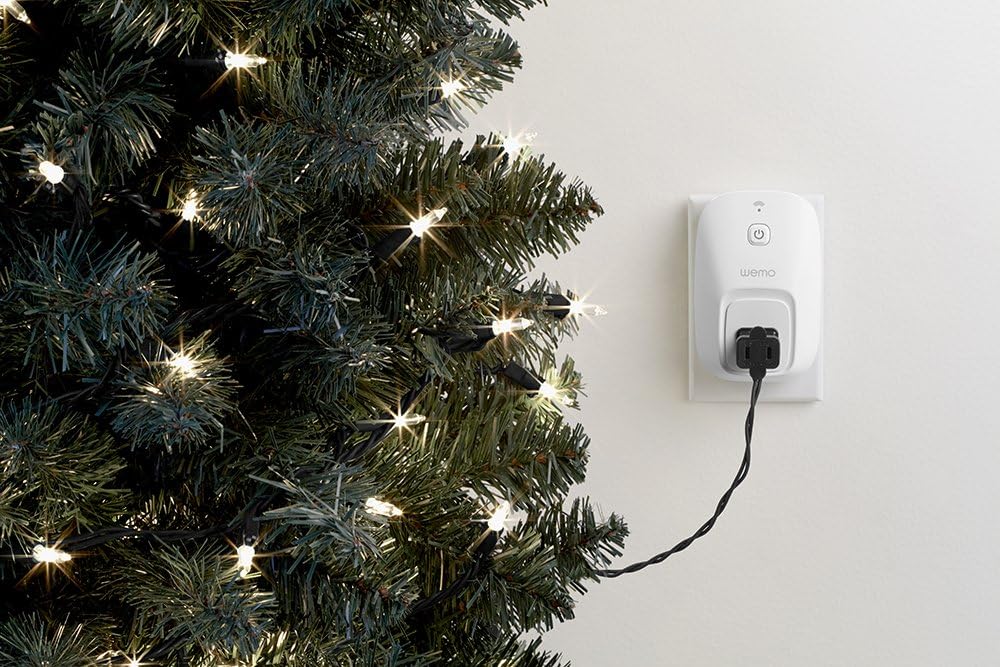
Figure 2: Back view of the WeMo Switch, showing the prongs for plugging into an outlet.

Figure 3: Smartphone screen displaying the WeMo app during the setup process.

Figure 4: The WeMo Switch plugged into a wall outlet, with a lamp's power cord connected to the switch.
3. Operating the WeMo Switch
3.1. App Control
Once set up, you can control your connected appliance directly from the WeMo app. The app displays a list of your WeMo devices, allowing you to toggle them on or off with a tap.
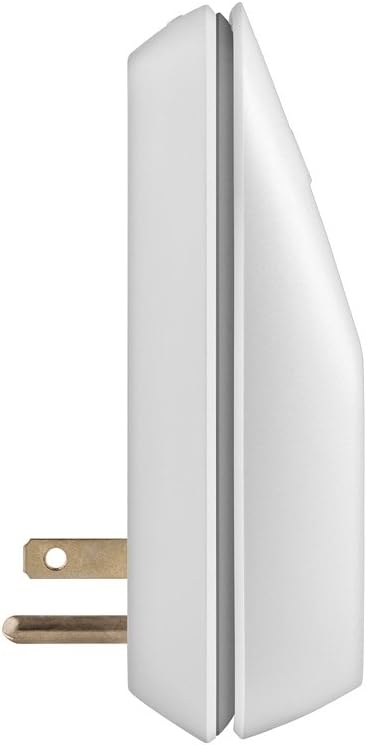
Figure 5: The WeMo app interface on a smartphone, showing connected devices and their on/off status.
3.2. Scheduling
The WeMo app allows you to create custom schedules for your appliances. You can set specific times for devices to turn on or off, or even link them to external events like sunrise and sunset. This feature is ideal for automating lights, fans, or other devices to suit your daily routine.
3.3. Voice Control with Amazon Alexa
The WeMo Switch is compatible with Amazon Alexa, enabling hands-free control of your devices. Once linked through the Alexa app, you can use voice commands to turn your appliances on or off.
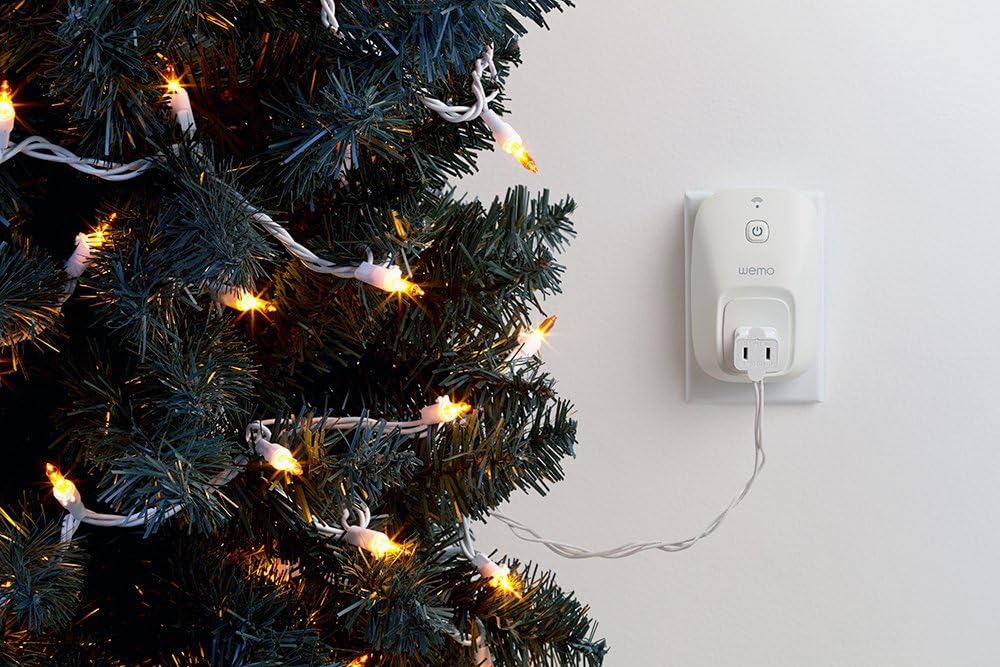
Figure 6: An Amazon Echo device positioned next to a WeMo Switch, illustrating their compatibility for voice control.
3.4. Integration with Nest Thermostat
The WeMo Switch can sync with your Nest Thermostat to automatically adjust device states based on your home and away modes. For example, lights can turn off when you leave and turn on when you return, helping to conserve energy.
3.5. IFTTT Compatibility
The WeMo Switch supports IFTTT (If This Then That) applets, allowing for advanced automation and integration with a wide range of other services and devices. You can create custom rules to trigger actions based on real-world events or device activity, such as receiving push notifications or controlling devices based on your location.
3.6. Manual Control
For convenience, the WeMo Switch includes a physical on/off button on the unit itself. This allows you to manually control the connected appliance even if your Wi-Fi network is down or your smartphone is not available.
4. Maintenance
4.1. Cleaning
To clean your WeMo Switch, simply wipe it with a soft, dry cloth. Do not use liquid cleaners or aerosol sprays.
4.2. Firmware Updates
Periodically, Belkin may release firmware updates for the WeMo Switch to improve performance, add new features, or address issues. The WeMo app will typically notify you when an update is available. It is recommended to keep your device's firmware up to date for optimal functionality.
If you experience issues with firmware updates, some users have found success by temporarily disabling "Remote Access" in the WeMo app to prompt the update. Re-enable remote access once the update is complete.
5. Troubleshooting
5.1. Device Not Detected / Connection Issues
- Check Wi-Fi Band: Ensure your Wi-Fi network is 2.4GHz. The WeMo Switch does not support 5GHz networks.
- Wi-Fi Password: Verify that your Wi-Fi password contains only alphanumeric characters. Some special characters may cause connection issues.
- Temporary Cellular Data Off: During initial setup, temporarily turn off cellular data on your smartphone to ensure it connects to the WeMo Switch's temporary Wi-Fi network.
- Restart the App: If the app shows "downloading" or devices are unresponsive, completely close the WeMo app and reopen it.
- Power Cycle: Unplug the WeMo Switch from the wall outlet, wait a few seconds, and then plug it back in.
- Restore Factory Settings: If issues persist, you can restore the WeMo Switch to its factory settings. Locate the restore button (often a small pinhole) on the unit and hold it for 5 seconds while it's plugged into an outlet. Refer to the device's physical markings for the exact location.
5.2. Response Delay
While the WeMo Switch is generally reliable, there might be a slight delay between tapping the power button in the app and the device turning on or off. This is typically normal and does not indicate a fault.
5.3. Wi-Fi Signal Strength
Ensure the WeMo Switch is within a reasonable range of your Wi-Fi router to maintain a strong and stable connection. Obstacles like thick walls or other electronic devices can interfere with the signal.
6. Specifications
| Specification | Value |
|---|---|
| Brand | WeMo |
| Model Number | F7C027fc |
| Product Dimensions | 2.55 x 5.29 x 8.18 inches |
| Item Weight | 8.8 ounces |
| Electrical Rating | 120V/15A/60Hz/1800W |
| Connectivity Protocol | Wi-Fi (2.4GHz 802.11n) |
| Controller Type | Amazon Alexa, Vera |
| Control Method | Voice, App |
| Operation Mode | Automatically, Off |
7. Support
For technical support or further assistance with your WeMo Switch, please contact Belkin customer support directly.
WeMo Support: 1-844-745-WEMO (24-hour support available)
Please note that the seller is not responsible for any item defects. For product-related issues, please contact the manufacturer, Belkin, directly.


