
1. Introduction
This manual provides essential information for the proper installation, operation, and maintenance of your Intel Pentium III 733/256/133/1.65V SL45Z processor. The Intel Pentium III processor is designed to deliver reliable performance for compatible computer systems. Please read this manual thoroughly before proceeding with installation or operation.
2. Safety Information
Always observe the following safety precautions when handling computer components:
- Electrostatic Discharge (ESD) Protection: Processors are sensitive to static electricity. Always wear an anti-static wrist strap or frequently touch a grounded metal object before handling the processor.
- Power Off: Ensure your computer system is completely powered off and unplugged from the wall outlet before installing or removing any components.
- Handle with Care: Avoid touching the gold contacts or the bottom pins of the processor. Hold the processor by its edges.
- Proper Tools: Use appropriate tools for opening your computer case and securing components.
3. Setup and Installation
Follow these steps to install your Intel Pentium III SL45Z processor:
- Prepare the System: Power off your computer, unplug it, and open the computer case.
- Locate CPU Socket: Identify the Socket 370 on your motherboard. If an old CPU is present, carefully remove it.
- Open Socket Lever: Gently push down and away the small metal lever on the side of the CPU socket to open it.
- Align Processor: Carefully align the processor with the socket. The processor has a notched corner (or a missing pin) that corresponds to a specific orientation on the socket. Do not force the processor into the socket.
- Insert Processor: Once aligned, gently place the processor into the socket. It should drop in with minimal pressure.
- Secure Processor: Push the socket lever back into its locked position to secure the processor.
- Apply Thermal Paste: Apply a small amount of high-quality thermal paste to the center of the processor's integrated heat spreader (IHS).
- Install Heatsink and Fan: Place the compatible heatsink and fan assembly directly onto the processor, ensuring even contact. Secure the heatsink according to its manufacturer's instructions. Connect the fan's power cable to the designated CPU fan header on the motherboard.
- Close Case and Power On: Close your computer case, plug in all cables, and power on the system. Verify that the CPU fan is spinning.
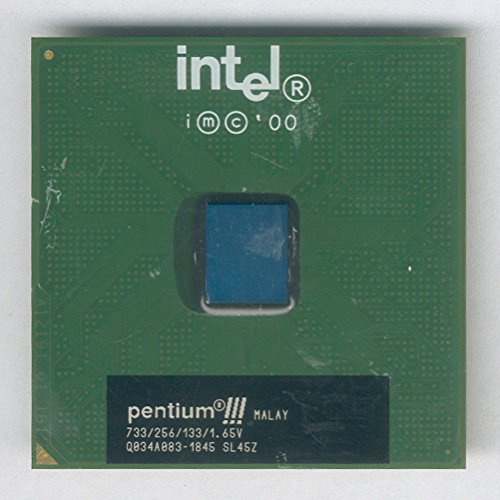
Figure 3.1: Top view of the Intel Pentium III SL45Z processor. This image displays the green printed circuit board (PCB) with the Intel logo, copyright information, and the central silicon die area. The bottom black label indicates 'pentium®!!! MALAY 733/256/133/1.65V Q034A083-1845 SL45Z'.
4. Operating Principles
The Intel Pentium III SL45Z processor is the central processing unit (CPU) of your computer system. It is responsible for executing instructions, performing calculations, and managing the flow of data. Once installed and powered on, the processor works in conjunction with your motherboard, RAM, and other components to run the operating system and applications. Proper cooling via a heatsink and fan is crucial for stable operation and longevity.
5. Specifications
Key technical specifications for the Intel Pentium III 733/256/133/1.65V SL45Z processor:
| Feature | Detail |
|---|---|
| CPU Model | Pentium III |
| Part Number | SL45Z |
| Clock Speed | 733 MHz |
| L2 Cache | 256 KB |
| Front Side Bus (FSB) Speed | 133 MHz |
| Core Voltage | 1.65V |
| CPU Socket | Socket 370 |
| Manufacturer | Intel |
| Product Dimensions | 6 x 8 x 5 inches (packaging) |
| Item Weight | 1 pound (packaging) |
| ASIN | B00B871CA6 |
6. Maintenance
The Intel Pentium III processor itself requires minimal maintenance. However, proper care of the cooling system is essential for its longevity and performance:
- Dust Removal: Periodically clean dust from the heatsink fins and fan blades using compressed air. Ensure the system is powered off and unplugged before cleaning.
- Thermal Paste: If you remove the heatsink for any reason, it is recommended to clean off the old thermal paste from both the CPU and heatsink and apply a fresh layer before reinstallation.
- Fan Functionality: Ensure the CPU fan is always spinning freely and quietly when the system is operating. Replace noisy or non-functional fans promptly.
7. Troubleshooting
If you encounter issues after installing your processor, consider the following common troubleshooting steps:
- System Not Booting: Double-check all power connections, especially to the motherboard and CPU fan. Ensure the processor is correctly seated in its socket and the lever is locked.
- Overheating: If the system shuts down unexpectedly or experiences performance throttling, check that the heatsink is properly installed and making good contact with the CPU. Verify the CPU fan is spinning and not obstructed. Ensure adequate airflow within the computer case.
- Instability/Crashes: Ensure your motherboard's BIOS/UEFI is updated to support the Pentium III processor. Verify that RAM modules are correctly installed.
- No Display: Confirm that your graphics card is properly seated and connected to the monitor.
If problems persist, consult your motherboard's manual or seek assistance from a qualified technician.
8. Warranty and Support
For information regarding warranty coverage and technical support for your Intel processor, please refer to the official Intel website or contact Intel customer service directly. Keep your proof of purchase for warranty claims.


