1. Introduction
This manual provides comprehensive instructions for the setup, operation, and maintenance of your Dino-Lite USB Digital Microscope AM3111-0.3MP. Designed for ease of use, this microscope offers versatile magnification capabilities and seamless integration with Windows and Mac operating systems, making it an ideal tool for various inspection and viewing applications.
2. Product Overview and Features
The Dino-Lite AM3111 is a compact and powerful digital microscope equipped with essential features for detailed observation.
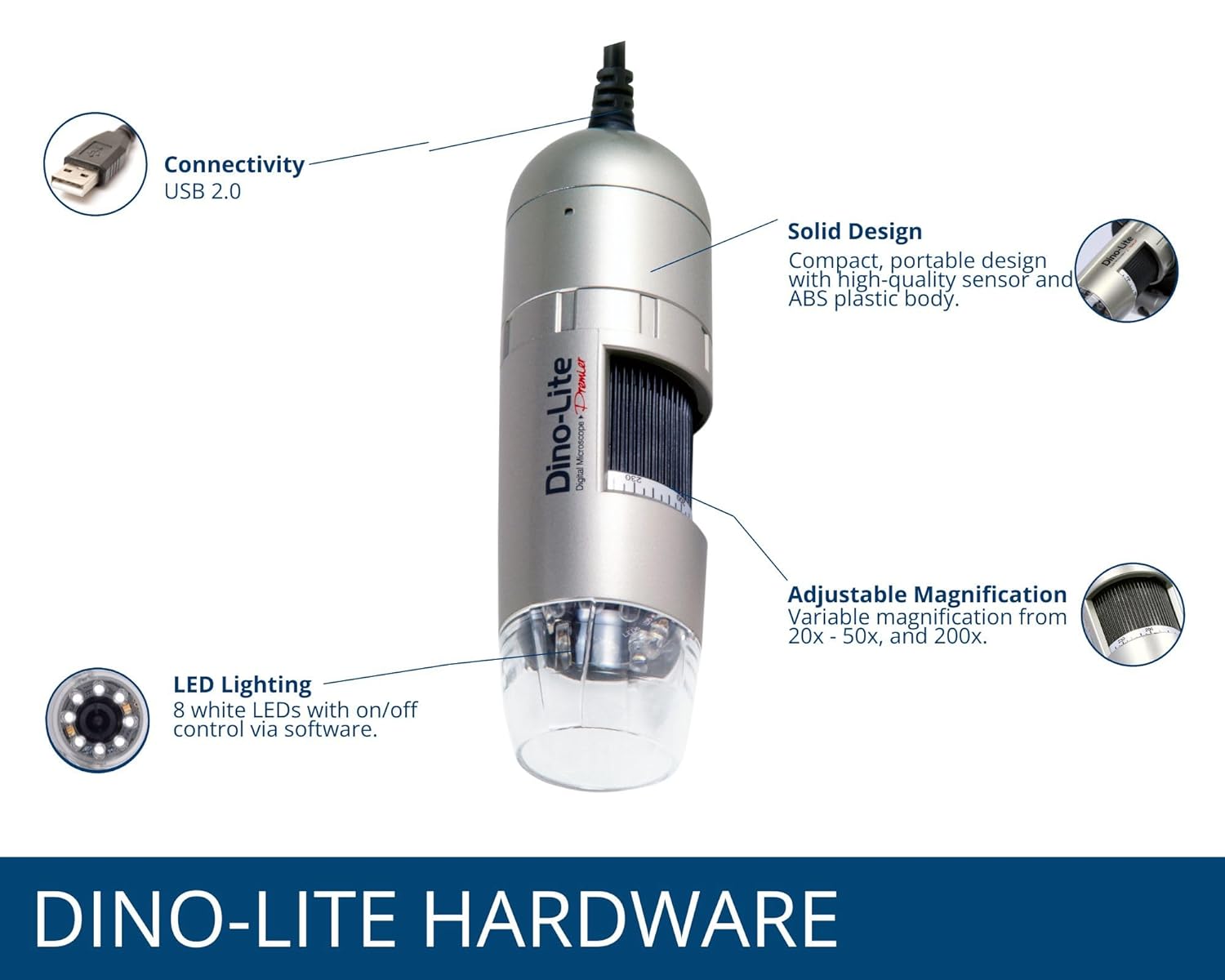
- Magnification: Offers true optical magnification from 20x to 50x, and up to 200x.
- Image Resolution: Captures images at 640 x 480 (0.3MP) resolution.
- Video Capability: Records video at 30 frames per second (FPS).
- Connectivity: Features standard USB connectivity for simple plug-and-play operation.
- Illumination: Integrated with 8 white LEDs for optimal lighting, with software-controlled on/off functionality.
- Software: Includes DinoCapture (for Windows) and DinoXcope (for Mac) for image/video capture, annotation, and measurement.
- Design: Solid, portable design with a high-quality sensor and durable ABS plastic body.



3. Setup
Follow these steps to set up your Dino-Lite USB Digital Microscope:
- Software Installation: Insert the included CD or download the latest software (DinoCapture for Windows or DinoXcope for Mac) from the official Dino-Lite website. Follow the on-screen prompts to complete the installation.
- Connect the Microscope: Plug the USB cable of the Dino-Lite microscope into an available USB port on your computer.
- Launch Software: Double-click the Dino-Lite software icon on your desktop to launch the application. The microscope's live view should appear on your screen.

4. Operating Instructions
Operating your Dino-Lite microscope involves adjusting magnification, controlling illumination, and utilizing the software for image and video capture.
4.1 Adjusting Magnification and Focus
- Magnification Adjustment: Rotate the magnification dial on the microscope body to change the optical magnification between 20x-50x or to 200x.
- Focusing: Once the desired magnification is set, adjust the focus wheel to achieve a clear image on your computer screen.

4.2 LED Illumination Control
The Dino-Lite AM3111 features 8 built-in white LEDs to illuminate your subject. These can be controlled via the software to optimize lighting conditions.

4.3 Using the Software (DinoCapture/DinoXcope)
The included software provides a user-friendly interface for various functions:
- Image Capture: Click the 'Snapshot' button to capture still images of your observations.
- Video Recording: Use the 'Video Recorder' function to record live video footage.
- Annotation and Measurement: The software offers tools to add annotations, draw, and perform basic measurements on captured images.
- Image Management: Organize and browse your captured images and videos within the software's file management system.

5. Maintenance
Proper maintenance ensures the longevity and optimal performance of your Dino-Lite microscope.
- Cleaning the Lens: Use a soft, lint-free cloth or lens paper to gently clean the microscope's lens. For stubborn spots, a small amount of lens cleaning solution can be applied to the cloth, not directly to the lens.
- Cleaning the Body: Wipe the microscope body with a dry or slightly damp cloth. Avoid using harsh chemicals or abrasive cleaners.
- Storage: Store the microscope in a clean, dry place, away from direct sunlight and extreme temperatures. Use the included carry pouch for protection when not in use.
- Software Updates: Periodically check the Dino-Lite website for software updates to ensure you have the latest features and bug fixes.

6. Troubleshooting
If you encounter issues with your Dino-Lite microscope, refer to the following common problems and solutions:
| Problem | Possible Cause | Solution |
|---|---|---|
| No image on screen / Microscope not detected | USB connection issue, software not running, driver issue. | Ensure USB cable is securely connected. Restart the Dino-Lite software. Reinstall the software and drivers. Try a different USB port. |
| Image is blurry or out of focus | Incorrect focus adjustment, wrong working distance, dirty lens. | Adjust the focus wheel. Ensure the microscope is at the correct working distance from the object. Clean the lens as per maintenance instructions. |
| LEDs are not lighting up | LED control in software is off, power issue. | Check the LED control settings within the Dino-Lite software. Ensure the microscope is properly connected and receiving power via USB. |
| Software crashes or freezes | Software conflict, outdated software, system resource issue. | Close other applications. Update the Dino-Lite software to the latest version. Restart your computer. |
7. Specifications
Key technical specifications for the Dino-Lite USB Digital Microscope AM3111:
- Model Name: AM3111
- Magnification Maximum: 200x
- Image Resolution: 640 x 480 (0.3MP)
- Video Frame Rate: 30 FPS
- Light Source Type: LED (8 white LEDs)
- Connectivity: USB 2.0
- Product Dimensions: 1.26"L x 1.26"W x 4.13"H (3.2 x 3.2 x 10.5 cm)
- Item Weight: 0.4 Pounds (6.4 ounces / 181 grams)
- Voltage: 5 Volts (USB powered)
- Material: Plastic
- Color: Taupe
- Real Angle of View: 45 Degrees
- Manufacturer: Dino-Lite
8. Warranty and Support
For warranty information, technical support, and further assistance, please refer to the official Dino-Lite website or contact their customer service. Detailed user guides and FAQs are often available online to help with advanced features and specific applications.
Visit the Dino-Lite Store for more information and product accessories.


