
1. Introduction
The TP-Link TL-SC2020 Network Security Camera is designed for monitoring home and office environments. This manual provides instructions for the installation, configuration, and operation of your device, ensuring optimal performance and security.

Image 1.1: Front view of the TL-SC2020 camera. This image shows the camera's lens, indicator lights, and the TP-Link logo on its white casing.
2. Features
The TL-SC2020 IP Surveillance Camera offers a range of features for effective monitoring:
- MJPEG Streams: Supports Motion-JPEG streams for remote recording and local surveillance applications.
- CMOS Sensor: Equipped with a 1/4-inch progressive scan CMOS sensor, producing clear and crisp images even in low light conditions.
- Management Software: Includes bundled management software capable of accommodating up to 16 cameras simultaneously.
- Motion Detection Alerts: Provides motion-triggered email alerts to keep users informed of activity.
- Smooth Video: Achieves a frame rate of 30 frames per second (fps) at VGA resolution (640 x 480) for smooth video playback.
3. Package Contents
Verify that your package contains the following items:
- TP-Link TL-SC2020 IP Surveillance Camera
- Power Adapter
- Ethernet Cable
- Resource CD (containing utility software and documentation)
- Quick Installation Guide
If any items are missing or damaged, please contact your retailer.
4. Setup
4.1 Physical Connection
Before configuring the camera, ensure all physical connections are made correctly.
- Connect the provided power adapter to the camera's POWER port and then to an electrical outlet.
- Connect one end of the Ethernet cable to the camera's LAN port and the other end to an available port on your router or network switch.
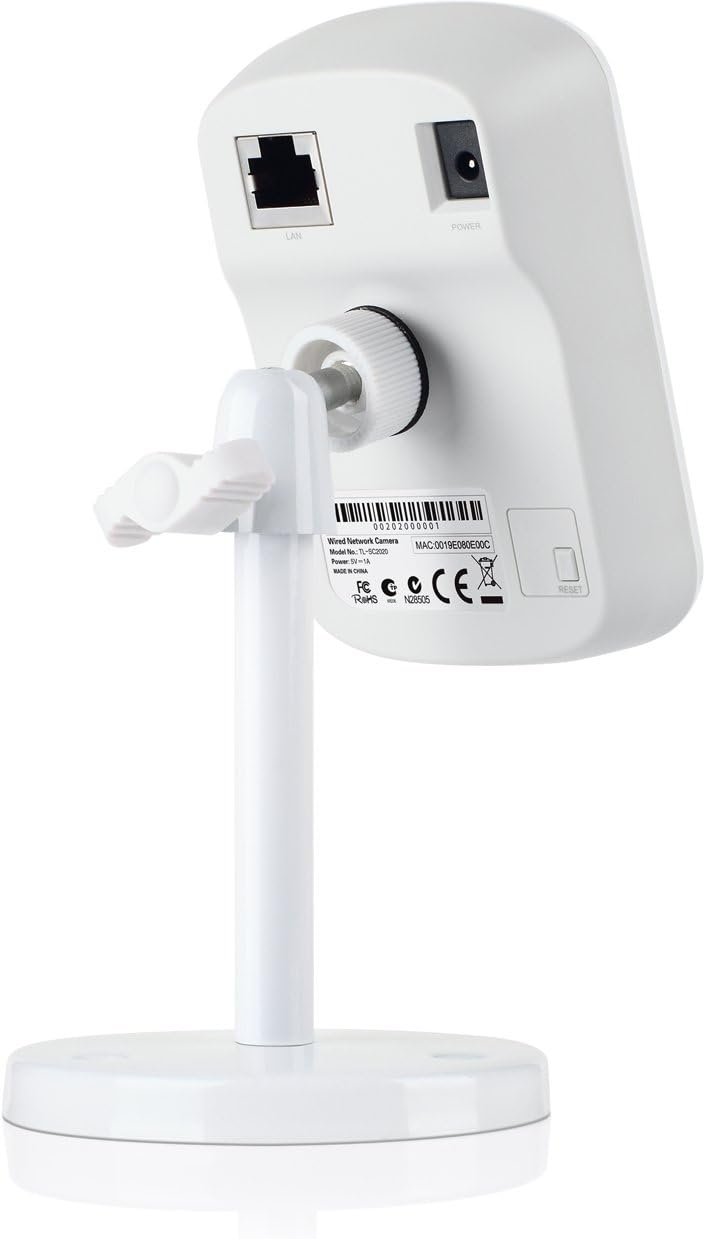
Image 4.1: Rear view of the TL-SC2020 camera, highlighting the LAN and Power ports for connection.
4.2 Initial Access and Configuration
After physical connection, you can access and configure your camera.
- Install Utility Software: Insert the Resource CD into your computer and install the bundled utility software. This software can help discover the camera's IP address on your network.
- Find IP Address: Use the utility software to locate your camera's IP address. Alternatively, if your router supports WPS, you may use it for initial network connection, then check your router's connected devices list for the camera's IP.
- Access Web Interface: Open a web browser (e.g., Chrome, Firefox) and enter the camera's IP address in the address bar. Press Enter.
- Login: Enter the default username and password (refer to the Quick Installation Guide or the camera's label for default credentials). It is highly recommended to change these immediately for security.
- Basic Settings: Navigate to the camera's settings to configure network parameters (e.g., static IP, DHCP), set a strong administrative password, and change the default HTTP port (e.g., from 80 to a non-standard port) for enhanced security.
- DDNS Configuration (Optional): If you plan to access the camera remotely, configure Dynamic DNS (DDNS) settings within the camera's interface and set up port forwarding on your router.
4.3 Mounting
The camera can be placed on a flat surface or mounted to a wall or ceiling using its adjustable stand. Ensure the mounting location provides a clear view and is within reach of power and network connections.
5. Operating
5.1 Live View
You can view the live feed from your camera through several methods:
- Web Browser: Access the camera's web interface by entering its IP address in a browser. The live feed will typically be displayed on the main page.
- Management Software: Use the bundled management software to view feeds from multiple cameras simultaneously.
- Mobile Application: Download and install the compatible mobile application (if available from TP-Link) on your smartphone or tablet for remote viewing.
5.2 Recording
Configure recording settings to capture video footage:
- Access the recording settings through the camera's web interface or the management software.
- Set recording schedules (e.g., continuous, scheduled, or motion-triggered).
- Specify the storage location for recordings (e.g., local computer, network attached storage).
5.3 Motion Detection and Alerts
The camera can detect motion and send alerts:
- In the camera's web interface, configure motion detection zones and sensitivity levels.
- Set up email alerts to receive notifications when motion is detected. Ensure your email server settings are correctly entered.
5.4 Audio Monitoring
The TL-SC2020 supports one-way audio, allowing you to listen to the environment around the camera. This feature can be accessed through the live view interface.
6. Maintenance
Regular maintenance helps ensure the longevity and optimal performance of your camera.
- Cleaning: Gently clean the camera lens and exterior housing with a soft, dry, lint-free cloth. Avoid using liquid cleaners, solvents, or abrasive materials, as these can damage the camera.
- Firmware Updates: Periodically check the official TP-Link website for the latest firmware updates. Updating the firmware can improve performance, add new features, and enhance security. Follow the instructions provided by TP-Link carefully during the update process.
- Password Management: For security, regularly change your camera's administrative password to a strong, unique combination of characters.
7. Troubleshooting
This section addresses common issues you might encounter with your TL-SC2020 camera.
7.1 Cannot Access Camera
- Power Check: Ensure the power adapter is securely connected to the camera and a working electrical outlet.
- Network Cable: Verify that the Ethernet cable is firmly connected to both the camera's LAN port and your router/switch.
- Network Segment: Confirm that your computer and the camera are on the same local network segment.
- IP Address: Use the TP-Link utility software to scan your network and find the correct IP address of the camera.
- Firewall: Temporarily disable your computer's firewall or add an exception for the camera's IP address and port.
7.2 Poor Image Quality
- Clean Lens: Gently clean the camera lens to remove any dust or smudges.
- Lighting: Ensure adequate lighting in the monitored area.
- Resolution Settings: Check the video resolution settings in the camera's web interface. Ensure it is set to the desired quality (e.g., 640x480).
7.3 Motion Detection Not Working
- Settings Review: Revisit the motion detection settings in the camera's web interface. Verify that detection zones are correctly defined and sensitivity is appropriately set.
- Email Configuration: Double-check your email alert settings, including SMTP server details, recipient address, and authentication.
7.4 Remote Access Issues
- DDNS: Confirm that your Dynamic DNS (DDNS) service is correctly configured and updated.
- Port Forwarding: Verify that port forwarding rules on your router are correctly set up to direct external traffic to the camera's IP address and port.
- ISP Blocking: Some Internet Service Providers (ISPs) may block certain ports. Check if your ISP has any restrictions.
8. Specifications
Key technical specifications for the TP-Link TL-SC2020 IP Surveillance Camera:
| Feature | Specification |
|---|---|
| Manufacturer | TP-Link IP Cams |
| Model Number | TL-SC2020 |
| Product Dimensions | 26.42 x 16.76 x 7.37 cm |
| Weight | 521.63 g |
| Color | White |
| Number of Items | 1 |
| Number of Channels (Management Software) | 16 |
| Effective Video Resolution | 480 Pixels (640x480 VGA) |
| Voltage | 5 Volts |
| Wattage | 3 watts |
9. Warranty and Support
For detailed warranty information, terms, and conditions, please refer to the warranty card or documentation included with your product. For technical support, frequently asked questions, and additional resources, please visit the official TP-Link website or contact their customer support directly.
TP-Link Official Website: www.tp-link.com


