Introduction
This manual provides detailed instructions for the operation, maintenance, and troubleshooting of your OM SYSTEM OLYMPUS TG-2 iHS Digital Camera. Designed for durability and high performance, this camera is built to withstand challenging environments while delivering exceptional image quality.
Key features include its robust construction (Waterproof to 50ft/15m, Shockproof to 7ft/2.1m, Crushproof to 220lbf/100kgf, Freezeproof to 14°F/-10°C, and Dustproof), a high-speed f2.0 lens, and advanced imaging technologies.
Product Overview

Figure 1: Front view of the Olympus TG-2 iHS Digital Camera, showcasing its robust design and prominent lens.

Figure 2: Rear view of the camera, highlighting the 3.0" OLED monitor and control layout.

Figure 3: Left side view of the camera.
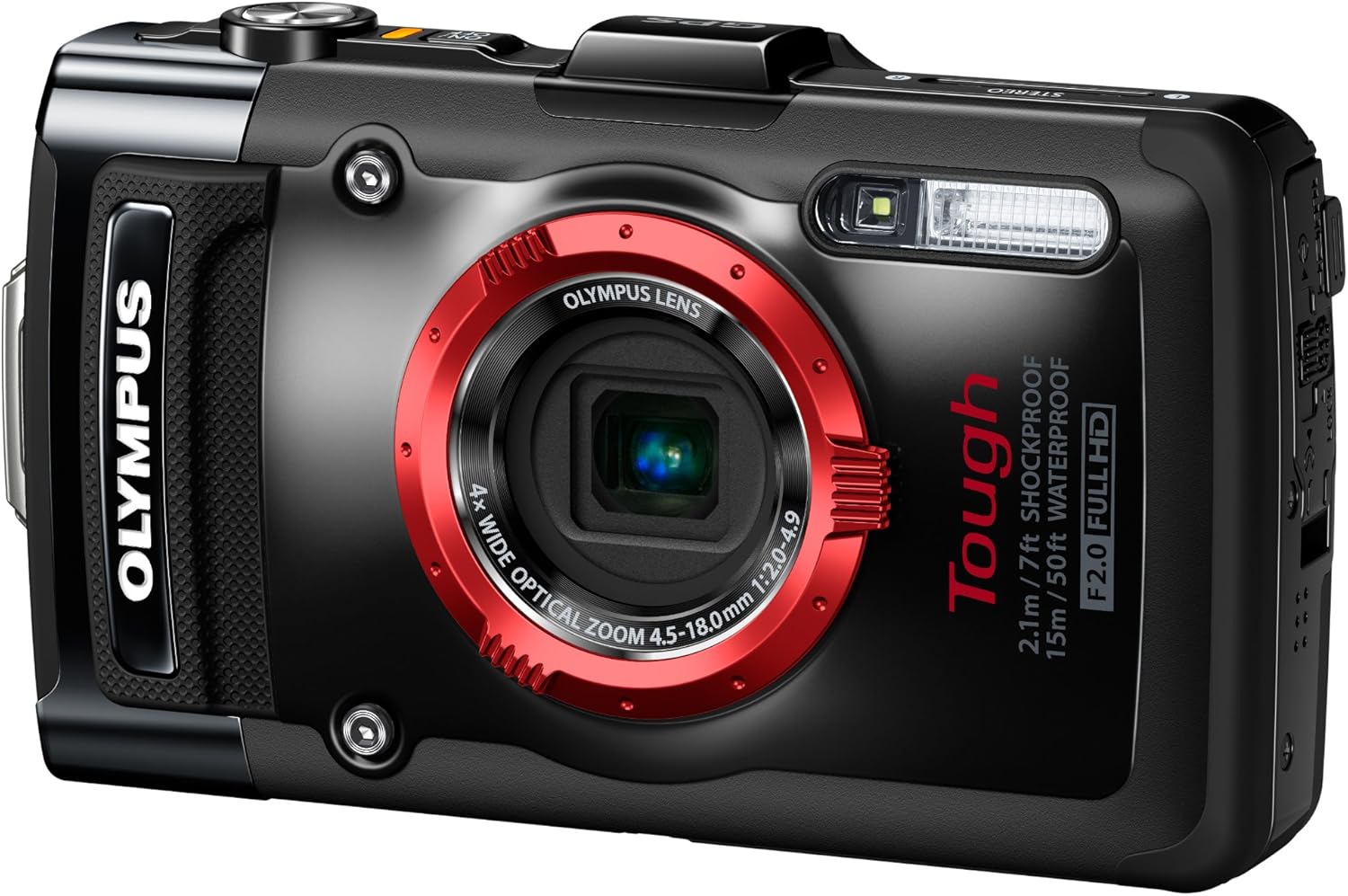
Figure 4: Right side view of the camera.

Figure 5: Top view of the camera, featuring the power button and GPS module.
Setup
1. Battery Installation and Charging
The camera uses a Lithium-Ion LI90B rechargeable battery. Ensure the battery is fully charged before first use.
- Open the battery/card compartment door on the side of the camera. Ensure the double-lock mechanism is disengaged.
- Insert the LI90B battery with the correct orientation, matching the contacts.
- Close the compartment door firmly until both locks click into place. This is crucial for maintaining the camera's waterproof integrity.
- Connect the camera to the provided charger using the USB cable. The charging indicator will illuminate.
- Charging typically takes approximately 2-3 hours. The indicator will turn off when charging is complete.
2. Memory Card Insertion
The camera supports SD, SDHC, and SDXC memory cards. A minimum Class 4 speed is recommended for optimal performance, especially for video recording.
- With the battery/card compartment door open, locate the memory card slot.
- Insert the memory card with the label facing the front of the camera until it clicks into place.
- Close and secure the compartment door.
- Upon first use or after inserting a new card, the camera may prompt you to format the card. Formatting erases all data on the card, so back up any important files first.
3. Initial Power On and Settings
- Press and hold the ON/OFF button located on the top of the camera.
- Follow the on-screen prompts to set the date, time, and language.
- Adjust basic settings such as screen brightness and sound volume as desired.
Operating Instructions
1. Basic Photography Modes
The mode dial allows selection of various shooting modes:
- iAuto (Intelligent Auto): The camera automatically detects the scene (up to 30 different scenes) and adjusts settings for optimal results. Ideal for general use.
- Program Auto (P): Allows more control over settings while the camera sets exposure.
- Aperture Priority (A): Manually adjust the aperture (f2.0 lens) for creative control over depth of field. The camera sets the shutter speed.
- Scene Modes (SCN): Select from pre-set scenes like Portrait, Landscape, Night, Sport, Beach, Snow, and specific Underwater modes (Snapshot, Wide 1, Wide 2, Macro).
- Magic Filters: Apply creative effects such as Pop Art, Pin Hole, Fisheye, Soft Focus, and more.
2. Advanced Features
- Microscopic Macro Mode: For extreme close-ups, combine optical and super resolution zoom to achieve 7x to 14x magnification from 1 cm distance.
- High-Speed Sequential Shooting: Capture fast action with 5 frames per second (fps) burst shooting at full resolution, or up to 60 fps at 3MP resolution.
- 1080p Full HD Video: Record high-definition videos with a dedicated one-touch button.
- GPS & e.Compass: Automatically record location and landmark information with your images. The e.Compass provides directional data.
- Manometer: Records elevation and water depth, providing a warning near the 50ft depth limit.
- LED Illuminator: A built-in LED light assists with focus and exposure in macro shooting and low-light conditions.
3. Using Lens Accessories
The TG-2 iHS supports optional converter lenses for expanded photographic capabilities:
- Fisheye Converter Lens: Provides a wide-angle perspective without sacrificing lens brightness, especially useful underwater. Requires a separate adapter.
- Telephoto Converter Lens: Extends the optical zoom range for distant subjects. Requires a separate adapter.
- Adapter: The converter adapter (e.g., CLA-T01) is necessary to attach these lenses and can also accommodate 40.5mm filters.

Figure 6: The Olympus TG-2 iHS camera designed for rugged outdoor use.
Maintenance
1. General Care and Cleaning
- Wipe the camera body with a soft, dry cloth. For stubborn dirt, use a slightly damp cloth and then dry thoroughly.
- Clean the lens and display screen with a lens cleaning cloth. Avoid abrasive materials.
- Do not use organic solvents or strong chemicals for cleaning.
2. Waterproofing Maintenance
To ensure the camera maintains its waterproof capabilities, proper care of the seals is essential:
- After use in saltwater, rinse the camera thoroughly with fresh water while the compartment doors are securely closed. Do not open the doors until the camera is dry.
- Inspect the rubber seals (gaskets) around the battery/card compartment and USB/HDMI port regularly for dirt, sand, hair, or damage. Even a small particle can compromise the seal.
- Clean the seals gently with a soft, lint-free cloth. Do not use sharp objects.
- Avoid touching the seals directly with your fingers, as oils can degrade the rubber.
- It is recommended to replace the compartment door gaskets annually, especially with frequent underwater use.
- Always ensure the double-lock mechanism on the compartment doors is fully engaged before submerging the camera.
3. Storage
- Store the camera in a cool, dry place away from direct sunlight and extreme temperatures.
- If storing for an extended period, remove the battery.
Troubleshooting
| Problem | Possible Cause | Solution |
|---|---|---|
| Camera does not power on. | Battery is depleted or incorrectly inserted. | Charge the battery fully. Reinsert the battery correctly. |
| Images are blurry. | Lens is dirty, camera shake, or incorrect focus. | Clean the lens. Hold the camera steady or use a tripod. Ensure the camera is focusing correctly (half-press shutter button). |
| Water inside battery/card compartment. | Compartment door not properly closed or seal is compromised. | Immediately remove battery and memory card. Dry the camera thoroughly. Inspect seals for debris or damage. Ensure doors are double-locked before submerging. If seals are damaged, contact support for replacement. |
| Video has excessive wind noise or "clipping" sound. | Default audio settings may not be optimized for all conditions. | Refer to the camera's internal menu for audio settings. Adjust settings related to wind noise reduction and audio clipping. |
| GPS not acquiring signal. | Obstructed view of sky or initial acquisition time. | Move to an open area with clear view of the sky. Allow several minutes for initial signal acquisition. |
Specifications
| Feature | Detail |
|---|---|
| Model Name | Olympus TG-2 iHS |
| Brand | Olympus |
| Photo Sensor Resolution | 12 MP |
| Photo Sensor Technology | BSI CMOS |
| Optical Zoom | 4x |
| Digital Zoom | 4x |
| Maximum Aperture | f2.0 |
| Video Resolution | FHD 1080p |
| Screen Size | 3 Inches |
| Display Type | OLED |
| Water Resistance Level | Waterproof (50ft/15m) |
| Shockproof | 7ft/2.1m |
| Crushproof | 220lbf/100kgf |
| Freezeproof | 14°F/-10°C |
| Connectivity Technology | USB, HDMI |
| Battery Type | Lithium-Ion LI90B rechargeable |
| Battery Average Life | 350 Photos |
| Memory Card Support | SD, SDHC, SDXC |
| Item Weight | 8.16 ounces |
Warranty and Support
For warranty information, please refer to the documentation included with your purchase or visit the official Olympus support website. Keep your proof of purchase for warranty claims.
For technical support, troubleshooting assistance beyond this manual, or service inquiries, please contact Olympus customer support through their official channels. You can often find contact information on the manufacturer's website or by searching for "Olympus customer support".
Online resources such as FAQs and software updates may also be available on the official Olympus support page.


