
Product Overview
The ARRIS SURFboard SB6141 DOCSIS 3.0 Cable Modem is designed to enhance your internet experience with lightning-fast broadband speeds. Utilizing DOCSIS 3.0 technology, it bonds up to eight downstream channels and four upstream channels, supporting data rates up to 343 Mbps download and 131 Mbps upload, depending on your Cable Internet provider service. This capability makes activities like streaming HD video, online gaming, shopping, downloading, and high-quality voice and video conferencing more efficient and realistic.

Figure 1: Front view of the ARRIS SURFboard SB6141 cable modem, showing its white casing and blue indicator lights.
Package Contents
Verify that your package contains the following items:
- ARRIS SURFboard SB6141 Cable Modem
- Power Adapter
- Ethernet Cable
- Quick Start Guide (may be a separate document)

Figure 2: Included power adapter for the SB6141 modem.

Figure 3: Included Ethernet cable for connecting the modem to a computer or router.
Setup Instructions
Follow these steps to set up your ARRIS SURFboard SB6141 cable modem:
- Connect the Coaxial Cable: Connect a coaxial cable from your wall outlet to the Cable port on the back of the SB6141 modem. Ensure the connection is finger-tight.
- Connect the Ethernet Cable: Connect one end of the supplied Ethernet cable to the Ethernet port on the back of the SB6141 modem. Connect the other end to the Ethernet port on your computer or wireless router.
- Connect the Power Adapter: Connect the power adapter to the Power port on the back of the SB6141 modem. Plug the other end into an electrical outlet.
- Power On: The modem will automatically power on. Wait for the indicator lights on the front panel to stabilize. This may take several minutes.
- Activate Service: Contact your Internet Service Provider (ISP) to activate your new modem. You will need to provide them with the MAC address (HFC MAC ID) located on the label on the bottom or back of your modem.
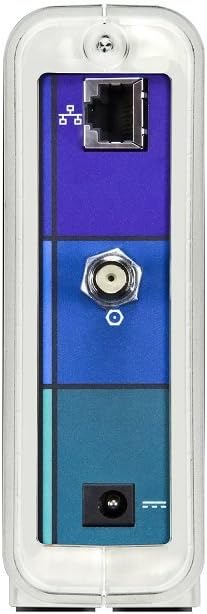
Figure 4: Rear view of the SB6141 modem, highlighting the connection ports.
Operating the Modem
The SB6141 modem features several LED indicators on the front panel that provide information about its operational status:
| LED Indicator | Status | Description |
|---|---|---|
| Power | Solid Green | The modem is properly connected to power. |
| Receive | Solid Blue | Downstream channel is bonded (DOCSIS 3.0 operation). |
| Solid Green | Downstream channel is connected (DOCSIS 1.x/2.0 operation). | |
| Send | Solid Blue | Upstream channel is bonded (DOCSIS 3.0 operation). |
| Solid Green | Upstream channel is connected (DOCSIS 1.x/2.0 operation). | |
| Online | Solid Green | The modem is connected to the Internet. |
| Link | Solid Green | A device is connected to the Ethernet port. |
| Blinking Green | Data is being transferred over the Ethernet connection. |
Maintenance
To ensure optimal performance and longevity of your SB6141 modem, consider the following maintenance tips:
- Placement: Place the modem in a well-ventilated area, away from direct sunlight, heat sources, and moisture. Ensure adequate airflow around the device.
- Cleaning: Gently wipe the exterior of the modem with a soft, dry cloth. Do not use liquid cleaners or abrasive materials.
- Rebooting: If you experience internet connectivity issues, try rebooting your modem. Disconnect the power adapter, wait for 10-15 seconds, and then reconnect it. Allow several minutes for the modem to re-establish its connection.
- Cable Connections: Periodically check all cable connections (coaxial, Ethernet, power) to ensure they are secure and not damaged.
Troubleshooting
If you encounter issues with your SB6141 modem, refer to the following common troubleshooting steps:
- No Power:
- Ensure the power adapter is securely connected to the modem and a working electrical outlet.
- Verify the electrical outlet is functional by plugging in another device.
- No Internet Connection (Online LED Off or Blinking):
- Check all cable connections (coaxial, Ethernet, power) to ensure they are secure.
- Reboot the modem by unplugging the power adapter for 10-15 seconds and then plugging it back in.
- Contact your Internet Service Provider (ISP) to confirm there are no service outages in your area and that your modem is properly provisioned.
- Slow Internet Speed:
- Ensure your internet plan supports the speeds you expect.
- If using a wireless router, try connecting directly to the modem with an Ethernet cable to rule out router-related issues.
- Reboot both your modem and router.
- Check for excessive network activity from other devices on your network.
- Cannot Access Modem Configuration Page:
- Ensure your computer is directly connected to the modem or through a router that is properly configured.
- The default IP address for the modem's configuration page is typically 192.168.100.1. Enter this into your web browser.
Specifications
| Feature | Detail |
|---|---|
| Model Number | SB6141 |
| DOCSIS Version | 3.0 |
| Downstream Channels | Up to 8 bonded |
| Upstream Channels | Up to 4 bonded |
| Max Download Speed | 343 Mbps (dependent on ISP service) |
| Max Upload Speed | 131 Mbps (dependent on ISP service) |
| Ethernet Port | Gigabit Ethernet |
| Dimensions (LxWxH) | 6.4 x 2 x 8.7 inches |
| Weight | 1.52 pounds |
| Operating System Compatibility | PC: Windows Vista, 2000, XP or 7 or Linux with Ethernet connection; Mac, Unix |
| Power Source | AC |
| Compatible ISPs | Comcast Xfinity, Spectrum (Charter, Time Warner, Brighthouse Networks), Cox, Mediacom, Suddenlink (check with ISP for compatibility) |
Warranty and Support
The ARRIS SURFboard SB6141 cable modem comes with a 2-year warranty. For technical support, warranty claims, or additional assistance, please contact ARRIS customer service. Refer to the official ARRIS website or the documentation included with your product for the most current contact information.
You can also find the official User Guide (PDF) here.


