
Logitech M310
Logitech M310 Wireless Mouse
Instruction Manual
Introduction
The Logitech M310 Wireless Mouse is designed for comfortable and reliable everyday use. Featuring a contoured design and advanced wireless connectivity, it offers smooth and responsive cursor control. This manual will guide you through the setup, operation, and maintenance of your new mouse.
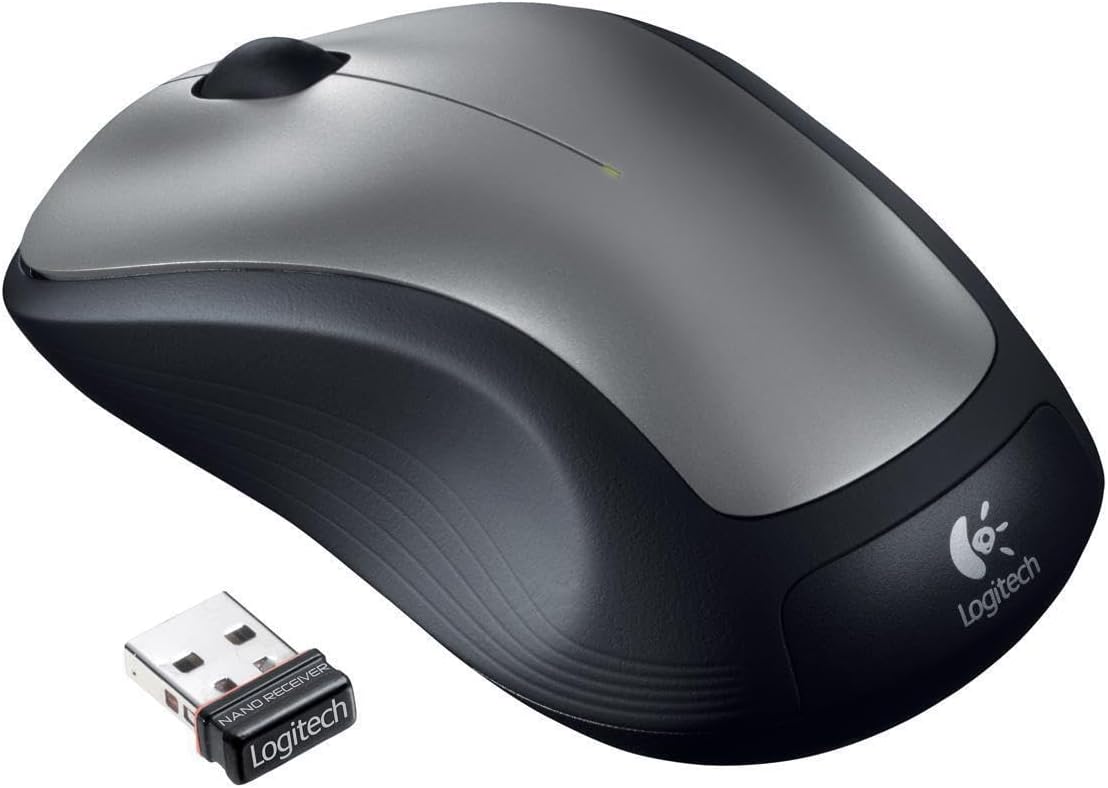
Figure 1: Logitech M310 Wireless Mouse and Nano Receiver
Setup
Setting up your Logitech M310 Wireless Mouse is quick and easy. Follow these steps to get started:
- Insert Battery: Open the battery compartment on the underside of the mouse. Insert one AA battery, ensuring correct polarity. Close the compartment securely.
- Plug in the Nano Receiver: Locate an available USB port on your computer. Insert the Logitech nano receiver into the USB port. The mouse is designed with a "plug-and-forget" receiver, meaning it's small enough to leave in your laptop's USB port without obstruction.
- Power On: Flip the On/Off switch on the underside of the mouse to the "On" position. Your computer should automatically detect the mouse and install the necessary drivers.

Figure 2: Mouse underside with battery compartment
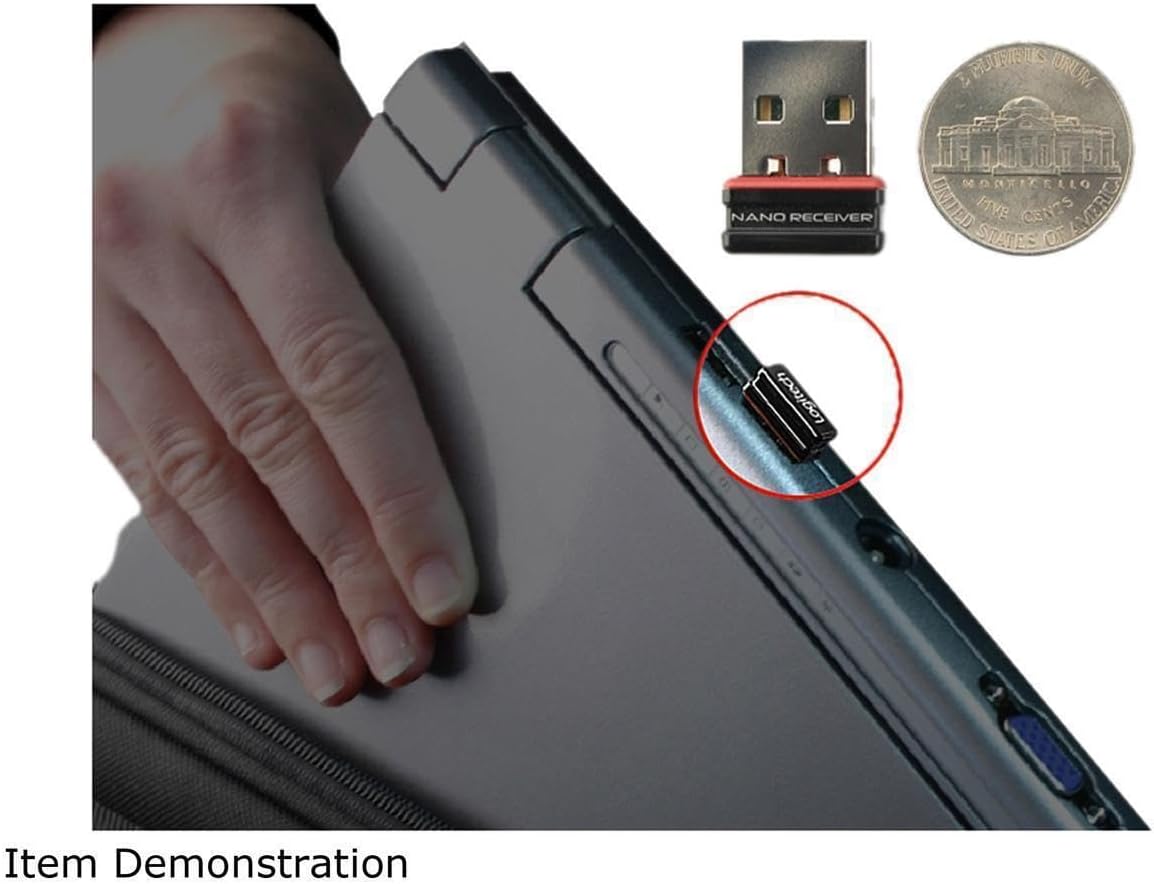
Figure 3: Nano Receiver plugged into a laptop
Operation
The Logitech M310 Wireless Mouse provides intuitive control for your computer. It features a standard left-click button, right-click button, and a scroll wheel that also functions as a middle-click button.
- Left-Click: Use the left button for selecting items, opening files, and interacting with on-screen elements.
- Right-Click: Use the right button to access context menus and additional options.
- Scroll Wheel: Roll the scroll wheel up or down to navigate through documents and web pages. Press the scroll wheel down for middle-click functionality, which can vary depending on the application (e.g., opening links in new tabs).
- Movement: The mouse uses optical tracking for smooth and responsive cursor control on various surfaces.
Maintenance
To ensure the longevity and optimal performance of your Logitech M310 Wireless Mouse, consider the following maintenance tips:
- Battery Replacement: The mouse is designed for long battery life, up to 18 months. When the mouse performance degrades or the indicator light (if present) signals low battery, replace the AA battery. To replace, open the battery compartment on the underside of the mouse, remove the old battery, insert a new AA battery, and close the compartment.
- Cleaning: Use a soft, lint-free cloth to gently wipe the surface of the mouse. For stubborn dirt, slightly dampen the cloth with water. Avoid using harsh chemicals or abrasive materials.
- Receiver Storage: The nano receiver can be stored inside the mouse's battery compartment when not in use, preventing loss during transport.
Troubleshooting
If you encounter issues with your Logitech M310 Wireless Mouse, try the following common troubleshooting steps:
- No Cursor Movement: Ensure the mouse is powered on and the nano receiver is securely plugged into a working USB port. Check the battery and replace it if necessary.
- Intermittent Connection: Move the mouse closer to the receiver. Ensure there are no large metal objects or other wireless devices interfering with the 2.4 GHz signal.
- Unresponsive Buttons/Scroll Wheel: Try cleaning around the buttons and scroll wheel to remove any debris. If the issue persists, try re-pairing the mouse with the receiver (refer to Logitech's official support for specific re-pairing instructions if needed).
Specifications
| Feature | Detail |
|---|---|
| Brand | Logitech |
| Model Number | 910001675 - EA (M310) |
| Connectivity Technology | Wireless (2.4 GHz) |
| Movement Detection Technology | Optical |
| Color | Dark Gray |
| Power Source | Battery Powered (1 AA battery required) |
| Average Battery Life | Up to 18 months |
| Item Weight | 0.01 ounces |
| Product Dimensions (LxWxH) | 2.4 x 2 x 0.1 inches |
| Operating System Compatibility | Windows 10 (and other compatible OS) |
| Date First Available | March 15, 2012 |
Warranty and Support
For warranty information, technical support, or to download the latest software and drivers, please visit the official Logitech support website or refer to the warranty card included with your product. Keep your proof of purchase for warranty claims.
Related documentsM310


Ask a question about this manual
Ask about setup, troubleshooting, compatibility, parts, safety, or missing instructions. Manuals+ will review the question and use this page’s manual context to help answer it.