
1. Introduction
The AUNA MIC-900S is a high-quality USB condenser microphone designed for clear audio capture. It features a cardioid polar pattern, making it ideal for recording vocals, speech, podcasts, and radio streaming. With its plug-and-play functionality, it connects directly to your PC or laptop via a USB cable, requiring no additional drivers for immediate use.
This manual provides essential information for the proper installation, operation, and care of your AUNA MIC-900S microphone to ensure optimal performance and longevity.
2. Safety Information
- Read all instructions carefully before using the microphone.
- Keep the microphone away from water or excessive moisture.
- Avoid exposing the microphone to extreme temperatures or direct sunlight.
- Do not attempt to disassemble or modify the microphone. This will void the warranty.
- Use only the provided USB cable for connection.
- Handle the microphone and its components with care to prevent damage.
3. Package Contents
Please check that all items listed below are included in your package:
- AUNA MIC-900S USB Condenser Microphone
- Shock Mount
- USB Cable
- Tripod Adapter (for stand mounting)
- Transport Bag

Image 3.1: Included accessories with the AUNA MIC-900S microphone, showing the shock mount, USB cable, and a protective transport bag.
4. Setup
4.1 Mounting the Microphone
- Attach the shock mount to a compatible microphone stand or desk arm using the integrated thread.
- Carefully insert the AUNA MIC-900S microphone into the shock mount. Ensure it is securely held to minimize vibrations and handling noise.

Image 4.1: The AUNA MIC-900S microphone securely mounted in its shock mount, ready for use with an optional pop filter.

Image 4.2: The AUNA MIC-900S microphone and its included shock mount, illustrating how the microphone fits into the mount.
4.2 Connecting to a Computer
- Locate the USB Type B port at the bottom of the microphone.
- Connect the provided USB cable to the microphone's USB Type B port.
- Plug the other end of the USB cable (USB Type A) into an available USB port on your PC or laptop.
- The microphone is plug-and-play compatible with Windows and Mac operating systems and should be automatically recognized without needing additional driver installation.

Image 4.3: Detailed view of the USB Type B connection port located at the base of the microphone.

Image 4.4: This graphic highlights the simple 'Plug & Play' feature, indicating direct connection to a PC via USB without driver installation.
5. Operating Instructions
5.1 Basic Operation
- Once connected, your computer's operating system should automatically detect the AUNA MIC-900S as an audio input device.
- Open your preferred audio recording software, communication application, or streaming platform.
- In the audio settings of your software, select the AUNA MIC-900S as the input device.
- Adjust the input gain or volume levels within your software to achieve the desired recording level without clipping.

Image 5.1: A user demonstrating the AUNA MIC-900S microphone in use for recording, highlighting its versatility for various audio tasks.
5.2 Cardioid Polar Pattern
The AUNA MIC-900S features a cardioid polar pattern. This means the microphone is most sensitive to sound coming from the front and less sensitive to sounds from the sides and rear. This characteristic helps to reduce unwanted background noise and focus on the primary sound source, such as your voice.
5.3 Noise Reduction
The included nylon shock mount helps to reduce vibrations and handling noise that could otherwise be transmitted through the microphone stand or desk. For optimal sound quality, ensure the microphone is properly seated in the shock mount.
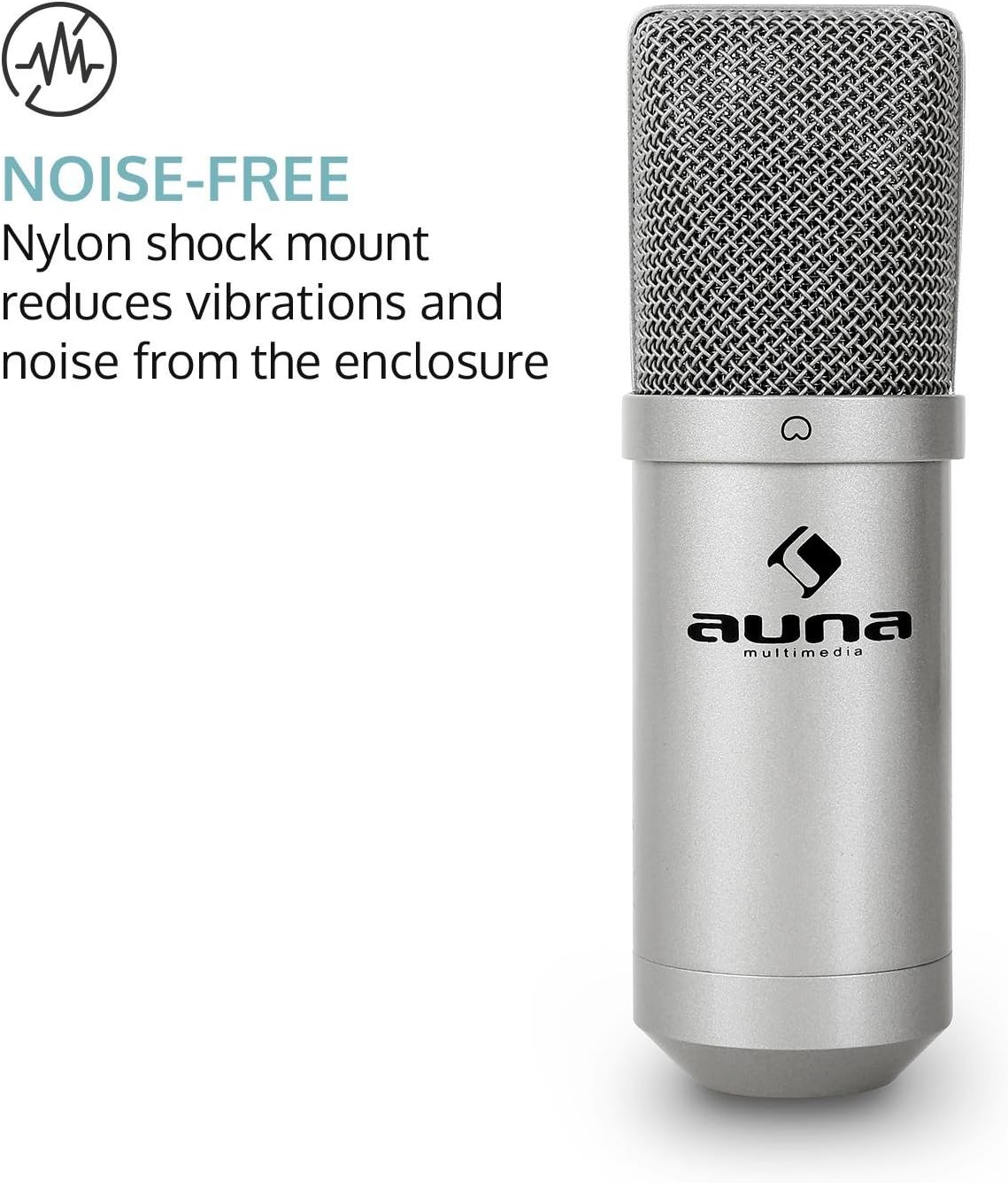
Image 5.2: This graphic illustrates the 'Noise-Free' benefit, emphasizing how the nylon shock mount minimizes vibrations and noise for clearer audio.
6. Maintenance
- Cleaning: Use a soft, dry cloth to clean the exterior of the microphone. Do not use abrasive cleaners, solvents, or chemical sprays.
- Storage: When not in use, store the microphone in its transport bag to protect it from dust and physical damage.
- Environment: Keep the microphone in a dry environment and avoid extreme temperatures.
7. Troubleshooting
7.1 Microphone Not Detected
- Ensure the USB cable is securely connected to both the microphone and the computer.
- Try connecting the microphone to a different USB port on your computer.
- Restart your computer.
- Check your computer's sound settings (System Preferences on Mac, Sound Settings on Windows) to ensure the AUNA MIC-900S is selected as the default input device.
7.2 No Sound or Low Volume
- Verify that the AUNA MIC-900S is selected as the input device in your recording software or communication application.
- Adjust the input gain or volume levels within your software and your computer's sound settings.
- Ensure you are speaking directly into the front of the microphone, as it has a cardioid polar pattern.
- Test with another USB cable if available.
7.3 Distorted Sound
- Reduce the input gain or volume levels in your software or computer settings. Distortion often occurs when the input signal is too strong.
- Ensure you are not too close to the microphone, which can cause 'plosives' (harsh 'p' and 'b' sounds) or overload the input.
8. Specifications
| Model Number | HK-Mic-900-S |
| Connectivity Technology | USB |
| Hardware Interface | USB 2.0 |
| Connector Type | USB Type B |
| Polar Pattern | Unidirectional (Cardioid) |
| Frequency Response | 10Hz - 20KHz |
| Sample Rate | 16 bit / 48kHz |
| Material | Metal |
| Color | Silver |
| Power Source | Corded Electric (USB Powered) |
| Compatible Devices | Laptop, Personal Computer, Radio |
| Product Dimensions (L x W x H) | 14.57 x 5.12 x 4.72 inches (37 x 13 x 12 cm) |
| Item Weight | 9.6 ounces (272 grams) |
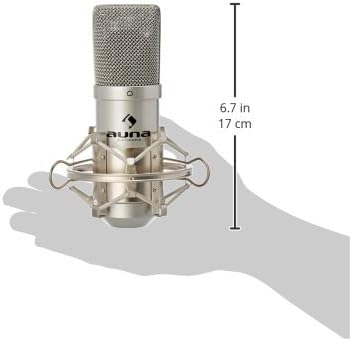
Image 8.1: A diagram illustrating the physical dimensions of the AUNA MIC-900S microphone, showing its height of 6.7 inches (17 cm).
9. Warranty & Support
AUNA products are covered by a manufacturer's warranty. For specific warranty terms and conditions, please refer to the documentation provided with your purchase or visit the official AUNA website.
For technical support, troubleshooting assistance, or inquiries regarding your AUNA MIC-900S microphone, please contact AUNA customer service through their official channels. Contact information can typically be found on the manufacturer's website or in your product packaging.
