
Logitech 920-004440
Logitech Tablet Keyboard User Manual
Model: 920-004440
Introduction
This manual provides comprehensive instructions for the Logitech Tablet Keyboard, designed for use with various iPad models including iPad mini, iPad (3rd/4th generation), iPad 2, and the original iPad. This compact, low-profile keyboard offers a comfortable typing experience and enhances productivity wherever you use your tablet.
Key features include:
- Compact, low-profile design for comfortable typing.
- Bluetooth wireless connectivity for easy pairing.
- Convenient media control keys for audio and video playback.
- Wireless range of up to 30 feet (actual range may vary).
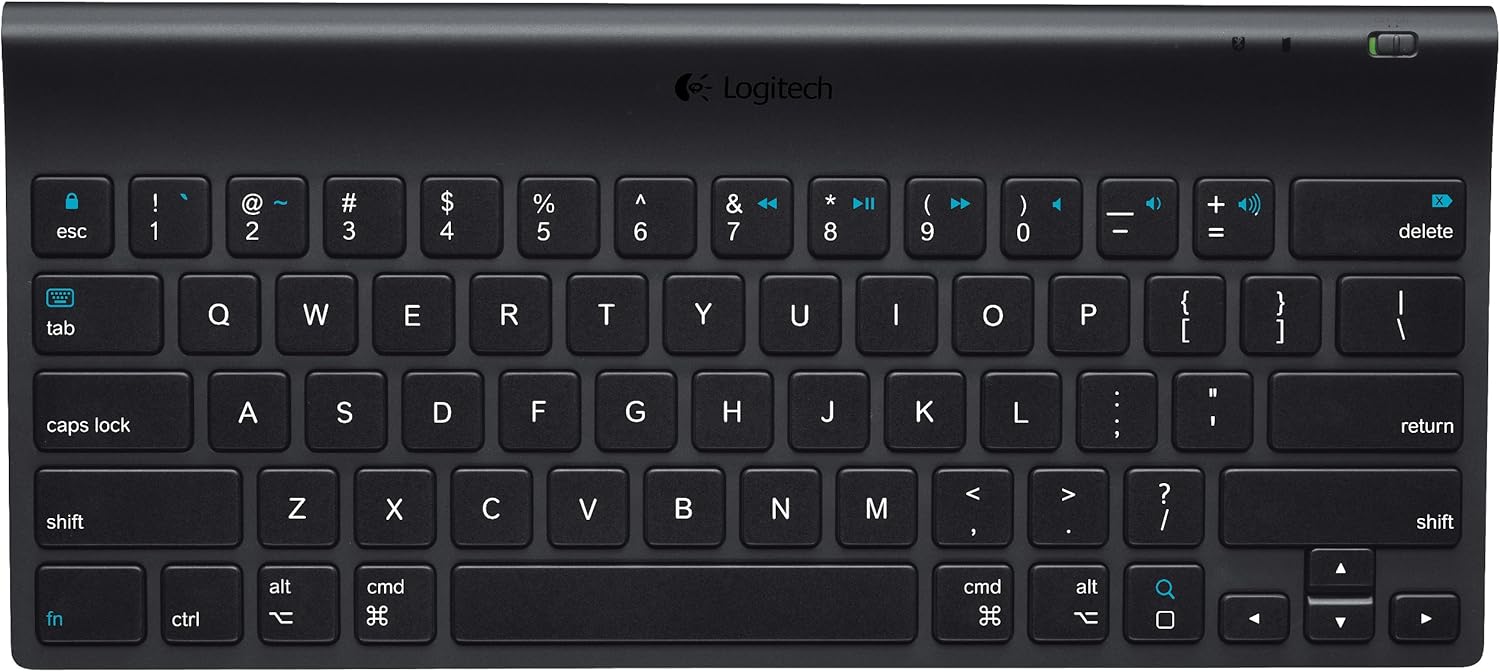
Figure 1: Top-down view of the Logitech Tablet Keyboard. This image shows the full QWERTY layout with function keys and media controls.
Package Contents
Please verify that all items are present in the package:
- Logitech Tablet Keyboard
- 4 AAA batteries (pre-installed)
- User documentation (this manual)
Setup
1. Battery Installation
The keyboard comes with 4 AAA batteries pre-installed. Before first use, locate and remove the plastic pull tabs from the battery compartment to activate the batteries. If replacing batteries, ensure correct polarity.
2. Powering On
Locate the power switch on the keyboard. Slide the switch to the "ON" position. An indicator light may briefly illuminate.
3. Bluetooth Pairing
- Ensure your iPad (or other compatible iOS device) has Bluetooth enabled. Navigate to Settings > Bluetooth on your device.
- On the Logitech Tablet Keyboard, locate the Connect button, typically on the bottom or side of the keyboard. Press and hold this button for a few seconds until the Bluetooth indicator light on the keyboard begins to blink, indicating it is in pairing mode.
- On your iPad, the "Logitech Tablet Keyboard" should appear in the list of available Bluetooth devices. Tap on it to select.
- Your iPad may display a passkey. Type this passkey on the Logitech Tablet Keyboard and press Enter.
- Once paired, the Bluetooth indicator light on the keyboard will stop blinking and remain solid, and your iPad will show the keyboard as "Connected".

Figure 2: Angled view of the Logitech Tablet Keyboard, highlighting its slim profile and key layout.
Operating the Keyboard
Basic Typing
The Logitech Tablet Keyboard functions like a standard QWERTY keyboard. Simply open any application on your iPad that requires text input (e.g., Notes, Mail, Safari) and begin typing. The on-screen keyboard will automatically disappear when the physical keyboard is connected and active.
Media Control Keys
The keyboard features dedicated media control keys for convenient management of your audio and video playback. These keys are typically located in the top row of the keyboard and include:
- Play/Pause: To start or pause media playback.
- Previous Track: To go to the beginning of the current track or the previous track.
- Next Track: To skip to the next track.
- Volume Up/Down: To adjust the audio volume.
- Mute: To mute or unmute audio.
Wireless Range
The keyboard operates wirelessly via Bluetooth with a range of up to 30 feet (approximately 10 meters) from your iOS device. Actual wireless range may vary depending on environmental conditions, obstacles, and device settings.

Figure 3: Perspective view of the Logitech Tablet Keyboard, showing the full key layout and compact design.
Maintenance
To ensure the longevity and optimal performance of your Logitech Tablet Keyboard, follow these maintenance guidelines:
- Cleaning: Use a soft, lint-free cloth to wipe the surface of the keyboard. For stubborn dirt, slightly dampen the cloth with water or a mild, non-abrasive cleaner. Avoid excessive moisture.
- Battery Replacement: When the keyboard's performance degrades or the battery indicator (if present) signals low power, replace all 4 AAA batteries with new ones.
- Storage: When not in use for extended periods, turn off the keyboard to conserve battery life. Store it in a cool, dry place away from direct sunlight and extreme temperatures.
- Avoid Liquids: Do not expose the keyboard to liquids. Spills can cause permanent damage.
Troubleshooting
If you encounter issues with your Logitech Tablet Keyboard, try the following solutions:
Keyboard Not Connecting/Typing
- Check Power: Ensure the keyboard is turned on.
- Check Batteries: Verify that the batteries are correctly installed and have sufficient charge. Replace if necessary.
- Re-pair Bluetooth:
- On your iPad, go to Settings > Bluetooth. Tap the "i" icon next to "Logitech Tablet Keyboard" and select "Forget This Device".
- Turn the keyboard off, then on again.
- Put the keyboard back into pairing mode by pressing the Connect button.
- Re-pair the keyboard with your iPad as described in the "Bluetooth Pairing" section.
- Distance: Ensure the keyboard is within the 30-foot wireless range of your iPad.
- Interference: Move away from other wireless devices that might cause interference.
Keys Not Responding
- Clean Keys: Check for any debris or foreign objects lodged under the keys. Gently clean around the affected keys.
- Battery Level: Low battery can sometimes cause intermittent key response. Replace batteries.
- Software Glitch: Restart your iPad to resolve potential software issues.

Figure 4: Side profile view of the Logitech Tablet Keyboard, illustrating its ergonomic curve.
Specifications
| Brand | Logitech |
| Model Number | 920-004440 |
| Connectivity Technology | Bluetooth |
| Compatible Devices | iPad mini, iPad (3rd/4th generation), iPad 2, iPad |
| Operating System Compatibility | iOS, Android |
| Power Source | Battery Powered (4 AAA batteries, included) |
| Item Weight | 1.25 pounds (approx. 0.57 kg) |
| Product Dimensions (LxWxH) | 12.3 x 5.5 x 1.18 inches (approx. 31.2 x 14 x 3 cm) |
| Color | Black |
| Material | Plastic |

Figure 5: The Logitech Tablet Keyboard shown alongside an iPad and iPhone, demonstrating its compact size relative to mobile devices.
Warranty and Support
For detailed warranty information, please refer to the official Logitech website or the warranty card included with your product. Logitech provides customer support for product inquiries, technical assistance, and warranty claims.
Official Product Videos
No official product videos from the seller are available for embedding at this time.
Related documents920-004440


Ask a question about this manual
Ask about setup, troubleshooting, compatibility, parts, safety, or missing instructions. Manuals+ will review the question and use this page’s manual context to help answer it.