
Cricut 2002832
Contents
Cricut Explore One Cutting Machine User Manual
Model: 2002832 | Brand: Cricut
Introduction
The Cricut Explore One is a versatile design and cut system engineered for crafters and DIY enthusiasts. This machine is capable of cutting a wide array of materials, from common paper and vinyl to more robust materials like leather and felt. It integrates seamlessly with cloud-based software, allowing for design flexibility and precision cutting. This manual provides essential information for setting up, operating, and maintaining your Cricut Explore One machine.

Figure 1: Cricut Explore One Cutting Machine in a closed position, ready for use.
Key Features
- Cuts a wide variety of materials including paper, vinyl, iron-on, leather, and felt.
- Utilizes Cricut Design Space, a free cloud-based software accessible via computer or iPad.
- Features Smart Set dial and Cut Smart technology for precise cuts.
- Compatible with Cricut cartridges for expanded design options.
- Allows uploading and cutting of personal designs and fonts.
Setup Guide
Unboxing and Initial Inspection
Carefully remove all components from the packaging. Ensure the following items are present:
- Cricut Explore One machine
- German carbide premium blade
- USB cable
- Power cord
- One 12x12 inch cutting mat
- Instruction guide
- Vinyl sample
- Access to 50+ free images and 25+ free project ideas via Cricut Design Space.
Connecting the Machine
- Place the Cricut Explore One machine on a stable, flat surface.
- Connect the power cord to the machine and then to a wall outlet.
- Connect the USB cable from the machine to your computer.
- Power on the machine using the power button.

Figure 2: Cricut Explore One machine with its lid open, revealing the cutting carriage and blade housing.
Operating Instructions
Cricut Design Space Software
The Cricut Explore One operates using the Cricut Design Space software, which is cloud-based and can be accessed from your computer or iPad. This intuitive software allows you to design, edit, and prepare your projects for cutting.
- **Accessing Design Space:** Visit the Cricut website or download the iPad app to access the software.
- **Cloud-Based Convenience:** Start a project on one device and seamlessly continue it on another, thanks to its cloud-based nature.
- **Uploading Designs:** You can upload your own images (e.g., .svg, .jpg, .gif, .png, .bmp) and fonts for free.
- **Image Library:** Browse through the extensive Cricut Image Library, offering over 50,000 images and growing, with many starting at just $0.99.
- **Make It Now Projects:** For quick projects, select from hundreds of pre-designed "Make It Now" projects that are ready to cut with a single click.
Loading Materials and Cutting
- **Prepare Your Design:** In Cricut Design Space, finalize your design and select the appropriate settings for your material.
- **Place Material on Mat:** Secure your chosen material onto the 12x12 inch cutting mat. Ensure it is smooth and adheres well to prevent shifting during cutting.
- **Adjust Smart Set Dial:** Turn the Smart Set dial on the machine to match the material you are using. This automatically adjusts blade depth and pressure for optimal results.
- **Load Mat:** Align the cutting mat with the guides on the machine and press the Load/Unload button to feed the mat into the machine.
- **Start Cutting:** Once the mat is loaded and the design is ready in Design Space, press the Go button on the machine to begin cutting.
- **Unload Mat:** After the cut is complete, press the Load/Unload button again to release the mat. Carefully remove your cut design from the mat.

Figure 3: Detailed view of the German carbide premium blade within the cutting carriage, highlighting the precision of Cut Smart technology.

Figure 4: The Smart Set dial, allowing users to easily select the material type for optimized cutting settings.
Demonstration Video
Video 1: An overview of the Cricut Explore One Cutting Machine, demonstrating its versatility and ease of use for various crafting projects.
Supported Materials
The Cricut Explore One is designed to cut a diverse range of materials, enabling a wide variety of creative projects. The Smart Set dial simplifies material selection, ensuring optimal cutting performance.
- Paper (plain, cardstock, light cardstock)
- Vinyl
- Iron-on material
- Fabric
- Poster Board
- Thicker materials like leather and felt
- Other materials with custom settings
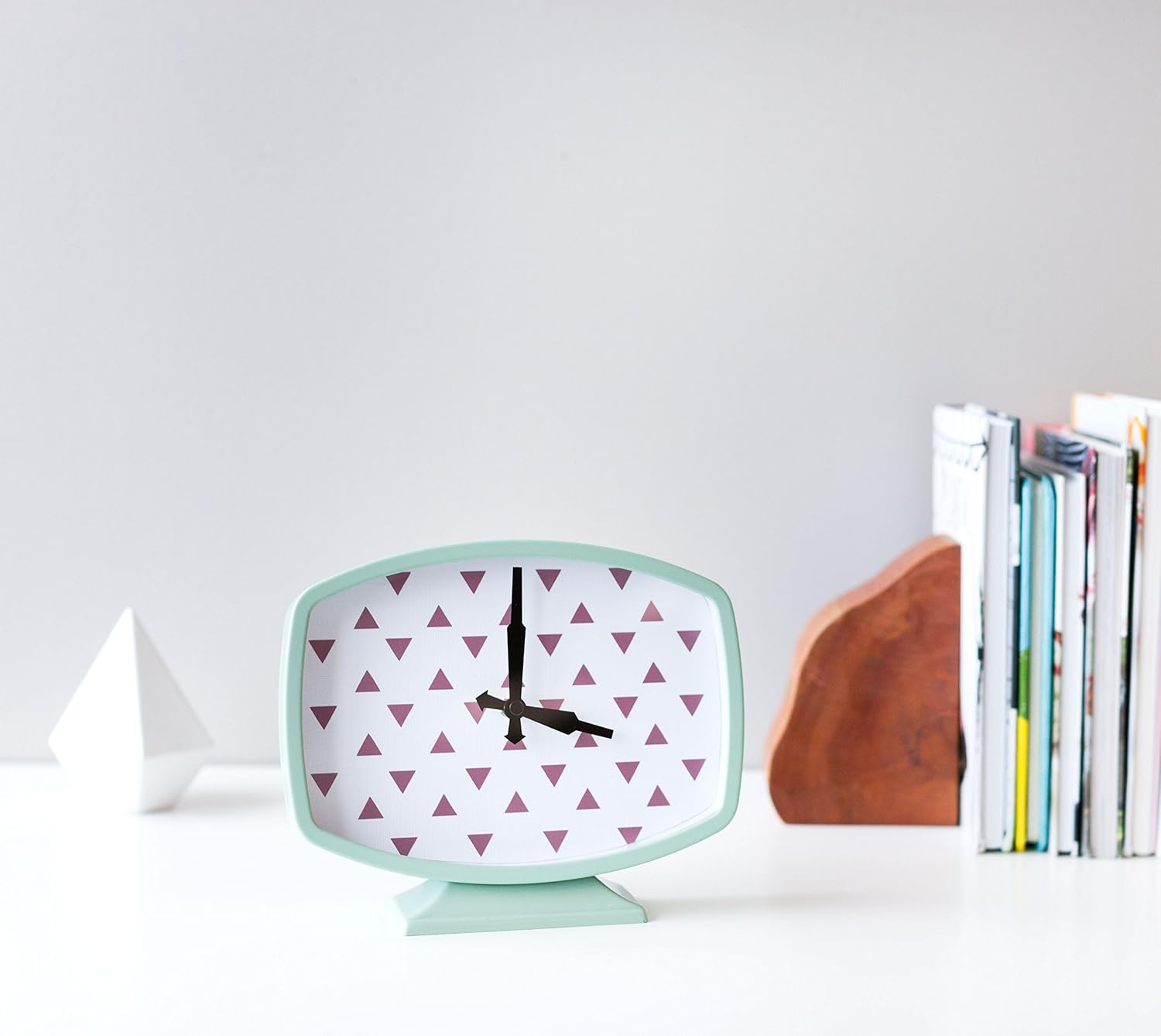
Figure 5: Example project: A clock customized with a triangle pattern cut using the Cricut Explore One.

Figure 6: Example project: A tote bag adorned with a chevron design, demonstrating the machine's ability to cut iron-on materials.
Maintenance
To ensure the longevity and optimal performance of your Cricut Explore One machine, regular maintenance is recommended:
- **Clean the Machine:** Periodically wipe down the exterior of the machine with a soft, dry cloth.
- **Blade Care:** Inspect the blade regularly for wear and tear. Replace the German carbide premium blade when it becomes dull to maintain cutting precision.
- **Mat Care:** Keep your cutting mats clean and free of debris. Replace mats when they lose their stickiness to ensure materials are held securely during cutting.
- **Software Updates:** Ensure your Cricut Design Space software is always up to date to benefit from the latest features and performance improvements.
Troubleshooting
If you encounter issues with your Cricut Explore One, consider the following common troubleshooting steps:
- **Cutting Issues (Incomplete Cuts, Tearing):**
- Verify the Smart Set dial is correctly set for your material.
- Check if the blade is clean and sharp; replace if necessary.
- Ensure the material is properly adhered to the cutting mat.
- **Connectivity Problems:**
- Confirm the USB cable is securely connected to both the machine and the computer.
- Restart both the machine and your computer.
- Ensure your internet connection is stable for Design Space access.
- **Software Glitches:**
- Clear your browser's cache or reinstall the Design Space application.
- Check for any available software updates.
For more detailed troubleshooting or persistent issues, refer to the official Cricut support website or contact customer service.
Specifications
| Attribute | Detail |
|---|---|
| Brand | Cricut |
| Model Number | 2002832 |
| UPC | 093573039256 |
| Material Compatibility | Vinyl, Leather, Paper (plain), Iron-on, Fabric, Felt, Poster Board |
| Operation Mode | Automatic |
| Item Weight | 13.75 Pounds |
| Product Dimensions | 24 x 9.5 x 9.5 inches |
| Manufacturer | Provo Craft & Novelty |
| Assembly Required | No |
| Batteries Required | No |
Warranty and Support
For information regarding product warranty, technical support, or to register your Cricut Explore One machine, please visit the official Cricut website or contact their customer service department. Keep your purchase receipt for warranty claims.
Online Support: Cricut Support
Documents and downloads
Ask a question about this manual
Ask about setup, troubleshooting, compatibility, parts, safety, or missing instructions. Manuals+ will review the question and use this page’s manual context to help answer it.