1. Introduction
This manual provides instructions for the proper use and care of your Maxell CD-RW 650MB 4x rewritable compact disc. This disc is designed for storing and rewriting digital data, audio, and video files.
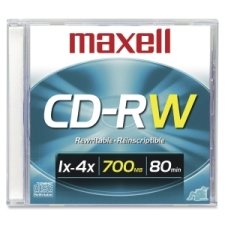
Image 1: Maxell CD-RW 650MB 4x Disc
2. Setup and Preparation
Before using your Maxell CD-RW disc, ensure your CD/DVD drive is compatible with CD-RW media and supports 4x write speeds. Most modern drives are compatible.
- Unpack the Disc: Carefully remove the CD-RW disc from its packaging. Avoid touching the recording surface.
- Inspect the Disc: Check for any visible damage, scratches, or dust on the disc surface. A clean disc ensures optimal performance.
- Insert into Drive: Gently place the disc into your computer's CD/DVD drive tray, label side up. Ensure it is seated correctly before closing the tray.
3. Operating Instructions
This section details how to write and rewrite data on your Maxell CD-RW disc.
3.1. Initial Data Writing
- Open Burning Software: Launch your preferred CD/DVD burning software (e.g., Windows Media Player, Nero, Roxio, or your operating system's built-in utility).
- Select Project Type: Choose the type of project you wish to create (e.g., Data Disc, Audio CD, Video CD).
- Add Files: Drag and drop or select the files you want to write to the CD-RW disc. Ensure the total file size does not exceed 650MB.
- Start Burning: Initiate the burning process. The software will typically prompt you to confirm. The disc will be written at up to 4x speed.
- Eject Disc: Once the burning process is complete, the software will notify you. Eject the disc from the drive.
3.2. Rewriting Data (Erasing and Re-recording)
The key advantage of CD-RW discs is their reusability. You can erase existing data and write new data multiple times.
- Insert Disc: Place the used CD-RW disc into your compatible CD/DVD drive.
- Open Burning Software: Launch your CD/DVD burning software.
- Select Erase Option: Look for an "Erase Disc" or "Format Disc" option within your software. There are usually two types of erase:
- Quick Erase: This method quickly clears the disc's table of contents, making it appear blank. Data can potentially be recovered.
- Full Erase: This method overwrites the entire disc surface, making data recovery much more difficult. This process takes longer.
- Confirm Erase: Confirm the erase operation.
- Write New Data: After the erase is complete, you can proceed to write new data to the disc following the steps in Section 3.1.
4. Maintenance and Care
Proper handling and storage will extend the life and reliability of your Maxell CD-RW discs.
- Handle by Edges: Always hold the disc by its outer edges or the center hole to avoid touching the recording surface.
- Keep Clean: If the disc gets dirty, gently wipe it with a soft, lint-free cloth from the center outwards. Do not use abrasive materials or harsh chemicals.
- Avoid Scratches: Store discs in jewel cases, sleeves, or binders to prevent scratches.
- Temperature and Humidity: Store discs in a cool, dry place away from direct sunlight, extreme temperatures, and high humidity.
- Do Not Bend: Avoid bending the disc, as this can cause irreparable damage.
5. Troubleshooting
If you encounter issues with your Maxell CD-RW disc, refer to the following common problems and solutions.
| Problem | Possible Cause | Solution |
|---|---|---|
| Disc not recognized by drive. | Dirty disc, incompatible drive, or outdated drive firmware/drivers. | Clean the disc. Ensure your drive supports CD-RW. Update your drive's firmware or drivers. |
| Burning process fails or errors. | Scratched disc, insufficient drive buffer, or software conflict. | Use a clean, unscratched disc. Close other applications during burning. Try different burning software. |
| Cannot erase data from disc. | Disc is write-protected (unlikely for CD-RW), or software issue. | Ensure you are using compatible burning software with an erase function. Try a "Full Erase" option. |
| Data corruption after writing. | Poor quality burn, disc damage, or drive issues. | Try burning at a slower speed. Ensure the disc is clean and undamaged. Test with another CD-RW disc. |
6. Specifications
Detailed technical specifications for the Maxell CD-RW 650MB 4x disc.
- Brand: Maxell
- Model Number: LYSB009X6F5XO
- Format: CD-RW (Compact Disc Rewritable)
- Storage Capacity: 650 MB
- Recording Capacity: Approximately 1.33 Hours (80 minutes) of audio
- Maximum Write Speed: 4x
- Product Dimensions: 5.5 x 4.9 x 0.3 inches (standard CD size)
- Item Weight: 1.92 ounces (approx. 0.12 lbs)
- UPC: 025215623608
7. Warranty and Support
Maxell CD-RW discs are manufactured to high-quality standards. For specific warranty information or technical support, please refer to the official Maxell website or contact their customer service directly. Keep your purchase receipt as proof of purchase.
For further assistance, visit the official Maxell website: www.maxell.com