
Introduction
The GoPro HERO3: White Edition is a compact and versatile action camera designed for capturing high-quality video and photos in various environments, including underwater. It features built-in Wi-Fi, a redesigned user interface, and is significantly smaller and lighter than its predecessor. This manual provides essential information for setting up, operating, and maintaining your camera.
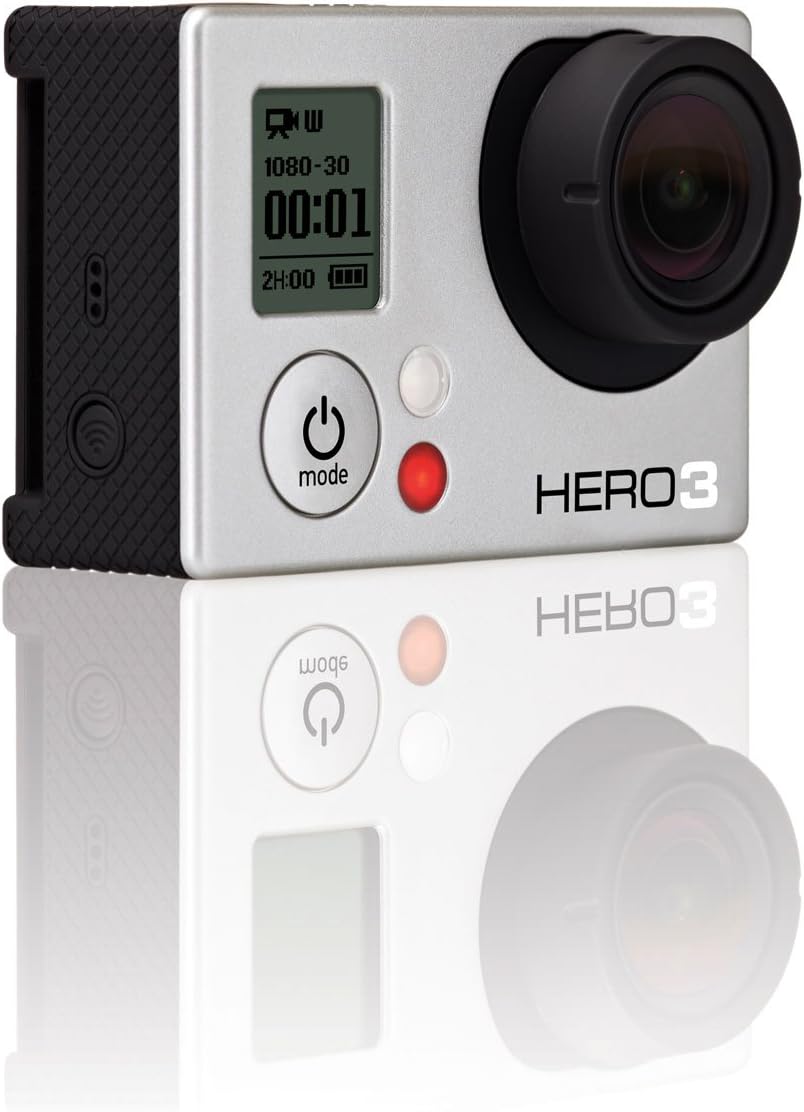
Front view of the GoPro HERO3: White Edition camera, highlighting its compact design and primary controls.
Setup
What's in the Box
- HERO3: White Edition Camera
- 197'/ 60m Waterproof Housing
- Rechargeable Li-ion Battery
- QR Buckle
- 1 Curved Adhesive Mount
- 1 Flat Adhesive Mount
- Assorted Mounts and Hardware
- USB Charging Cable
Initial Setup Steps
- Charge the Battery: Insert the included rechargeable Li-ion battery into the camera. Connect the camera to a USB power source using the provided USB Charging Cable. The camera's indicator light will show charging status.
- Insert Micro-SD Card: A micro-SD card (not included) is required for operation. Open the side door and gently insert the micro-SD card into the designated slot until it clicks into place. Ensure the card is formatted correctly (refer to the Operating section for formatting instructions).
- Attach Waterproof Housing: For protection against water and impacts, place the camera inside the 197'/ 60m Waterproof Housing. Ensure the housing is securely latched before use, especially near water.

Rear view of the GoPro HERO3: White Edition, showing the battery compartment and a note regarding sound performance with different backdoors.
Operating Instructions
Basic Controls
- Power/Mode Button: Located on the front of the camera. Press and hold to power on/off. Press briefly to cycle through camera modes (Video, Photo, Burst, Time Lapse, Settings).
- Shutter/Select Button: Located on the top of the camera. Press to start/stop recording video, take a photo, or confirm a selection in the settings menu.
Video Recording
The HERO3: White Edition supports professional quality video capture at various resolutions and frame rates:
- 1080p at 30 frames per second (fps)
- 960p at 30 fps
- 720p at 60 fps
- WVGA at 60 fps
To record video, select video mode using the Mode button, then press the Shutter button to start recording. Press again to stop.
Photo Capture
Capture high-resolution 5 MP photos with the following modes:
- Single Photo: Capture one photo at a time.
- Burst Mode: Capture 3 photos per second.
- Time Lapse: Automatically capture photos at intervals of 0.5, 2, 5, 10, 30, or 60 seconds.
To take photos, cycle to photo mode using the Mode button, then press the Shutter button.
Wi-Fi Connectivity
The camera features built-in Wi-Fi, compatible with the GoPro App for smartphones/tablets and the Wi-Fi remote (sold separately). This allows for remote control and content preview.
Audio Performance
The HERO3 features a redesigned audio system for improved capture of subtle sounds like voice or music, as well as sports sounds. A port for a 3.5mm Stereo Mic Adapter (sold separately) is included for external microphone use.
Maintenance
Camera Care
- Cleaning: Use a soft, lint-free cloth to clean the camera lens and body. For stubborn dirt, slightly dampen the cloth with water. Avoid harsh chemicals.
- Battery Care: Store batteries in a cool, dry place. Do not expose to extreme temperatures. Fully charge batteries before extended storage.
- Storage: When not in use, store the camera in a protective case to prevent scratches and damage.
Waterproof Housing Care
- After use in saltwater, rinse the housing with fresh water and allow it to air dry.
- Inspect the rubber seal (gasket) around the housing door regularly for dirt, sand, or damage. Clean the seal with a soft cloth and ensure it is free of debris to maintain its waterproof integrity.
- Do not use sharp objects to clean the housing or its seal.

Side view of the GoPro HERO3: White Edition, illustrating the battery door and textured grip for secure handling.
Troubleshooting
Common Issues and Solutions
- Camera Not Turning On:
- Ensure the battery is fully charged. Connect the camera to a power source.
- Remove and reinsert the battery.
- If using an external power source, ensure it provides sufficient power. - Recording Issues (Stuttering/Freezing):
- Ensure you are using a compatible and high-speed micro-SD card (Class 10 or higher recommended).
- Format the micro-SD card within the camera's settings.
- Check if the card is full and transfer files to a computer. - Wi-Fi Connection Problems:
- Ensure Wi-Fi is enabled on the camera.
- Restart both the camera and your smartphone/tablet.
- Ensure your device is within range of the camera's Wi-Fi signal.
- Update the GoPro App to the latest version. - Poor Audio Quality:
- Ensure the microphone port is clear of debris.
- If using the waterproof housing, note that audio capture will be muffled. Consider using a skeleton backdoor (if available and appropriate for your environment) for better audio in non-waterproof situations.
Specifications
| Feature | Detail |
|---|---|
| Brand | GoPro |
| Model Number | CHDHE-301 |
| Item Weight | 1.2 pounds |
| Product Dimensions | 3.94 x 3.94 x 9.65 inches |
| Batteries | 1 Lithium Ion batteries required (included) |
| Color | Multi |
| Special Features | Waterproof (with housing) |
| Photo Sensor Technology | CMOS |
| Video Capture Resolution | 1080p |
| Flash Memory Type | Micro SD |
| Video Capture Format | H.264 |
| Supported Audio Format | AAC, MP3 |
| Screen Size | 2 Inches (visible screen diagonal) |
| Connectivity Technology | USB, Wi-Fi |
| Waterproof Depth | 197' (60m) with included housing |
Important Information
Legal Disclaimer
This product may be sold in open box condition but is in its original packaging. Please verify product condition upon receipt.
Warranty and Support
For detailed warranty information, please refer to the official GoPro website or the warranty card included with your product. GoPro provides customer support and resources for product assistance.
Official GoPro Support: For the most up-to-date support, FAQs, and software downloads, please visit the official GoPro support website. You can typically find this by searching for "GoPro Support" online.


