
Introduction
This manual provides essential instructions for the setup, operation, maintenance, and troubleshooting of your Mobility Lab ML301884 Wired Optical Mouse. Please read this manual thoroughly to ensure proper use and to maximize the lifespan of your device.
Product Overview
The Mobility Lab ML301884 is a lightweight, wired optical mouse designed for reliable performance with both Mac and PC systems. It features a 1000 DPI optical sensor for precise tracking.
Components
- Left Click Button: Primary button for selection and interaction.
- Right Click Button: Secondary button for context menus and additional functions.
- Scroll Wheel: For vertical scrolling through documents and web pages. Also functions as a middle click button.
- USB Cable: Connects the mouse to your computer.
- Optical Sensor: Located on the underside of the mouse, detects movement.
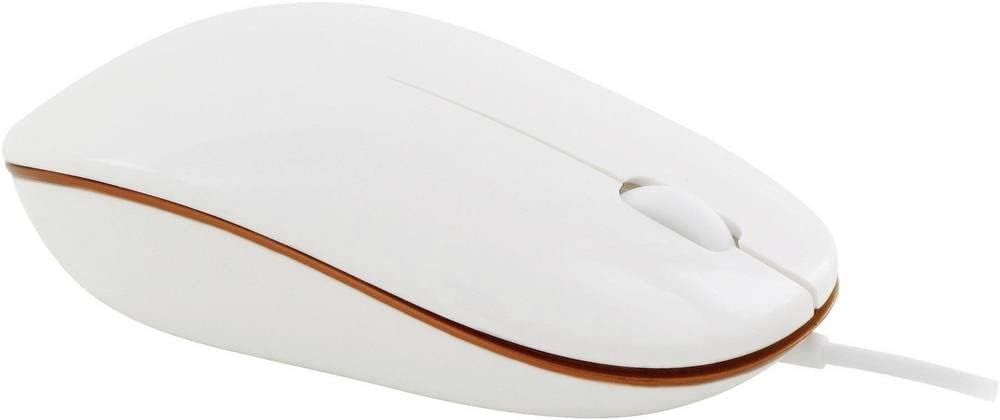
Figure 1: Top-down view of the Mobility Lab ML301884 Wired Optical Mouse, showing the left and right click buttons and the scroll wheel.

Figure 2: Diagram illustrating the dimensions of the Mobility Lab ML301884 Wired Optical Mouse, with a length of 102mm (4.01 inches), width of 57mm (2.24 inches), and height of 29.5mm (1.16 inches).
Setup
- Connect the USB Cable: Locate an available USB port on your computer (desktop or laptop). Insert the USB connector of the Mobility Lab ML301884 mouse firmly into the USB port.
- Automatic Driver Installation: Your operating system (Windows or macOS) will typically detect the new hardware and install the necessary drivers automatically. This process usually takes a few seconds. No additional software installation is required.
- Verify Functionality: Once the drivers are installed, move the mouse and observe if the cursor on your screen responds. Test the left and right click buttons, and the scroll wheel.
The mouse is designed for plug-and-play operation and should be ready for use immediately after connection.
Operating Instructions
The Mobility Lab ML301884 mouse provides standard functionality for navigation and interaction with your computer.
- Moving the Cursor: Place the mouse on a flat, opaque surface. Move the mouse to control the cursor on your screen. The optical sensor provides accurate tracking.
- Left Click: Press the left button to select items, open links, or activate functions.
- Right Click: Press the right button to open context-sensitive menus, offering additional options for selected items.
- Scroll Wheel: Roll the scroll wheel forward or backward to scroll vertically through documents, web pages, or applications. The scroll wheel can also be pressed down for a middle-click function, which often opens links in new tabs or enables auto-scrolling, depending on the application.
Maintenance
Proper maintenance ensures the longevity and optimal performance of your mouse.
- Cleaning:
- Disconnect the mouse from your computer before cleaning.
- Use a soft, lint-free cloth lightly dampened with water or a mild cleaning solution to wipe the exterior of the mouse.
- For the optical sensor, use a dry cotton swab to gently remove any dust or debris. Avoid using harsh chemicals or abrasive materials.
- Storage: Store the mouse in a clean, dry environment when not in use. Avoid extreme temperatures and direct sunlight.
- Cable Care: Do not excessively bend or pull the USB cable. Store it neatly to prevent tangling and damage.
Troubleshooting
If you encounter issues with your Mobility Lab ML301884 mouse, refer to the following common problems and solutions:
| Problem | Possible Cause | Solution |
|---|---|---|
| Mouse not responding | Loose USB connection, faulty USB port, driver issue. |
|
| Erratic cursor movement | Dirty optical sensor, unsuitable surface, software conflict. |
|
| Buttons or scroll wheel not working | Software issue, physical obstruction, hardware malfunction. |
|
Specifications
| Brand | MOBILITY LAB |
| Model | ML301884 |
| Interface | USB |
| Movement Detection Technology | Optical |
| Resolution | 1000 DPI |
| Compatibility | Windows, macOS (PC) |
| Special Features | Lightweight |
| Dimensions (L x W x H) | 102mm x 57mm x 29.5mm (approx. 4.01 x 2.24 x 1.16 inches) |
| Weight | 120 g |
| Color | White |
Warranty and Support
Commercial Warranty
This Mobility Lab ML301884 Optical Mouse is covered by a 1-year commercial warranty from the date of purchase. This warranty covers manufacturing defects and malfunctions under normal use. It does not cover damage caused by misuse, accidents, unauthorized modifications, or normal wear and tear.
Please retain your proof of purchase for warranty claims.
Customer Support
For technical assistance, warranty inquiries, or further support, please refer to the official Mobility Lab website or contact their customer service department. Contact details can typically be found on the product packaging or the manufacturer's website.