
1. Introduction and Overview
The D-Link DGS-1210-28P is a 28-Port Gigabit Smart Managed PoE+ Switch designed for small to medium-sized businesses. It integrates advanced features for network functionality, security, and manageability. This switch supports the IEEE 802.3az Energy Efficient Ethernet standard and offers IPv6 management capabilities. It provides 24 PoE+ Gigabit ports and 4 Gigabit SFP optical ports, with a total PoE power budget of 193W.
This manual provides detailed instructions for the installation, configuration, and operation of your DGS-1210-28P switch.

Figure 1: Front view of the D-Link DGS-1210-28P Switch, showing 24 RJ45 ports and 4 SFP ports.
2. Package Contents
Verify that your package contains the following items:
- D-Link DGS-1210-28P 28-Port Gigabit Smart Managed PoE+ Switch
- Power Cord
- Rackmount Kit (brackets and screws)
- Rubber Feet (for desktop installation)
- Quick Installation Guide
- CD-ROM with Manual and Software
3. Product Features
The DGS-1210-28P switch offers a robust set of features for enhanced network performance and security:
- 24 PoE+ Gigabit Ports: Delivers power and data over Ethernet, supporting up to 30W per port with a total power budget of 193W. Ideal for powering devices such as IP cameras, Wi-Fi access points, and VoIP phones.
- 4 Gigabit Combo SFP Ports: Provides flexible high-speed uplinks and long-distance fiber connectivity, enhancing network scalability.
- Intuitive Web-Based Management: Simplifies setup and management through a user-friendly graphical interface.
- Advanced Traffic Management (L2+ Features): Includes bandwidth control, Quality of Service (QoS), VLAN support, Port Mirroring, Link Aggregation, Spanning Tree Protocol (STP), IGMP Snooping, and static routing to optimize network performance and minimize congestion.
- Comprehensive Security: Features Access Control List (ACL), 802.1X / RADIUS authentication, ARP Spoofing Prevention, and D-Link Safeguard Engine to protect against network attacks.
- Loopback Detection & Cable Diagnostics: Tools to quickly identify and resolve network cabling issues, ensuring stable connections.
- Energy-Efficient Operation: Complies with IEEE 802.3az Energy Efficient Ethernet for reduced power consumption.
- Surveillance Mode with ONVIF Support & PD Alive: Streamlines IP surveillance network deployment by automatically detecting ONVIF-compliant devices and optimizing video traffic. PD Alive automatically reboots unresponsive PoE devices to minimize downtime.
- Nuclias Connect Management: Optional free software for centralized management of D-Link access points and DGS-1210 series switches.
- NDAA Compliant: Meets strict regulatory standards for government and high-security projects.
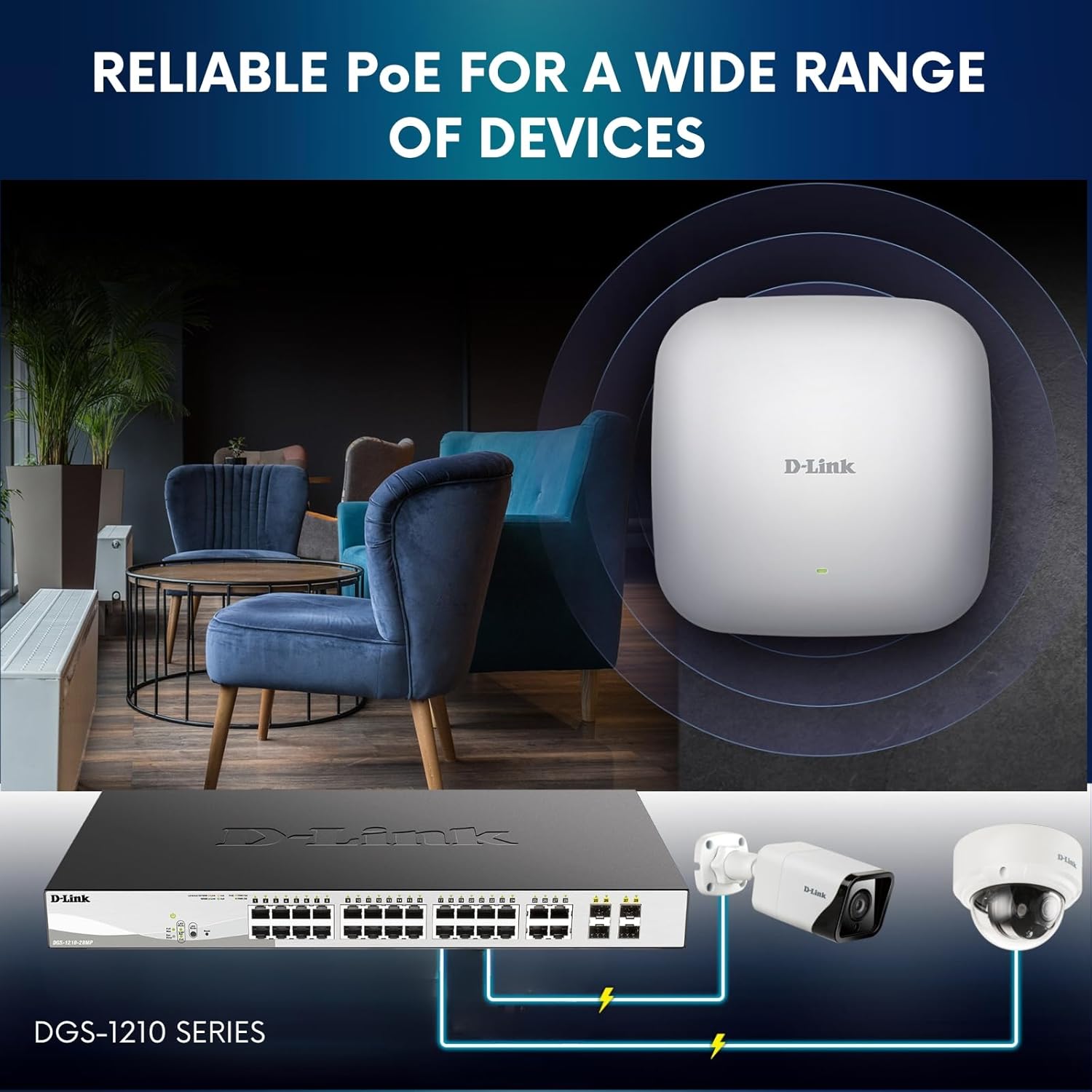
Figure 2: The DGS-1210-28P switch providing Power over Ethernet to various network devices.
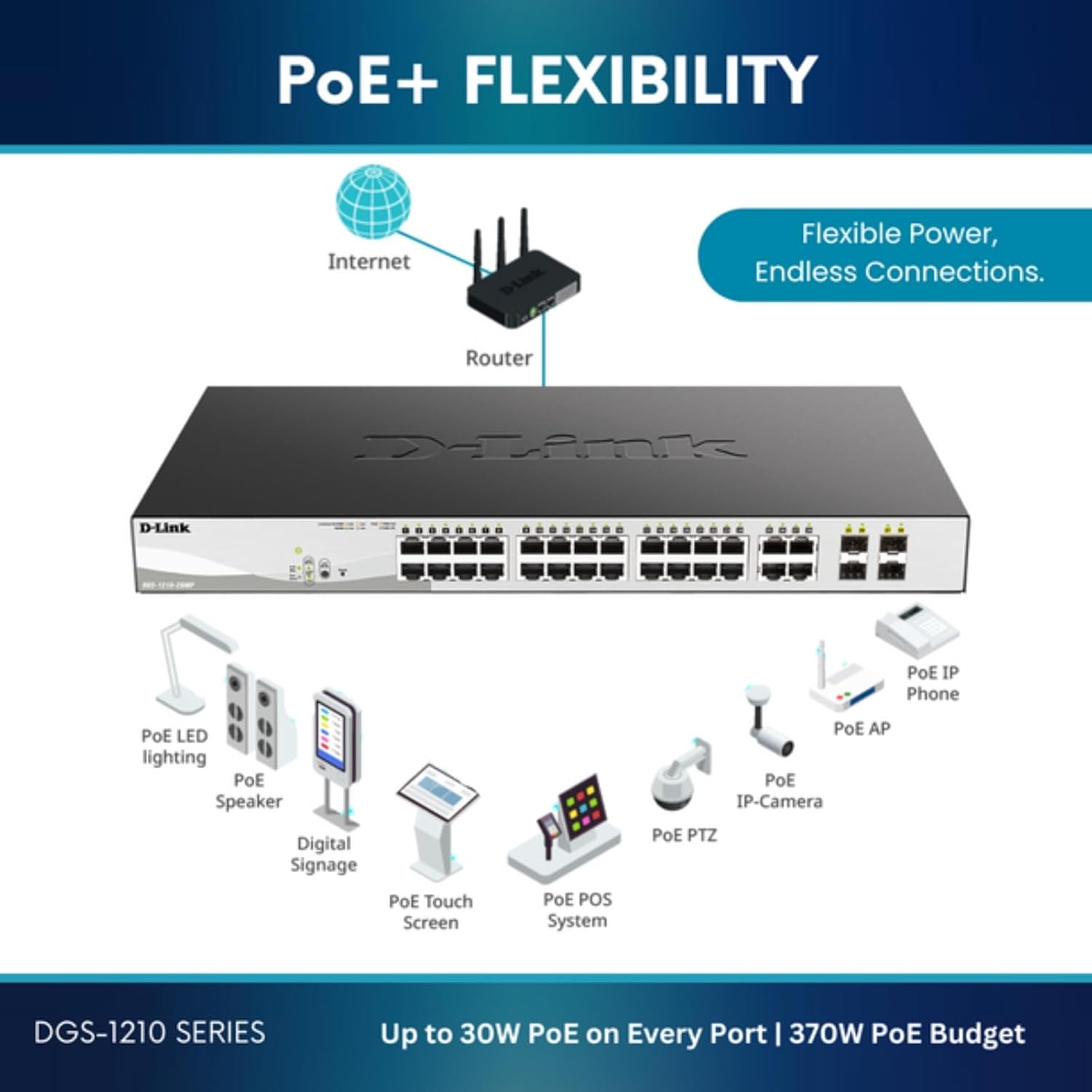
Figure 3: Examples of devices powered by PoE+ through the DGS-1210-28P switch.
4. Setup Guide
4.1 Physical Installation
The DGS-1210-28P can be installed on a desktop or mounted in a standard 19-inch equipment rack.
Desktop Installation:
- Attach the included rubber feet to the bottom of the switch.
- Place the switch on a flat, stable surface with adequate ventilation.
Rackmount Installation:
- Attach the two rackmount brackets to the sides of the switch using the provided screws.
- Secure the switch into a standard 19-inch equipment rack using appropriate rack screws (not included).
Grounding the Switch:
For safety and proper operation, the switch must be properly grounded. Locate the grounding screw on the rear panel of the switch.
- Connect one end of a grounding cable (not included) to the grounding screw.
- Connect the other end of the grounding cable to a suitable grounding source, such as a grounded rack or building ground.

Figure 4: Rear panel of the DGS-1210-28P, highlighting the grounding point and power input.
4.2 Connecting Devices
- Power Connection: Connect the AC power cord to the power input on the rear panel of the switch and then to a power outlet.
- Network Devices: Connect network devices (computers, servers, access points, IP cameras) to the RJ45 ports (1-24) using standard Ethernet cables. For PoE-powered devices, ensure they are compatible with 802.3af/at standards.
- Uplink Connections: Use the SFP ports (25-28) for high-speed fiber uplinks to other switches or network segments. Insert compatible SFP transceivers (not included) into the SFP slots, then connect fiber optic cables.
5. Operating Instructions
5.1 Power On
After connecting the power cord, the switch will automatically power on. The Power LED on the front panel will illuminate to indicate that the switch is receiving power.
5.2 LED Indicators
The front panel LEDs provide status information:
- Power LED: Indicates power status.
- Link/Act LED (per port): Solid green indicates a valid network link. Blinking green indicates network activity.
- PoE LED (per PoE port): Indicates PoE power status.
6. Management and Configuration
The DGS-1210-28P is a Smart Managed Switch, configurable via a web-based graphical user interface (GUI).
6.1 Accessing the Web GUI
- Connect a computer to any of the switch's RJ45 ports.
- Configure your computer's IP address to be in the same subnet as the switch's default IP address (refer to the Quick Installation Guide for default IP).
- Open a web browser and enter the switch's IP address.
- Log in using the default username and password (refer to the Quick Installation Guide).
6.2 Key Configuration Areas
Within the web GUI, you can configure various network settings:
- VLANs: Create and manage Virtual Local Area Networks for network segmentation.
- Quality of Service (QoS): Prioritize network traffic for critical applications.
- Port Mirroring: Monitor network traffic by mirroring it to a designated port.
- Link Aggregation: Combine multiple physical links into a single logical link for increased bandwidth and redundancy.
- Security Features: Configure Access Control Lists (ACLs), 802.1X authentication, and ARP Spoofing Prevention.
- Surveillance Mode: Activate this mode to optimize the switch for IP surveillance systems, including ONVIF device detection and Auto Surveillance VLAN.

Figure 5: Web interface showing options for Standard and Surveillance Modes.

Figure 6: PD Alive feature automatically reboots unresponsive PoE devices.
6.3 Nuclias Connect Management
For centralized management of multiple D-Link devices, the DGS-1210-28P can be integrated with D-Link's free Nuclias Connect software. This software allows for scalable and flexible control over your network infrastructure.

Figure 7: Nuclias Connect software for comprehensive network management.
7. Maintenance
7.1 Firmware Updates
Periodically check the D-Link support website for the latest firmware versions. Firmware updates can provide new features, performance improvements, and security enhancements. Follow the instructions provided with the firmware download for the update process.
7.2 Cleaning
Ensure the switch is powered off and disconnected from all cables before cleaning. Use a soft, dry cloth to wipe the exterior of the switch. Do not use liquid or aerosol cleaners.
7.3 Environmental Considerations
Operate the switch within the specified temperature range (up to 40°C or 104°F) and ensure proper airflow to prevent overheating.
8. Troubleshooting
8.1 No Power
If the Power LED is off:
- Verify the power cord is securely connected to the switch and a working power outlet.
- Check the power source (outlet, power strip) for functionality.
8.2 No Network Connectivity
If a device is not connecting to the network:
- Check the Link/Act LED for the connected port. If it's off, verify the Ethernet cable connection and cable integrity.
- Use the switch's built-in Cable Diagnostics tool via the web GUI to test the connected cable.
- Ensure the connected device is powered on and configured correctly.
8.3 PoE Device Not Powering On
If a PoE-powered device is not receiving power:
- Check the PoE LED for the connected port.
- Verify the device is 802.3af/at compliant.
- Ensure the switch's total PoE power budget (193W) is not exceeded.
- Utilize the PD Alive feature, if enabled, to automatically reboot unresponsive PoE devices.
9. Specifications
| Feature | Specification |
|---|---|
| Model Number | DGS-1210-28P |
| Product Dimensions | 17.32"L x 9.84"W x 1.73"H |
| Item Weight | 10 Pounds |
| Voltage | 240 Volts |
| Maximum Power | 193W (PoE Budget) |
| Upper Temperature Rating | 40 Degrees Celsius |
| Interface Type | RJ45, SFP |
| Data Transfer Rate | 1000 Megabits Per Second |
| Number of Ports | 24 (PoE+) + 4 (SFP) |
| Case Material | Metal |
10. Warranty and Support
10.1 Lifetime Protection
The D-Link DGS-1210-28P switch is backed by D-Link's Lifetime Protection, providing long-term confidence in the product's quality and reliability. Refer to the D-Link website or the warranty card included with your product for full terms and conditions.
10.2 Technical Support
For technical assistance, product documentation, or firmware updates, please visit the official D-Link support website. You can find contact information for D-Link technical support in your region on their website.


