
Introduction
The Roland Mobile-AC is a portable battery-powered acoustic guitar amplifier designed for musicians seeking versatility and convenience. This compact amplifier delivers clear, powerful stereo sound, optimized for acoustic guitars. It features built-in stereo chorus and reverb effects, and offers multiple input options for instruments, microphones, and external audio players. With extended battery life, the Mobile-AC is suitable for various settings, from home practice to outdoor performances.
Key Features
- Up to 15 hours of continuous use with six AA alkaline batteries.
- Five-watt (2.5W + 2.5W) stereo amplifier for acoustic guitar.
- Simple, intuitive control panel for easy operation.
- Integrated stereo chorus and reverb effects.
- Multiple input options: MIC jack, GUITAR jack, AUDIO jacks (stereo miniature type, RCA phono).
- Headphones output for private practice.
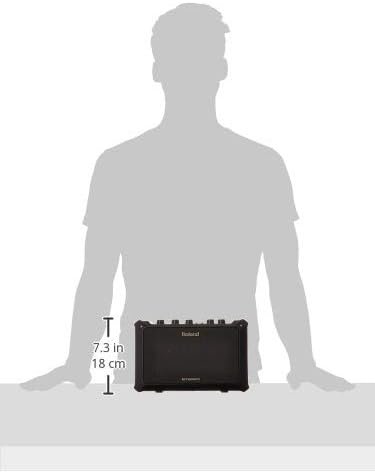
- Compact and lightweight design for maximum portability.
Setup
Powering the Unit
The Roland Mobile-AC can be powered by either an AC adapter (sold separately) or six AA batteries.
Battery Installation

Image: Rear view of the Roland Mobile-AC with the battery compartment open, revealing six AA batteries.
- Ensure the power switch is in the OFF position.
- Open the battery compartment cover located on the rear of the unit.
- Insert six AA batteries (alkaline or NiMH rechargeable are recommended), observing the correct polarity (+/-) as indicated inside the compartment.
- Close the battery compartment cover securely.
AC Adapter Connection

Image: Side panel of the Roland Mobile-AC, highlighting the DC IN jack and the power switch.
- Ensure the power switch is in the OFF position.
- Connect the Roland PSB-1U AC adapter (sold separately) to the DC IN jack on the side of the unit.
- Plug the AC adapter into a standard electrical outlet.
Connecting Instruments and Microphones

Image: Side panel of the Roland Mobile-AC, displaying the 1/4-inch MIC and GUITAR input jacks, and the stereo miniature and RCA phono AUDIO input jacks.
- MIC Jack: Connect a microphone using a 1/4-inch phone type cable. Adjust the 'MIC' volume knob on the control panel.
- GUITAR Jack: Connect your acoustic guitar using a 1/4-inch phone type cable. Adjust the 'GUITAR' volume knob on the control panel.
- AUDIO Jacks: Connect an external audio player (e.g., smartphone, MP3 player) using a stereo miniature type cable or RCA phono cables (L/R). Adjust the 'AUDIO' volume knob on the control panel.
Operating the Amplifier

Image: The top control panel of the Roland Mobile-AC, showing individual volume controls for Audio, Mic, and Guitar, along with Chorus, Wide, Tone (Lo/Hi), and Reverb (Off/On) knobs.
Control Panel Overview
- VOLUME Knobs (AUDIO, MIC, GUITAR): Adjust the individual input levels for each connected device.
- CHORUS Button: Activates the stereo chorus effect for the guitar input.
- WIDE Button: Engages a wider stereo sound field effect.
- TONE Knob (LO, HI): Adjusts the tonal characteristics (bass and treble) of the overall sound.
- REVERB Knob (OFF, ON): Controls the amount of reverb effect applied to the sound.
Basic Operation
- Turn on the power using the POWER switch. The power indicator will light up.
- Connect your desired instrument(s) and/or microphone to the appropriate input jacks.
- Adjust the individual VOLUME knobs for each input to achieve a balanced mix.
- Experiment with the CHORUS, WIDE, TONE, and REVERB controls to shape your desired sound.
- For private practice, connect headphones to the PHONES jack on the side of the unit.
- When finished, turn off the power using the POWER switch.
Product Images



Specifications
| Feature | Detail |
|---|---|
| Item Weight | 7.04 pounds |
| Product Dimensions | 14 x 8 x 10 inches |
| Item Model Number | MOBILEAC |
| Batteries | 6 AA batteries required (NiMH recommended) |
| Output Wattage | 5 Watts (2.5W + 2.5W Stereo) |
| Power Source | Battery Powered / AC Adapter (DC IN jack) |
| Material | Plastic |
| Compatible Devices | Guitar, Microphone, Audio Players |
| Connector Types | MIC jack (1/4-inch phone type), GUITAR jack (1/4-inch phone type), AUDIO jacks (Stereo miniature type, RCA phono L/R), PHONES jack (Stereo miniature type), DC IN jack |
Maintenance
To ensure the longevity and optimal performance of your Roland Mobile-AC amplifier, follow these maintenance guidelines:
- Cleaning: Wipe the unit with a soft, dry cloth. Avoid using abrasive cleaners, waxes, or solvents.
- Storage: Store the amplifier in a cool, dry place away from direct sunlight, extreme temperatures, and high humidity. If storing for an extended period, remove the batteries to prevent leakage.
- Battery Care: Replace batteries when the power indicator dims or the sound quality deteriorates. Always use fresh batteries of the same type.
- Handling: Avoid dropping the unit or subjecting it to strong impacts.
Troubleshooting
If you encounter any issues with your Roland Mobile-AC, refer to the following common troubleshooting steps:
- No Power: Check if the AC adapter is securely connected or if the batteries are correctly installed and not depleted.
- No Sound: Ensure all volume knobs (including individual input volumes and master volume) are turned up. Check all cable connections for instruments and microphones. Verify that the instrument/microphone is functioning correctly.
- Distorted Sound: Reduce the input volume levels to prevent clipping. Check the tone settings and adjust if necessary.
- Feedback: If using a microphone, try repositioning the microphone or the amplifier to reduce feedback. Lower the microphone volume.
- Effects Not Working: Ensure the CHORUS, WIDE, or REVERB knobs/buttons are engaged and set to an audible level.
If the problem persists after trying these steps, please contact Roland customer support for further assistance.
Warranty and Support
For detailed warranty information and customer support, please visit the official Roland website or refer to the warranty card included with your product. You can also find additional resources, FAQs, and service center locations on their website.
Online Resources: Visit the Roland Store on Amazon


