
Epson DS-7500
Epson WorkForce DS-7500 Document Scanner User Manual
Model: DS-7500
1. Introduction
The Epson WorkForce DS-7500 is a high-speed, 2-sided document scanner engineered for business environments. It offers versatile scanning capabilities, handling documents from 4" x 6" up to 8.5" x 40" via its Automatic Document Feeder (ADF) and 8.5" x 11.7" via its flatbed. Designed for efficiency, it scans at speeds up to 40 ppm/80 ipm and features a 4-line CCD sensor for vivid colors and sharp text. This manual provides essential information for setting up, operating, and maintaining your scanner.
2. What's in the Box

Figure 2.1: The Epson WorkForce DS-7500 scanner and its included accessories, which typically consist of a Start Here poster, AC adapter and power cable, and a Hi-Speed USB cable.

Figure 2.2: Front view of the Epson WorkForce DS-7500 document scanner, showing the Automatic Document Feeder (ADF) and control panel.
3. Setup and Installation
3.1 Physical Setup
- Unpack the Scanner: Carefully remove the scanner and all accessories from the packaging.
- Connect Power: Connect the AC adapter to the scanner's power input and then plug the power cable into an electrical outlet.
- Connect to Computer: Connect the scanner to your computer using the provided Hi-Speed USB cable.
- Install Software: Insert the software CD (if included) or download the latest drivers and software from the Epson support website. Follow the on-screen instructions to complete the installation.

Figure 3.1: Rear view of the Epson DS-7500 scanner, highlighting the power input and USB port for connection to a computer.

Figure 3.2: The Epson DS-7500 scanner with its Automatic Document Feeder (ADF) open, ready for document loading.
3.2 Optional Network Scan Module Installation
The Epson WorkForce DS-7500 can be enhanced with an optional network scan module to enable scanning to any PC on a local network. This allows for true push scanning capabilities across your workgroup.
Video 3.1: This video demonstrates the installation process for the Epson Network Scan Module for DS Scanners, showing how to integrate it for network scanning capabilities.
4. Operation
4.1 Scanning Documents
The DS-7500 offers versatile scanning options, including one-pass, two-sided scanning at speeds up to 40 ppm/80 ipm. It supports various document sizes, from 4" x 6" to 8.5" x 40" via the ADF, and 8.5" x 11.7" via the flatbed scanner bed. The four-line CCD sensor (RGB and black) ensures vivid color and crisp, sharp text.

Figure 4.1: Top view of the Epson DS-7500 scanner, showing the control panel with buttons for power, sleep, ready, error, reset, stop, and navigation for network connection prompts.
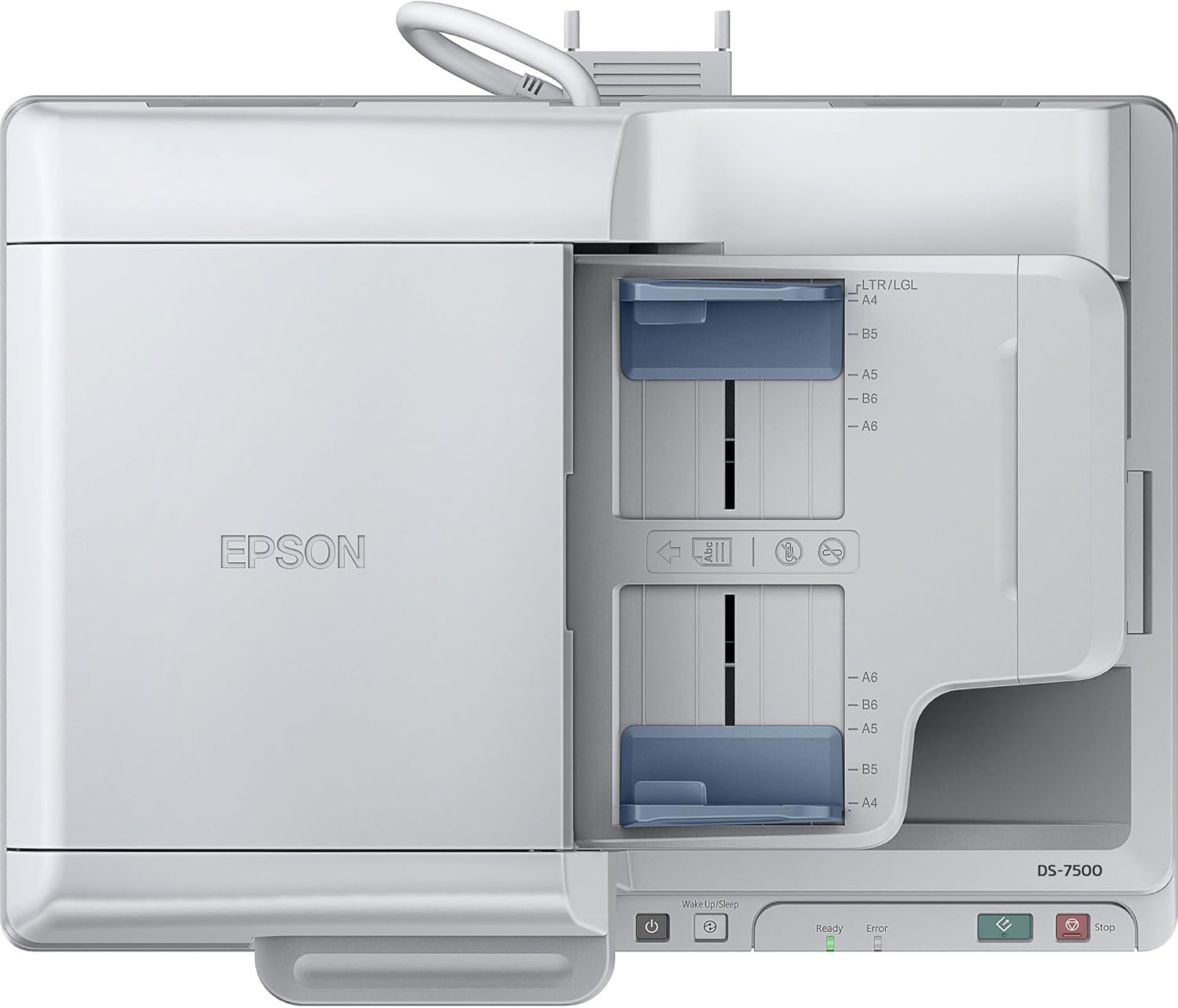
Figure 4.2: The Epson DS-7500 scanner in operation, processing a stack of documents through its Automatic Document Feeder.
4.2 Document Capture Pro Software
The included Document Capture Pro software (Windows only) and ABBYY FineReader Sprint OCR enhance productivity. This software allows you to scan directly to popular cloud services like SharePoint, Evernote, and Google Docs, and save scanned documents as searchable PDF, PDF-A, or JPEG files. It also supports one-touch scanning with up to 30 user-programmable jobs.
Video 4.1: This video provides an overview of the Epson Document Capture Pro Software, demonstrating its features for scanning, organizing, and sending documents, including integration with cloud services.
5. Maintenance
Regular maintenance ensures optimal performance and longevity of your Epson DS-7500 scanner. While specific detailed maintenance instructions are typically found in the full user guide, general practices include:
- Cleaning the Scanner: Regularly wipe the exterior of the scanner with a soft, damp cloth. For the glass platen and ADF rollers, use a lint-free cloth and a mild, non-abrasive cleaner.
- Cleaning the ADF Rollers: Over time, paper dust can accumulate on the ADF rollers, potentially leading to misfeeds. Refer to the comprehensive user manual for detailed instructions on how to access and clean the ADF rollers.
- Firmware Updates: Periodically check the Epson support website for any available firmware updates for your scanner. Keeping the firmware updated can improve performance and add new features.
6. Troubleshooting
This section provides general troubleshooting tips. For more detailed solutions to specific issues, please refer to the comprehensive user manual or the Epson support website.
- Scanner Not Responding:
- Ensure the scanner is powered on and connected securely to the computer or network.
- Restart the scanner and your computer.
- Verify that the scanner drivers are correctly installed and up to date.
- Paper Jams:
- Carefully open the scanner covers and remove any jammed paper.
- Ensure documents are loaded correctly and within the specified size and weight limits.
- Clean the ADF rollers if paper jams occur frequently.
- Poor Scan Quality:
- Clean the scanner glass and ADF rollers.
- Adjust scan settings such as resolution, brightness, and contrast in the scanning software.
- Ensure original documents are clean and free from wrinkles or tears.
7. Specifications
| Feature | Detail |
|---|---|
| Product Dimensions | 19.4"W x 14.1"D x 8.5"H |
| Item Weight | 25 pounds |
| Model Name | DS-7500 |
| Scanner Type | Document |
| Scanning Speed (200 dpi B/W & Color) | Up to 40 ppm / 80 ipm with ADF |
| ADF Capacity | 100 sheets |
| Connectivity Technology | USB 2.0 (optional Wi-Fi with network module) |
| Drivers | TWAIN & ISIS (Windows only) |
| Power Consumption (Operating) | 45 W (with ADF) |
| Power Consumption (Sleep) | 1.6 W |
8. Warranty and Support
The Epson WorkForce DS-7500 Document Scanner comes with a 3-year limited warranty, which includes Advance Exchange with free Next-Business-Day Replacement. For technical support, driver downloads, and additional resources, please visit the official Epson support website or contact their customer service.
Epson Support Website: epson.com/scanners
Related documentsDS-7500


Ask a question about this manual
Ask about setup, troubleshooting, compatibility, parts, safety, or missing instructions. Manuals+ will review the question and use this page’s manual context to help answer it.