
1. Introduction
This manual provides essential information for setting up, operating, and maintaining your Lenovo IdeaTab K3 Lynx Tablet. The IdeaTab K3 Lynx is an 11.6-inch tablet designed for versatility, featuring a detachable keyboard to switch between tablet and laptop modes. It runs on Windows 8 and is powered by an Intel Atom Z2760 processor.
2. Product Overview
2.1 Key Features
- Operating System: Windows 8
- Display: 11.6-inch IPS Display with 1366 x 768 pixels resolution
- Storage: 64 GB Flash Memory
- RAM: 2 GB RAM Memory
- Processor: Intel Atom Z2760 1.8 GHz
- Battery Life: Up to 8 hours (tablet only), up to 16 hours when docked to keyboard
- Connectivity: WLAN 802.11 b/g/n Wi-Fi & Bluetooth 4.0
- Ports: MicroSD Card Slot & Micro HDMI Port, 1 USB Port
- Camera: Front 2MP Camera
2.2 Components
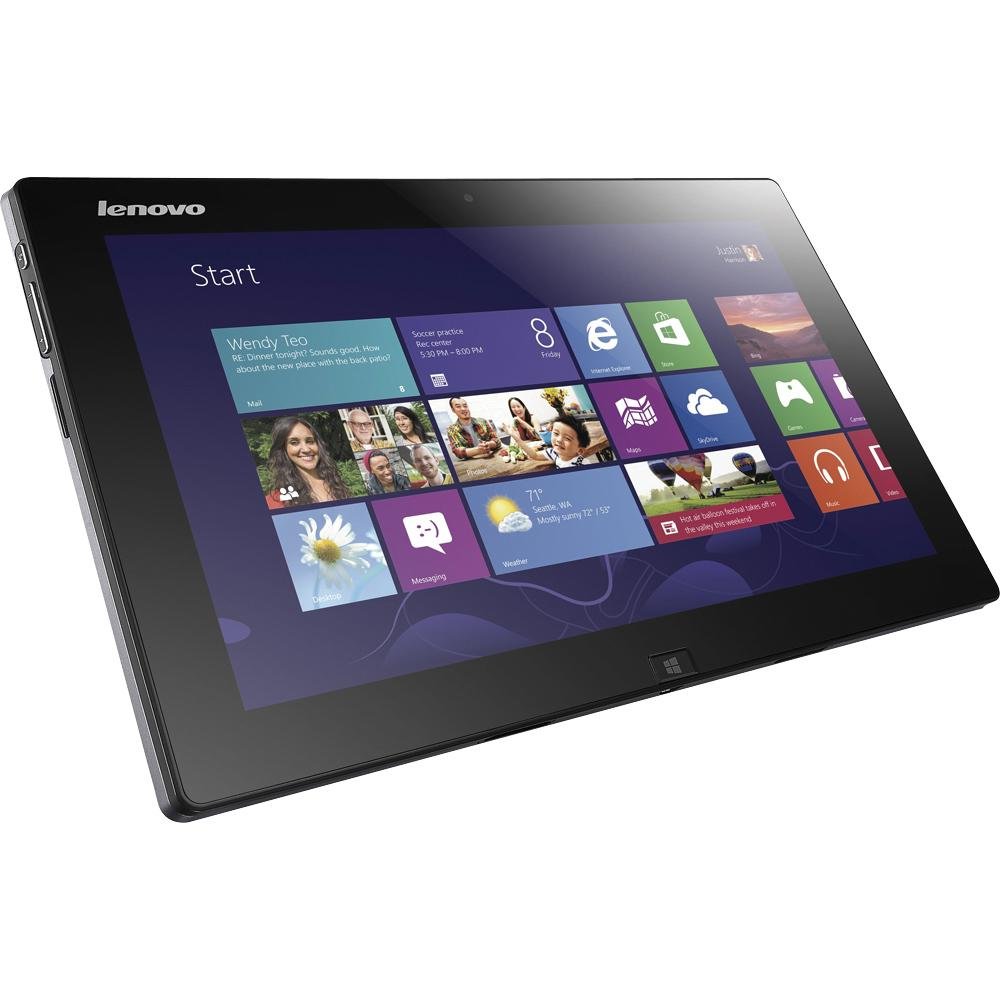
Figure 1: Lenovo IdeaTab K3 Lynx Tablet in its original packaging, displaying the Windows 8 Start screen with various live tiles. The tablet is black with a silver Lenovo logo.

Figure 2: The Lenovo IdeaTab K3 Lynx Tablet, shown with its detachable keyboard. The tablet screen displays the Windows 8 interface, and the device is presented at an angle to highlight its slim profile.
The Lenovo IdeaTab K3 Lynx consists of the tablet unit and a detachable keyboard dock. The tablet features an 11.6-inch IPS display, a front-facing camera, and various ports including MicroSD, Micro HDMI, and USB. The keyboard dock provides additional battery life and a physical typing interface.
3. Setup
3.1 Initial Power On
- Ensure the tablet has sufficient charge. Connect the power adapter if necessary.
- Press and hold the power button located on the side of the tablet until the Lenovo logo appears.
- Follow the on-screen prompts to complete the initial Windows 8 setup, including language selection, network connection, and user account creation.
3.2 Attaching the Keyboard Dock
To attach the keyboard dock, align the tablet with the docking connector on the keyboard. Gently press the tablet down until it securely clicks into place. The tablet can be used in laptop mode with the keyboard or detached for tablet-only use.
4. Operating Instructions
4.1 Using Windows 8
The IdeaTab K3 Lynx runs on Windows 8, offering a touch-optimized interface.
- Start Screen: Access applications and live tiles from the Start screen. Swipe from the right edge or press the Windows key to access Charms.
- Desktop Mode: Switch to the traditional desktop for familiar Windows applications.
- Touch Gestures: Utilize touch gestures for navigation, zooming, and app management.
4.2 Keyboard and Touchpad
When docked, the physical keyboard and touchpad provide a traditional laptop experience.
- Typing: Use the keyboard for text input.
- Navigation: The touchpad functions as a mouse for precise cursor control.
- Function Keys: Utilize function keys for quick access to settings like volume, brightness, and wireless.
4.3 Connectivity
- Wi-Fi: Connect to wireless networks via the Windows 8 network settings.
- Bluetooth: Pair Bluetooth devices such as keyboards, mice, or headphones.
- MicroSD Card: Insert a MicroSD card into the dedicated slot for expanded storage.
- Micro HDMI: Connect to external displays using a Micro HDMI cable.
4.4 Product Video Overview
Video 1: An official product video demonstrating the features and versatility of the Lenovo IdeaTab K3 Lynx, including its laptop and tablet modes, battery life, and Windows 8 interface. This video highlights the device's adaptability for various tasks.
5. Maintenance
5.1 Cleaning
- Use a soft, lint-free cloth to clean the screen and exterior surfaces.
- For stubborn marks, slightly dampen the cloth with water or a screen-cleaning solution. Avoid harsh chemicals.
- Ensure the device is powered off and unplugged before cleaning.
5.2 Battery Care
- To prolong battery life, avoid extreme temperatures.
- Charge the battery regularly, but avoid constantly keeping it at 100% or letting it fully discharge frequently.
- Use only the original or approved power adapter.
6. Troubleshooting
6.1 Common Issues and Solutions
- Device not powering on: Ensure the battery is charged. Connect the power adapter and try again.
- Screen unresponsive: Perform a soft reset by holding the power button for 10-15 seconds.
- Wi-Fi/Bluetooth connectivity issues: Check if wireless features are enabled in Windows settings. Restart the device and your router/Bluetooth accessory.
- Keyboard not responding: Ensure the tablet is securely docked to the keyboard. Try detaching and reattaching.
For more detailed troubleshooting, refer to the Lenovo support website or contact customer service.
7. Specifications
| Feature | Detail |
|---|---|
| Brand | Lenovo |
| Model Name | IdeaPad Lynx |
| Model Number | 59343251 |
| Screen Size | 11.6 Inches |
| Display Resolution | 1366 x 768 Pixels |
| Processor | Intel Atom Z2760 (1.8 GHz) |
| RAM Memory | 2 GB |
| Storage Capacity | 64 GB Flash Memory |
| Operating System | Windows 8 |
| Wireless Technology | Bluetooth 4.0, Wi-Fi (802.11bgn) |
| Hardware Interface | Secure Digital Card, USB, mini HDMI |
| Battery Average Life | 9 Hours (Tablet), up to 16 Hours (with Keyboard Dock) |
| Item Weight | 1.47 Pounds |
| Front Camera Resolution | 2 MP |
8. Warranty and Support
The Lenovo IdeaTab K3 Lynx Tablet comes with a 1-year limited parts and labor warranty. For warranty claims, technical support, or further assistance, please visit the official Lenovo support website or contact their customer service.
Lenovo Support Website: www.lenovo.com/support