
Introduction
The D-Link DGS-1016A is a 16-Port 10/100/1000Mbps switch designed to integrate seamlessly with existing Ethernet networks while enabling an upgrade to gigabit speeds. This unmanaged switch offers an aggregated bandwidth of up to 32Gbps and supports up to 9K jumbo frames, which helps improve traffic flow and reduce network bottlenecks. Its plug-and-play installation, combined with auto-MDI/MDI-X support on every port, makes it an efficient solution for bandwidth-intensive environments requiring a compact desktop form factor.
Key Features
- Sixteen (16) 10/100/1000Mbps ports for versatile connectivity.
- Aggregated bandwidth of 32Gbps for high-speed data transfer.
- 9K jumbo frame support to optimize large data packet transmission.
- All ports feature auto MDI/MDI-X for automatic cable detection, simplifying setup.
- Non-blocking, full wire-speed forwarding and filtering for consistent performance.
- IEEE 802.3az Energy Efficient Ethernet (EEE) and D-Link Green power-saving technology for reduced energy consumption.
- Compact plastic housing suitable for desktop deployment.
Physical Overview

Front view of the D-Link DGS-1016A 16-Port Gigabit Switch, showing the D-Link logo and LED indicators for each port.
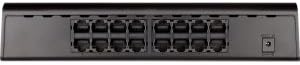
Rear view of the D-Link DGS-1016A 16-Port Gigabit Switch, displaying all 16 RJ45 Ethernet ports and the power input connector.
Setup
- Unpack the Switch: Carefully remove the DGS-1016A switch and its accessories from the packaging.
- Power Connection: Connect the provided power adapter to the power input port on the rear of the switch. Plug the other end of the power adapter into a standard electrical outlet. The Power LED on the front panel should illuminate.
- Connect to Network Devices: Use standard Ethernet cables (Cat5e or higher recommended for Gigabit speeds) to connect your network devices (e.g., computers, servers, network-attached storage, routers) to any of the 16 Ethernet ports on the switch. The switch supports auto-MDI/MDI-X, so you do not need to worry about using crossover cables.
- Verify Connection: Once a device is connected, the corresponding Link/Act LED for that port on the front panel will illuminate, indicating an active connection. If the LED is blinking, it signifies data activity.
- Placement: Place the switch on a flat, stable surface or mount it to a wall using appropriate hardware (not included). Ensure adequate ventilation around the device to prevent overheating.
Operating
The DGS-1016A is an unmanaged switch, meaning it requires no configuration. Once powered on and connected to your network devices, it will automatically begin forwarding data. Each port's LED indicator provides visual feedback on its status:
- Power LED: Solid green when the switch is powered on.
- Link/Act LEDs (per port):
- Solid green: A valid network link is established at 1000Mbps.
- Solid amber: A valid network link is established at 10/100Mbps.
- Blinking: Data is being transmitted or received through the port.
- Off: No network link is detected or the connected device is powered off.
The switch automatically detects the speed and duplex mode of connected devices and adjusts accordingly, ensuring optimal performance without manual intervention.
Maintenance
To ensure optimal performance and longevity of your D-Link DGS-1016A switch, follow these maintenance guidelines:
- Keep Clean: Regularly clean the exterior of the switch with a soft, dry cloth. Avoid using liquid or aerosol cleaners directly on the device.
- Ensure Ventilation: Do not block the ventilation openings on the switch. Ensure there is sufficient airflow around the device to prevent heat buildup.
- Cable Management: Keep network cables neatly organized to prevent tangles and accidental disconnections. Avoid bending cables sharply.
- Power Cycle (if needed): If the switch or connected devices are experiencing issues, a simple power cycle (unplugging the power adapter, waiting 10 seconds, and plugging it back in) can often resolve minor problems.
- Environmental Conditions: Operate the switch within its specified temperature and humidity ranges to prevent damage.
Troubleshooting
If you encounter issues with your D-Link DGS-1016A switch, consider the following troubleshooting steps:
- No Power:
- Ensure the power adapter is securely connected to both the switch and a working electrical outlet.
- Check if the power outlet is functional by plugging in another device.
- No Link/Activity LED:
- Verify that the Ethernet cable is securely connected to both the switch port and the network device.
- Try a different Ethernet cable to rule out a faulty cable.
- Ensure the connected network device is powered on and functioning correctly.
- Confirm that the network adapter on the connected device is enabled.
- Slow Network Speed:
- Ensure all connected devices and cables support Gigabit Ethernet (1000Mbps) for optimal performance. Older Cat5 cables may limit speeds to 10/100Mbps.
- Check for excessive network traffic or bandwidth-intensive applications running on your network.
- Perform a power cycle on the switch and connected devices.
- Intermittent Connection:
- Inspect Ethernet cables for any physical damage or loose connections.
- Ensure the switch is placed in an area with good ventilation and away from strong electromagnetic interference.
Specifications
| Feature | Detail |
|---|---|
| Model Number | DGS-1016A |
| Brand | D-Link |
| Number of Ports | 16 |
| Interface Type | RJ45 |
| Data Transfer Rate | 10/100/1000 Mbps (Gigabit Ethernet) |
| Aggregated Bandwidth | 32Gbps |
| Jumbo Frame Support | 9K |
| Auto MDI/MDI-X | Yes, on all ports |
| Energy Efficiency | IEEE 802.3az Energy Efficient Ethernet (EEE), D-Link Green Technology |
| Housing Material | Plastic |
| Color | Black |
| Product Dimensions (LxWxH) | 11.33 x 9.76 x 3.23 inches |
| Item Weight | 1.28 pounds (580 Grams) |
| Voltage | 12 Volts |
| Manufacturer | D-Link Systems, Inc. |
Warranty and Support
Specific warranty details for the D-Link DGS-1016A switch are typically provided with the product packaging or can be found on the official D-Link website. For technical support, product registration, or further assistance, please refer to the contact information provided in your product's documentation or visit the D-Link support portal online.


