
Introduction
This manual provides instructions for the proper setup, operation, and maintenance of your Zalman NC3500 Laptop Cooling Pad. Please read this manual thoroughly before use to ensure optimal performance and longevity of the product.
The Zalman NC3500 is designed to enhance laptop performance by providing efficient cooling and includes an integrated USB hub for expanded connectivity.
Product Features
Efficient Cooling System
The NC3500 features a large 220mm fan and an aesthetically prepared vent hole structure to deliver powerful and ultra-quiet cooling performance for your laptop.

Image: Close-up view of the cooling pad's surface, showing the vent holes and the fan grille, emphasizing its quiet and powerful cooling capabilities.
Integrated USB Hub
Expand your connectivity with the integrated USB hub, featuring four USB 2.0 ports for connecting various peripheral devices.

Image: Side view of the cooling pad, highlighting the four USB 2.0 ports available for connecting external devices.
Turbo Cooling Function
Activate the one-touch Turbo Booster button for quick and enhanced cooling performance when your laptop requires additional heat dissipation.

Image: Detail of the cooling pad's side, showing the 'Turbo Booster' button and a graphic indicating increased cooling performance when activated.
Adjustable Fan Control
Easily adjust the fan speed to balance between cooling performance and noise levels using the integrated volume knob.

Image: Side view of the cooling pad, focusing on the fan speed adjustment knob for controlling noise and cooling.
Ergonomic Design
The cooling pad features a sleek, ergonomic design with a comfortable angle for typing, compatible with laptops ranging from 12 to 17 inches.
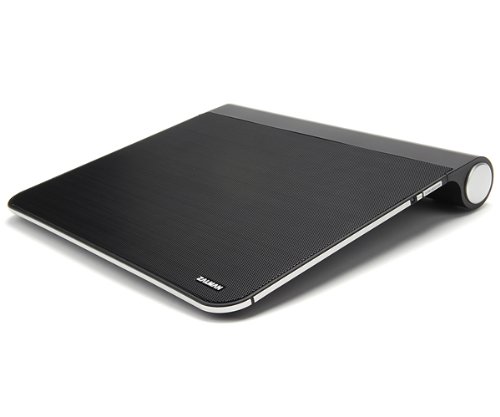
Image: An angled view of the Zalman NC3500 cooling pad, highlighting its overall design and form factor.
Package Contents
Verify that all components are present in the package before proceeding with setup.
- Zalman NC3500 Laptop Cooling Pad Unit
- User's Manual (this document)
- Y-Type USB Power Cable

Image: The three main components included in the package: the NC3500 cooling pad, the user manual, and the Y-type USB power cable.
Setup Instructions
Placement: Place the Zalman NC3500 cooling pad on a stable, flat surface. Ensure there is adequate space around the pad for proper airflow.
Connect Power: Connect the Y-Type USB Power Cable to the designated USB power input port on the cooling pad. Then, connect the other end of the Y-Type USB cable to two available USB ports on your laptop. This provides power for the cooling fan and the integrated USB hub.
Position Laptop: Carefully place your laptop onto the cooling pad, ensuring it is centered and stable. The cooling pad is compatible with laptops from 12 to 17 inches.

Image: Front view of the cooling pad, illustrating the location of the USB ports for power and peripheral connections.
Operating the Cooling Pad
Power On/Off: Once connected to your laptop's USB ports, the cooling fan will automatically power on. To turn off the fan, disconnect the USB power cable from your laptop.
Adjust Fan Speed: Use the fan control knob located on the side of the cooling pad to adjust the fan speed. Rotate the knob to increase or decrease the fan's RPM, thereby controlling cooling performance and noise level.
Activate Turbo Cooling: For maximum cooling, press the "Turbo Booster" button. This will temporarily increase the fan speed to its highest setting for rapid heat dissipation.
Using the USB Hub: Connect your USB peripheral devices (e.g., mouse, keyboard, external hard drive) to the available USB ports on the cooling pad.
Maintenance
To ensure optimal performance and longevity of your Zalman NC3500 cooling pad, regular maintenance is recommended.
Cleaning: Periodically clean the fan and vent areas to prevent dust accumulation. Use a soft, dry cloth or a can of compressed air to remove dust from the fan blades and the mesh surface. Ensure the device is disconnected from power before cleaning.
Avoid Obstructions: Do not place the cooling pad on soft surfaces (e.g., blankets, carpets) that may block the airflow vents.
Troubleshooting
Fan Not Spinning
Check USB Connection: Ensure the Y-Type USB Power Cable is securely connected to both the cooling pad and two functional USB ports on your laptop.
Test USB Ports: Try connecting the cooling pad to different USB ports on your laptop to rule out a faulty port.
Auxiliary Power: If your laptop's USB ports do not provide sufficient power, an auxiliary power adapter (sold separately) may be required. Connect it to the DC IN 5V port on the cooling pad.
Insufficient Cooling
Adjust Fan Speed: Increase the fan speed using the control knob.
Activate Turbo Mode: Press the Turbo Booster button for maximum cooling.
Clear Vents: Ensure the cooling pad's vents and your laptop's vents are not obstructed by dust or other objects.
Unusual Noise
Check for Obstructions: Inspect the fan area for any foreign objects that might be causing the noise.
Clean Fan: Dust accumulation can sometimes cause imbalance and noise. Clean the fan blades as described in the Maintenance section.
Reduce Fan Speed: Lowering the fan speed may reduce noise, though it will also reduce cooling performance.
Product Specifications

Image: A detailed table outlining the technical specifications of the Zalman NC3500 cooling pad.
| Feature | Detail |
|---|---|
| Compatible Notebook Size | 12" - 17" |
| Dimensions (L x W x H) | 363 x 404 x 56 mm (14.3 x 15.9 x 2.2 inches) |
| Weight | 1.2 kg (2.7 lbs) |
| Material | Plastic, Steel |
| Fan Type / Quantity | Actual Fan / 1 EA |
| Fan Size | 220 mm |
| Bearing Type | Sleeve Bearing |
| Fan RPM | 620 - 720 rpm ± 10% |
| Noise Level | 17 - 23.5 dBA |
| Fan Control | Volume Knob, On/Off |
| USB Ports | 5EA (4 x USB 2.0 Ports / 1 USB Power Unit) |
| Auxiliary Power Adaptor | Supported (Sold Separately) |
| DC Input | 5V |
| Turbo Button Function | Increases fan speed to 800 rpm |
Warranty and Support
For warranty information and technical support, please refer to the official Zalman website or contact your local retailer. Keep your proof of purchase for warranty claims.


