
Logitech C525
Logitech C525 USB HD Webcam User Manual
Portable HD 720p Video Calling with Autofocus
Introduction
Welcome to the user manual for your Logitech C525 USB HD Webcam. This manual provides essential information for setting up, operating, and maintaining your webcam, ensuring optimal performance for your video communication needs.

Figure 1: Logitech C525 USB HD Webcam. This image shows the compact design of the webcam with its lens and Logitech branding.
Setup Guide
Follow these steps to set up your Logitech C525 Webcam:
- Unpack the Contents: Verify that your package includes the Camera Body, USB Cable, and this Manual. The webcam features a built-in USB cable for direct connection.
- Connect to Computer: Plug the USB connector of the webcam into an available USB port on your computer. The device is designed for plug-and-play functionality and should be recognized automatically by compatible operating systems.
- Position the Webcam: The Logitech C525 features a versatile clip/stand that allows it to be securely mounted on top of a monitor, laptop screen, or placed on a flat surface. Adjust the angle for optimal viewing.
- Software Installation (if necessary): For full functionality and advanced settings, it is recommended to download and install the latest Logitech webcam software from the official Logitech support website. This is especially important for features like one-click upload to Facebook and YouTube.
- System Compatibility: Ensure your operating system is compatible. The webcam supports Windows 10 or later and Mac OSX 10.6+.
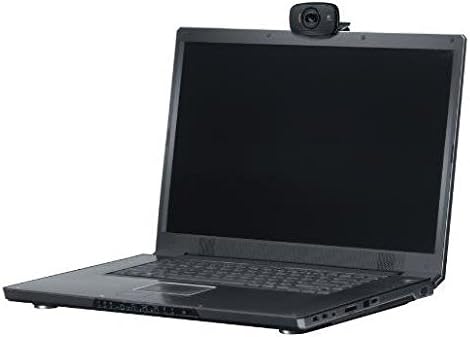
Figure 2: The Logitech C525 Webcam easily mounts on a laptop screen, demonstrating its compact and portable design.

Figure 3: This image highlights the operating system compatibility of the Logitech C525, supporting Windows 10 or later and Mac OSX 10.6+.
Operating Instructions
The Logitech C525 Webcam is designed for intuitive use, providing high-definition video for various applications.
- Video Calling: Utilize the webcam for HD 720p video calls on popular platforms. The autofocus feature ensures clear and sharp images even with movement.
- Autofocus: The integrated autofocus system automatically adjusts the lens to keep you in sharp focus, providing a clear image during video calls and recordings.
- HD Light Correction: The webcam features HD light correction, which automatically adjusts to dim lighting conditions, producing brighter and more contrasted images.
- Built-in Microphone: The webcam includes a built-in microphone with noise-canceling capabilities, designed to reduce background noise for clearer audio during calls.
- 360-Degree Rotation: The webcam head can rotate 360 degrees horizontally, allowing you to easily adjust the camera angle without moving the entire device. It also offers vertical adjustment.
- Recording and Sharing: Capture video in MP4 format and audio in MP3 or WAV. The webcam supports one-click upload to platforms like Facebook and YouTube, simplifying content sharing.

Figure 4: Experience widescreen HD video calls with the Logitech C525, perfect for virtual meetings and connecting with friends and family.

Figure 5: The webcam's 360-degree rotation capability allows for flexible positioning and wider viewing angles.

Figure 6: Fast autofocus ensures your image remains sharp and clear during dynamic video interactions.

Figure 7: HD Light Correction automatically adjusts to provide optimal lighting for your video, even in challenging environments.
Maintenance and Care
To ensure the longevity and optimal performance of your Logitech C525 Webcam, follow these simple maintenance guidelines:
- Cleaning: Gently wipe the lens with a soft, lint-free cloth. For the body of the webcam, use a slightly damp cloth. Avoid using harsh chemicals or abrasive materials.
- Storage: When not in use, especially during travel, fold the webcam into its compact form. This protects the lens and internal components. The webcam's design allows for easy portability.
- Cable Management: Use the included cable wrap to keep the USB cable neatly organized and prevent tangling or damage.
- Environmental Conditions: Avoid exposing the webcam to extreme temperatures, humidity, or direct sunlight for prolonged periods.

Figure 8: The Logitech C525 is portable and compact, making it easy to store and transport, protecting it from damage.
Troubleshooting
If you encounter issues with your Logitech C525 Webcam, try the following solutions:
- Webcam Not Detected:
- Ensure the USB cable is securely plugged into a working USB port on your computer.
- Try a different USB port.
- Restart your computer.
- Check your computer's Device Manager (Windows) or System Information (Mac) to see if the webcam is listed.
- Poor Video Quality:
- Ensure the lens is clean and free of dust or smudges.
- Check your lighting conditions. The webcam has HD light correction, but sufficient ambient light is always beneficial.
- Verify that your internet connection is stable and fast enough for HD video streaming.
- Update your webcam drivers and software from the official Logitech website.
- No Audio or Poor Audio Quality:
- Ensure the webcam's microphone is selected as the input device in your communication software settings (e.g., Zoom, Skype, Google Meet).
- Check microphone volume levels in your computer's sound settings.
- The built-in microphone is designed for noise cancellation, but excessive background noise may still affect clarity. Try to minimize ambient sounds.
- Compatibility Issues (e.g., Windows 11):
- While the product is generally compatible with Windows 10 and Mac OSX 10.6+, some users have reported compatibility challenges with newer operating systems like Windows 11, potentially related to driver allocation. Ensure you have the absolute latest drivers directly from Logitech's support page. If issues persist, consult Logitech support.
Specifications
| Feature | Detail |
|---|---|
| Brand | Logitech |
| Model Number | C525 |
| Video Capture Resolution | 720p (HD) |
| Frame Rate | 30 fps (frames per second) |
| Autofocus | Yes |
| Special Features | Low Light Correction, 360-Degree Rotation |
| Microphone | Built-in, Noise-Canceling |
| Connectivity Technology | USB |
| Cable Length | Approximately 5 feet |
| Dimensions (Product) | 8.27 x 2.99 x 5.98 inches |
| Item Weight | 3.04 ounces |
| Compatible Operating Systems | Windows 10 or later, Mac OSX 10.6+ |
| Video Capture Format | MP4 |
| Supported Audio Format | MP3, WAV |

Figure 9: Packaging details confirming the Logitech C525's 720p HD resolution at 30 frames per second and autofocus capability.
Warranty Information
Logitech products typically come with a limited hardware warranty. For specific details regarding the warranty period and terms for your Logitech C525 Webcam, please refer to the warranty card included in your product packaging or visit the official Logitech support website. Keep your proof of purchase for warranty claims.
Customer Support
For further assistance, technical support, or to download the latest drivers and software for your Logitech C525 Webcam, please visit the official Logitech Support website:
You may also find helpful resources, FAQs, and community forums on their website.
Related documentsC525


Ask a question about this manual
Ask about setup, troubleshooting, compatibility, parts, safety, or missing instructions. Manuals+ will review the question and use this page’s manual context to help answer it.