
1. Product Overview
The Genius DVR-FHD590 is a Full HD vehicle video recorder designed to capture high-quality video footage while driving. Equipped with a 5MP camera sensor, it records at 30 frames per second using H.264 compression for efficient file storage. This device serves as a reliable tool for documenting events on the road, providing video evidence in case of incidents. Its High Dynamic Range (HDR) technology and high-power LED ensure clear video recording in various lighting conditions, including low light or strong reflections. The 128-degree wide-angle lens captures a broad view without distortion, and the built-in G-sensor automatically protects recorded files during crash events.

Figure 1: Front view of the Genius DVR-FHD590 dash cam.
2. Package Contents and Device Components
2.1 Package Contents
- Genius DVR-FHD590 Vehicle Video Recorder
- Vehicle Power Adapter
- Suction Cup Mount
- USB Cable
- User Manual
2.2 Device Components
Familiarize yourself with the various parts of your DVR-FHD590.
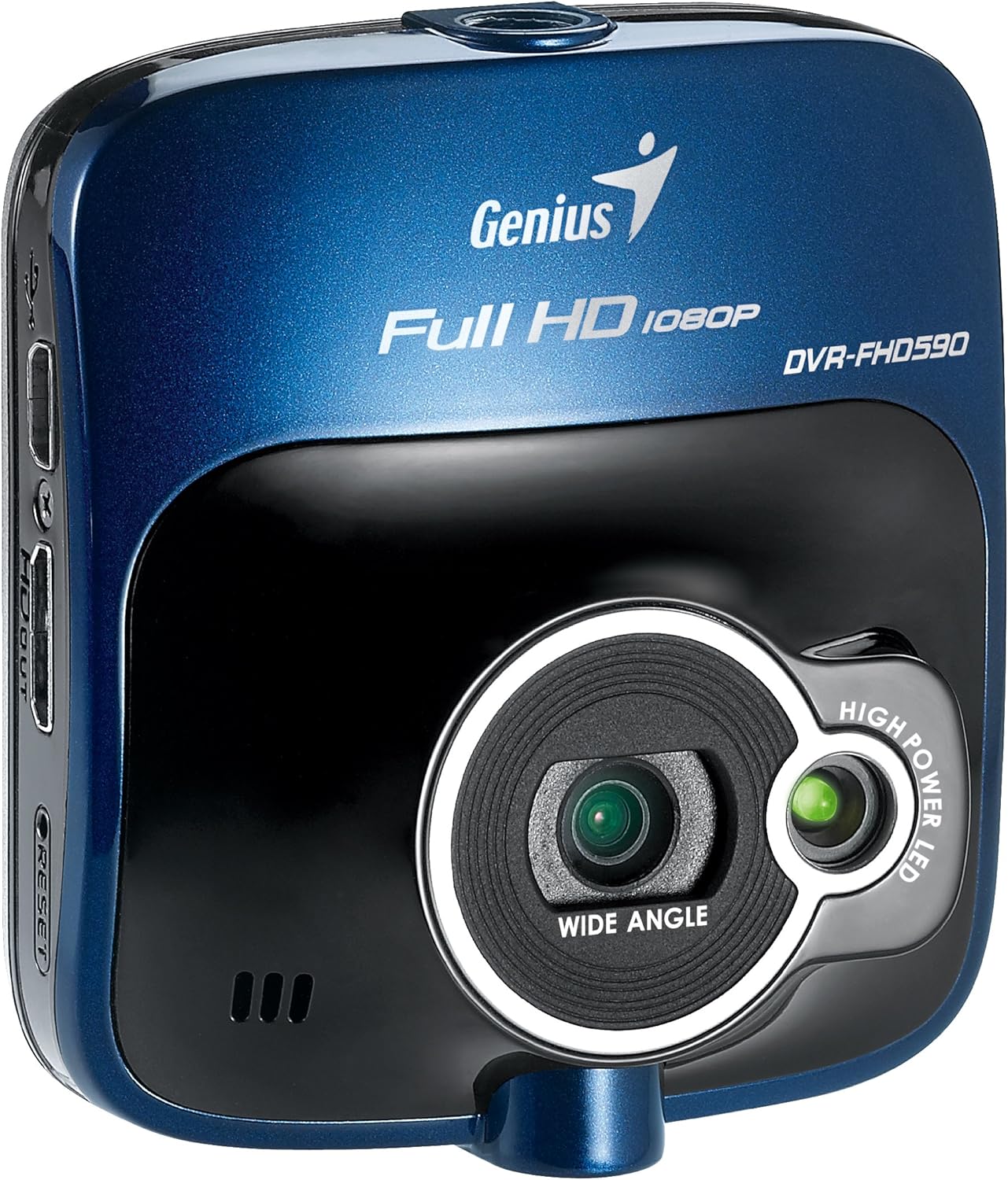
Figure 2: Side view showing the various ports and buttons on the DVR-FHD590.
- Lens: Main camera lens for video recording.
- High Power LED: Assists in low-light recording.
- Microphone: Records audio.
- 2.4" LCD Panel: For live view, menu navigation, and video playback.
- Control Buttons: Navigation and selection buttons (e.g., Menu, Up, Down, OK).
- Power Port: Connects to the vehicle power adapter.
- USB Port: For data transfer and charging.
- MicroSD Card Slot: Insert your memory card here (not included).
- Reset Button: For factory reset if needed.
- Mounting Slot: Attaches to the suction cup mount.
3. Setup and Installation
3.1 Inserting a MicroSD Card
Before first use, insert a compatible MicroSD card (Class 10 or higher, up to 32GB recommended) into the designated slot. Ensure the device is powered off before inserting or removing the card.
3.2 Mounting the Device
- Clean the windshield surface where you intend to mount the DVR-FHD590.
- Attach the suction cup mount to the device by sliding it into the mounting slot until it clicks securely.
- Press the suction cup firmly against the windshield and flip the lever to secure it.
- Adjust the angle of the camera to ensure a clear view of the road ahead.

Figure 3: The DVR-FHD590 attached to its suction cup mount on a windshield.
3.3 Power Connection
Connect the vehicle power adapter to the DVR-FHD590's power port and plug the other end into your vehicle's 12V power outlet (cigarette lighter socket). The device will typically power on and begin recording automatically when the vehicle starts.
4. Operating Instructions
4.1 Basic Recording
Once powered on, the DVR-FHD590 will automatically start recording. A red indicator light or on-screen icon will confirm recording is active. Recordings are saved in segments to the MicroSD card. When the card is full, the device will automatically overwrite the oldest unprotected files (loop recording).
4.2 G-Sensor (Emergency Recording)
The built-in G-sensor detects sudden impacts or rapid deceleration/acceleration. When triggered, it automatically locks the current video segment, preventing it from being overwritten by loop recording. These protected files serve as crucial evidence in case of an accident.
4.3 Motion Detection
When enabled in the settings, motion detection allows the DVR-FHD590 to start recording automatically if movement is detected in front of the camera while the vehicle is parked and the device is powered on. This feature is useful for monitoring your vehicle when unattended.
4.4 High Dynamic Range (HDR)
The HDR feature enhances video quality by balancing exposure in scenes with both very bright and very dark areas. This helps to reduce glare and improve visibility in challenging lighting conditions, such as driving out of a tunnel or facing direct sunlight.
4.5 Playback and File Management
You can review recorded videos directly on the 2.4" LCD panel using the control buttons. Alternatively, remove the MicroSD card and insert it into a computer to view and manage files. Protected files will be in a separate folder or marked to prevent accidental deletion.
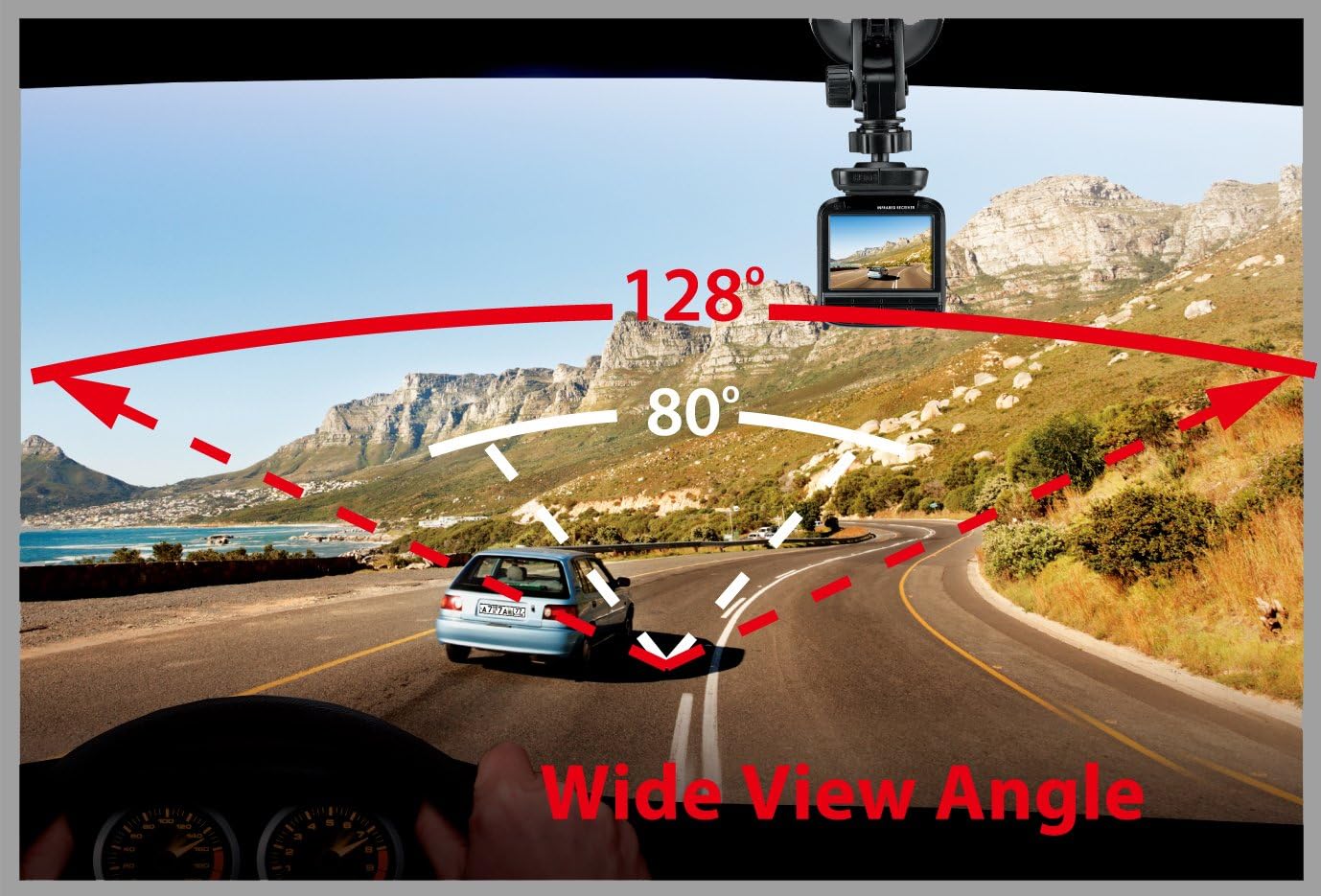
Figure 4: Illustration of the 128-degree wide viewing angle captured by the DVR-FHD590.

Figure 5: Example of video clarity, demonstrating the ability to capture details like license plates.
4.6 Official Product Video
Video 1: Official product video demonstrating features of the Genius DVR-FHD590, including night/low light use, 128-degree wide viewing angle, HDR, and recording in traffic.
5. Maintenance
- Clean the Lens: Regularly clean the camera lens with a soft, lint-free cloth to ensure clear video quality.
- MicroSD Card Care: Format the MicroSD card periodically (e.g., once a month) to maintain optimal performance and prevent data corruption. Back up important files before formatting.
- Temperature: Avoid exposing the device to extreme temperatures. Remove it from the windshield if parking in direct sunlight for extended periods during hot weather.
- Firmware Updates: Check the Genius official website for any available firmware updates to improve performance and add new features.
6. Troubleshooting
| Problem | Possible Cause | Solution |
|---|---|---|
| Device does not power on. | No power supply; faulty power adapter; loose connection. | Check vehicle's 12V outlet; ensure power adapter is securely connected; try a different power source if available. |
| Recording stops unexpectedly. | MicroSD card full or corrupted; incompatible MicroSD card; power interruption. | Format or replace MicroSD card; ensure card meets specifications (Class 10); check power connection. |
| Video quality is poor/blurry. | Dirty lens; protective film still on lens; low light conditions without HDR/LED. | Clean the lens; remove any protective film; ensure HDR is enabled for challenging light. |
| G-sensor not triggering or too sensitive. | Incorrect G-sensor sensitivity setting. | Adjust G-sensor sensitivity in the device settings. |
| Device freezes or becomes unresponsive. | Software glitch; MicroSD card issue. | Press the reset button; format or replace the MicroSD card. |
7. Technical Specifications
| Feature | Detail |
|---|---|
| Model Number | DVR-FHD590 |
| Brand | Genius |
| Video Capture Resolution | 1080p (Full HD) |
| Screen Size | 2.4 Inches (LCD) |
| Real Angle of View | 128 Degrees |
| Special Features | Motion Sensing, G-Sensor, High Power LED, HDR |
| Item Weight | 3.2 ounces |
| Control Method | Touch (referring to button presses on the device) |
| Batteries Included | No |
| UPC | 168141418723, 132017784748, 031112482088, 911632434418, 115970979307, 072091721263, 163120529698, 091163238119, 021112918335, 012300070034, 091163243441, 172304211908 |
8. Warranty and Support
For warranty information, technical support, or service inquiries, please refer to the official Genius website or contact their customer service department. Keep your purchase receipt as proof of purchase for warranty claims.
Genius Official Website: www.geniusnet.com