
Behringer Q1002USB
Behringer XENYX Q1002USB Audio Mixer User Manual
Model: Q1002USB
1. Introduction
The Behringer XENYX Q1002USB is a premium ultra-low noise, high headroom analog mixer designed for a wide range of audio applications, from studio recording to live sound. It features state-of-the-art XENYX Microphone Preamps, studio-grade 'one-knob' compressors, and a built-in USB/Audio Interface for direct connection to your computer.
This manual provides detailed instructions for setting up, operating, and maintaining your Q1002USB mixer, ensuring optimal performance and longevity.
2. Important Safety Instructions
- Read these instructions thoroughly before operation.
- Keep these instructions for future reference.
- Heed all warnings and follow all instructions.
- Do not use this apparatus near water.
- Clean only with a dry cloth.
- Do not block any ventilation openings. Install in accordance with the manufacturer's instructions.
- Do not install near any heat sources such as radiators, heat registers, stoves, or other apparatus (including amplifiers) that produce heat.
- Do not defeat the safety purpose of the polarized or grounding-type plug. A polarized plug has two blades with one wider than the other. A grounding-type plug has two blades and a third grounding prong. The wide blade or the third prong are provided for your safety. If the provided plug does not fit into your outlet, consult an electrician for replacement of the obsolete outlet.
- Protect the power cord from being walked on or pinched, particularly at plugs, convenience receptacles, and the point where they exit from the apparatus.
- Only use attachments/accessories specified by the manufacturer.
- Unplug this apparatus during lightning storms or when unused for long periods of time.
- Refer all servicing to qualified service personnel. Servicing is required when the apparatus has been damaged in any way, such as power-supply cord or plug is damaged, liquid has been spilled or objects have fallen into the apparatus, the apparatus has been exposed to rain or moisture, does not operate normally, or has been dropped.
3. Product Overview
The XENYX Q1002USB mixer features a compact design with intuitive controls for easy operation. Below is an overview of its main components and layout.
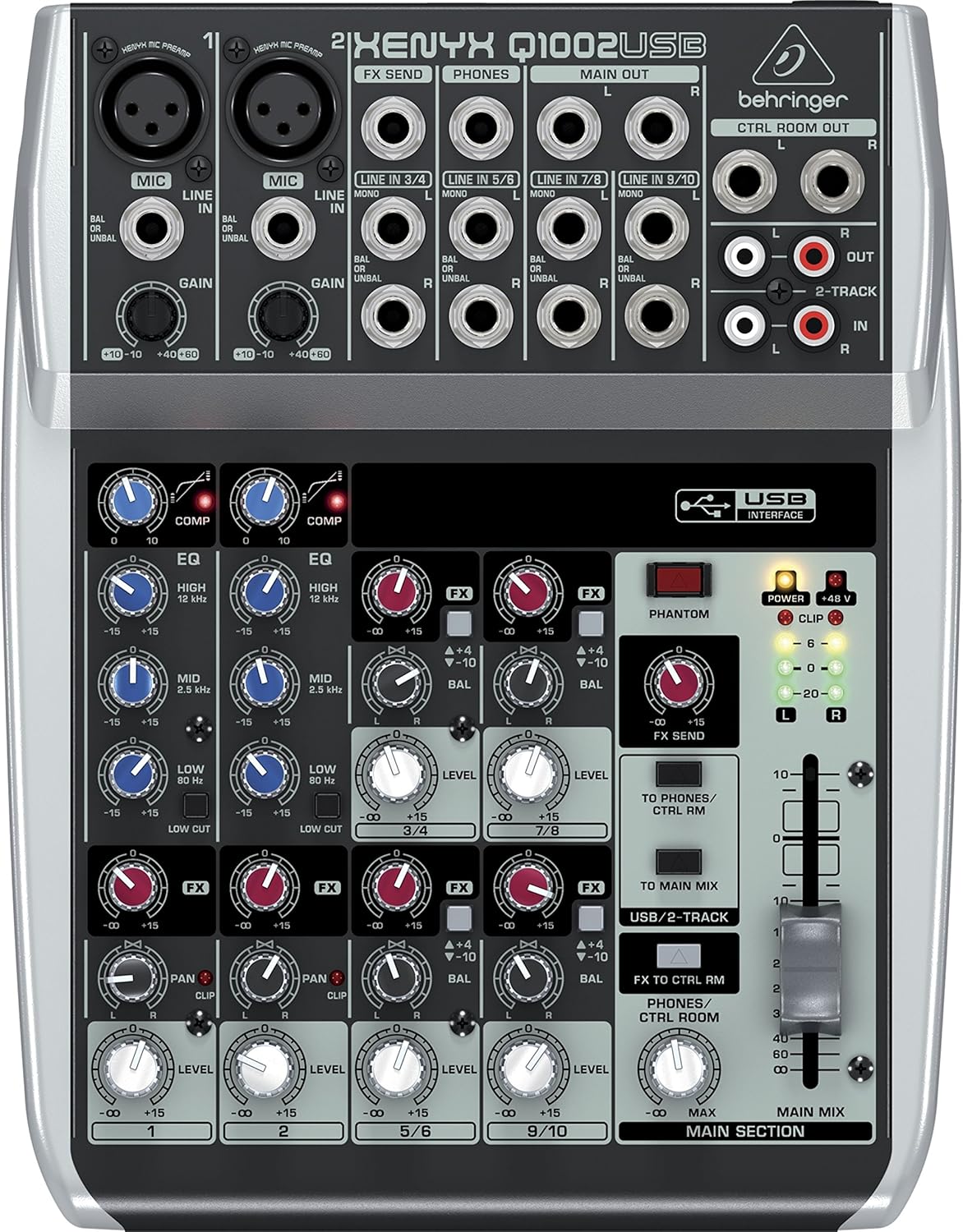
Figure 3.1: Top view of the XENYX Q1002USB mixer, highlighting its compact layout and control surface.

Figure 3.2: Angled view of the XENYX Q1002USB, providing a perspective of its physical dimensions and control knob arrangement.
3.1 Front Panel Controls
- XENYX Mic Preamps: Two high-quality microphone preamps with XLR and 1/4" inputs, offering excellent gain and low noise.
- Compressors: Dedicated 'one-knob' compressors on the first two channels for easy dynamic control.
- 3-Band EQ: Neo-classic 'British' 3-band EQs on each channel for warm and musical sound shaping.
- FX Send: Controls for sending signal to external effects processors.
- Level Controls: Individual channel level controls and a main mix fader.
- USB Interface: Integrated USB port for direct connection to a computer for recording and playback.
- Phantom Power: +48V phantom power switch for condenser microphones.

Figure 3.3: Simplified top panel diagram, illustrating the arrangement of inputs, outputs, and controls.
3.2 Rear Panel Connections
The rear panel houses the power input and the USB connection for your computer.
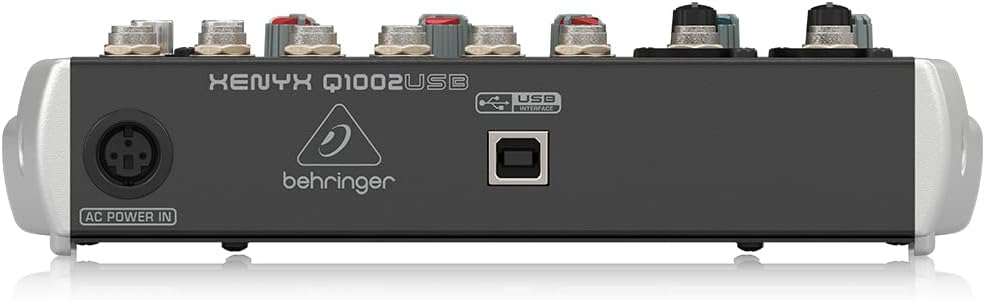
Figure 3.4: Rear view of the XENYX Q1002USB, displaying the AC Power In and USB Interface ports.
4. Setup
4.1 Power Connection
- Ensure the mixer is placed on a stable, flat surface.
- Connect the supplied power adapter to the 'AC POWER IN' port on the rear of the mixer.
- Plug the power adapter into a suitable electrical outlet. Note that the mixer does not have a dedicated power switch; it powers on when connected to the mains. Consider using a power strip with an on/off switch for convenient power control.
4.2 Audio Input Connections
Connect your microphones, instruments, and other audio sources to the appropriate input jacks.

Figure 4.1: Example of a microphone setup for audio input.
- Microphones: Use XLR cables to connect microphones to the MIC inputs (Channels 1 and 2). If using condenser microphones, ensure +48V phantom power is enabled (see Section 5.5).
- Line-Level Instruments/Devices: Connect instruments (e.g., keyboards, guitars with preamps) or other line-level devices using 1/4" TS or TRS cables to the LINE IN jacks.
4.3 Output Connections
Connect the mixer's outputs to your monitoring system, amplifier, or recording device.
- Main Output: Use 1/4" TRS cables to connect the MAIN OUT (L/R) to your power amplifier, powered speakers, or recording interface.
- Control Room Output: Connect your studio monitors to the CTRL ROOM OUT (L/R) using 1/4" TS cables.
- Headphones: Plug your headphones into the PHONES 1/4" TRS jack.
- 2-Track Input/Output: Use RCA cables for connecting external recording devices or playback sources to the 2-TRACK IN/OUT.
4.4 USB Connection to Computer
The Q1002USB features a built-in USB audio interface for direct recording and playback with your computer.

Figure 4.2: Using the mixer with a computer via USB.
- Connect a USB cable from the USB INTERFACE port on the rear of the mixer to an available USB port on your computer.
- Your computer should automatically detect the mixer as an audio device. No special drivers are typically required for Windows or macOS.
- Select the Behringer Q1002USB as your input/output device in your computer's sound settings and your Digital Audio Workstation (DAW) software.
5. Operating Instructions
5.1 Gain Staging
Proper gain staging is crucial for achieving optimal sound quality and avoiding distortion.
- Start with all channel GAIN knobs at their minimum (fully counter-clockwise) position.
- Set the main MIX fader to 0 dB.
- While the audio source is active (e.g., speaking into a microphone, playing an instrument), slowly increase the GAIN knob for the respective channel.
- Observe the CLIP LED for that channel. Adjust the GAIN so that the CLIP LED only flashes occasionally on the loudest peaks. This indicates a healthy signal level without clipping.
5.2 Using the Compressors
The Q1002USB features easy-to-use 'one-knob' compressors on the first two channels to smooth out dynamic range.

Figure 5.1: Visual representation of signal compression.
- Turn the COMP knob clockwise to increase the amount of compression.
- The COMP LED will illuminate to indicate that compression is active.
- Adjust the knob to achieve a more consistent and controlled sound, especially for vocals and instruments with wide dynamic swings.
5.3 Adjusting the 3-Band EQ
Each mono channel features a 3-band 'British' EQ for tonal shaping.

Figure 5.2: The 'British' EQ provides warm and musical sound characteristics.
- HIGH: Adjusts the treble frequencies (12 kHz).
- MID: Adjusts the mid-range frequencies (2.5 kHz).
- LOW: Adjusts the bass frequencies (80 Hz).
- The center position (12 o'clock) is flat (no boost or cut). Turn clockwise to boost, counter-clockwise to cut.
5.4 FX Send and Return
The FX send allows you to route signal to an external effects processor.
- Use the FX knob on each channel to send a portion of that channel's signal to the FX SEND output.
- Connect the FX SEND output to the input of your external effects processor.
- Connect the output of your effects processor back to one of the stereo line inputs (e.g., Channels 5/6 or 7/8) on the mixer.
- Adjust the level of the returned effect using the corresponding channel's LEVEL knob.
5.5 Phantom Power (+48V)
Phantom power is required for condenser microphones.
- Ensure all microphones are connected before activating phantom power.
- Press the PHANTOM +48V button to supply power to the XLR inputs. The corresponding LED will illuminate.
- Always turn off phantom power before connecting or disconnecting microphones to prevent potential damage.
5.6 USB/2-Track Routing
The USB/2-TRACK section controls how audio is routed to and from your computer.
- TO MAIN MIX: Press this button to send the USB/2-Track input signal to the main mix. This is useful for playing back audio from your computer through the mixer.
- TO PHONES/CTRL RM: Press this button to send the USB/2-Track input signal to the headphones and control room outputs, allowing you to monitor computer audio without sending it to the main mix.
6. Maintenance
Regular maintenance ensures the longevity and optimal performance of your Behringer XENYX Q1002USB mixer.
- Cleaning: Disconnect the mixer from power before cleaning. Use a soft, dry cloth to wipe down the exterior. Avoid using abrasive cleaners, solvents, or waxes.
- Dust Protection: When not in use, cover the mixer with a dust cover to prevent dust and debris from entering the controls and internal components.
- Storage: Store the mixer in a cool, dry place away from direct sunlight, extreme temperatures, and high humidity.
- Cable Management: Ensure all cables are neatly organized and not under strain to prevent damage to the connectors and ports.
7. Troubleshooting
This section addresses common issues you might encounter with your Q1002USB mixer.
| Problem | Possible Cause | Solution |
|---|---|---|
| No sound output | Main mix fader is down; channel level is down; incorrect input/output connections; phantom power not engaged for condenser mics. | Increase main mix fader and channel level knobs. Verify all cables are correctly connected. Ensure +48V phantom power is on for condenser microphones. |
| Hum or static noise | Ground loop; faulty cable; power adapter issues; high gain settings. | Check all cable connections for proper seating and damage. Ensure all equipment is properly grounded. Try connecting the mixer to a different power outlet or a power conditioner. Reduce gain settings if too high. Some users have reported issues with the supplied power adapter; if the adapter becomes excessively hot or fails, consider replacing it with a genuine Behringer replacement. |
| USB audio not recognized by computer | Incorrect USB cable; USB port issue; computer audio settings. | Try a different USB cable and/or a different USB port on your computer. Ensure the mixer is powered on. Check your computer's sound settings and DAW preferences to confirm the Behringer Q1002USB is selected as the audio input/output device. |
| CLIP LED constantly lit | Input signal is too strong (clipping). | Reduce the GAIN knob for the affected channel until the CLIP LED only flashes occasionally on the loudest peaks. |
8. Specifications
Detailed technical specifications for the Behringer XENYX Q1002USB mixer.
| Feature | Specification |
|---|---|
| Item Weight | 3 pounds |
| Product Dimensions | 10 x 2 x 8 inches |
| Item Model Number | Q1002USB |
| Hardware Interface | USB |
| Power Source | Battery Powered (Note: Primary power is via AC adapter) |
| Wattage | 13 watts |
| Brand | Behringer |
| Number of Channels | 2 (mono mic/line), 4 (stereo line) |
| Connectivity Technology | USB |
| Preamps | XENYX Mic Preamps |
| Compressors | Studio-grade 'one-knob' functionality |
| EQ | Neo-classic 'British' 3-band EQs |
9. Warranty and Support
For detailed warranty information and technical support, please refer to the documentation included with your product or visit the official Behringer website. Behringer provides comprehensive support resources, including FAQs, driver downloads, and service center locations.
Official Behringer Website: www.behringer.com
Related documentsQ1002USB


Ask a question about this manual
Ask about setup, troubleshooting, compatibility, parts, safety, or missing instructions. Manuals+ will review the question and use this page’s manual context to help answer it.